EasyVMS Advanced Setup Guide, EasyVMS provides preview, playback and recording services for small network video surveillance. This manual may contain technical inaccuracies, and its content will be updated regularly without prior notice; the updated content will be added to the new version of the user manual. We may improve or update the products described in this manual at any time.
Maximum number of connected devices: 256 Real-time preview channels: 64
Maximum number of connected channels: 256 Number of remote playback channels: 4
Maximum number of search devices: 256 Number of remote video query channels: 4 Maximum number of local users: 16 Number of local playback channels: 1 Maximum number of cloud accounts: 1 Number of local video query channels: 1
Operating system: Microsoft Windows 7 and above
CPU: Intel AMD 32-bit or 64-bit Memory: 4G or higher
Note: Due to the different operating systems and hardware of PC platforms, the smoothness and functions of software operation are affected to varying degrees
.
Find the EasyVMS installation file  in the software directory, double-click the
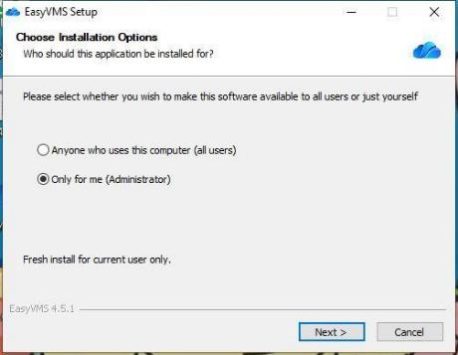
EasyVMS installation file to install the client software, and a login dialog box will pop up, as shown below.
.
Click [Cancel] to cancel the EasyVMS software installation, or click [Next] to enter the interface as shown:
.
.
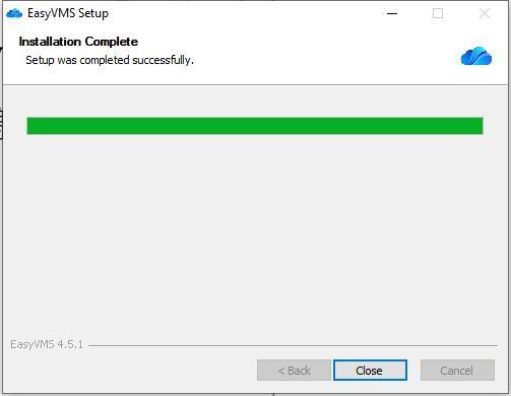
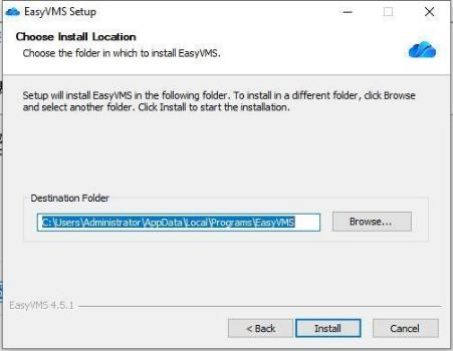
You can edit the storage location of [Destination Folder], and click [Install] to enter the interface as shown:
Check [Run EasyVMS], click [Finish] button to enter the EasyVMS login interface. If [Run EasyVMS] is not checked, click [Run] to install EasyVMS only, and EasyVMS will not be run.
.
.
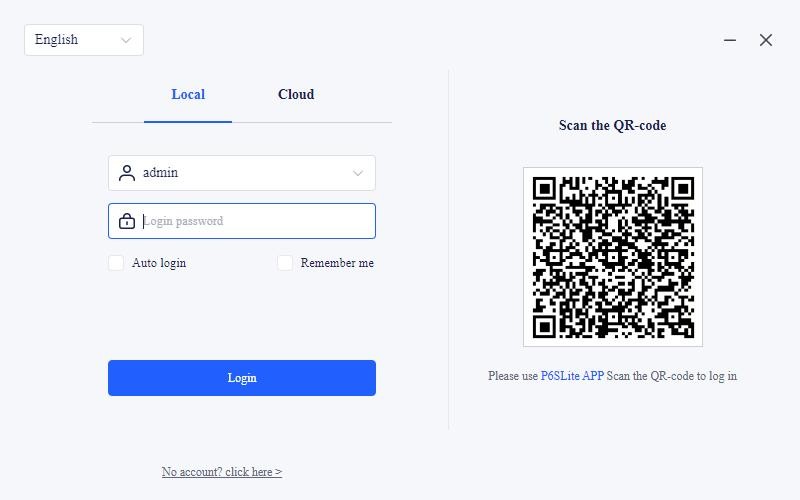
 Click to run EasyVMS software and enter the EasyVMS login interface as shown
below:
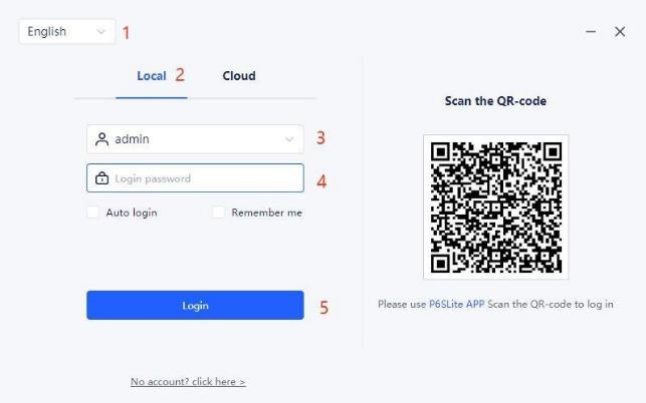
.
.5. Enter the EasyVMS management interface.
.
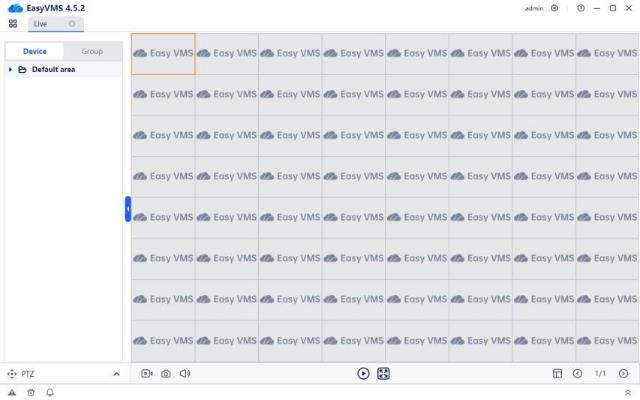
.
Select  in the upper right corner of the software to modify the user’s password or exit the EasyVMS software operation, as shown below;
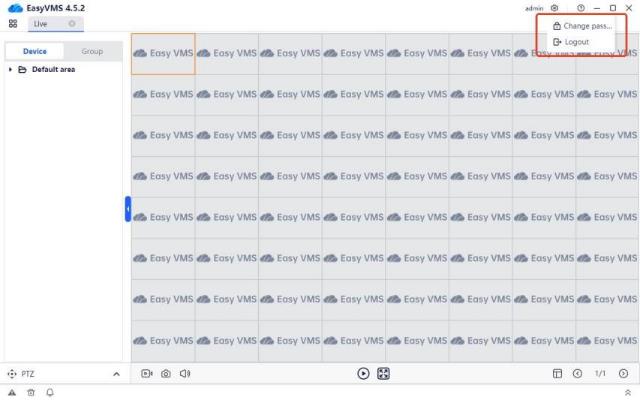
Note: The default username of the local login is admin, and the default password is empty.
.
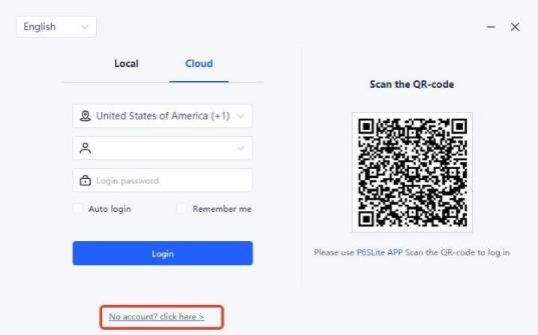
Cloud account registration: Select [No account? Click here] on the EasyVMS login interface, enter the cloud account description interface, and download P6SLite to register a cloud account as required.
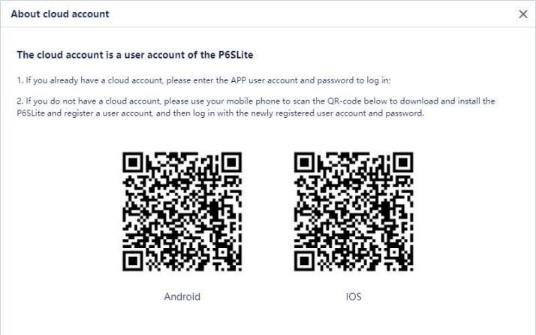
Manual login with cloud account: After completing cloud account registration, follow the steps below to log in with cloud account:
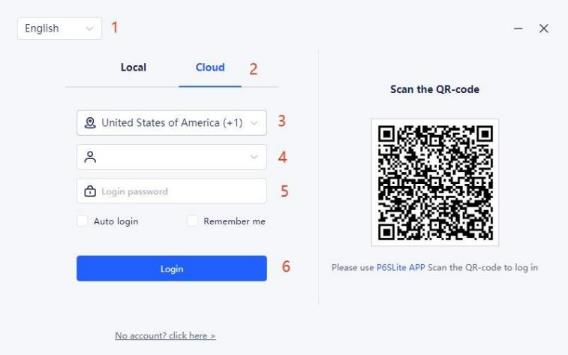
.
.5. Enter the EasyVMS management interface.
Note: The current cloud account supports selecting corresponding addresses by country.
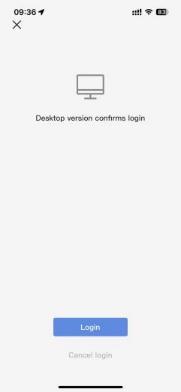
Scan and log in cloud account with P6SLite APP: Use P6SLite APP to scan the QR code, and the prompt will pop up on the mobile phone, as shown in the figure:
.
.
Click the [Cancel login] button to cancel running EasyVMS on the PC. Click the [Login] button to run EasyVMS on the PC.
.
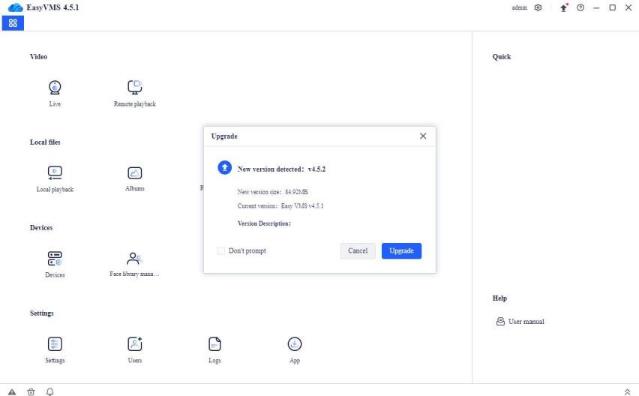
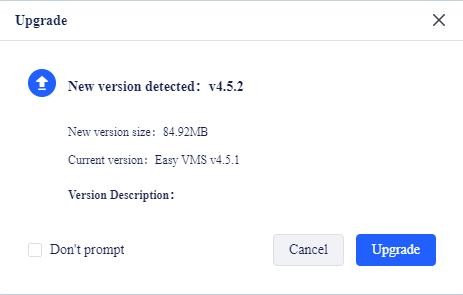
Run EasyVMS and enter the EasyVMS login interface. When EasyVMS detects a new version, a prompt will pop up as shown in the figure below:
Click [Cancel] to cancel upgrading to the latest version.
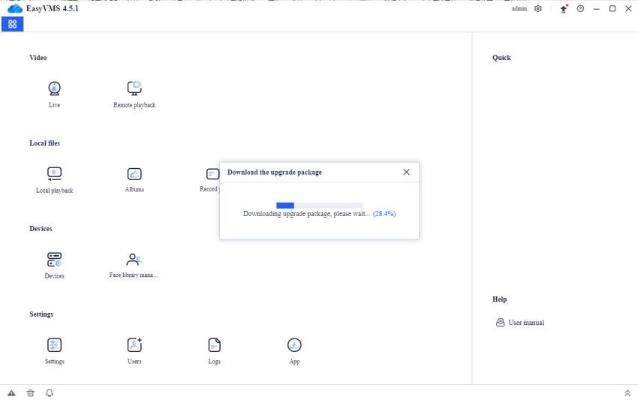
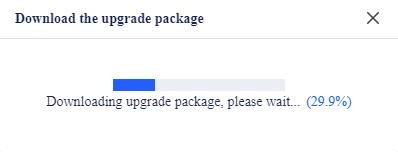
Click [Upgrade], the “Download the Upgrade Package” prompt box will pop up, as shown in the figure below:
.
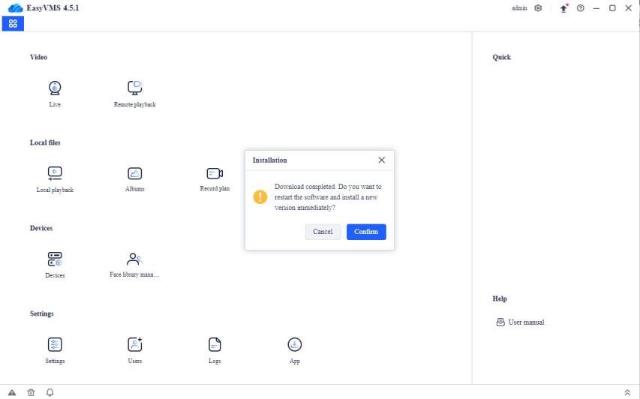
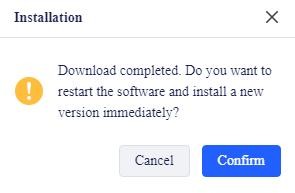
After the latest version is downloaded successfully, a prompt box ” downloaded completed , do you want to restart the software and install the new version immediately?” will pop up as shown in the figure below:
Click [Cancel] to cancel installation of the latest EasyVMS firmware
Click [confirm], and the EasyVMS software will be automatically logged in after the latest firmware is installed.
.
.
.
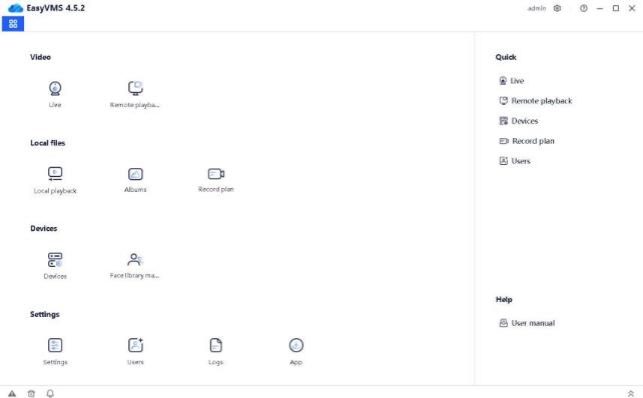
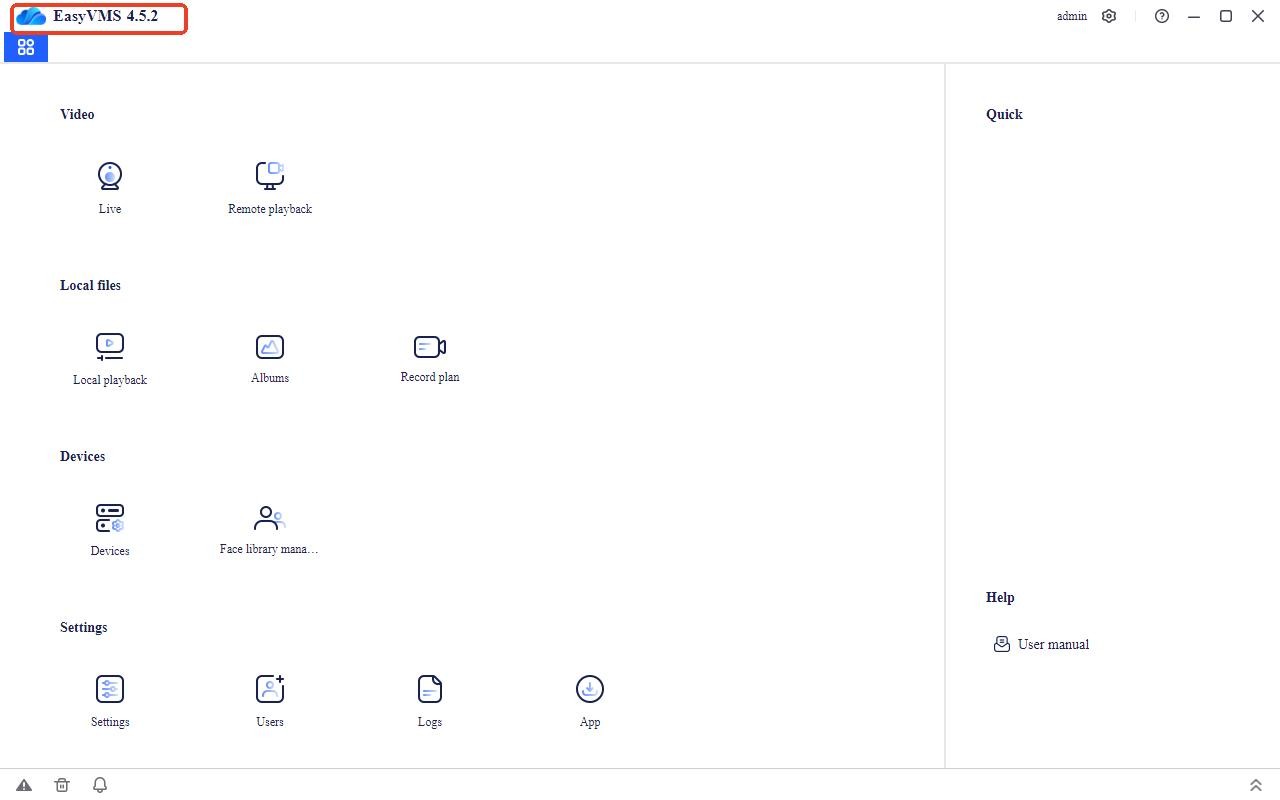
Select EasyVMS on the start menu, or start the shortcut on the desktop. After successful login, it will be shown in the figure below.
The main navigation buttons on the top of the interface are live, remote playback, local playback, Albums, Record plan, Face library management, Setting, Users, Logs, and APP. You can click the navigation button to enter the corresponding configuration interface. On the left side of the interface is the navigation, on the right side are the common functions and user help manual, and in the upper right corner are the current account login status, settings (including logout and password change), help, minimize, maximize, and close buttons. First start with device management and add devices.
.
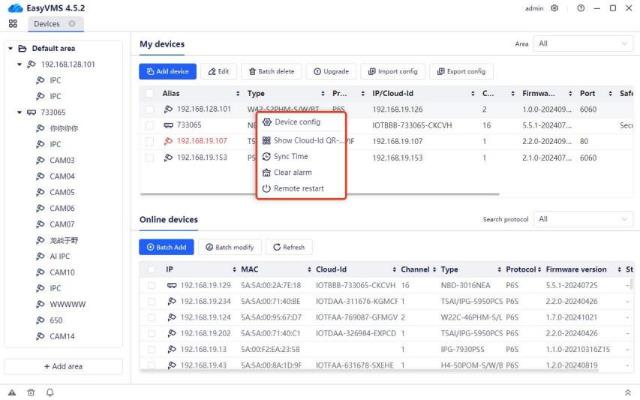
Click the device management button to enter the device management page, as shown in the figure below; in the device management page, you can perform manual addition, modification, batch deletion, batch upgrade, APP cloud account management, regional addition, batch addition, batch IP modification
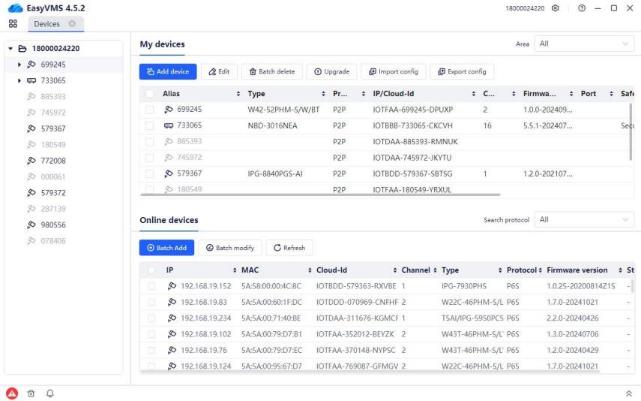
and successfully added devices, right-click remote settings, time sync, clear alarms, display QR codes and other functions.
.
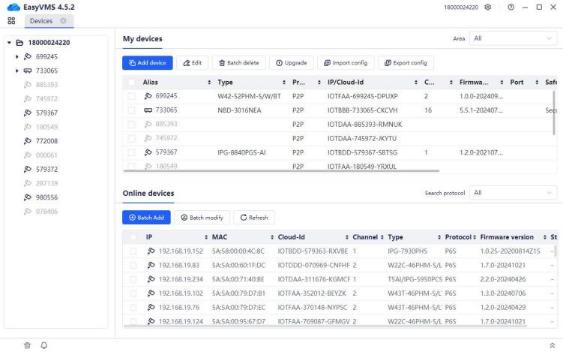
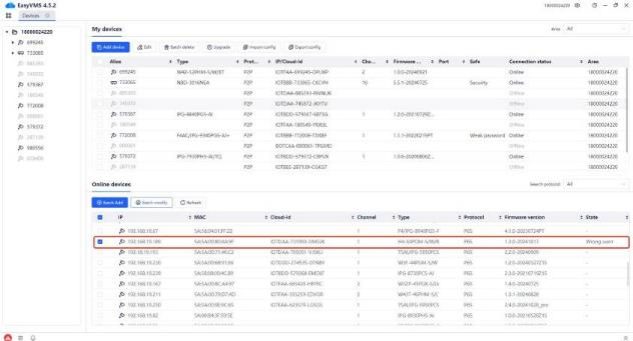
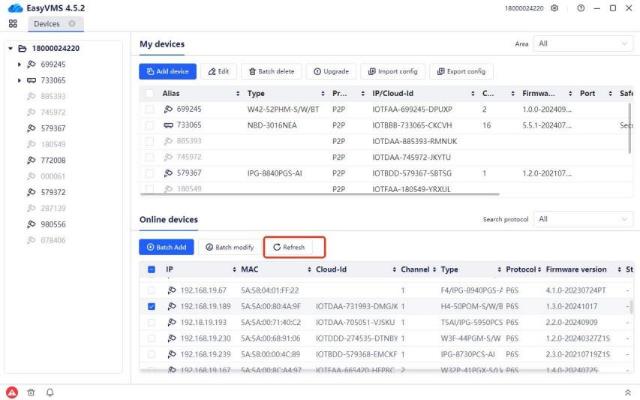
Device management is displayed in two areas: added devices and LAN online devices (as shown in the figure below)
LAN online devices are detected device information (the detection protocols are only P6S and ONVIF), which can be filtered by the detection protocol on the right. Support (all, P6S and ONVIF protocol specific filtering)
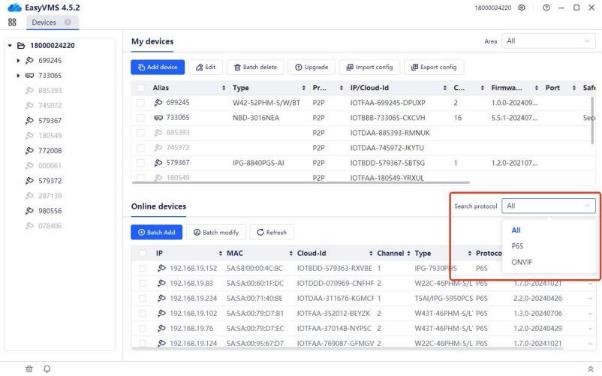
LAN online devices: device IP, MAC, DID, device channel number, device model, protocol type currently used by the device, device firmware version and status will be displayed during detection. (Note: The status mainly displays the devices that have been modified in batches and the current response status of the device)
.
.
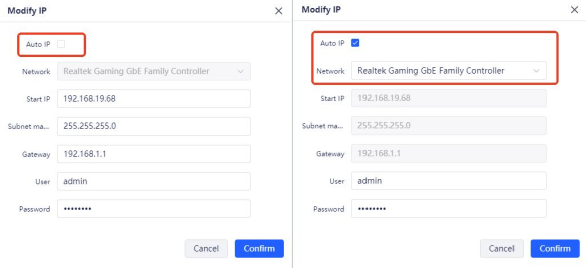
For example: the starting IP is 192.168.19.152, and two P6S protocol devices are checked. The IP of device 1 will be changed to 192.168.19.152, and the IP of device 2 will be changed to 192.168.19.153.
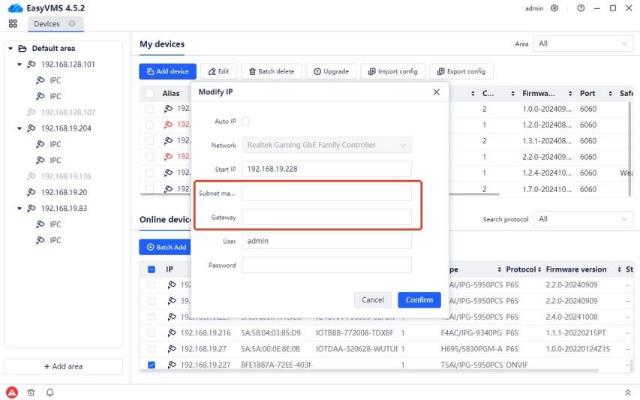
(Note: When checking the ONVIF protocol device to modify the IP in batches, the default display cannot obtain the subnet mask and gateway, and the current protocol version does not support it)
.
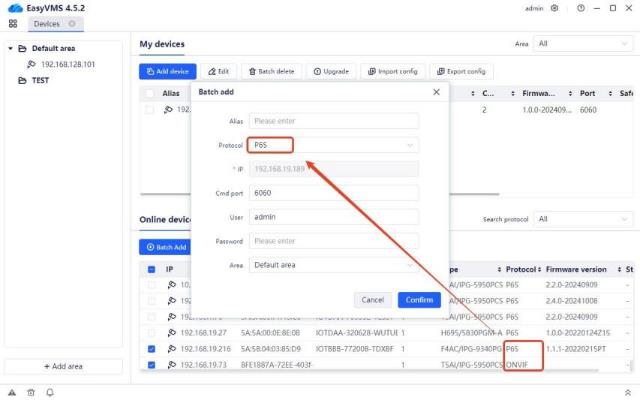
When adding in batches, you can switch the protocol type among P6S, P2P and ONVIF.
.
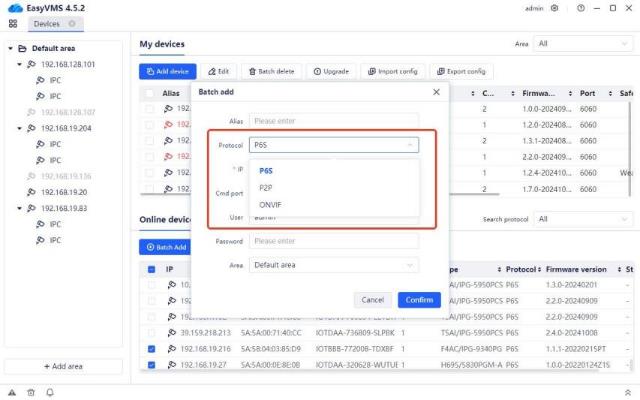
.
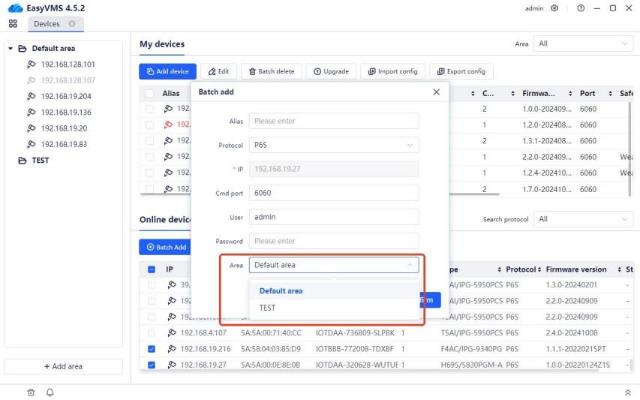
When there are multiple areas on the left, clicking batch addition allows selecting the area to the corresponding area on the left.
After adding, the default alias of the device added by P6S or ONVIF protocol is ip, and the default alias of the device added by P2P protocol is the number in the middle of the did number.
.
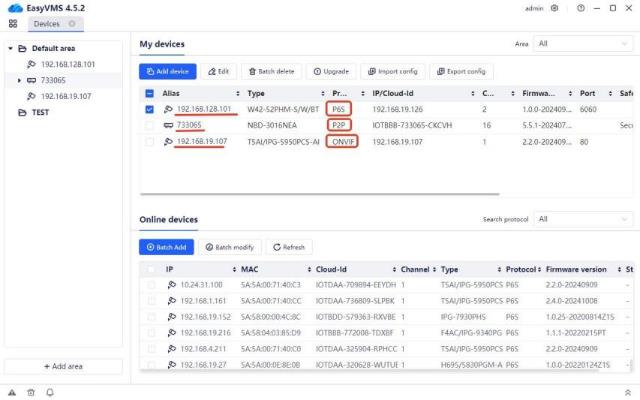
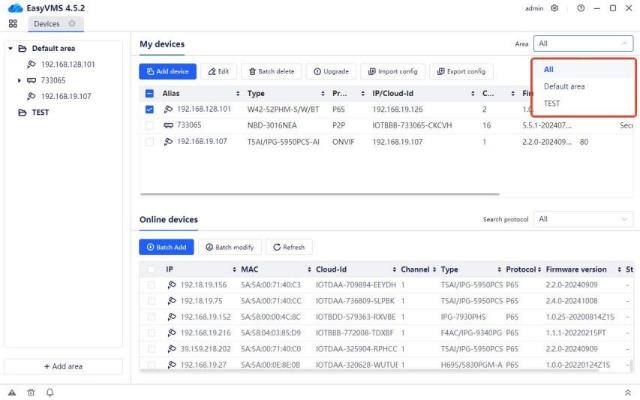
When a device has been added, the corresponding device information can be found in the added devices and the corresponding default area on the left. For the added devices, there is a regional module in the upper right corner to support the division and screening of devices in multiple areas.
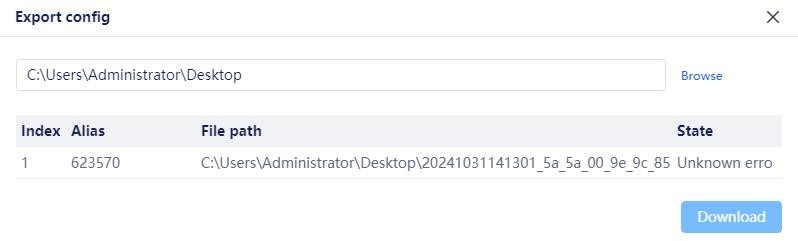
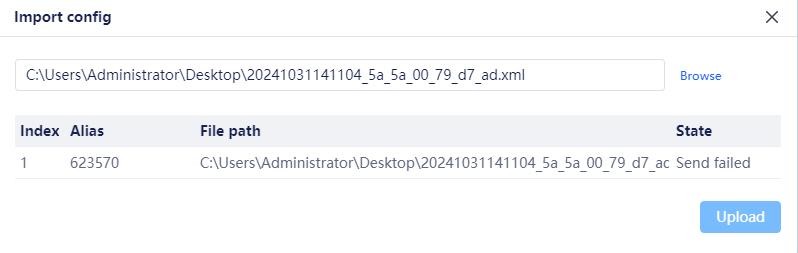
Added devices: manual addition, modification, batch deletion, upgrade, batch import configuration and batch export configuration functions.
password and area. When adding P2P protocol devices, enter the device did, device password and area. The device alias is filled by default, and the filling logic is consistent with batch addition. (Note that the signaling port of the ONVIF protocol is different from that of the other two protocols)
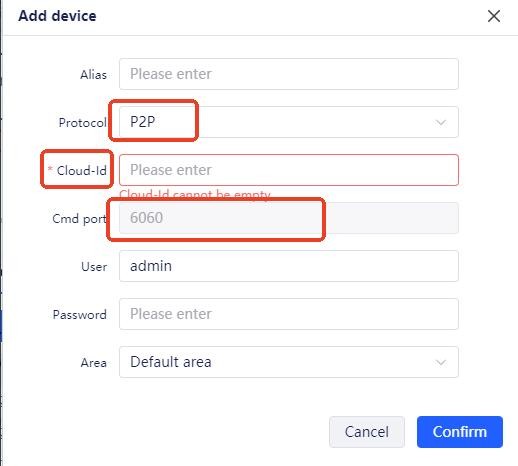
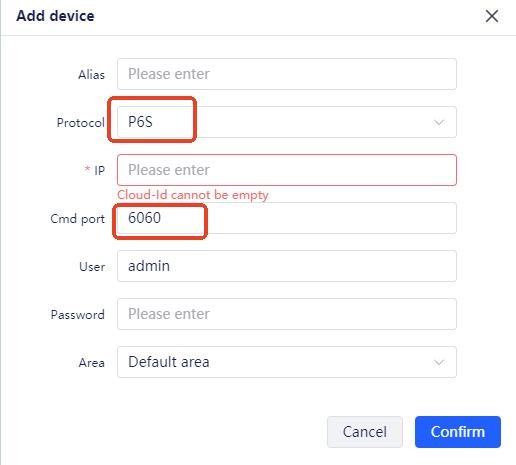
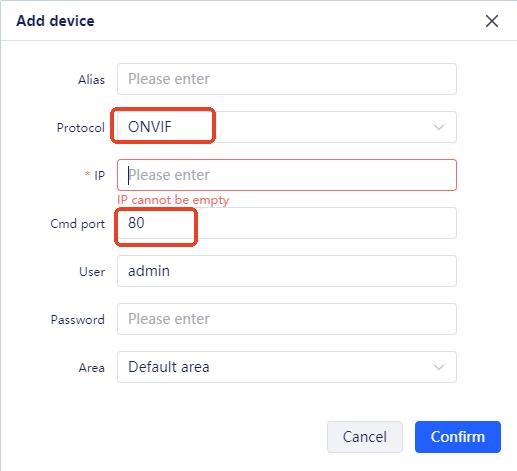
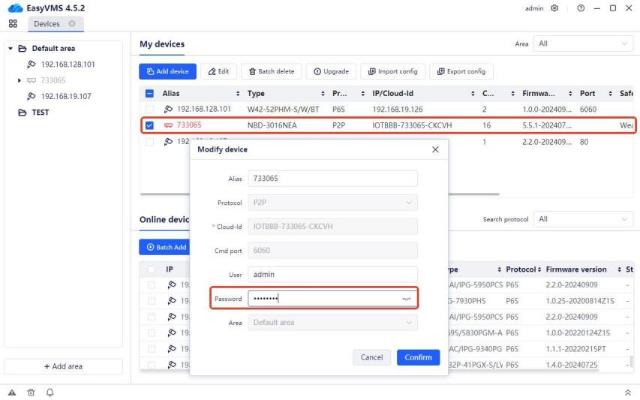
Usage scenario: It is used to modify the device password when adding devices in batches, there is a password for a specific device, but no input is made.
After the password modification is completed, the device is displayed in black, indicating the device is normal. (Note: When the device is abnormal, such as the device password is wrong, the device is displayed in red, and when the device is offline, the device is displayed in gray)
.
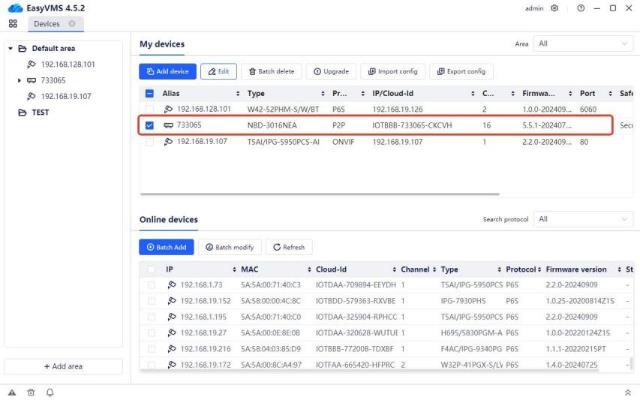
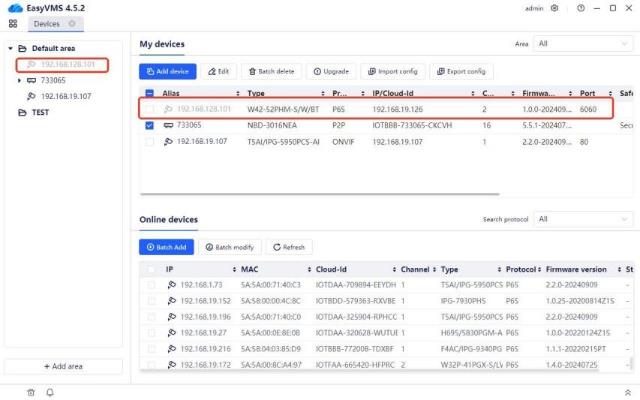
.
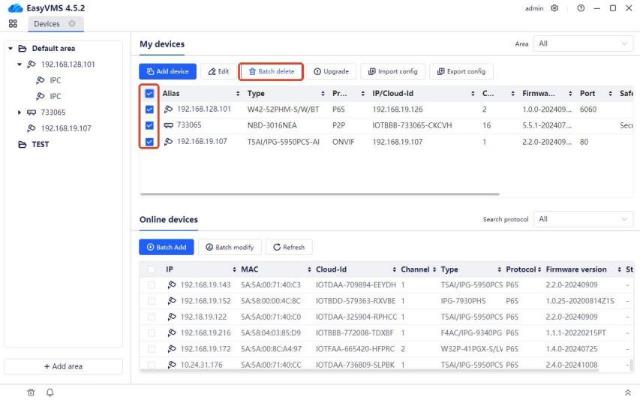
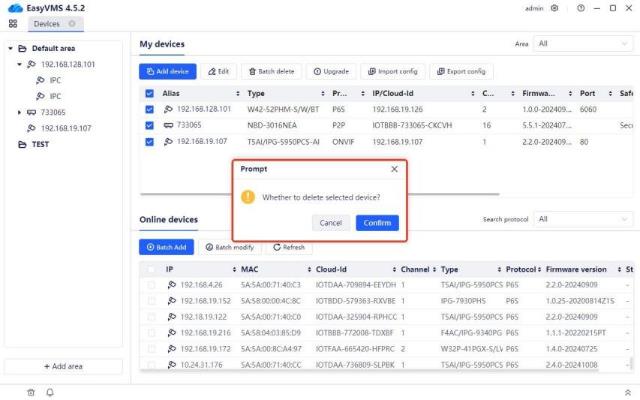
Upgrade function: Support local upgrades and cloud upgrades on the device side
.
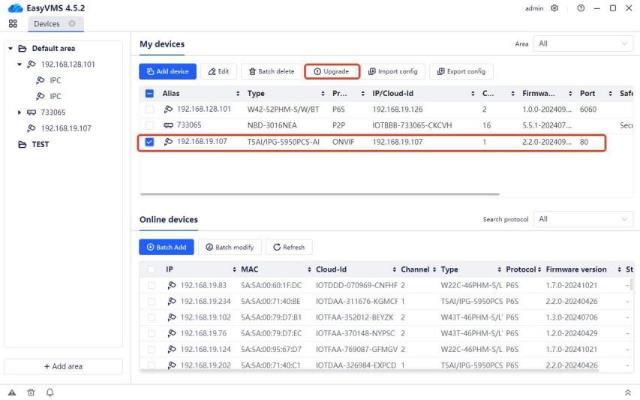
Check the specific device and click Upgrade, and the corresponding upgrade page will be displayed. (Note: The 16002 error message here indicates that the device firmware version is too old. It needs to be manually updated to the new firmware version in recent years before it can be viewed.)
.
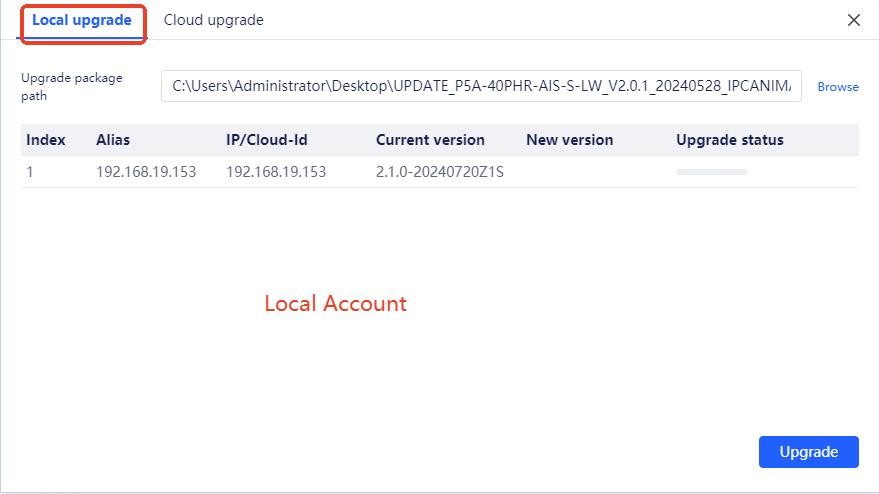
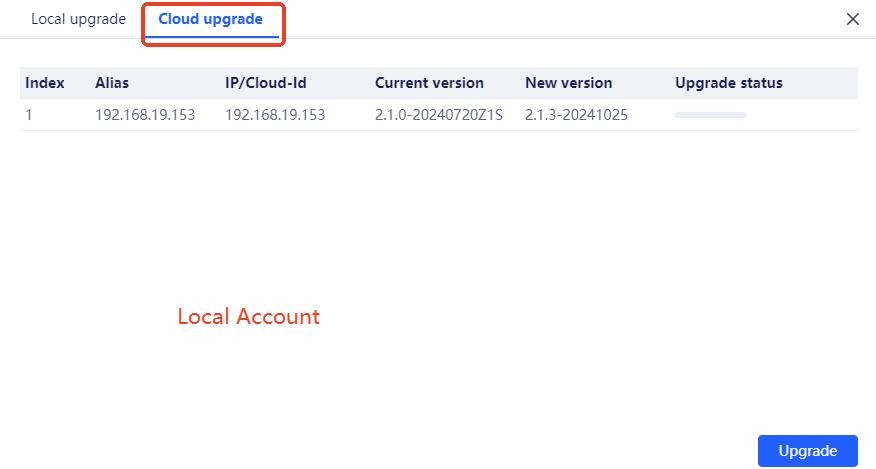
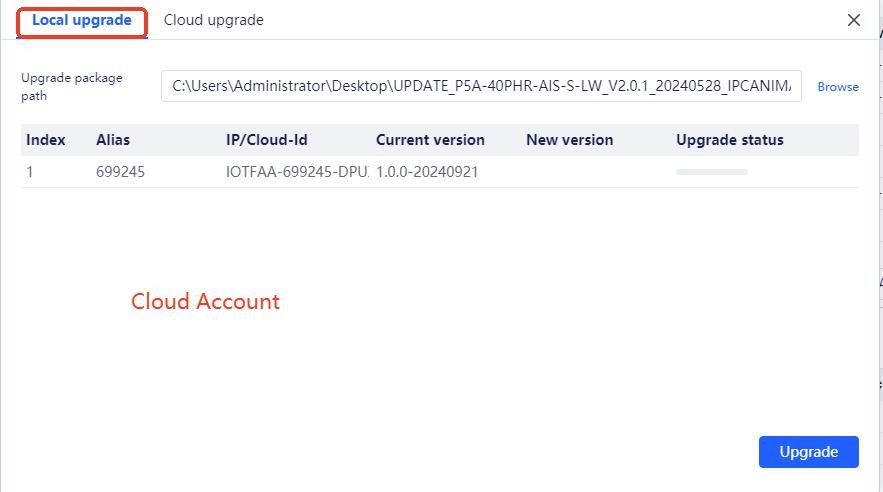
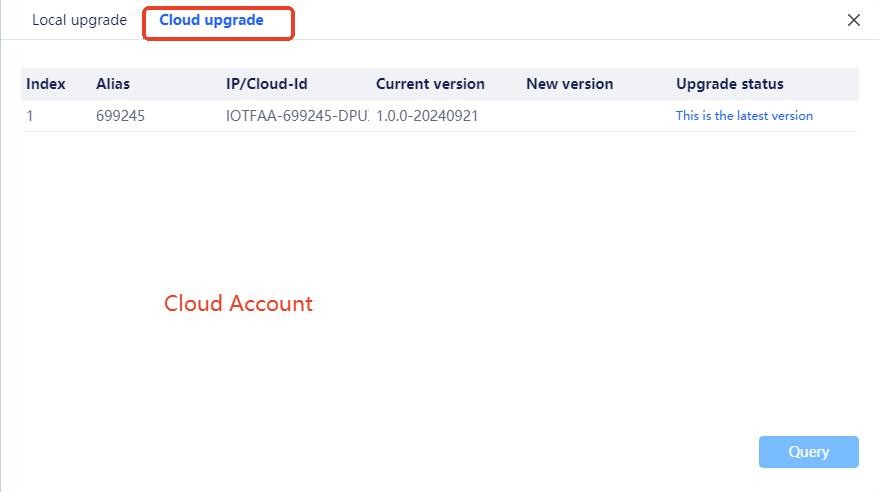
.
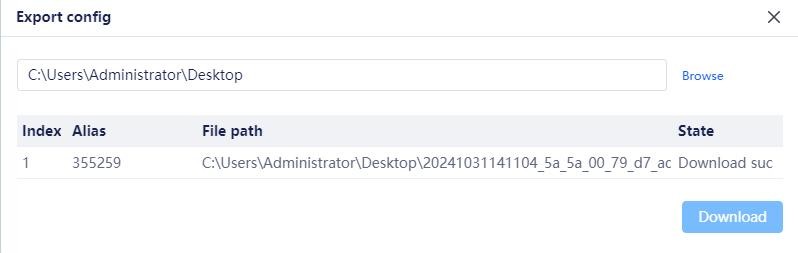
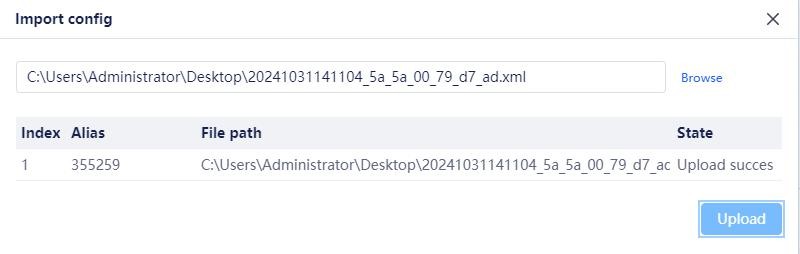
.
.
.
.
.
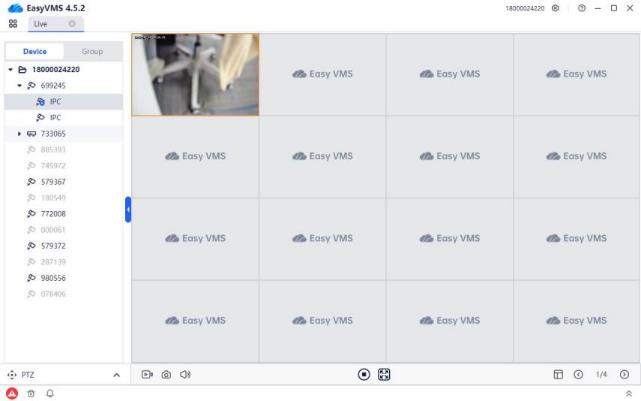
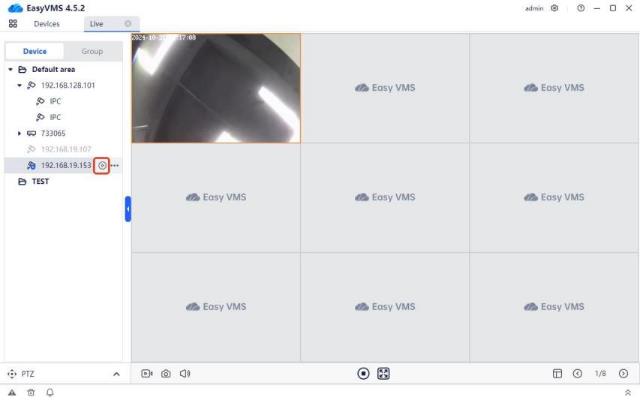
Double-click the device alias in the device list on the left or click the play icon to open the preview of all channels of the device in the preview interface on the right, as shown in the figure below:
.
.
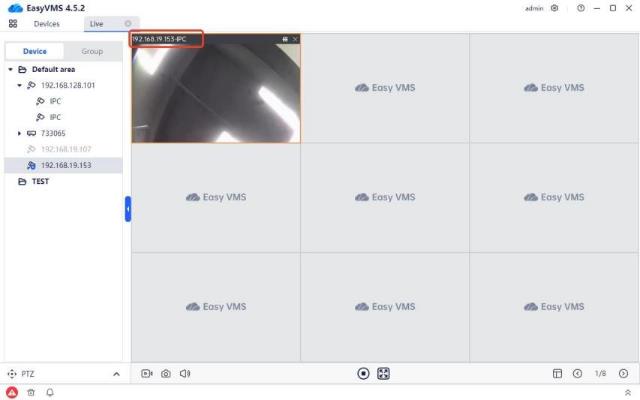
Move the mouse over the image to display the title, which is: Device alias-channel name.
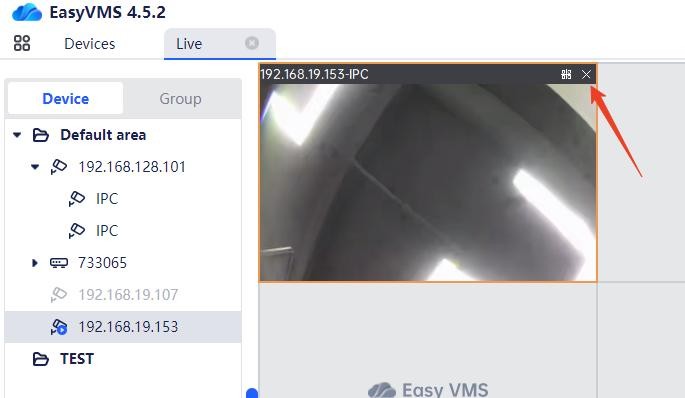
Click the cross in the upper right corner of the image to close the current preview image;
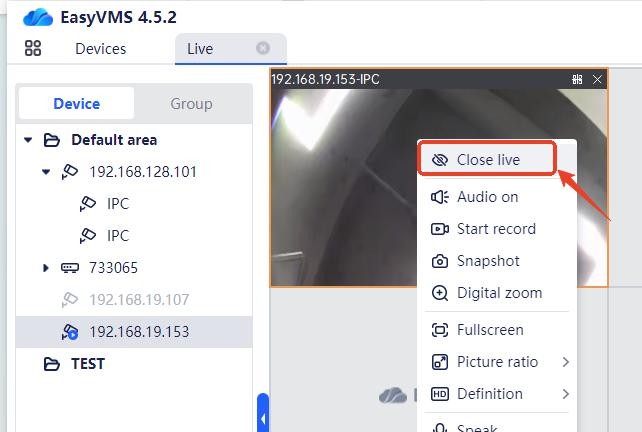
Click “Close Preview” in the list that pops up when you right-click the image to close the current preview image
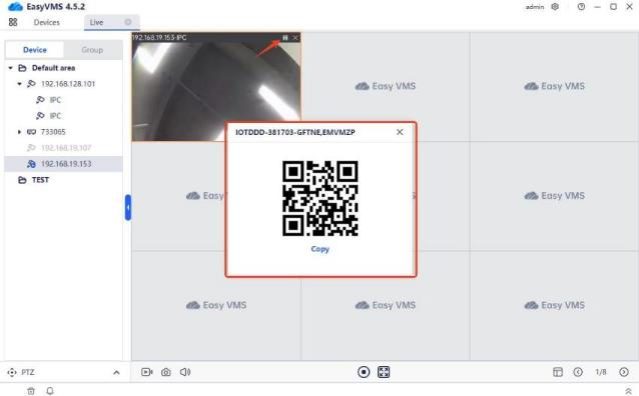
Click the QR code icon in the upper right corner of the image to view the device’s DID number and DID QR code.
Preview all: open the preview images of all channels in the area;
Close all: close the preview images of all channels in the area;
HD: open the preview images of all channels in the area with HD quality;
HD: open the preview images of all channels in the area with HD quality
.
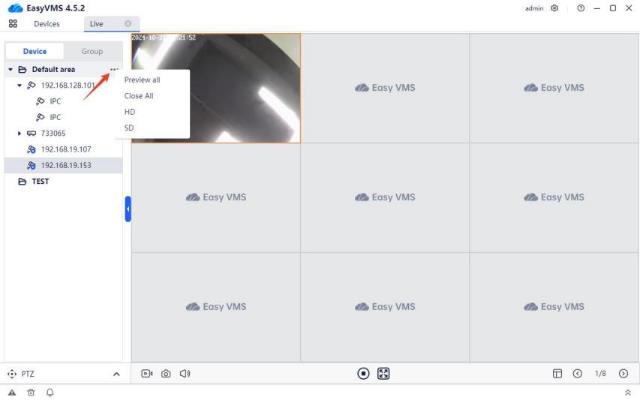
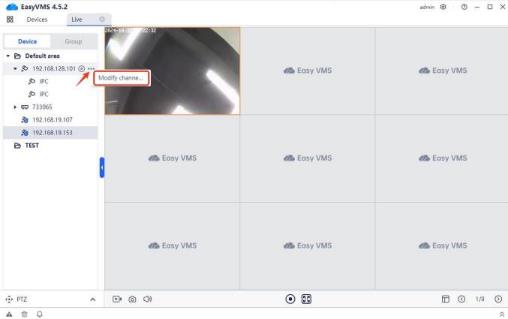
.
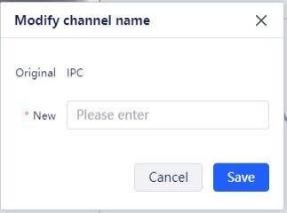
.
There are the following function buttons on the real-time preview page:
.
.
The icon is the button to turn on/off all-channel recording. Clicking it will turn on/off all-channel recording;


The  icon is the snapshot button. Clicking it will snapshot the image of all channels to the local computer;
The  icon is the audio button. Clicking it can adjust the volume of the EasyVMS client;
The  icon is the button to turn on/off all-channel preview. Clicking it will turn on/off all-channel preview images;
The  icon is the full-screen switch button. Clicking it can switch to full-screen preview. In full screen mode, you can right-click “Exit Full Screen” or press the ESC key on the keyboard to exit; The
  icon is the screen split button. Click it to set the number of screen splits. Currently,
single screen, four screens, nine screens, sixteen screens, twenty-five screens, thirty-six screens, forty-nine screens, and sixty-four screens are supported for preview;
The  icon is the button to switch to previous screen or next screen. It can be used in single screen, four screens, nine screens, sixteen screens, and twenty-five screens.
.
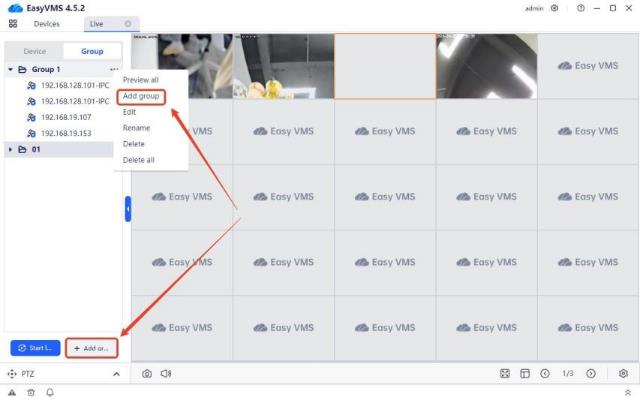
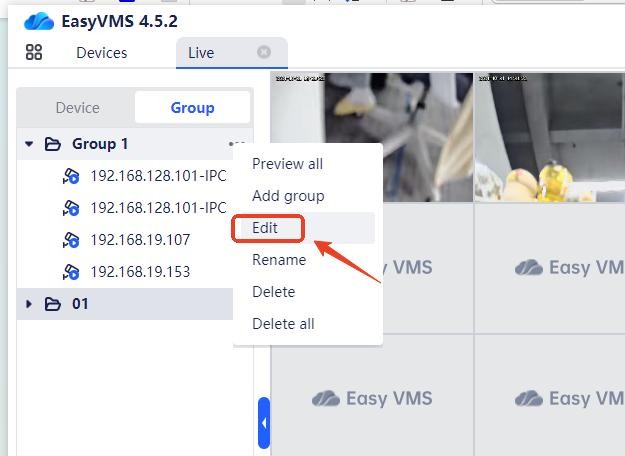
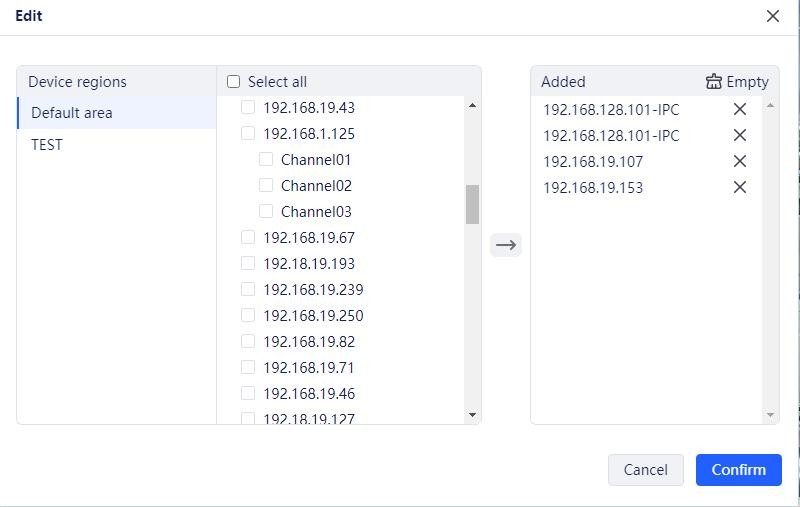
Different devices are divided into a group based on channels and regarded as a whole. After playing the real-time stream of this group for a specified time, it will automatically switch to the next group.
.
.
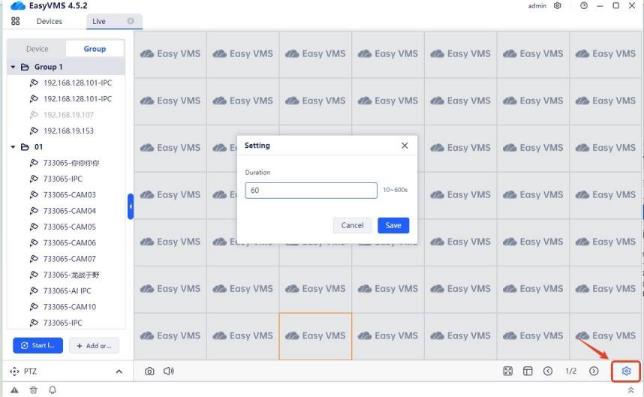
Click the “Start Patrol” button to start the patrol preview of the first group for a specified interval before proceeding with the preview of next group.
Click the setting icon in the lower right corner to modify the patrol time interval, as shown below:
.
.
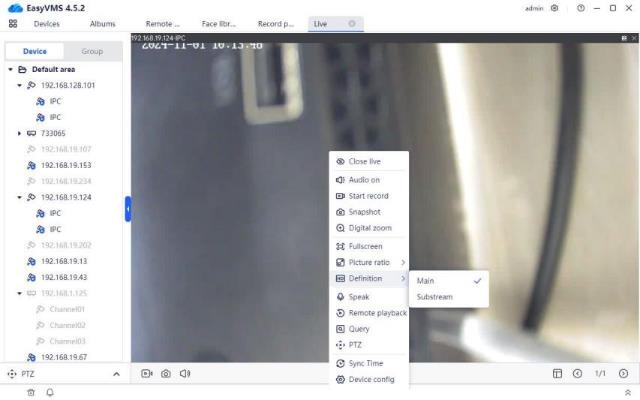
Select a single image and right-click to bring up the right-click control menu, as shown below:
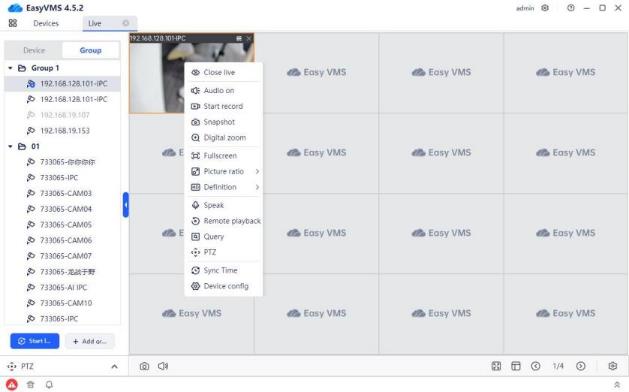
Click the [Close live] button to close the preview of the current channel; Click the [Audio on] button to enable audio preview of the current channel;
Click the [Start Recorded] button to enable single-channel recording of the current channel and save the recording locally;
Click the [Snapshot] button to enable snapshot of the current channel and save the image locally; Click the [Digital Zoom] button to electronically zoom in on the channel;
Click the [Full Screen] button to switch the preview to full screen. It is the same as the “Full Screen” function in the toolbar at the bottom of the preview operation page;
Click the [Picture Ratio] button to set the current preview aspect ratio to the original ratio or fill ratio;
Click the [Definition] button to switch the channel quality to the main stream/sub-stream (valid only for P2P (added by DID number) settings);
Click the [Speak] button to have a two-way intercom with the front-end camera;
.
Click the [Remote Playback] button to jump to the remote playback page and automatically search and play the playback of this device channel today;
Click the [PTZ Control] button to expand the PTZ panel and control the PTZ of the current channel device;
Click the [Sync Time] button to synchronize the time of the current channel with the current PC time;
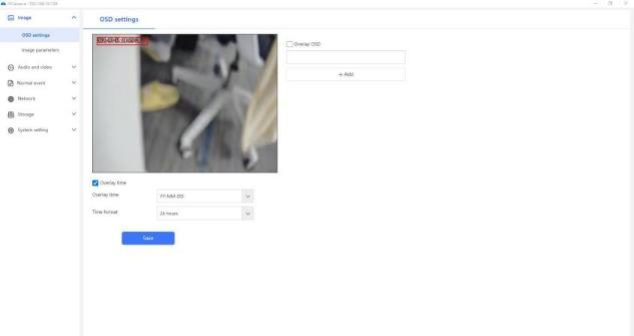
Click the [Device Config] button to open the device configuration page and configure the device.
.
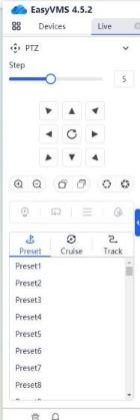
Click “PTZ” in the lower left corner to expand the PTZ control interface and operate some PTZ-related configurations. As shown below:
.
.
.
After clicking to select the device channel, the calendar will display a small blue dot for the date with recordings. After selecting the date, click the “Search” button to find the recording. Click the play icon or double-click the time bar to play the playback video.
.
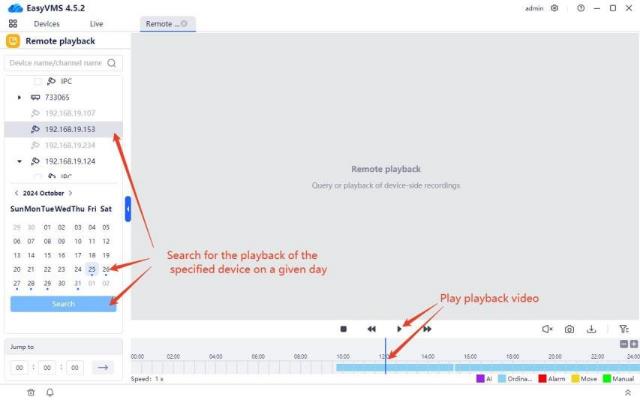
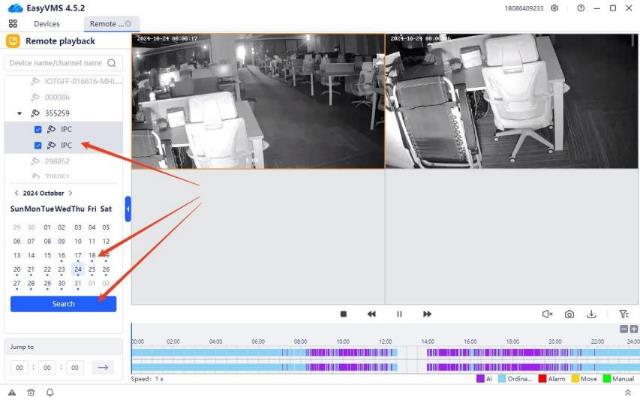 For multi-view devices and NVRs, log in to the cloud account and it’s able to play back up to 4 channels at the same time. Check the channel to be played back, select the date, click Search, and click the time point on the timeline to be played back.
.
video at the specified time point. Double-clicking the specified position on the timeline can also play the playback at the specified time point.
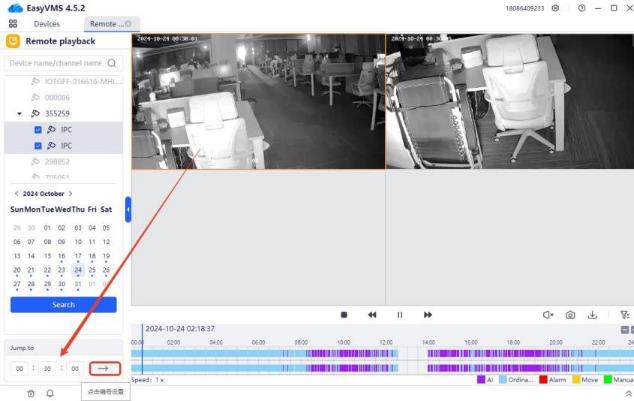
Introduction to playback video control buttons

Stop: Stop playing the video;
Slow: Slow playback of the video, at 1/2x, 1/4x, or 1/8x speed;
Play/Pause: Play video/pause;
Fast: Fast playback of the video, at 2x, 4x, or 8x speed.

Turn on/off sound: Turn on/off the audio of the playback video;
Snapshot: Take a snapshot of the video and save it locally;
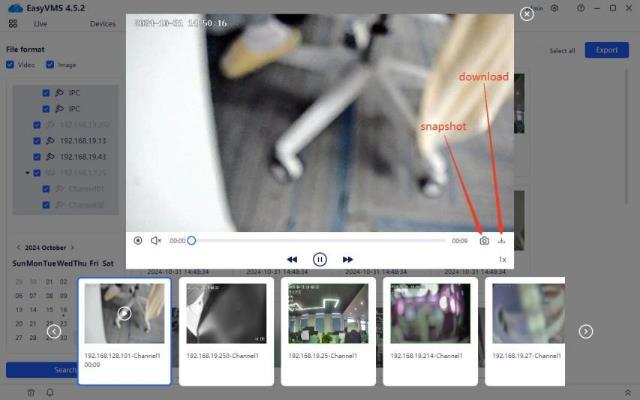
Download video: As shown in the figure, you can download a certain playback video file to your local computer.
.
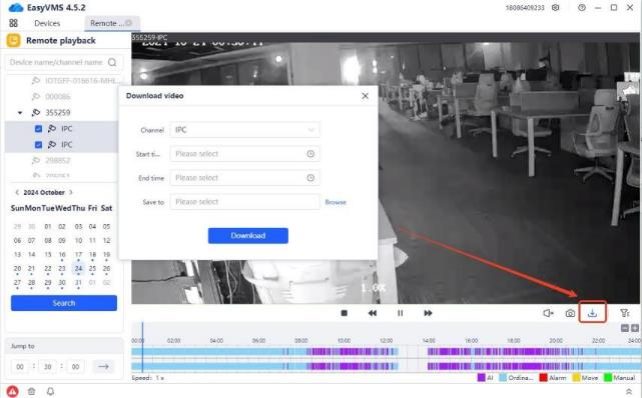
.
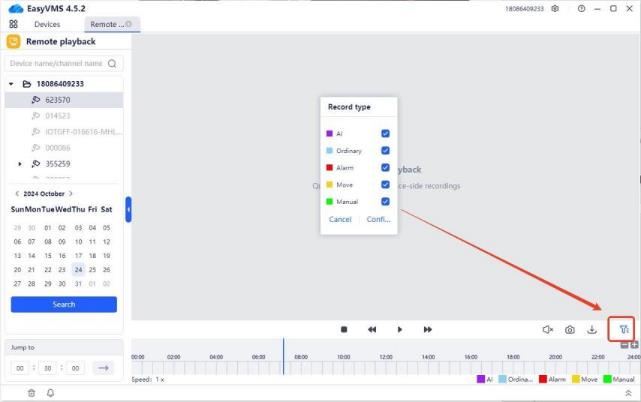
You can filter the specified video types, including AI, ordinary, alarm, move, and manual video.
.
.
.
Local playback allows searching for video playback saved locally (including manual recording and scheduled recording). The usage is the same as the remote playback page.
.
.
.
Local album is mainly used for managing local channel snapshot and recorded files (data of scheduled recording cannot be searched).
The file types that can be filtered include: video files, image files; Supports multi-select channel device search;
Supports file search by day;
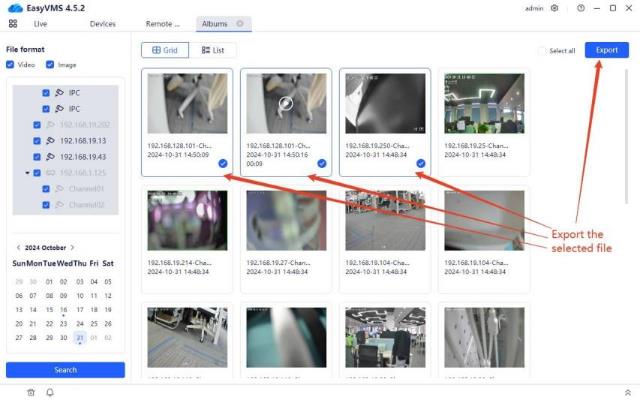
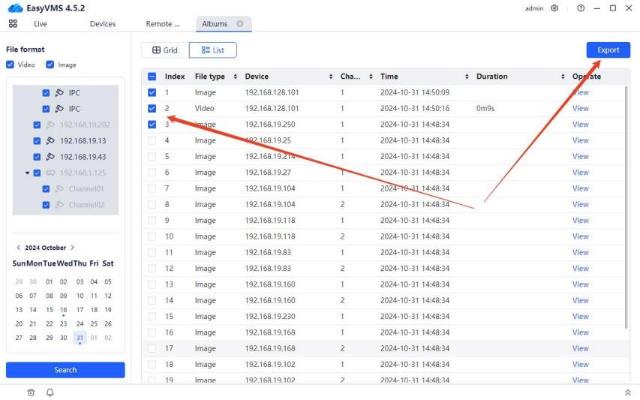
File viewing modes include: grid mode, list mode
Click on the image to enlarge the image; click on the video to enlarge the video; When playing the video, you can snapshot and download it.
.
In grid mode and list mode, after checking the file, click the “Export” button to download the file to
the local.
.
.
.
Enable the recording plan to automatically perform local recording on the channel device.
The scheduled recording mode options are: Custom, Automatic, Disable.
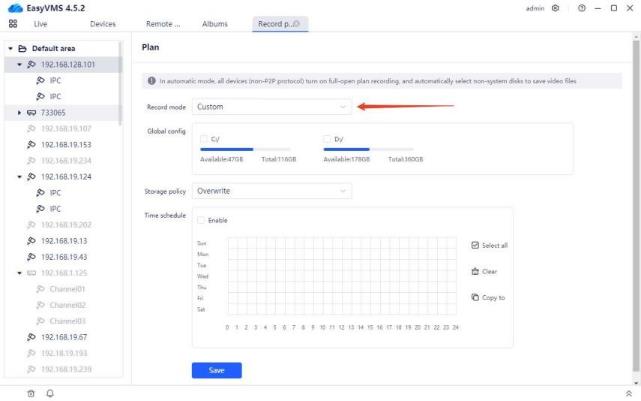
Select “Custom” for the scheduled recording mode, and customize the channel scheduled for recording, storage path, storage strategy and time.
Global configuration: The disk where the recording is saved. If you select C drive, the recording file is saved in C:\RecordPlan
Storage strategy: The measures taken when the available capacity of the selected partition is insufficient. “Loop write” means deleting from the earliest recording, reclaiming 10GB disk space, and continuing to save the latest recording. “Stop recording” means that no more recording will be performed.
Recording time schedule: Customize the recording time, and the blue square indicates that recording is enabled during this period. Click Copy to set the scheduled recording time of the channel in batches.
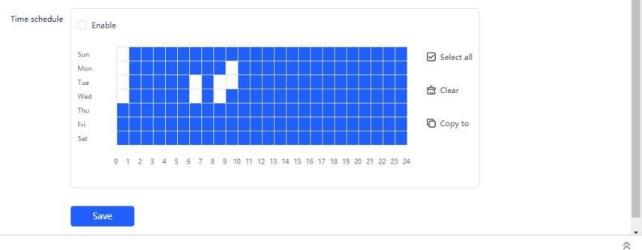
Automatic scheduled recording
Select “Automatic” for the scheduled recording mode, all devices (non-P2P protocol) will enable all-day scheduled recording, and the recording files will be saved in non-system disks.
Select “Disable” for the scheduled recording mode, which means that scheduled recording will not be enabled.
Click  to enter the system interface, as shown in the figure below
.
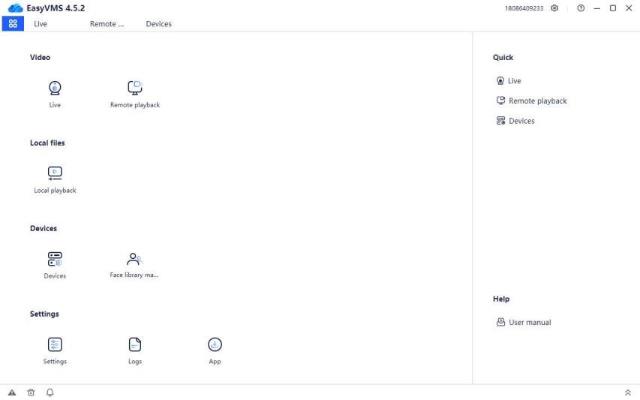
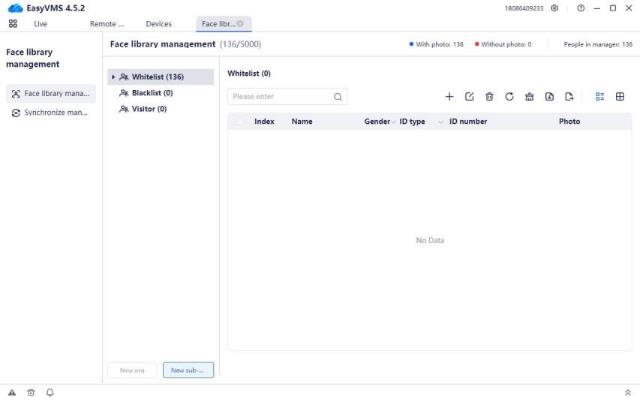

Click to enter the face database management interface. Face database management is divided into two modules: face database management and sync management, as shown in the figure below
organizations, modifying organization names, deleting organizations, and clearing organization personnel.
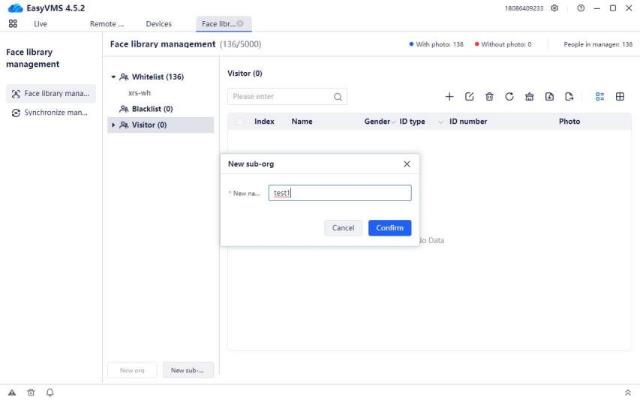
Add a subordinate organization: Click the  button to enter the interface of creating a subordinate organization, enter the organization name, and click [Confirm] to create a new organization, as shown in the figure below:
.
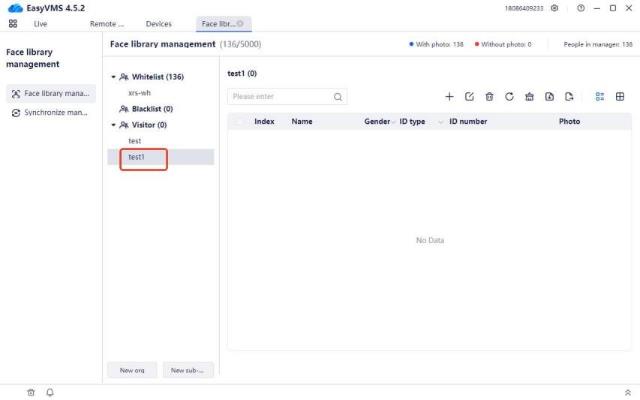
.
Create a new peer organization: Select the created subordinate organization, click the  button to enter the interface of creating a new organization, click [Confirm] to create a new peer organization, as shown in the figure below:
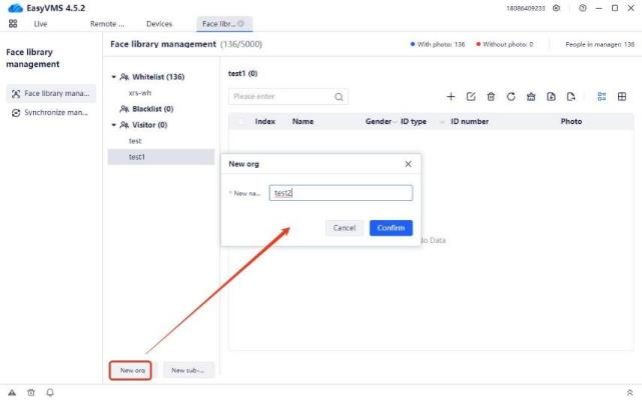
.
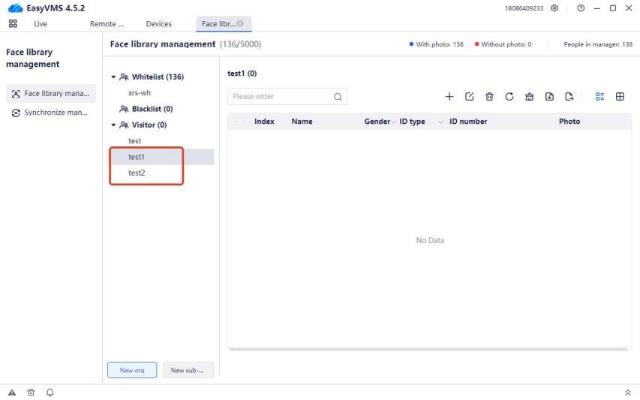
Note: The default organizational structure face database does not support the addition of peer
organizations, such as whitelists, blacklists, and guests.
.
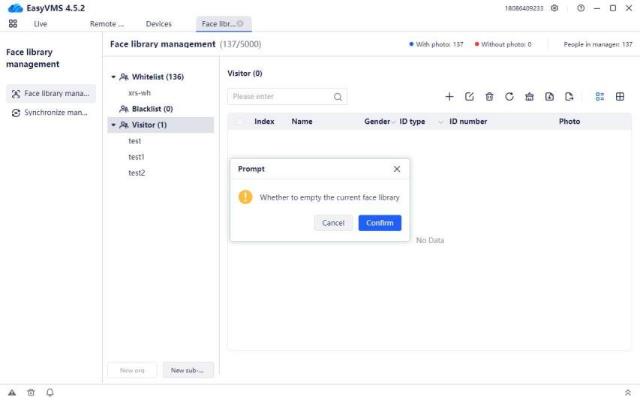
Clear face database: Click the  button to bring up a prompt indicating whether to “Confirm to clear the current face database”, as shown in the figure below
Click [Confirm] to clear all organizations under the current face database, and the personnel information is also deleted.
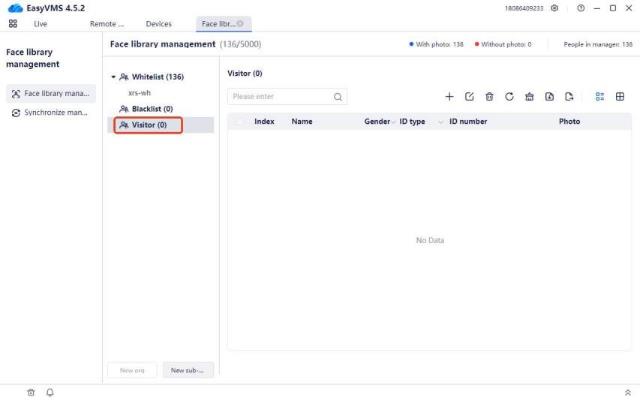
Click [Cancel] to not clear all face data under the current face
organization.

: Organization deletion button, delete the corresponding
 : Organization name edit button, re-edit the organization name.
.
.
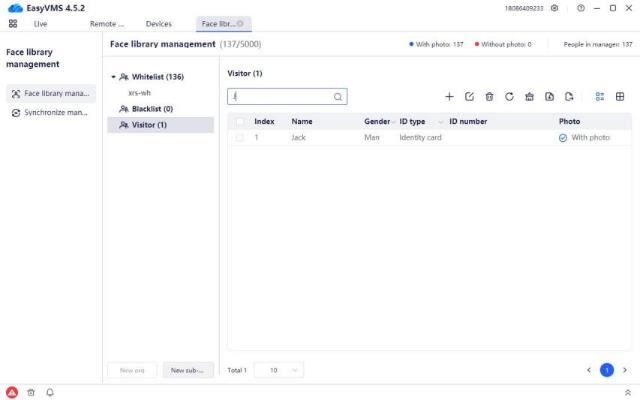
.
Click the button to enter the addition interface, select photo, select the personnel photo, fill in the name and other information, click [OK], and view the added personnel in the face database information list, as shown below:
.
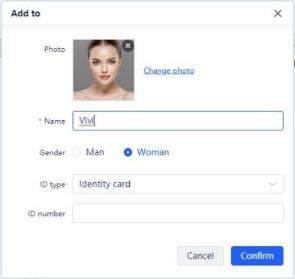
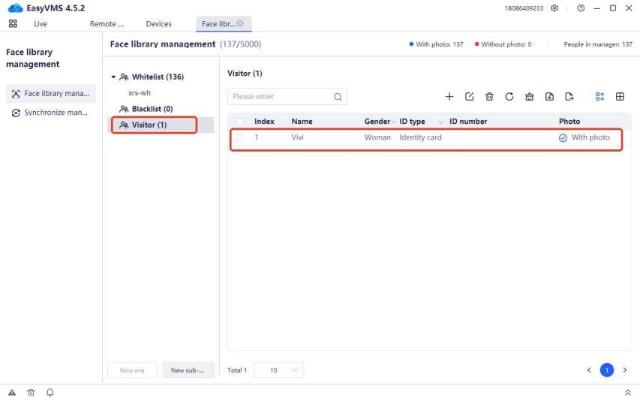
Note: Personnel cannot be added repeatedly
.
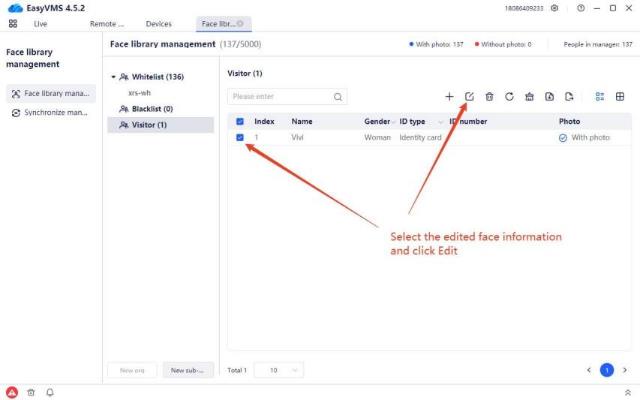
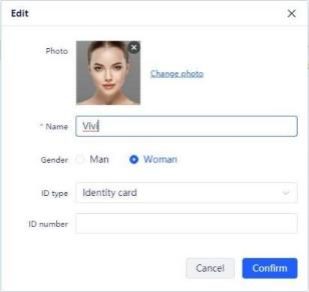
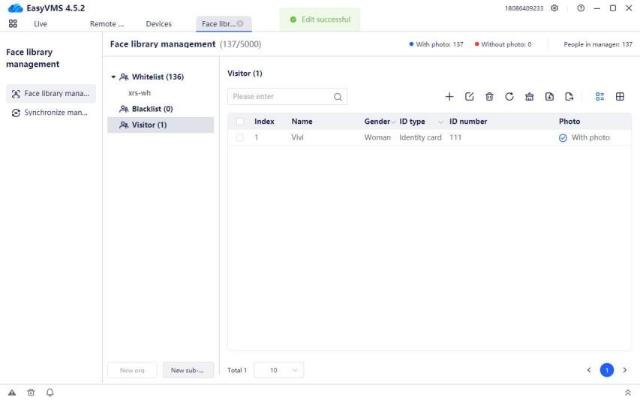
Select the personnel to be edited, click  to enter the edit interface, edit the photo, name, gender, ID type and ID number, click [confirm], and view the modified new personnel information in the personnel information list, as shown below:
.
.
.
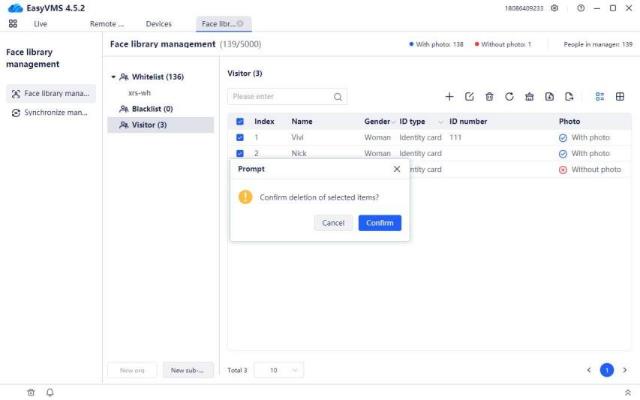
Select multiple or one personnel to be deleted, click  to pop up a prompt box “Confirm to delete the selected personnel”, as shown below:
Click [Confirm] to delete the selected personnel.
Click [Cancel] to not delete the selected personnel.
.
.
Click the  [Refresh] button to refresh the personnel information list to the latest information.
.
.
Click the  [Clear] button to pop up a prompt “Confirm to clear the current organizational structure face”, as shown below:
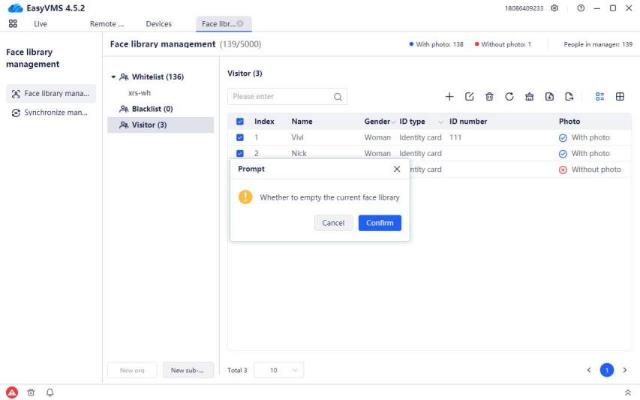
Click the [Confirm] button to clear the personnel information in the current structure face database. Click the [Cancel] button to not delete the personnel information in the current architecture face database.
Note: This clear button does not support clearing the default face database organizational structure, such as the whitelist, blacklist, and guests.
Click the  button to enter the file import interface, click [Select Folder], and select the folder to be imported, as shown in the figure below:
.
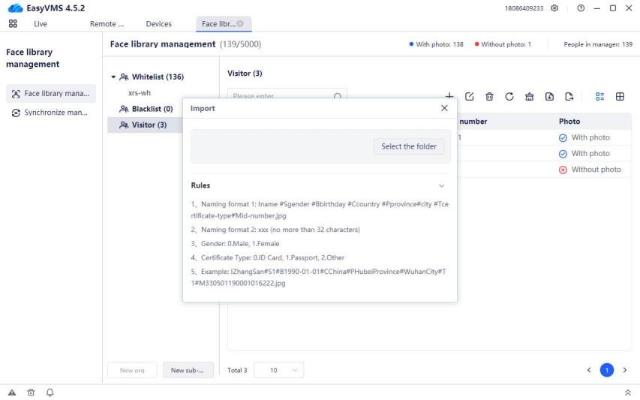
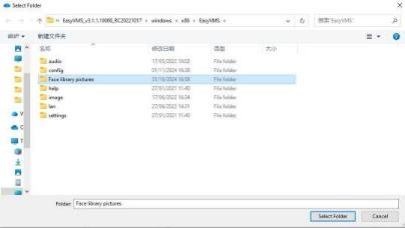
Click [Select Folder] to enter the file import interface. After the import is completed, it is shown in the figure below:
.
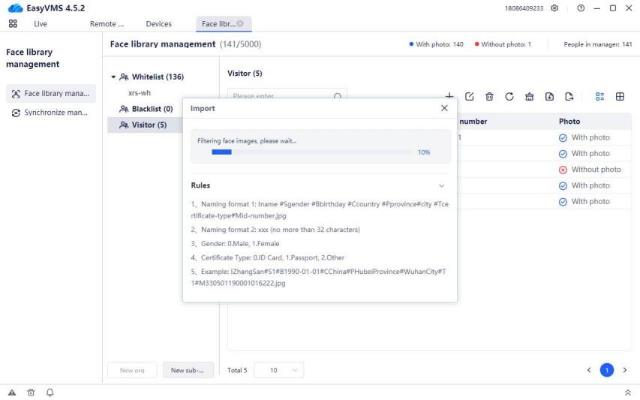
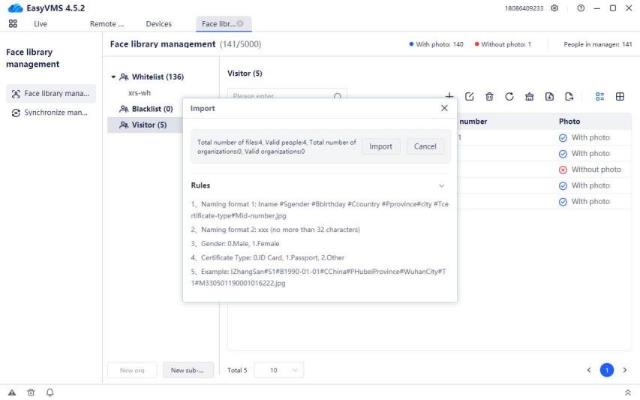
Note: Duplicate personnel cannot be imported repeatedly.
.
Click [Cancel] to re-enter the file import interface, as shown in the figure below:
.
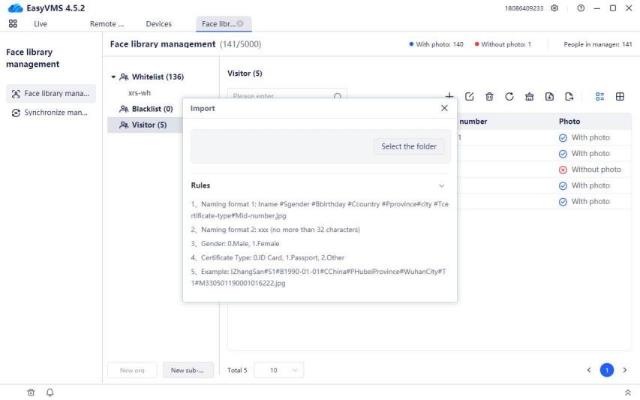
Click [Import] to import the personnel information successfully, as shown in the figure below:
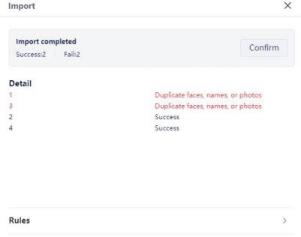
.
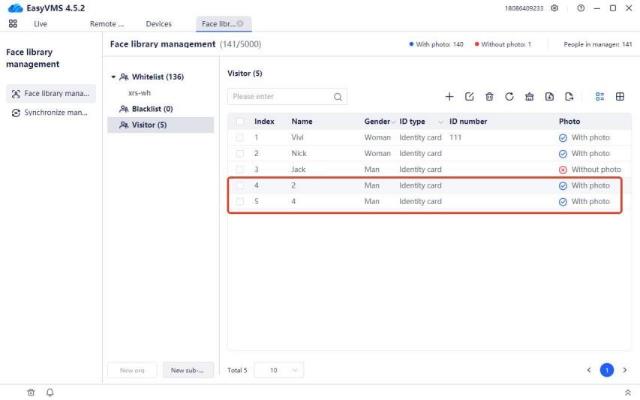
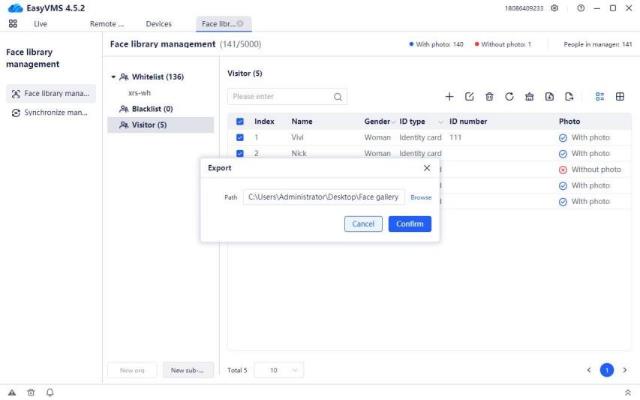
Click  to enter the export file interface, click [Browse], and select the export path, as shown in the figure below:
Click [confirm], and it will prompt “Face exported successfully”. In the directory selected on the PC,
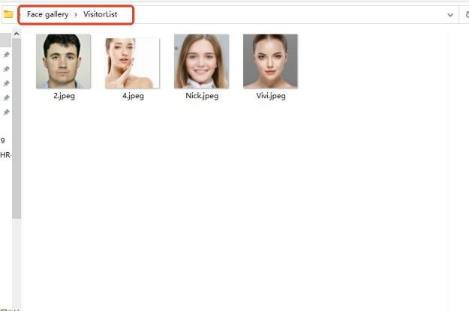
you can view the exported face database, as shown in the figure below:
.
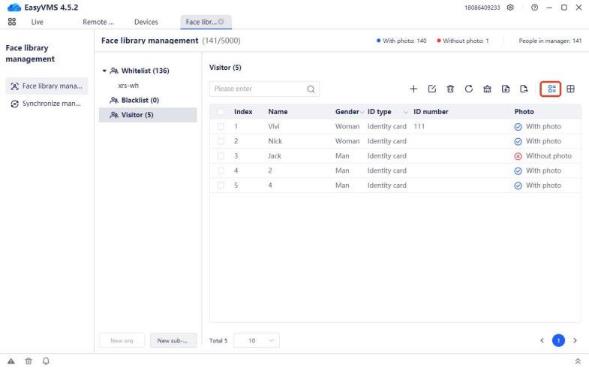
Click  to display the face database personnel information in list mode, as shown in the figure below:
 Grid mode display
.
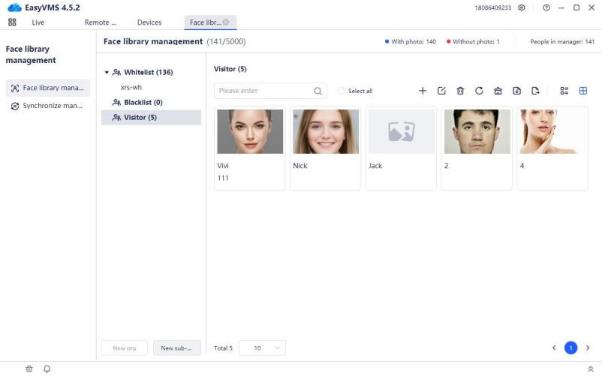
Click to display the face database personnel information in grid mode, as shown in the figure below:
.
Enter the sync management interface, as shown in the figure below:
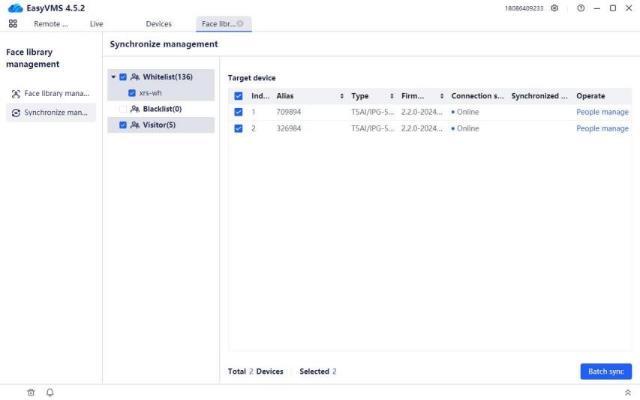
.
Batch delivery of equipment: Select the face database, check the device, and click [Batch delivery], as shown in the figure below:
.
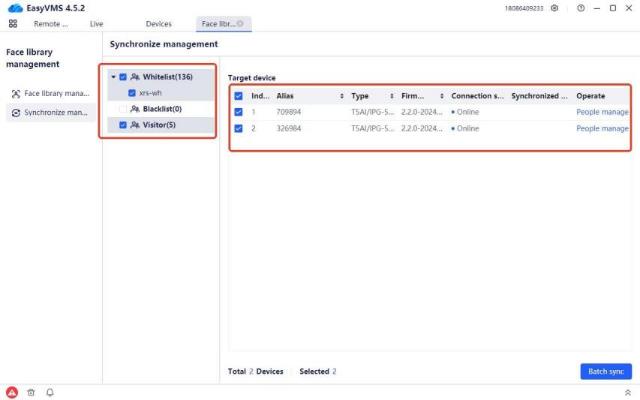
 The sync status in the list is updated to: Synchronization successful, which means that the delivery is successful.
.
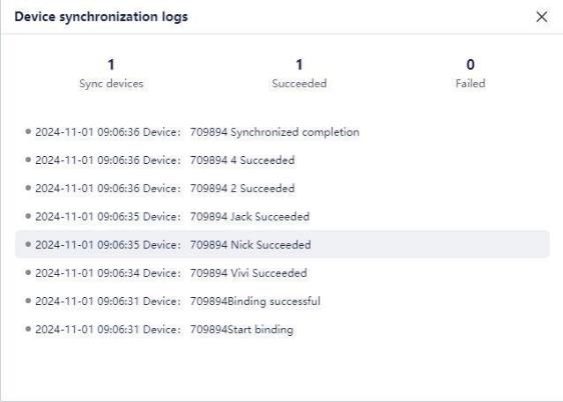
You can click the button to enter the sync log interface and view the specific log information, as shown in the figure below:
.
 Deliver personnel information separately: Click the button of the device to be
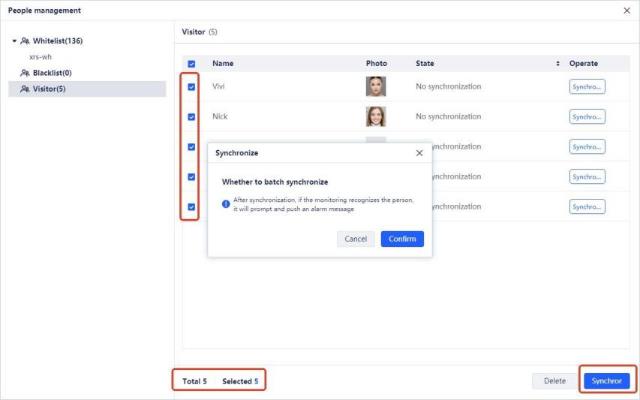
delivered, enter the personnel management interface, and select the face database to be delivered in the personnel information list, as shown in the figure below:
In the personnel information list column, click Deliver to deliver personnel separately.
Check multiple personnel information and click the [Deliver] button to deliver personnel in batches, as shown in the figure below:
When the prompt “Please confirm whether to deliver control in batches” pops up, click [Confirm] to deliver the device successfully, as shown in the figure below:
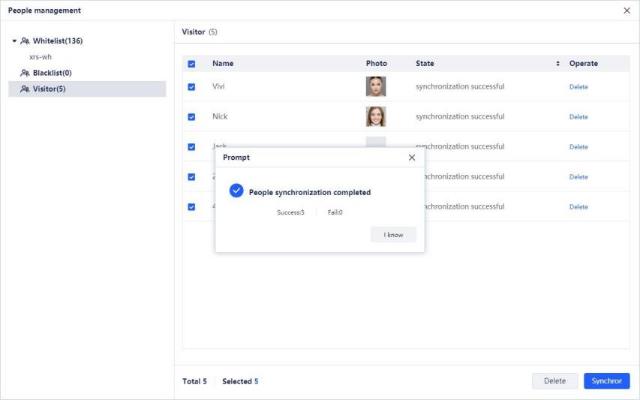
Click [Cancel] to not deliver personnel information to the device.
.
Select the personnel information, and click Cancel in the list column. The status is updated to: Cancelled successfully. You can delete the selected members from the device individually.
.
.
Select multiple personnel and click the [Cancel] button to delete the selected members from the device in batches, as shown in the figure below.
.
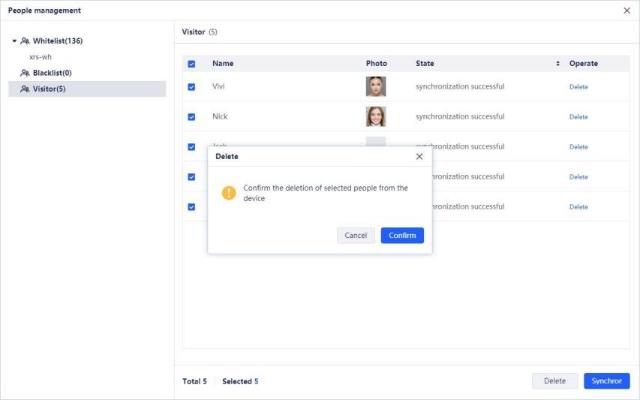
.
Alarm prompt box: When the added device has an event alarm turned on and an object triggers the alarm event information of the corresponding device, the tool side will synchronously display the corresponding event in the corresponding drop-down box. The display picture is as follows

Expand the alarm prompt box to see the event source, event time, event details and snapshot module.

.
 Alarm button: Prompts that there is new alarm event information.
 Trash can button: Click to clear the currently displayed event information.
 Speaker button: Sound prompts that there is new event information.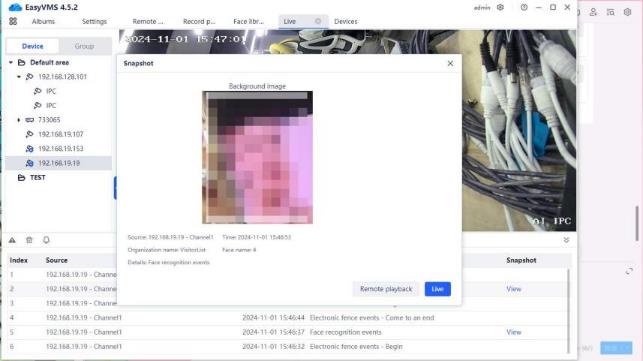
.
Parameter setting is divided into two setting modules: basic settings, advanced settings, import old version data and playback default parameters. By default, basic settings are displayed when you click into the page from the system navigation.
.
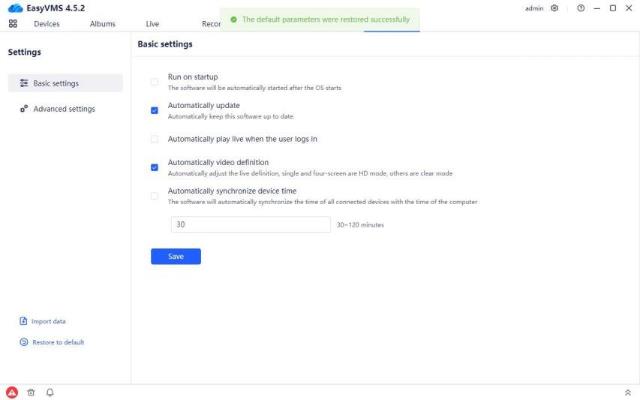
Basic settings include: auto–start, automatic version update, automatically open video when user logs in, automatic adjustment of video resolution, automatically synchronize device time and save button.
Note: Parameter settings are effective for the entire tool and are displayed regardless of account. The default parameter check status of basic settings is shown in the figure below.
.
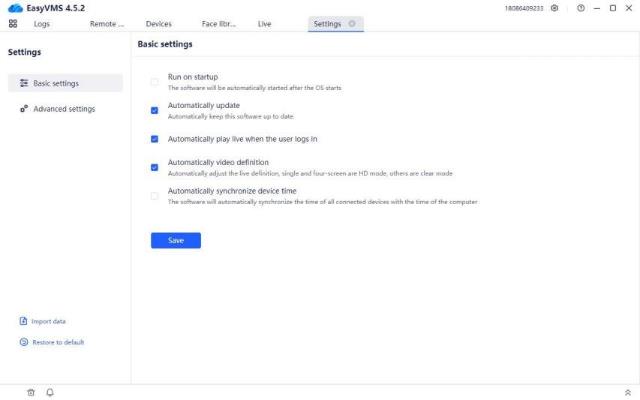
.
resolution will be automatically adjusted when the device page is switched to single or quad-screen. It will switch from the resolution of the sub-stream to the resolution of the main stream. (Note: This function is supported by devices added by P6S protocol or ONVIF protocol. Devices added in the cloud account are P2P protocol devices and do not support this function.)
.
Advanced settings include: automatically add LAN devices, automatically open video when adding devices, play sound reminders for new events, play videos without video signals, setting items and save button.
.
The default parameter check status of basic settings is shown in the figure below.
.
.
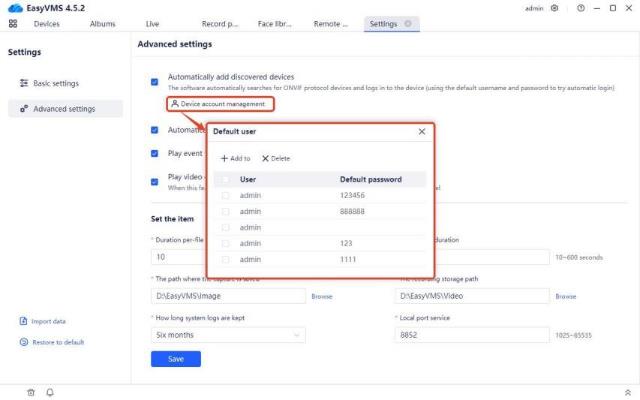
(Note: The “Play sound reminders for new events” here and the disabled state of the bell are not mandatory. When the user turns on the new event sound reminder, but there are too many alarm prompts, simply click the bell button to disable and mute it directly.
The priority of the externally disabled bell here is higher than the default parameter priority. Therefore, when this parameter is checked, but the corresponding bell is in the disabled state of manual operation, the sound prompt of the corresponding event cannot be heard.)
.
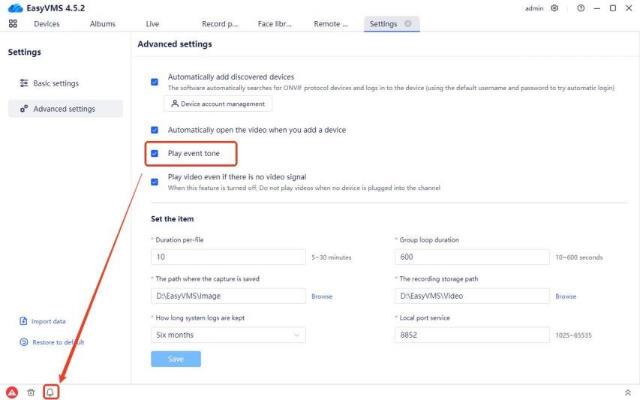
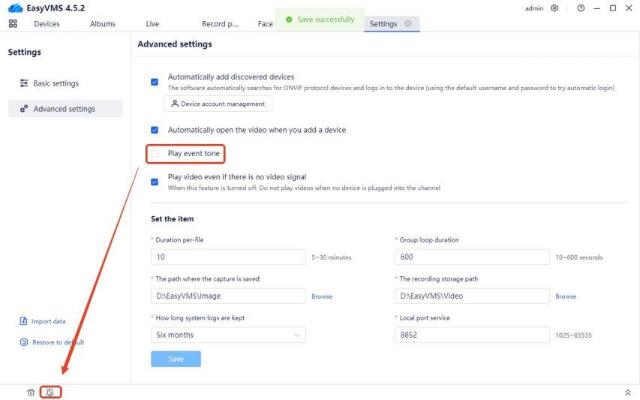
The corresponding specific parameters are: single file recording duration, patrol interval, snapshot storage path, video storage path, system log storage duration, local port service and save button.
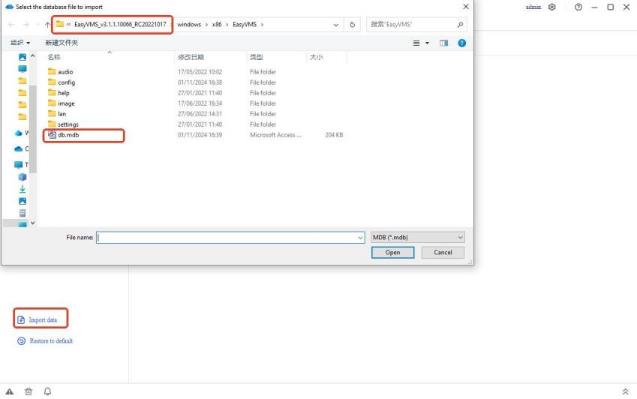
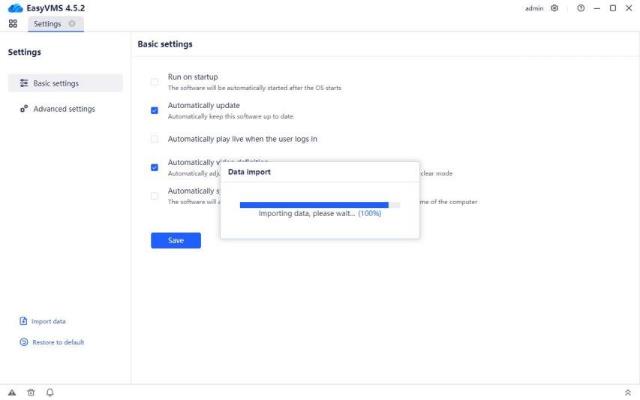
The import progress bar will appear. After the import is completed, the VMS tool will be restarted and a restart prompt will be given. After logging in normally, the device information of the old version can be found in the added devices in the device management.
(Note: Importing the old version data will reset the system boot prompt. The corresponding system boot prompt will show a boot pop-up box again. When the user clicks on the pop-up box information in the corresponding boot prompt box, the boot prompt disappears.
If you have not clicked on the page that pops up, the pop-up box will automatically disappear after 5 seconds, but it will give a prompt again next time the tool is started.)
Import old version data operation diagram:
.
.
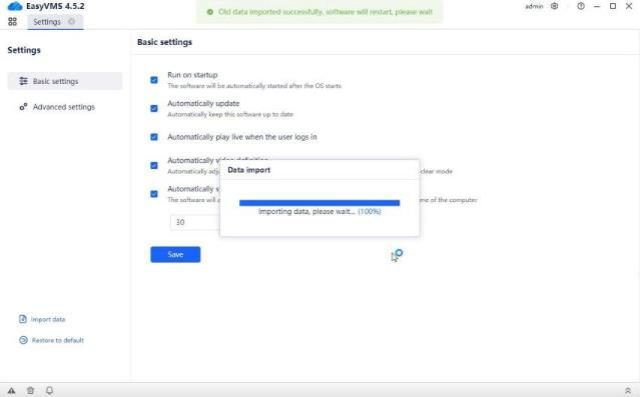
Note: The imported data is a database of 3.x version. Database of 4.0 or higher version cannot be imported.
.
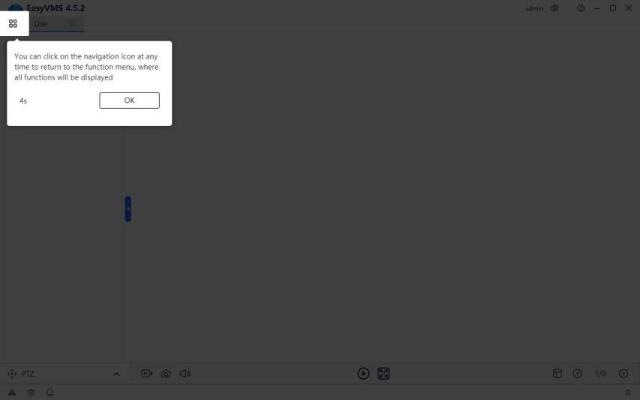
Re-login to the tool, click the corresponding page, and the schematic diagram of the prompt window will be evoked.
.
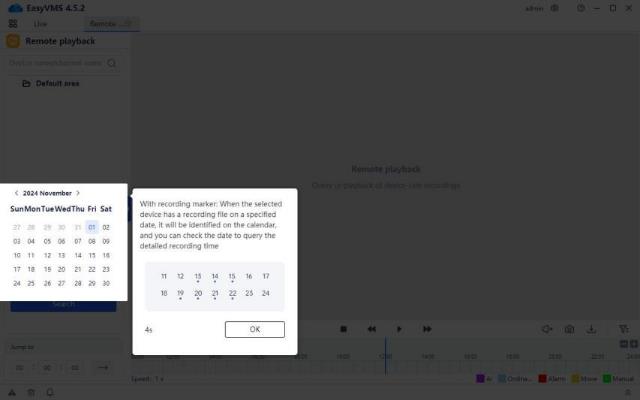
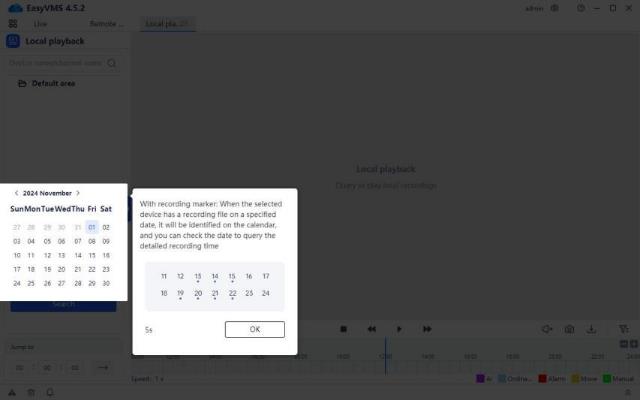
.
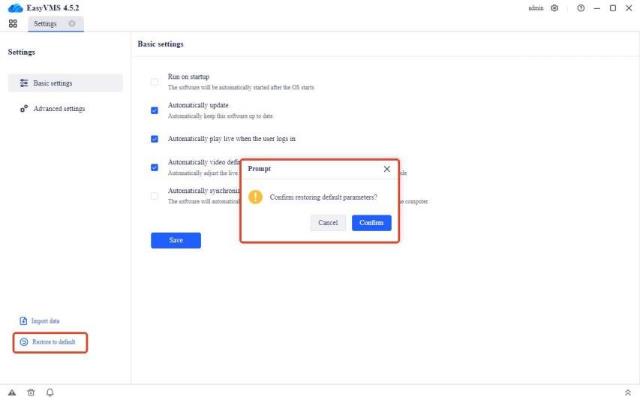
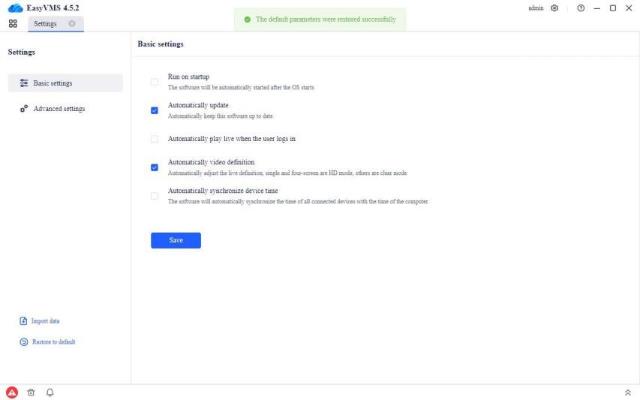
.
.
Note: Only the admin password can be modified, and the admin account cannot be deleted (as
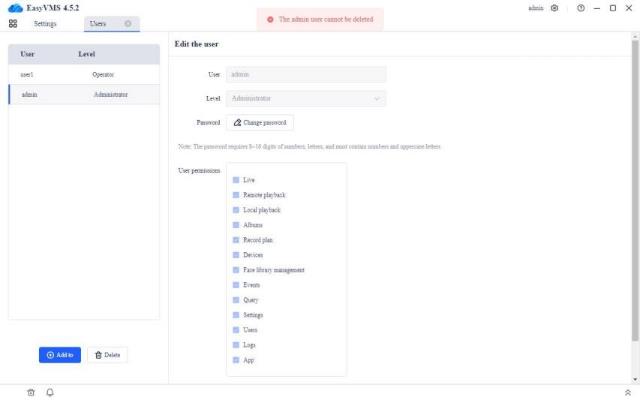
shown below). For the added account, the username and password must be filled in, and the password must be secure. The password of the VMS account must consist of 8~16 digits and letters, and must contain numbers and uppercase letters.
.
.
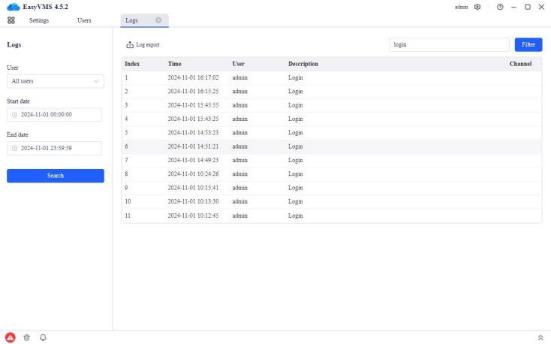
(Note: The users here should be the existing accounts in the user management. If there is only one account, that is the default account admin, in user management, no user other than admin can be found in the user drop-down box)
.
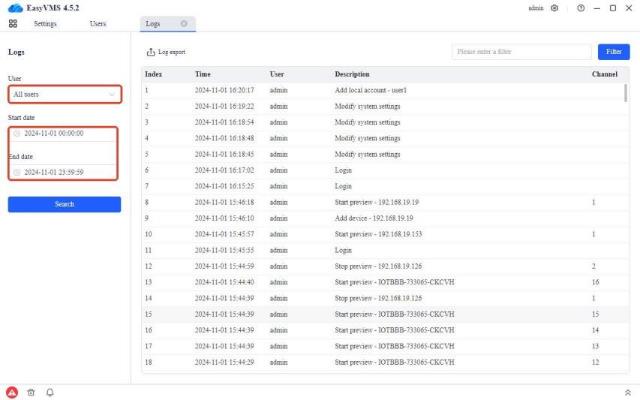
.
.
.
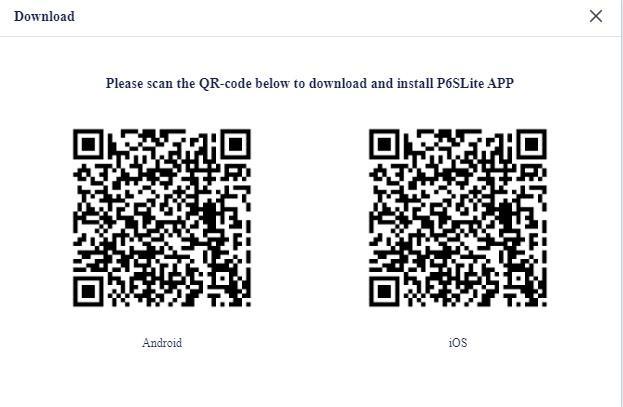
Click to download the APP, and a prompt pop-up box will be given to display the P6SLite APP download QR codes for IOS and Android.