The Official BlackVue App Dash Cameras app.Taking advantage of a mobile or car-embedded Internet connection and a BlackVue dashcam, BlackVue Cloud connects you to your car through the Cloud. Using the BlackVue App on your smartphone or tablet, you see in real time where your car is located and what is happening around it.
BlackVue APP Features
– Explore
– Live View
– Video Playback
– GPS Tracking
– Reports
– Event Map
– Voice Call
– Video Backup / Live Event Upload
– Firmware update over the air
How to Install or Update the BlackVue App via Google Play/App Store
Get the latest features and ensure full compatibility by installing or updating your BlackVue (or Fleeta) app directly from Google Play or the Apple App Store. Follow these steps to download, install, and keep your app up to date for the best dashcam experience.
1. Installing the App for the First Time
For Android Devices (Google Play Store)
For iOS Devices (Apple App Store)
2. Updating the BlackVue App
Regular updates deliver new features, compatibility improvements, and bug fixes.
For Android (Google Play)
For iOS (App Store)
3. Tips and Troubleshooting
| Issue | Solution |
|---|---|
| App not appearing/searchable | Make sure your device is supported (recent Android/iOS version) and region is set correctly. |
| Can’t update app | Check your Wi-Fi/data connection or free up device storage space. |
| Install fails/gets stuck | Restart your device and try again, or clear app store cache/data. |
| App won’t open after update | Uninstall and reinstall the app, or restart your device. |
Tip: Always keep your app updated for security, performance, and access to the latest features.
Updating and installing the BlackVue or Fleeta app from a trusted store guarantees you receive genuine software, optimal security, and proper support for all dashcam models.
Essential App Settings and Optimal Environments
Setting up your BlackVue app with the right configurations and using it in the best environment help ensure a reliable connection, seamless video management, and full use of your dashcam’s features. Follow these guidelines for an optimal BlackVue app experience.
.
1. Key App Settings to Check
.
Account
Notifications
Camera Registration & Network
Storage & Video Management
GPS & Privacy
Firmware & Software Updates
.
2. Recommended Environment & Best Practices
| Factor | Recommendation |
|---|---|
| OS Version | Use Android 8.0+ or iOS 12+ for best stability and feature support. |
| Device Performance | A modern smartphone (3GB+ RAM, updated OS) improves connectivity and playback. |
| Network Quality | Connect via a strong and stable Wi-Fi or LTE network when transferring videos or using Cloud features. |
| Power/Battery | Make sure your phone and dashcam are sufficiently charged during large downloads or firmware updates. |
| App Permissions | Grant the app access to storage, location, camera, and notifications (as prompted at first launch or after updates). |
| Storage Management | Keep at least 10–20% free storage on your phone for smooth downloads and updates. |
.
3. Troubleshooting & Tips
By reviewing and regularly updating these essential settings, and using your BlackVue app in an optimized environment, you’ll enjoy a smoother, safer, and more reliable dashcam experience.
BlackVue App featuring BlackVue Cloud
.
Compatible with most Wi-Fi BlackVue models. Cloud support for all Cloud-compatible dashcam models down to DR650GW Series
…
BlackVue Viewer (Windows/Mac)
.
Supports most recent BlackVue models.
Refer to the BlackVue Legacy Viewers tab below for support of older models/features.
.
BlackVue Windows Viewer (v3.24)
Compatibility: Windows 7 and above.
.
BlackVue Mac Viewer (v3.24)
Compatibility: Mac OS X 10.12 and above.
BlackVue Legacy App
.
Compatible with DR650GW dashcams with firmware prior to version 2.000 and older Wi-Fi dashcams.
..
BlackVue Legacy Viewer (Windows/Mac)
.
BlackVue Legacy Viewer (SD Card Viewer)
Compatible with pre-DR650GW BlackVue models.
Note: this version lets you view recorded videos from your SD card and modify the settings of your BlackVue, as well as format the SD card.
BlackVue Legacy Windows Viewer
BlackVue Legacy Mac Viewer
FLEETA App
.
The official FLEETA App. Compatible with most BlackVue models that support Wi-Fi.
..
How to Play, Download, and Manage Recordings within the App or Cloud
Accessing, saving, and organizing your BlackVue dashcam recordings is easy through the BlackVue app or Cloud services. Follow this step-by-step guide to find, play back, download, and manage your video files with maximum convenience and control.
.
Note: Screenshots in this guide are based on the BlackVue app and may vary slightly depending on your camera model or app.
.
Playing back recordings
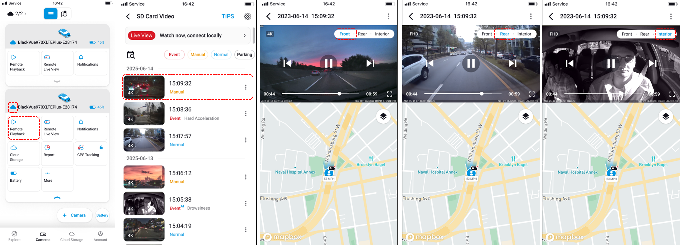
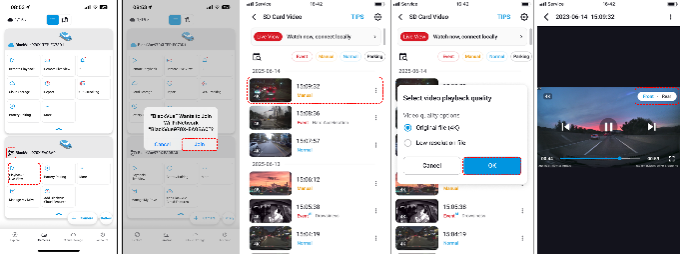
1. SD card recordings via BlackVue app (Wi-Fi or Cloud cameras)
NOTE: The recordings mentioned in this section are files saved inside the camera’s SD card. Downloading such files will require the camera to be powered on.
.
.
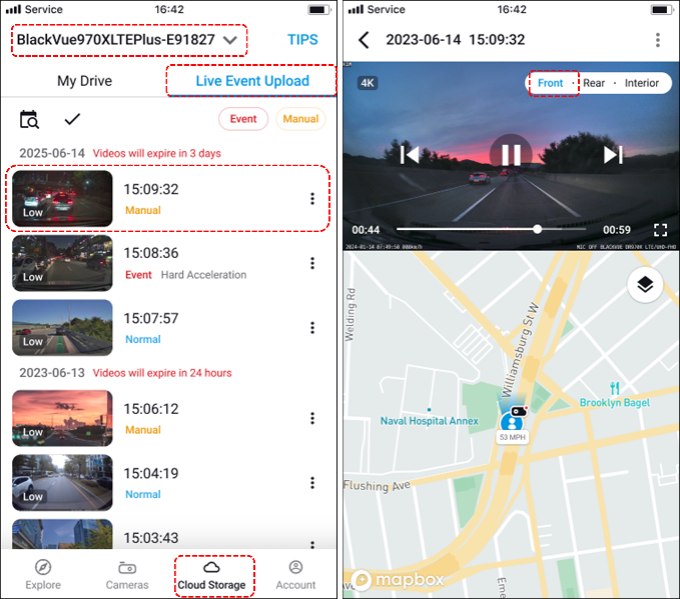
2. Live Event Upload Recordings via BlackVue app (Cloud cameras)
NOTE: The recordings mentioned in this section are event and manual recording files automatically saved in the Cloud storage of a Cloud-activated camera. These files can be played even though the camera is turned off, as long as the mobile device is connected to the internet. Also, depending on your Cloud plan, the files in this storage will be automatically deleted after a number of days.
.
3. My Drive Recordings via BlackVue app
NOTE: The recordings mentioned in this section are manually saved recordings (all types) from the SD card and Live Event Upload Cloud storage. These files can be played even though the camera is turned off, as long as the mobile device is connected to the internet.
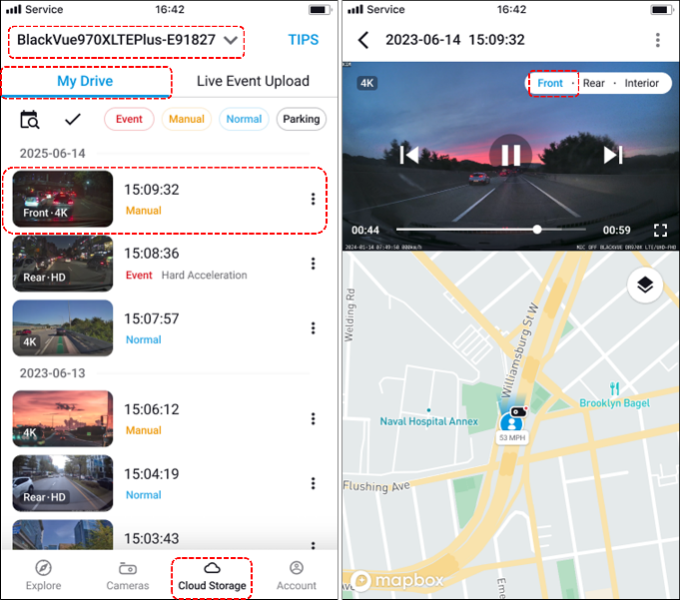
NOTE: If the file saved in My Drive is from the Live Event Upload storage, it will play in low resolution. If the file is from the camera’s SD card, the user will be given the video quality and video direction options before the recording will be played.
.
Downloading recordings
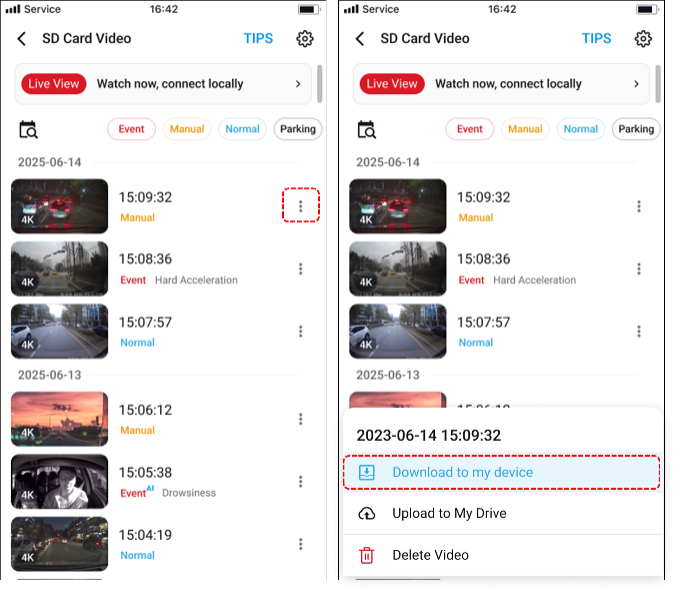
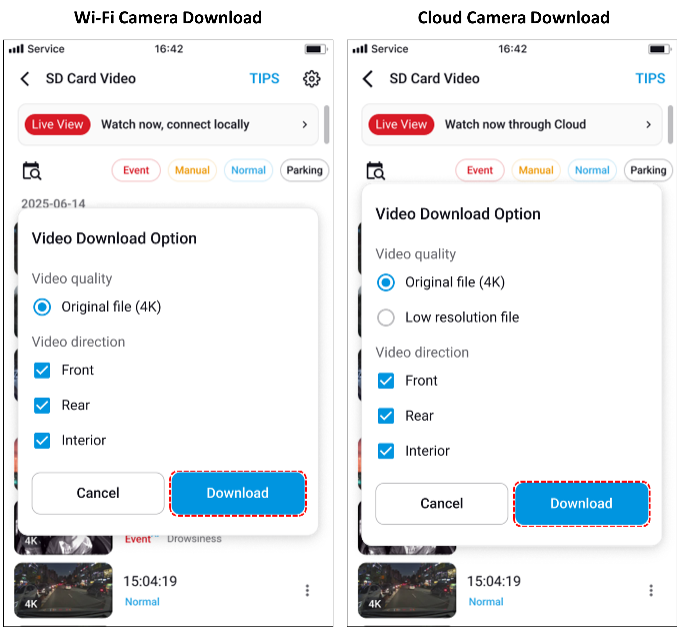
1. Download from dashcam SD card via the app
Note: Recordings saved in the dashcam’s SD card can be downloaded both for WiFi and Cloud cameras. The difference is the range of access – for WiFi cameras is short-range connection and download; for Cloud cameras is remote access and download.
2. Download from Cloud Storage
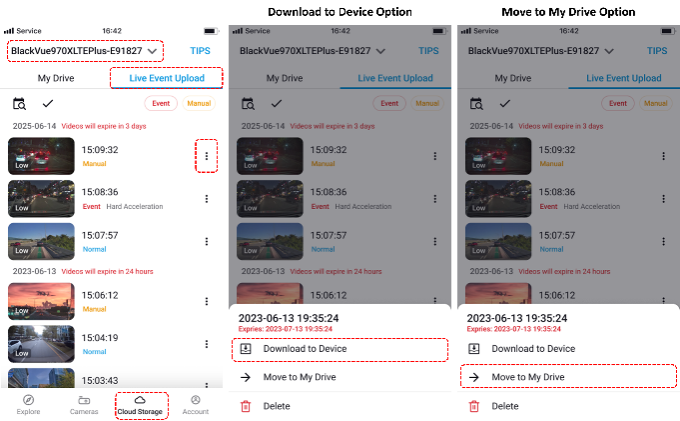
Live Event Upload
Note: The recordings mentioned in this section are manually saved recordings (all types) from the SD card and Live Event Upload Cloud storage. These files can be downloaded even though the camera is turned off, as long as the mobile device is connected to the internet. Also, depending on your Cloud plan, the files in this storage will be automatically deleted after a number of days.
.
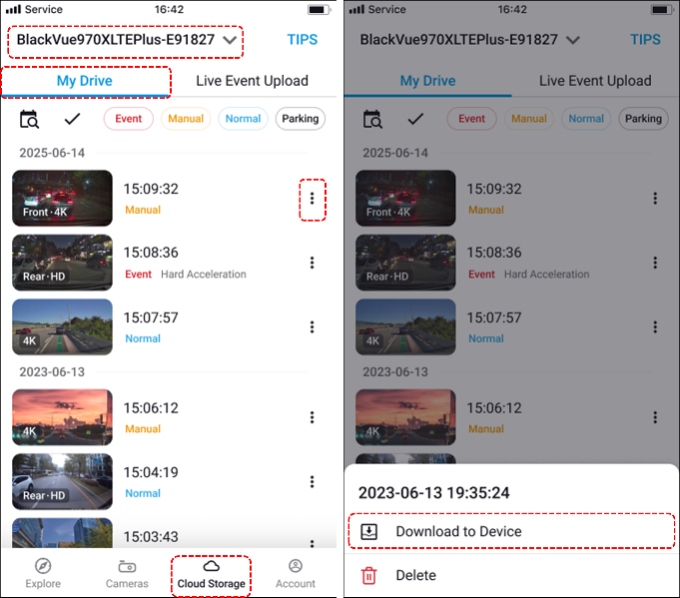
My Drive
NOTE: The recordings mentioned in this section are manually saved recordings (all types) from the SD card and Live Event Upload Cloud storage. These files can be downloaded even though the camera is turned off, as long as the mobile device is connected to the internet.
.
.
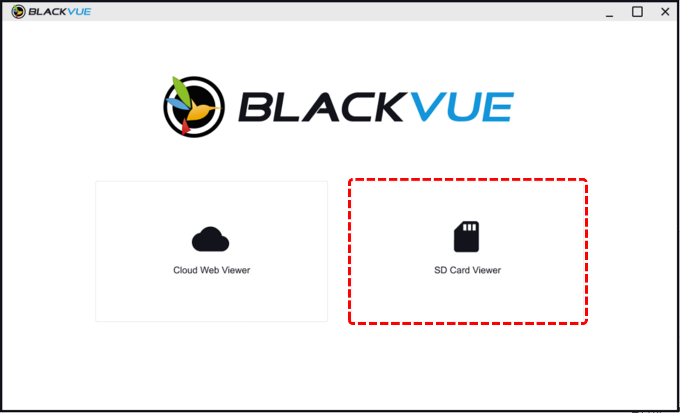
3. Managing recordings via Windows or Mac
.
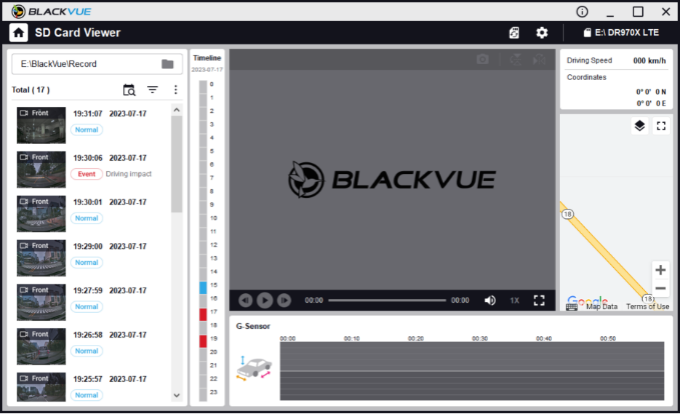
When the SD card is recognized by the computer, the list of recordings will be displayed on the left panel of the program. You can double click the file you want to play from the list.
.
Downloading Files
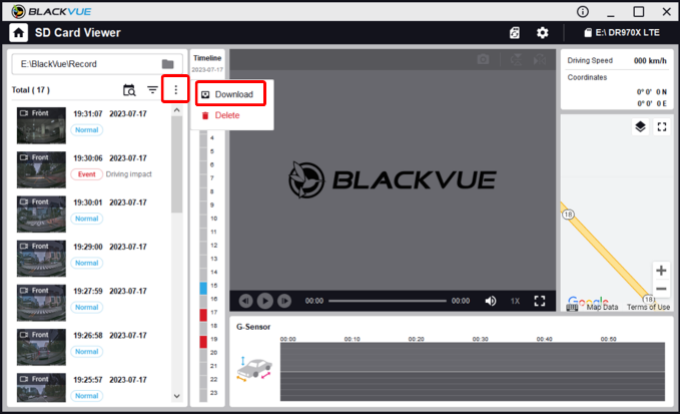
Click the three dots in vertical position to reveal the sub menu. Select Download to save recording files in your computer.
.
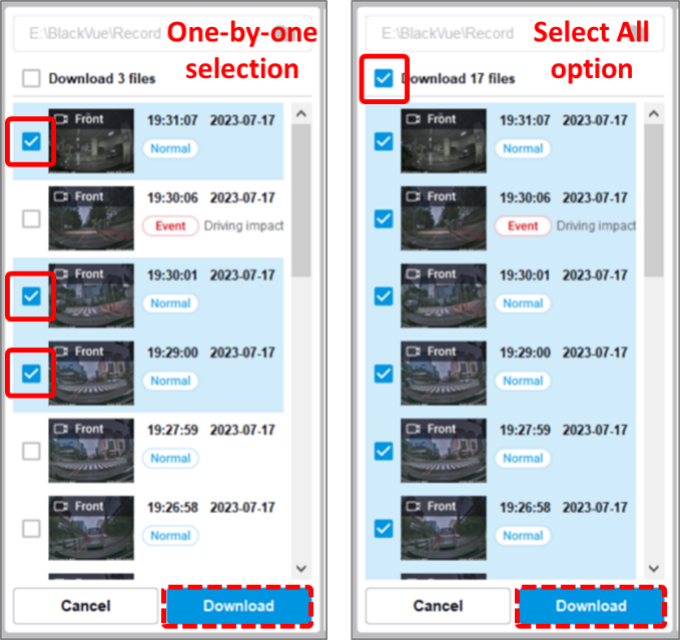
Select individual files to download or click the tick box at top most part to select all recordings. Press Download and choose the directory where to save the files.
.
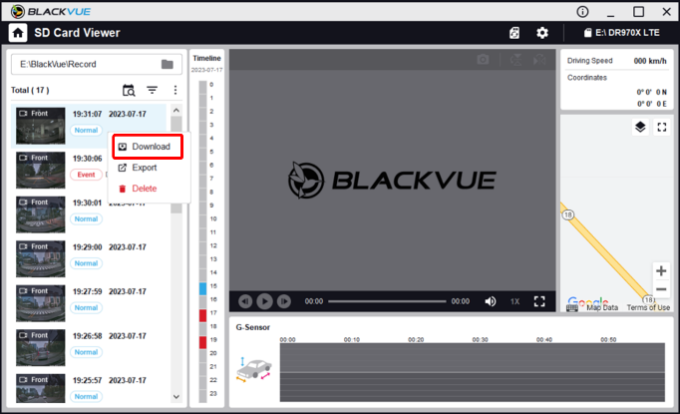
Alternatively, you can move your mouse pointer to a file and press right click to reveal the submenu. Select Download to save that recording file in your computer.
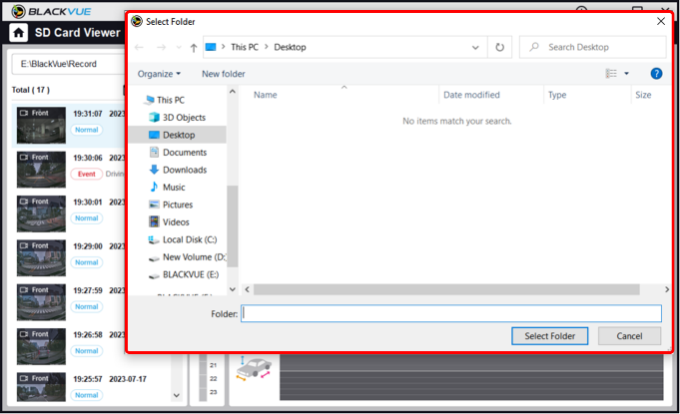
Choose the directory (folder) where to save the file. Then click Select folder to download the file.
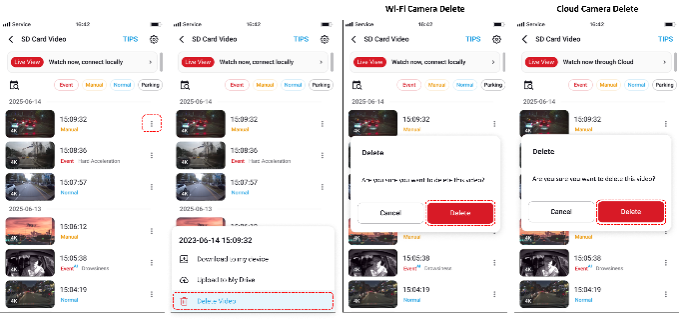
Deleting recordings
In the app (Cameras Tab)
.
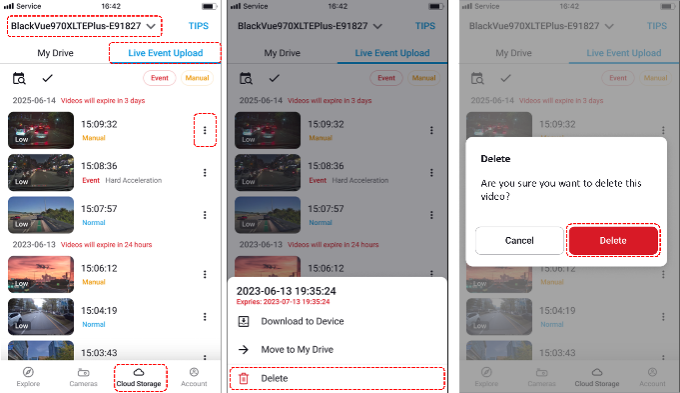
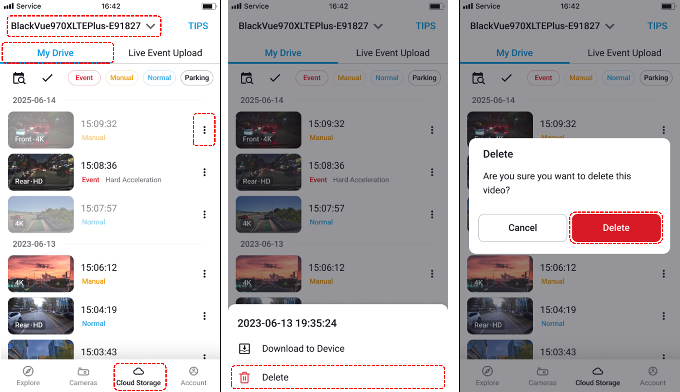
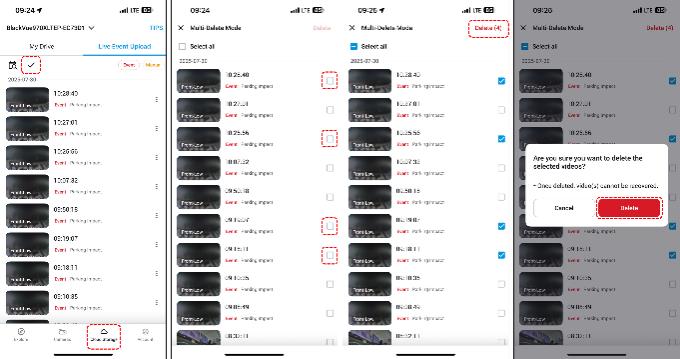
In the app (Cloud Storage Tab)
Live Event Upload Folder (Single Deletion)
My Drive Folder (Single Deletion)
Multiple Deletion of Files
.
In the app (Account Tab)
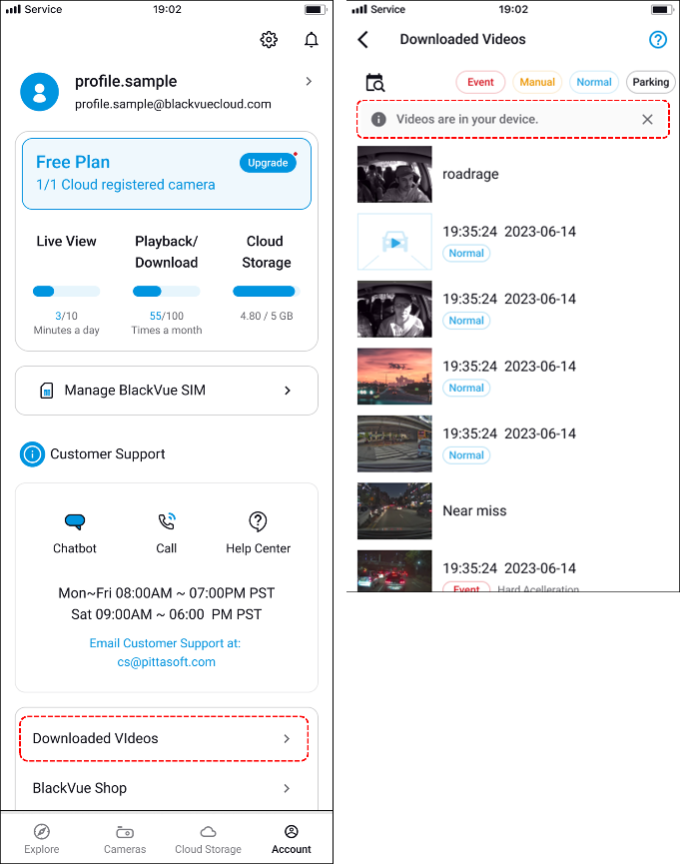
.
On a computer (PC Viewer)
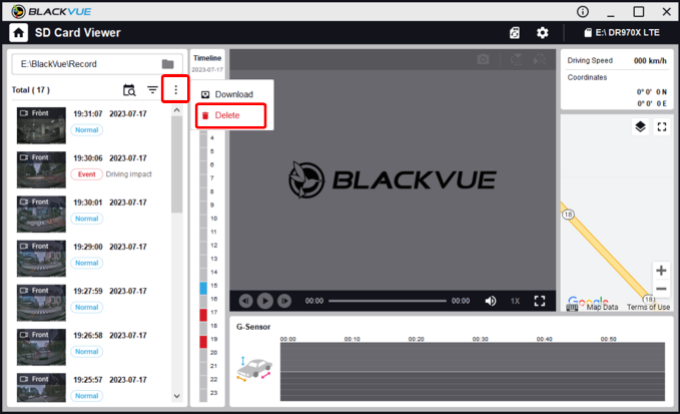
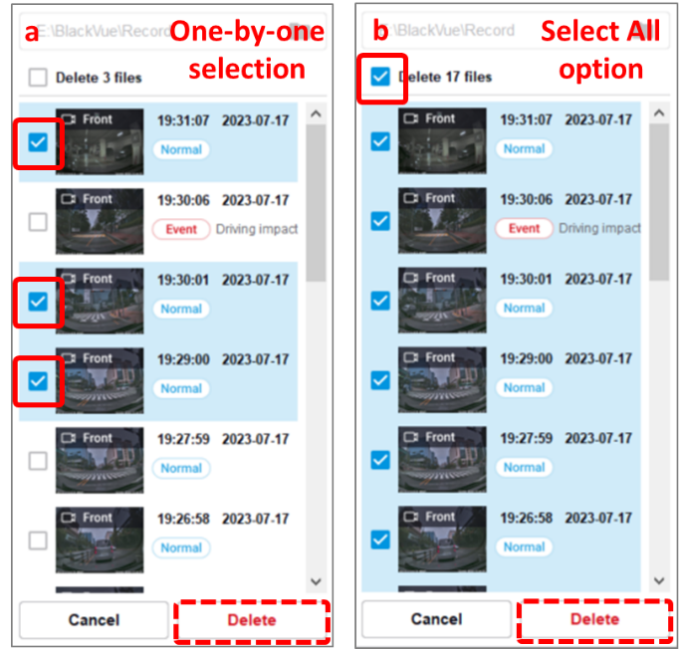
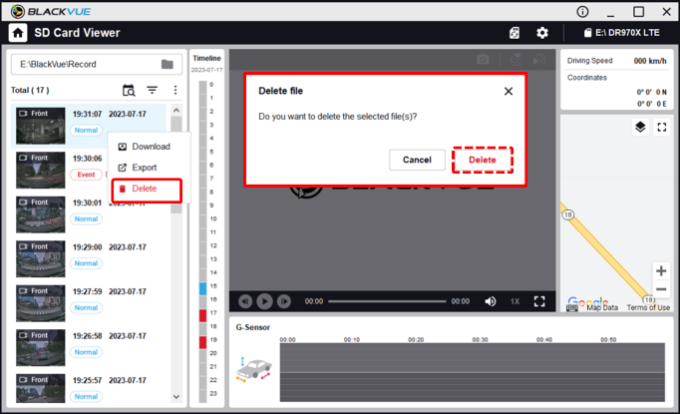
.
Tips for effective video management
.
Troubleshooting
| Problem | Solution |
|---|---|
| Video list not loading | Confirm camera connection (Wi-Fi/Cloud), refresh app, or restart. |
| Downloads fail or are incomplete | Check storage space, stay near the camera for Wi-Fi transfer, or check Cloud quota. |
| Can’t find specific video | Use filters, confirm recording mode, check SD card health. |
| Playback is laggy or fails | Download the file first, or use the BlackVue PC Viewer on Windows/Mac for smoother viewing. |
.
Your BlackVue app and Cloud platform are powerful tools for securely playing, downloading, and managing all your dashcam videos. For persistent difficulties or if you experience missing files, ensure your app and firmware are fully updated, and consult BlackVue Customer Support for detailed help.
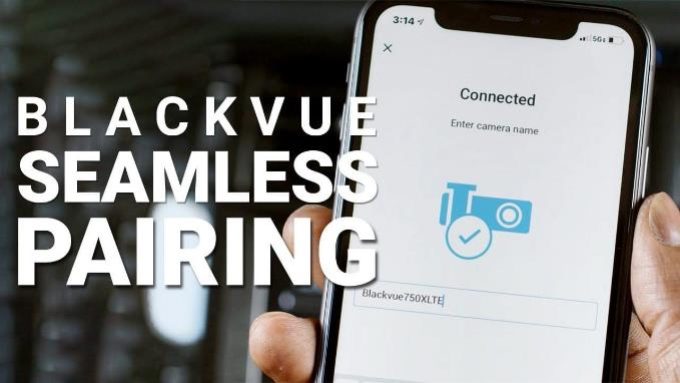
Connecting to Your BlackVue Dashcam through Seamless Pairing
.
Seamless Pairing is a new game-changing feature for BlackVue users. It makes connecting to your compatible dashcam with the BlackVue App easier than ever.
Important: Seamless Pairing requires your dash cam to be compatible and updated with the latest firmware (see Compatible Models and Firmware below)
Easier direct Wi-Fi connection
Without Seamless Pairing, users who want to access their dashcam’s files over Wi-Fi have to first connect to the dashcam from their phone’s Wi-Fi network menu. That means scanning available Wi-Fi networks, then manually entering the dashcam’s Wi-Fi password. Then, they can go back to the BlackVue App to access the dashcam via the “Connect to camera” menu. However, even after closing the BlackVue app, the phone stays connected to the dashcam, which can cause the users’ phone to lose internet connectivity.
With Seamless Pairing, the connection process is done right from the BlackVue app:
As a bonus, because the BlackVue App knows what dashcam model you are using, it will prompt you automatically when a firmware update is available for your dashcam. No more need to search and download the firmware manually from the Firmware download menu.
But that’s not the only advantage of Seamless Pairing, as it makes simpler to connect your dashcam to the Cloud too!
Simplified Cloud setup
NOTE: wondering where the SIM activation icon (formerly in the Wi-Fi connection menu) went? We moved everything related to Cloud connectivity to the “Connect to Cloud” menu.
Without Seamless Pairing, connecting your dashcam to the Cloud involves more steps that we would like. This is why Seamless Pairing is such a welcome feature. It makes the whole process as hassle-free and straightforward as possible. In fact, you no longer have to go to the “Connect to camera” menu. You can complete all the required steps straight from the “Connect to Cloud” menu of the app:
Compatible models and firmware
Although introduced with DR900X Plus, we have updated the firmware of past models (when possible) to support the feature.
DR900S and DR750S Series cannot support the feature in their hardware. However, the BlackVue App’s menus and steps to follow are similar.
Here is a list of models that support the feature:
What about models that do not support Seamless Pairing?
If you have a BlackVue dash cam that does not support Seamless Pairing, what steps should you follow?
Overall, the direct connection process is similar and you will be able to keep your dashcam listed in the Cameras list of the “Connect to camera” menu, like this:
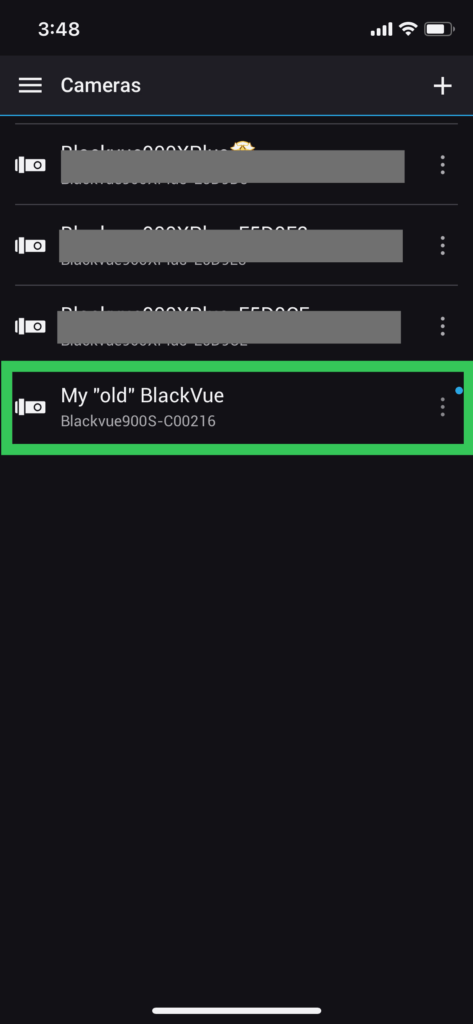
However, the first time you want to connect to your dashcam with the BlackVue App, we recommend doing what you usually do: connect to it over Wi-Fi first, in your phone’s Wi-Fi networks menu, then go back to the BlackVue App –> “Connect to camera” menu.
From now on, whenever you need to connect to your BlackVue, simply go directly to the Connect to camera menu and select your dashcam. You will be prompted to join your dashcam’s Wi-Fi network when doing so. No need to connect first from your phone’s Wi-Fi network menu anymore.
Tip to avoid losing internet connectivity on your phone:
Once your camera is added to the Cameras list of the “Connect to camera” menu, you can go back to your phone’s Wi-Fi network menu and select “Forget this network”

➕How to Add a BlackVue Camera
You can add a camera to the BlackVue app using one of the following three methods:
Please refer to the step-by-step instructions below for each method.
.
Seamless Pairing (BT)
This is a simple registration method using your smartphone’s Bluetooth.
Supported models: All models
🔧 Steps
.
⚠️ some models are not supported: DR590W-1CH/2CH, DR590X-1CH/2CH, DR650GW-1CH/2CH, DR650S-1CH/2CH, DR750S-1CH/2CH, DR900S-1CH/2CH, DR590X Plus-1CH/2CH
.
QR Code Scan Method
This method allows you to register the camera by scanning the QR code printed on the camera packaging.
Supported models: ELITE and 590X Plus series
🔧 Steps
✅ Note: The camera’s default settings may differ from your local time zone and language. You can change these in the Camera Settings menu.
.
.
Manual Registration (Wi-Fi)
This method allows you to manually register the camera by entering its Wi-Fi information.
Supported models: All models
🔧 Steps
✅ Note: The camera’s SSID and password are printed on the device itself or on its packaging box.
.
Dashcam Registration (Fleeta)
What is Dashcam Registration?
Registering your dashcam means linking it to your FLEETA account so that you can view its information and video footage via the app and web viewer. Only registered dashcams can be managed, assigned to groups, or used for cloud upload.
Before Registration
Registration Steps
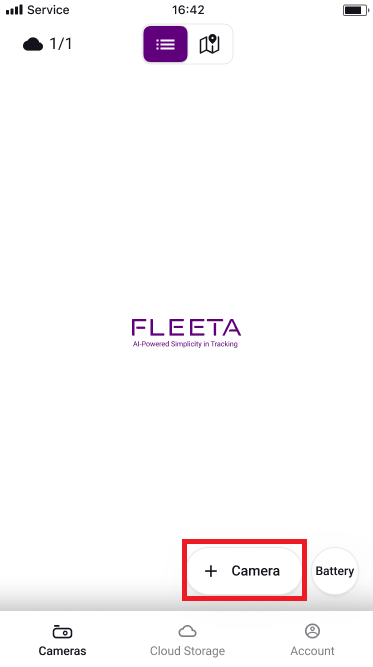
1. Tap ‘+ Camera’
.
2. Select the Dashcam to pair with
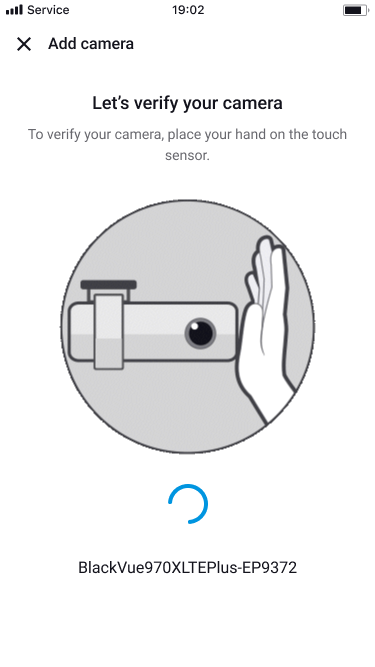
3. Tap the Touch Seonsor
.
4. Complete Registration
The camera is successfully registered and ready to go.
Adding and Removing Cameras: Registration Step-by-step
Adding and removing dashcams from your BlackVue account is straightforward and gives you control over your fleet, family, or personal devices. Use these instructions to securely register a new camera, remove an old one, and manage your camera list with confidence.
Note: Screenshots in this guide are based on the BlackVue app and may vary slightly depending on your camera model or app.
.
How to add a camera to your account
1. Prepare your dashcam for registration
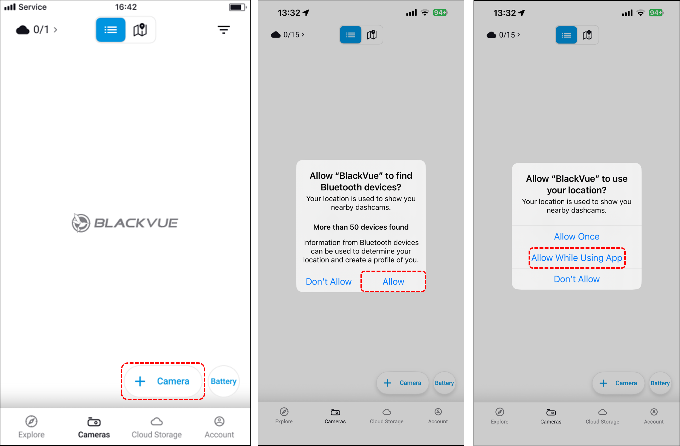
2. Open the BlackVue app
3. Access the camera registration section
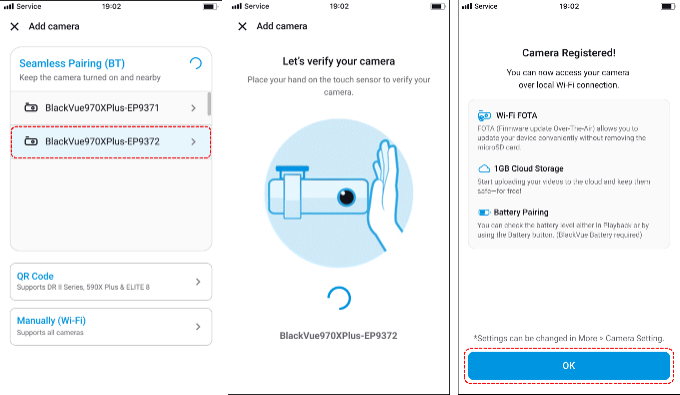
4. Register your camera
Select the camera from the list
Touch the camera’s touch sensor to continue the registration.
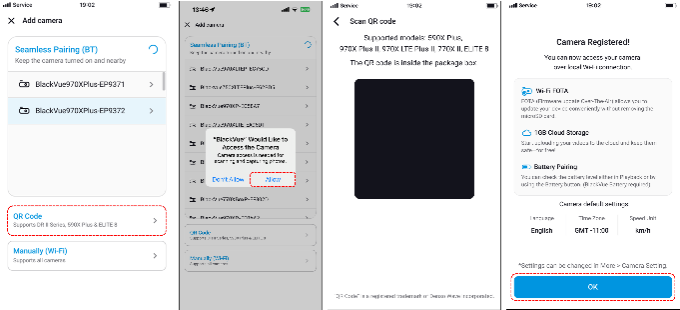
Choose the QR Code option to register your camera.
Allow the app to have access to the camera.
Use your smartphone to scan the QR code on your dashcam when prompted.
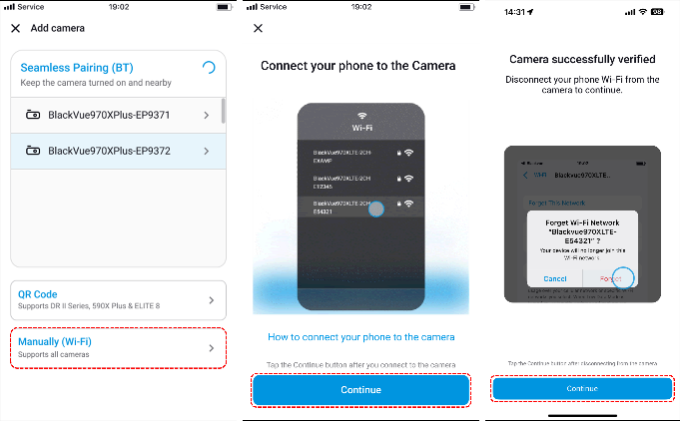
Go to your phone’s settings and then WiFi.
Select the camera’s WiFi SSID from the list and enter the password.
Once connected, go back to the app and continue the registration.
5. Confirm and finish
.
How to remove a camera from your account
*If the camera is being transferred to a new owner, advise them to register it under their own account after removal.
.
Troubleshooting registration issues
| Problem | Solution |
|---|---|
| Camera not found during registration | Confirm dashcam power, Wi-Fi/LTE status, and app update |
| QR code won’t scan | Enter serial number manually or clean camera sticker |
| Registration fails | Restart app/camera, check Cloud slot availability |
| Removed camera still appears | Log out/in or refresh camera list in the app |
.
Tips for seamless management
.
Registering and removing dashcams regularly keeps your BlackVue account organized and ensures you have access to every feature for each of your vehicles. For persistent connectivity or device errors, contact BlackVue Customer Support.
Understanding Camera Status Icons
Camera status icons in the BlackVue app and web viewer help you monitor your dashcam’s current state—whether it’s connected, disconnected, in parking mode, or unregistered in the Cloud. This guide explains what each icon means, so you can quickly recognize your dashcam’s condition and resolve common issues.
.
Note: Screenshots in this guide are based on the BlackVue app and may vary slightly depending on your camera model or app.
.
Types of camera status icons
BlackVue uses different icons and colors to indicate the status of each registered camera in your account:
| Icon/Status | What it means | Typical appearance |
|---|---|---|
| Cloud connected | Dashcam is online, connected to Cloud, sending data |  Blue cloud icon Blue cloud icon |
| Cloud (parking mode) | Online, Cloud connected, and in parking mode |  Blue cloud icon Blue cloud icon |
| Cloud disconnected | Dashcam is offline, not connected to Cloud |  Grey cloud icon Grey cloud icon |
| Wi-Fi only | Connected to Wi-Fi but not registered in the Cloud |  Wi-Fi icon only Wi-Fi icon only |
.
Icon meanings in the app
.
Feature availability by status
| Status | Playback | Live view | GPS tracking | Reports | Notifications | Settings & firmware update |
|---|---|---|---|---|---|---|
| Cloud connected | ✔ | ✔ | ✔ | ✔ | ✔ | ✔ |
| Cloud connected (Parking Mode) | ✔ | ✔ | ✔ | ✔ | ✔ | ✔ |
| Cloud disconnected | ✘ | ✘ | ✔ | ✔ | ✘ | ✔ |
| Wi-Fi only | ✔ | ✔ | ✘ | ✘ | ✘ | ✔ (via Wi-Fi) |
Most advanced features—like push notifications, GPS tracking, and live video uploads—require a Cloud-connected status.
When the camera is disconnected from the Cloud, Settings and Firmware Update Download is still possible. However, the changes to the settings and the firmware update will be applied when the camera connects to the Cloud.
.
Troubleshooting and usage tips
.
Understanding these icons makes it easy to manage your BlackVue dashcams, monitor connection health, and fully utilize all features. For persistent status problems or unclear icons, refer to your camera’s manual or contact BlackVue Customer Support.


