Onwote NVR Cameras Devices FAQ, Welcome to ONWOTE, a leader in commercial security industry. Founded in 2009, ONWOTE is committed to providing highest-definition smart total security solutions for industrial, commercial and home users, focusing on commercial grade construction quality, reliability and artificial intelligent operation. We will always stand behind our products, “Value every customer” is our motto.
Remote Viewing video on Mobile App GuardViewer

.
Guard Viewer
.
.
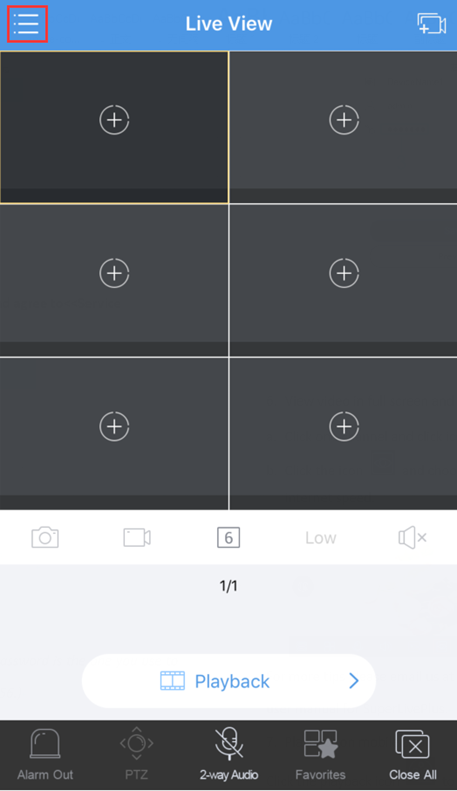
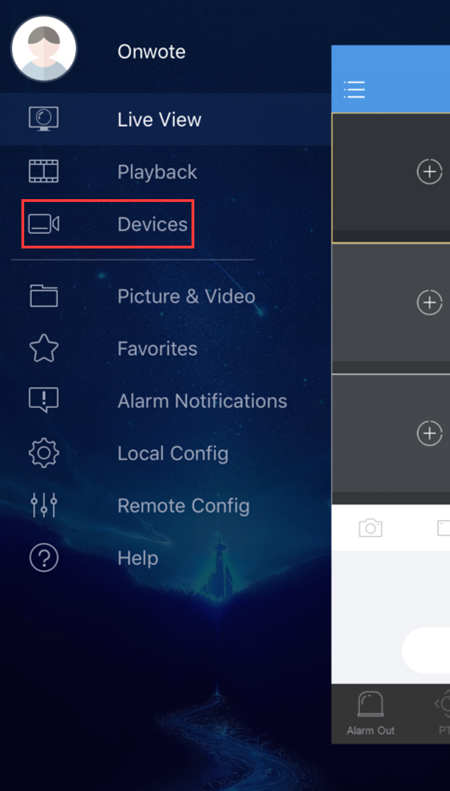
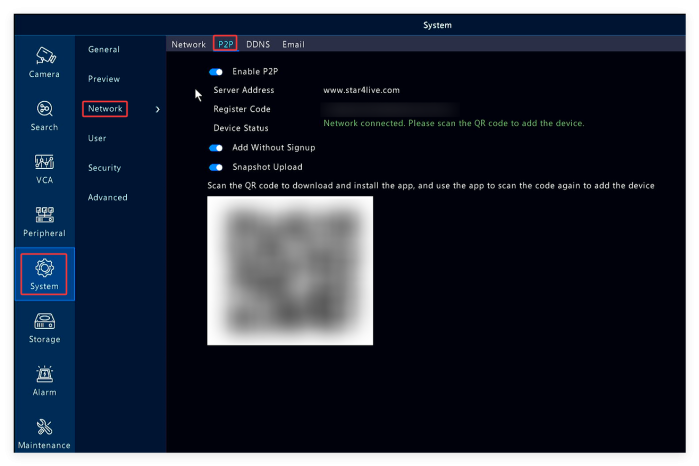
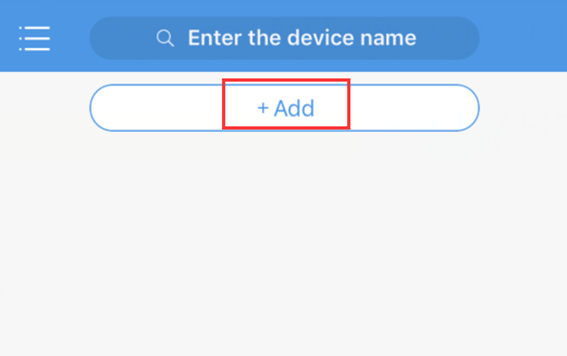
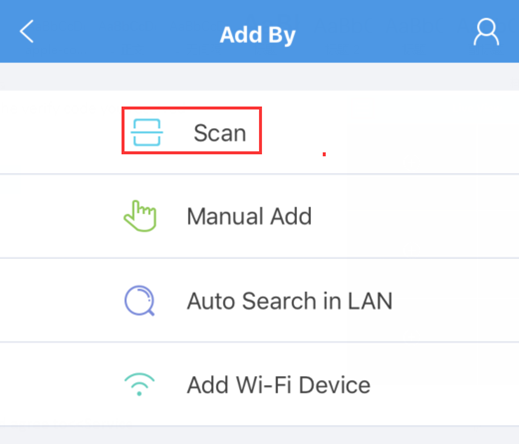
9. Click +Add and Scan to scan the QR code on the NVR monitor (Right click on NVR monitor and choose Menu–> Network–> Basic–> P2P to get the QR code).
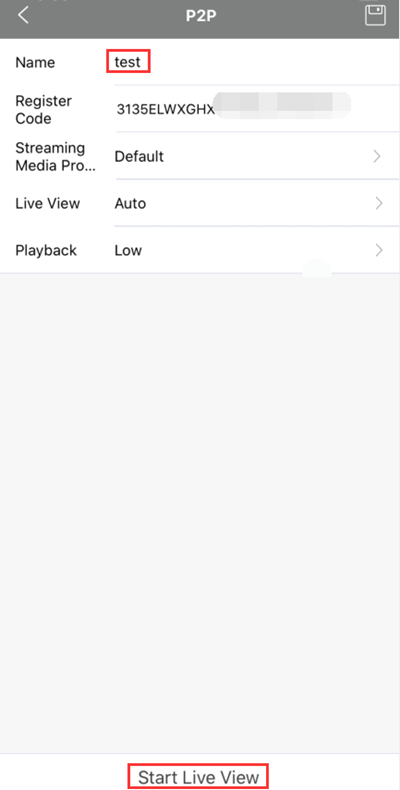
10. Type in a name for your device and click Start Live View on the bottom to view live video.
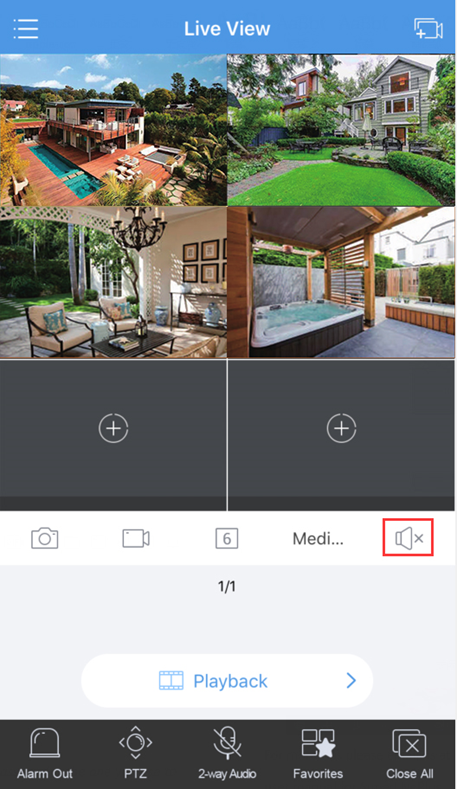
11. Select one camera and click to enable audio.
11. Select one channel and rotate the phone to horizontal orientation to view video in full screen (Turn off the portrait orientation lock of your phone.)

.
How to Playback
Remote Viewing video on Mobile App Elink Defence
1. Download “Elink Defense” on your mobile phone from Apple App Store or Google play
2. Find the device QR code on thebottom of the NVR. If you cannot find the QR code on the NVR, please right click your mouse on the NVR monitor, choose Menu–>System–>Network–>P2P to get theQRcode.
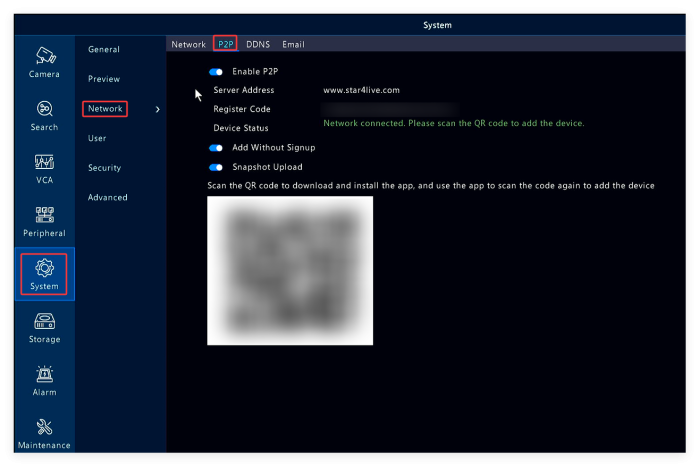
2. Find the device QR code on thebottom of the NVR. If you cannot find the QR code on the NVR, please right click your mouse on the NVR monitor, choose Menu–>System–>Network–>P2P to get theQRcode.
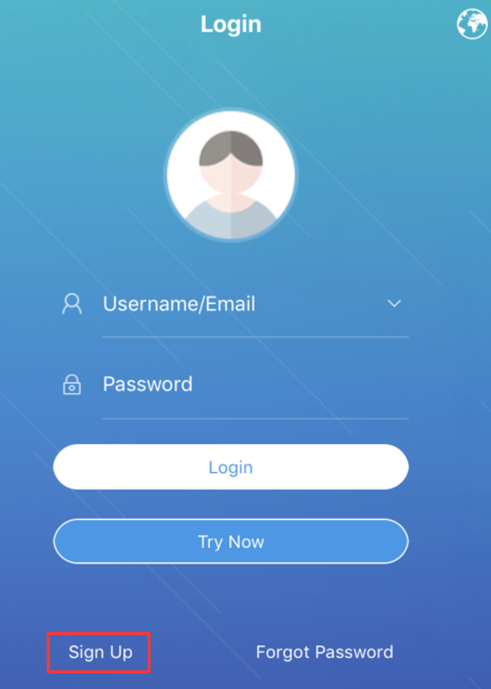
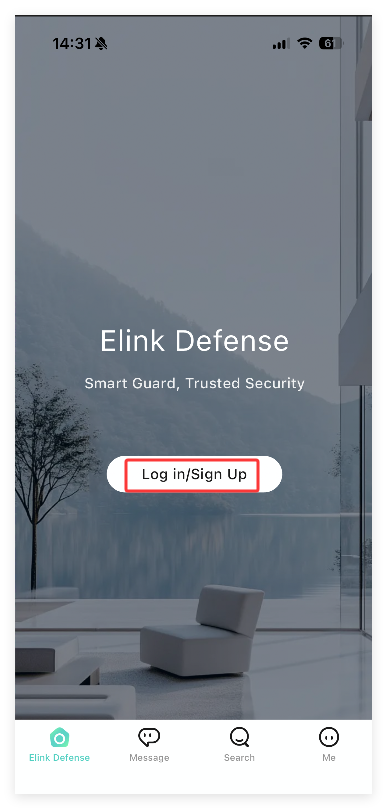
3. Open Elink, Tap on Log in/Sign up, tap Sign Up to register an account.
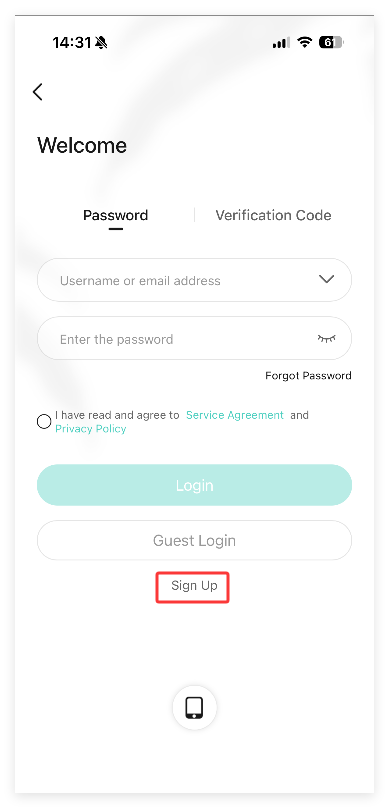
4. Tap on Sign up on the bottom.
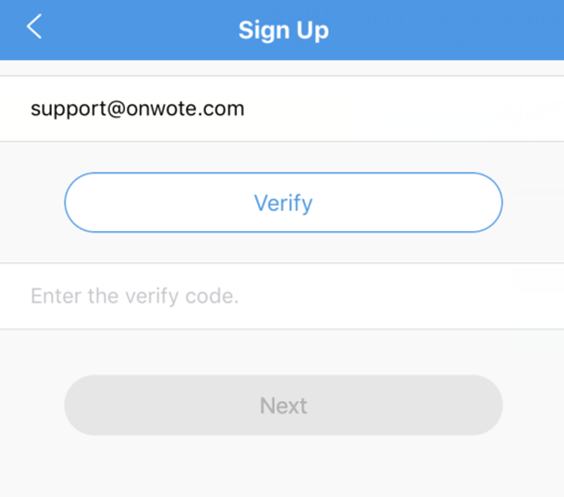
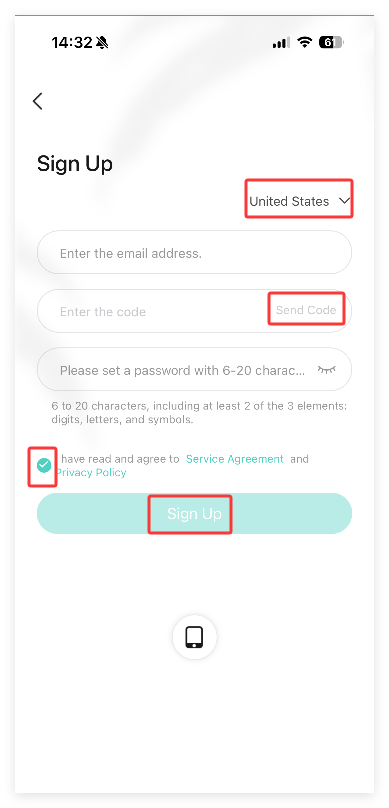
5. Select Region, enter your email address, check in I have read and agree to <<Service Agreement>> and <<PrivacyPolicy>> .Tap on Send Code.
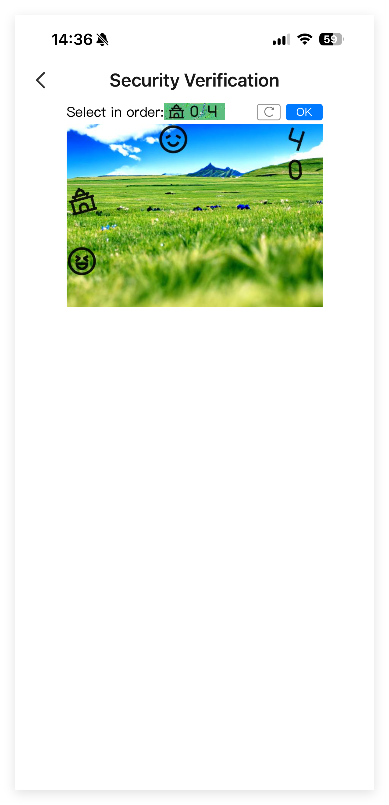
6. Select the icons in order to get a security code.
Tips: when checking notification code, please check both inbox and spam/trash folder.
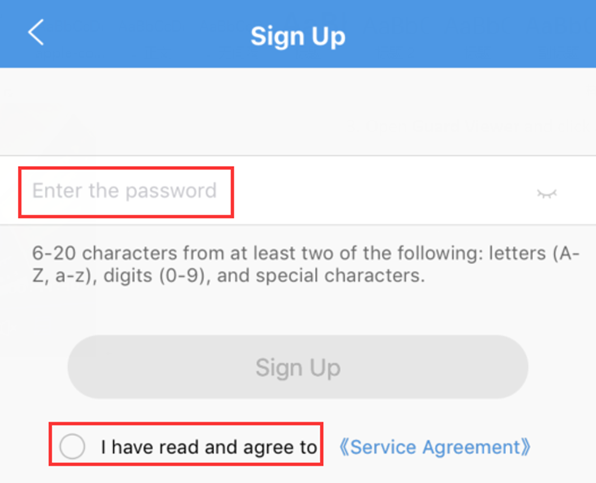
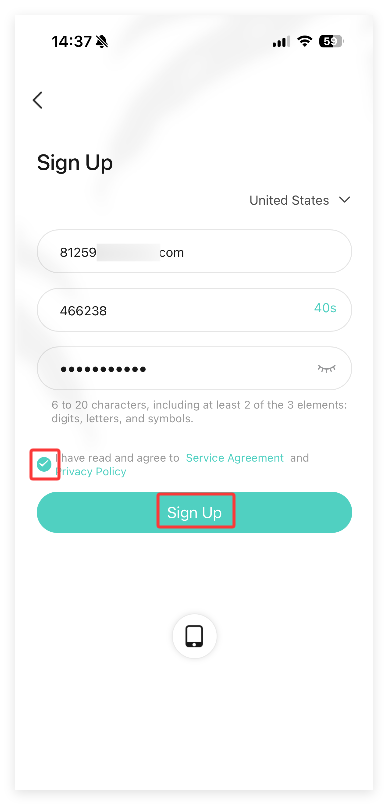
7. Enter the security code, set a password click on Sign up.
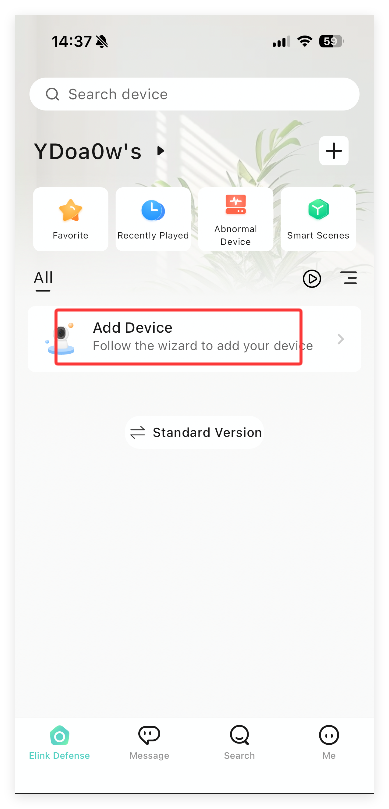
8.Tap on Add Device. Scan the device QR code (Refer to step 2 to get the QR code).
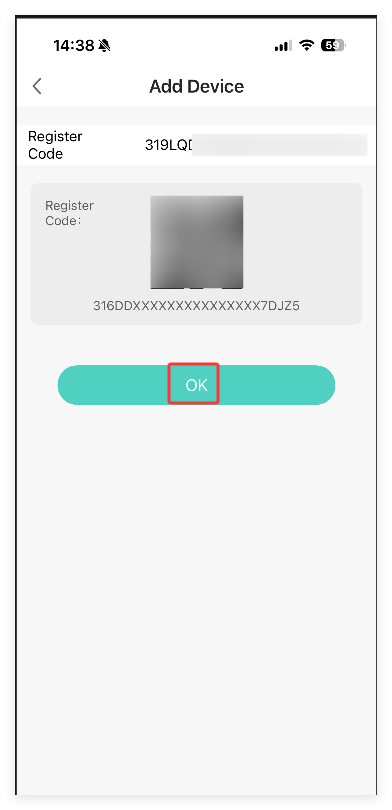
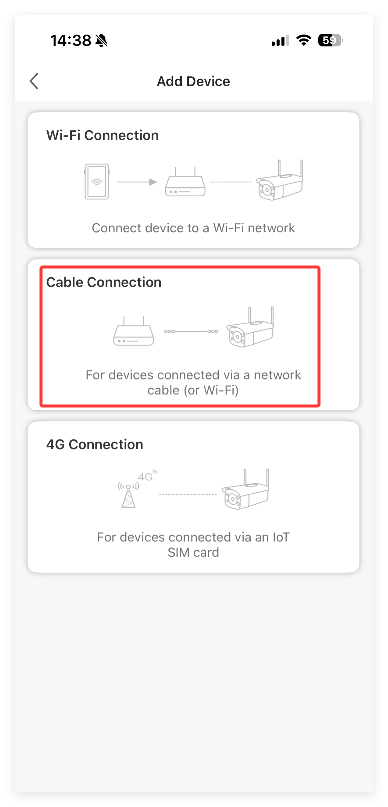
9. Tap on OK, choose Cable Connection.
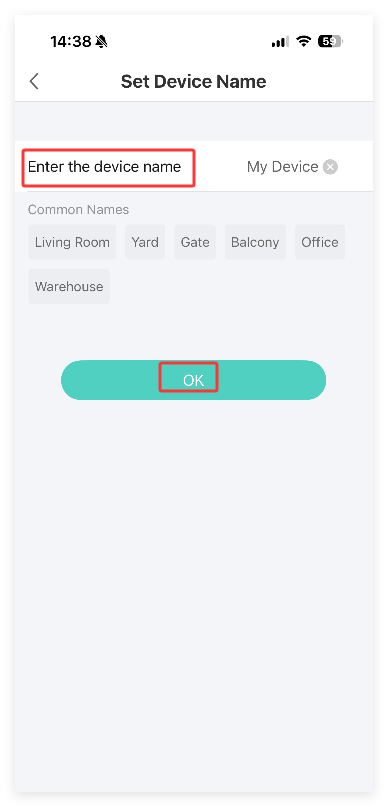
10. Set a name for the security camera system. Tap on OK.
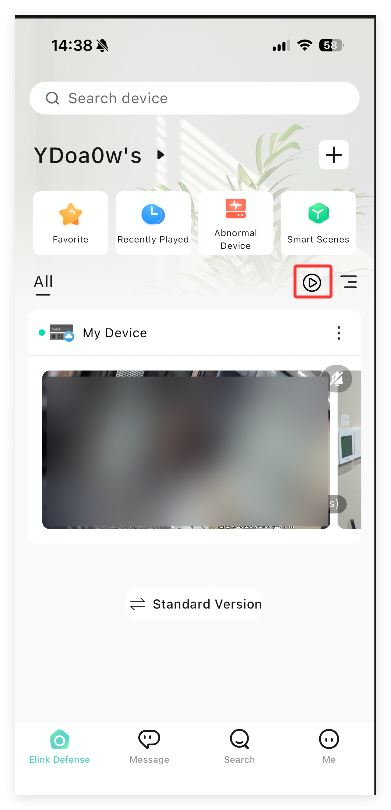
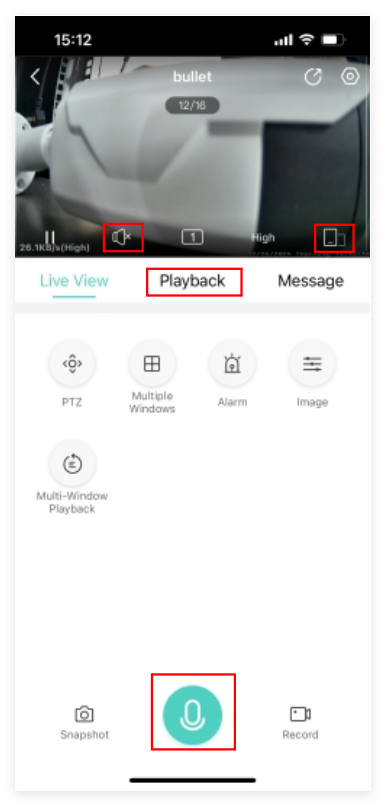
11. Tap on the camera to view video. Tap on on the right side to view more cameras at the same time.
12. Tap on the video image, click on to check audio. If your camera supports 2 way audio, please tap on the bottom to start 2 way audio.
13. Click Playback to check recordings.
14. Rotate the phone to horizontal orientation or tap to view video in full screen.
System stuck on onwote logo
Please use a FAT32 format USB thumb drive(please right click on the USB drive, choose Properties to check the format), no more than 32GB to upgrade the NVR to fix this issue.
1. Please create a folder in the USB drive, name the folder as recover.
2. Please download the firmware Program.bin here and copy it to the recover folder you create in the USB drive:
https://drive.google.com/file/d/1Mu5Chlj3pIzk-am2RmFAyl51ixSnhswA/view?usp=drive_link
The folder must be “recover” and the firmware must be “Program.bin”. Please don’t change them.
3. Insert the USB disk into the USB port of the NVR. Power off the NVR and power on it again. NVR will upgrade itself automatically. Please don’t cut off power while upgrading
4. The upgrading may last for a few minutes, you will hear beep from the NVR once the upgrading is finished. Please unplug the USB disk, power off the NVR and power on it. The NVR will back to normal.
.
View video on PC client software GuardStation 3
Please download the PC client software at:www.onwote.com
Support–> Download Center–> Software–> NVR3O….Series
Download the PC client software on Windows PC or MAC,install Guard Station.
Tips: If your MAC doesn’t allow to install the software, go to System Preference,
choose Security& Privacy, click Open Anyway to allow your MAC to install the
software.
a. Launch Guard Station and create an Administrator. Enter a password and click on
Next. Set security questions and click on OK.
.
b. Login with the user you created. Go to Control Panel, click Device Management to add device.
c. Click Cloud Device and Register to register a cloud account (If you’ve already registered an account on your mobile app-Elink Defense or GuardViewer, login with that account directly).
d.Type in a username, select region, enter your email address,verification code and
set a password,click Register to sign up an account.
e. Click +Add to add device.
f. Input the Register Code and click on Add. Then set a name for your device and click on OK.
(How to get Register code?-Right click on the NVR monitor,choose Menu–>Network–>Basic–>P2P to get the register code)
g. Go back to your PC client software- Guard Station, login with the account you registered.
h. Go to Live View and double click the device to view live video.
For audio cameras, move mouse to the channel to show up menu, click toplayaudio.
.
How to troubleshoot if some of the cameras stopped working
1. Check the indicator light on the PoE port which connected with this camera.
2. If you can see blinking green light on the port. Please reboot your NVR to have a try. If rebooting cannot fix the issue, please contact us at support@onwote.com.
3. If you cannot see indicator light on poe port, please change a poe port and a cable to test the camera. if it still cannot work, the camera is defective.
.
How to troubleshoot if the camera cannot work stably–keep going offline and online
1. Check the pins inside the connetor on camera tail.
2. If the pins were damaged or oxidised, please clean the pins to have a try. If it still cannot work, the camera is defetive.
This issue was caused by waterproof lid, please follow the picture below to re-install the waterproof lids of all your cameras to prevent more cameras from being damaged by water.
3. If the pins are good, but still cannot work stably. Please contact tech support at support@onwote.com to check the firmware.
Onwote NVR Cameras Devices FAQ
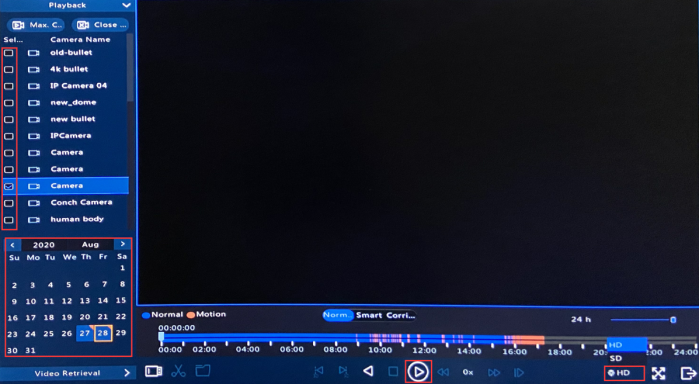
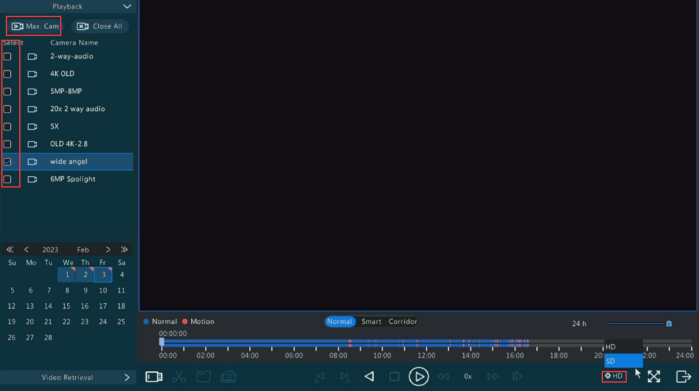
Why cannot playback multiple channels video at the same time
1. Right cliclk your mouse on the monitor choose Playback.
2. Click HD on the bottom right conner, change it SD.
3. Clcik Max. Cams on top left or select the cameras you need to play video.
.
Why my system cannot record video
1. Go to NVR Menu–Storage–Hard Disk to check your hard drive status.
2. If hard drive status is Normal, Property is Read / Write. It means hard drive is working. Please go to Menu–Storage–Recording to check your record settings.
3. if hard drive starus is Abnormal. Please check in hard drive, click Format to format it again. If formatting cannot fix the issue. Hard drive is defective.
4. If there is no hard drive information on this page. Please double check whether your NVR has a pre-installed hard drive. If there is a hard drive inside NVR, please
unscrew top cover of your Nvr, unplug hard drive from NVR and plug back again to have a try. If still no luck, the hard drive is defective.
Some of the cameras don’t display on NVR monitor
If your cameras are working properly and you can get video on phone/computer, but cannot get video on your monitor, please go to NVR Menu–System–Preview to
check your camera view.
Make sure all the cameras are added in the windows.
Get “Device has been registered ” error while adding device on GuardViewer
One device can only be added in one account. If the device was added in other account before, you will get error”Device has been registered”.
Go to NVR Menu–Network–Basic–P2P, click Unbind current account or Delete on the botton of the page to unbind the old account. Then add device on your phone again.
https://youtu.be/XXhdVYqZN4o?si=s07UPCc-ubgHQzhI
How to play the video downloaded from NVR
Download VLC player and play video using VLC player: https://www.videolan.org/vlc/index.en_GB.html
How to resolve the issue of the camera(YM series cameras) not switching to daytime mode?
1. Right click your mouse on NVR monitor, choose Menu—Network—TCP/IP to get the IP address of your system.
.
2. Please login this IP address using browser on computer/laptop.
Username: admin Password: the password you set for the security system
.
3. Choose Setup—Camera, click Access behind the cameras
.
4. You will be forwarded to the camera login page.
Username: admin Password: 123456
.
5. Choose Configuration—Camera—Image. Please change the Light Off Sensitivity higher, then click Save to save changes. The higher you change, the earlier your camera will change to day mode.
How to fix the issue of NVR (Network Video Recorder) keeps rebooting?
1. Unplug the Ethernet cable from your router, power on your NVR to check whether it can work when it disconnected with the router.
2. If NVR can work after you disconnected the Ethernet cable from NVR, please right click your mouse on the monitor, choose Menu–Maintenance–System info.
Email support@onwote.com your NVR firmware version so we can help you upgrade NVR to fix this issue.
3. If step 1 doesn’t fix the issue. Please uncrew the top cover of your NVR, unplug the 2 cables from hard drive to check whether your NVR can work without hard drive.
If NVR can work without hard drive, please replace your hard drive. If NVR still cannot work, your NVR is defective.
Why I can only view video on phone with my local wifi?
1. Run GuardViewer or Elink on the mobile, delete the device you added.
2. Right click your NVR mouse, choose Menu–System–Network–P2P to get the NVR QR code.
4. Go back to GuardViewer or Elink,follow the guide below to resgiter account and add device by scanning NVR QR code.
GuardViewer: https://youtu.be/JlJK7AZ75SE
Elink: https://youtu.be/CWe-2XKafHY
5. Try to view video remotely again.
How to do if my camera system doesn’t support Chrome or Edge
Only lastest version NVR can support Chrome and Edge. Please go to NVR Menu–Maintenance–System info to get your NVR firmware version.
Email your NVR firmware version to support@onwote.com to get latest version firmware.
How to reset PoE camera on browser
1. Right click your mouse on NVR monitor, choose Menu—System–Network to get the IP address of your system.
.
2. Please login this IP address using browser on computer/laptop.
Username: admin Password: the password you set for the security system
3. Choose Setup—Camera, click Advanced on the top.
4. Click Default on the right side of the camera to reset camera.
How to use your 8CH/16CH PoE system with PoE switch
1. Connect the PoE switches one by one, then connect one of the PoE switche and the NVR with the same router or network switch.
2. Change the cameras IP to the same segment with your router.
Right clcik your NVR mouse, choose Menu, click Camera on the left,. Slide download to the bottom, NVR will show you all the camera connected on the poe switch.
Click on the right side of the camera to change the camera ip address, click Apply to save the changes.
e.g.: If the gateway of your router is 192.168.1.1, please change the camera’s IP to 192.168.1.X(X can be numbers from 50-100, but each camera has a different numbers).
3. Add cameras on NVR
How to install hard drive


