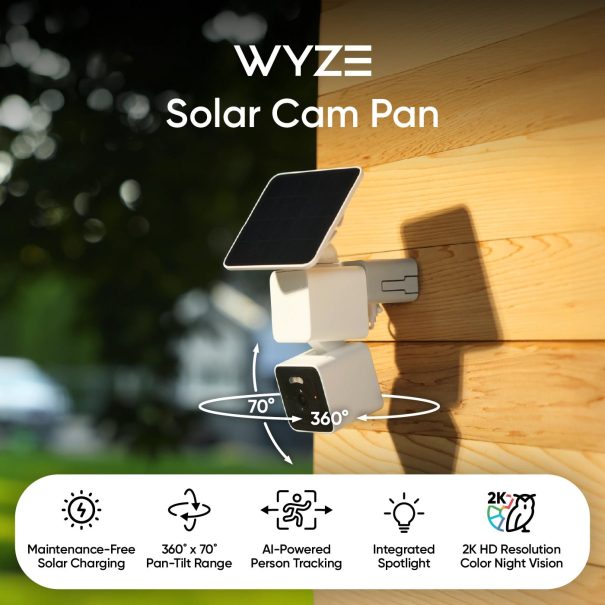
Wyze Solar Cam Pan, Wyze has been cranking out budget security cameras cameras at a steady pace, filling every niche from doorbells to floodlights. The Solar Cam Pan is the company’s first real swing at solar power, though, and it connects solidly. You get 2K video resolution, color night vision, a motion-activated spotlight, and AI person tracking without a subscription for much less than $100.
Wyze Solar Cam Pan Setup Guide
Before you begin setup:
1.Download the Wyze app on your smartphone or tablet.
2.Connect your device to a 2.4 GHz Wi-Fi network, and enable BluetoothⓇ.
3.Unpack your Wyze Solar Cam Pan box, removing all plastic and packing materials.
• Be sure to remove the plastic film from the lens.
4.Plug the camera into power using the provided Type-C cable, and a 5V/2A adapter (not included).
• You must fully charge Wyze Solar Cam Pan before setup and installation.
• The camera’s status light will turn solid red while charging, and solid blue when charging is complete.
1.In the Wyze app, tap Home, then tap + plus sign on the top right.
2.On the Add menu, tap Device.
3.Tap Cameras > Pan and Tilt Camera > Wyze Solar Cam Pan.
4.Ensure that your camera is fully charged. Tap Begin Setup.
• The camera’s status light will be solid red when charging, and solid blue when fully charged.
5.Single-press SETUP on top of the camera. The camera will say “ready to connect.” In the app, check the box next to It said, Ready to connect”.
7.If BluetoothⓇ hasn’t been enabled, you will be prompted to allow BluetoothⓇ and location access. Tap Next.
• If BluetoothⓇ and location access has already been enabled, it will skip to the next step.
8.The app will automatically begin searching for and pairing with your Wyze Solar Cam Pan.
• If you have multiple Wyze Solar Cam Pans, select the correct camera by tapping the MAC address that matches the address on the top of the camera.
9.Select your 2.4 GHz Wi-Fi network and enter your network password. Tap Next.
• Tap the icon in the password field to display the password to ensure it was entered correctly.
10.Your device will continue pairing. Once paired, tap Next.
1.If you want to use the installation guide now, tap Next.
1.Now it’s time to set up your Home Waypoint, your cam’s default view. Tap Continue.
• The Home Waypoint is required for this initial setup.
• Once your camera connects to the live stream, the camera will automatically calibrate for accurate positioning.
1.Use the arrows in the app to pan/tilt your camera until you reach your desired Home position. Tap Set and then tap Next.
• Camera mounted upside down? Tap Rotate 180° to flip the live stream.
2.Name your camera using the text field, or by choosing a suggestion. Tap Next.
3.You may be prompted to try a Wyze security plan, if you’re not already a subscriber. Tap Continue.
4.Set up some automations on the Things to Try page, or tap Skip then Done.
5.Enjoy your new Wyze device!
Wyze Solar Cam Pan Installation Guide
While following the Wyze Solar Cam Pan Setup Guide, you’ll be prompted to install your camera. Follow along with this video and article to install your Wyze Solar Cam Pan.
What’s in the box?
• Camera Mounting Bracket x1
• USB-C to USB-A Charging Cable x1
|
• Camera Mounting Drilling Guide x1
• Solar Panel Mounting Bracket x1
• Solar Panel Mounting Kit x1
|
Note: A 5V/2A power adapter is required to charge Wyze Solar Cam Pan using an outlet.
1.Follow along in the Wyze Solar Cam Pan Setup Guide. Once successfully paired, tap Next.
2.Ensure you have the required tools. Tap Next.
• You will need a ladder and a Philips-head screwdriver.
3.Review the series of installation tips, tapping Next on each.
1.Avoid pointing the camera at trees and busy roads.
2.Position your camera for better motion detection.
3.Mount the camera 7-10 feet up, angled 30° down.
1.Check your Wi-Fi Strength. Tap Next.
2.If you have a strong connection, tap Next.
3.Choose how you’d like to install your Wyze Solar Cam Pan and solar panel.
1.Tap Install Together to attach the solar panel to the camera before mounting.
2.Tap Install Separately to mount the solar panel and camera separately.
4.Once installation is complete, follow the in-app instructions to complete setup.
5.You’re all set! Tap Done.
My Wyze Solar Cam Pan’s battery is draining quickly.
Problem
The battery on your Wyze Solar Cam Pan is draining more quickly than expected.
Troubleshooting
1.Confirm that the Wyze app is up to date.
1.In your Wyze app, navigate to the Account tab > tap About.
2.Your current app version will be listed beneath the Wyze logo.
4.If you find that your Wyze app is out of date, head over to your mobile device’s app store and update the Wyze app.
2.If possible, check that your Wyze Solar Cam Pan’s firmware is up to date.
1.You can check this by going to the Account tab > Firmware Update.
2.If there is an update available for the camera, please move forward with updating it.
3.Check and clean the solar panel.
• Clean the solar panel with a soft, damp cloth.
• Check the solar panel’s cable for any kinks or damage, such as cuts, corrosion, or moisture in connection points.
1.Verify that the solar panel’s cable is inserted correctly and securely into the camera.
2.Ensure the solar panel is mounted in a position where it is able to receive at least 1 hour of direct sunlight per day. Adjust the placement, orientation, and angle of the solar panel, if needed.
• For users in the northern hemisphere, we recommend placing the solar panel facing south, with a tilt angle of 30° for optimal performance.
• For users in the southern hemisphere, we recommend placing the solar panel facing north, with a tilt angle of 30° for optimal performance.
• Ensure the solar panel is free from obstacles such as overhangs or shade that could block direct sunlight.
3.During a sunny midday, check if the app is registering the solar panel’s charge.
1.Navigate to the camera’s live stream.
2.Check the battery icon.
• If charging using the solar panel, there should be both a lightning bolt and a sun icon.
1.Adjust the position of the camera.
• We recommend mounting the camera 7-10 feet above the ground, with a downward tilt of 25-30° for optimal performance.
• Avoid pointing the camera at areas that may trigger unnecessary detections, such as waving trees or bushes, busy roads, dryer vents, range hood vents, or AC condensers.
1.Ensure Wyze Solar Cam Pan has good signal strength.
1.You can check this in the Wyze app by going to the camera’s settings > Device Info > Signal Strength.
2.If it has 2 bars or less, try moving the camera closer to the router.
1.Lower the live stream’s resolution.
• Higher resolutions require more bandwidth and are more likely to cause slower connectivity or drain the battery more quickly.
1.Enable Power Saving Mode.
1.In the camera’s settings, select Power Manager > Power Saving Mode.
2.Note: When enabled, tap the Play button in the live stream to begin viewing it.
1.Review the camera’s charging performance over a few days.
1.In the camera’s settings, select Power Manager.
2.Under Solar Energy Charging, verify that the solar panel is charging for at least 1 hour per day.
3.Review the number of Detected Events.
• Divide the Detected Events by the Working Days to get the average number of detections per day.
• If the average exceeds 200 events per day, adjust the camera’s position and recording settings.
2.Check that the camera is set to record correctly.
1.If possible, disable Event Recording for a day to see if that impacts the camera’s charge. If unable to do so, proceed to the next step.
2.Navigate to the camera’s settings > Event Recording.
3.Enable Motion.
1.For users without a Wyze Service, select All Events.
2.For users with a Wyze Service, select Smart Detection Events.
1.Next to Recording Preferences, tap Customize.
• For users without a Wyze Service, locate Other Motion, and ensure that the boxes are checked for both the Tag and Notify columns.
• For users with a Wyze Service, only select the specific types of AI motion that you would like to trigger the camera in order to eliminate unnecessary videos.
1.Adjust the Detection Settings.
1.Navigate to the camera’s settings > Detection Settings.
2.Create a Detection Zone to exclude any areas that may be creating unnecessary detections, such as waving trees or bushes.
3.Under Detection Range, adjust the slider to Near to minimize the distance at which motion will trigger the camera.
4.Under Motion Sensitivity, adjust the slider to Low so that the camera will only detect larger movements.
2.Restart the camera.
1.Navigate to the camera’s settings > Restart Camera > Restart.
3.Factory reset Wyze Solar Cam Pan.
1.Remove any microSD card that is inserted into the camera.
2.Press and hold the setup button for 20-30 seconds.
3.Once the status light starts flashing red, set up the camera as new.
Additional Notes:
• There are multiple factors that can impact how quickly the battery drains, including:
• Keeping the live stream open for extended periods of time.
• This also includes viewing the Events list underneath the camera’s live stream while live stream is active.
• Recording a high number of Events.
• Recording very long Events.
• Local recording to a microSD card.
.
My Wyze Solar Cam Pan is not charging using the solar panel.
Problem
Your Wyze Solar Cam Pan does not charge using the solar panel, even on sunny days.
Troubleshooting
1.Confirm that the Wyze app is up to date.
1.In your Wyze app, navigate to the Account tab > tap About.
2.Your current app version will be listed beneath the Wyze logo.
3.Compare your app version to the latest app version listed on our Release Notes & Firmware page.
4.If you find that your Wyze app is out of date, head over to your mobile device’s app store and update the Wyze app.
2.If possible, check that your Wyze Solar Cam Pan’s firmware is up to date.
1.You can check this by going to the Account tab > Firmware Update.
2.If there is an update available for the camera, please move forward with updating it.
3.Try charging Wyze Solar Cam Pan using the included USB-C power cable and a 5V2A power adapter (not included).
• If there is no status light or charging indicator light, refer to My Wyze Solar Cam Pan will not turn on.
1.Check and clean the solar panel.
1.Clean the solar panel with a soft, damp cloth.
2.Check the solar panel’s cable for any kinks or damage, such as cuts, corrosion, or moisture in connection points.
1.Verify that the solar panel’s cable is inserted correctly and securely into the camera.
2.Ensure the solar panel is mounted in a position where it is able to receive at least 1 hour of direct sunlight per day. Adjust the placement, orientation, and angle of the solar panel, if needed.
• For users in the northern hemisphere, we recommend placing the solar panel facing south, with a tilt angle of 30° for optimal performance.
• For users in the southern hemisphere, we recommend placing the solar panel facing north, with a tilt angle of 30° for optimal performance.
• Ensure the solar panel is free from obstacles such as overhangs or shade that could block direct sunlight.
1.During a sunny midday, check if the app is registering the solar panel’s charge.
1.Navigate to the camera’s live stream.
2.Check the battery icon.
• If charging using the solar panel, there should be both a lightning bolt and a sun icon.
1.Restart the camera.
1.Navigate to the camera’s settings > Restart Camera > Restart.
2.Factory reset Wyze Solar Cam Pan.
1.Remove any microSD card that is inserted into the camera.
2.Press and hold the setup button for 20-30 seconds.
3.Once the status light starts flashing red, set up the camera as new.
Note: When the temperature drops below 32°F (0°C), the battery will automatically pause charging to protect the battery.
.
My Wyze Solar Cam Pan is not tracking people.
Problem
When you use the Track Person feature on your Wyze Solar Cam Pan, the camera is not tracking people at all, or it is inconsistent.
Troubleshooting
1.Confirm that the Wyze app is up to date.
1.In your Wyze app, navigate to the Account tab > tap About.
2.Your current app version will be listed beneath the Wyze logo.
4.If you find that your Wyze app is out of date, head over to your mobile device’s app store and update the Wyze app.
2.If possible, check that your Wyze Solar Cam Pan’s firmware is up to date.
1.You can check this by going to the Account tab > Firmware Update.
2.If there is an update available for the camera, please move forward with updating it.
3.Calibrate the camera.
1.In the camera’s settings, tap Pan Controls.
2.Next to Calibrate Position, tap Calibrate.
3.Wait for the calibration to complete before exiting that screen.
4.Note: Ensure there is nothing impairing the camera’s ability to move, including the solar panel or its power cable.
4.Ensure Track Person is turned on.
1.Under the camera’s live stream, swipe left/right on the toolbar to find Track Person.
2.Tap to turn it off/on.
• The icon will be green when turned on.
5.Adjust the Detection Settings.
1.Navigate to the camera’s settings > Detection Settings.
2.Tap Detection Zone and toggle it off while testing.
3.Under Detection Range, adjust the slider to Far.
4.Under Motion Sensitivity, adjust the slider to High.
6.Check if there are any shared users adjusting the camera.
1.Navigate to the camera’s settings > Sharing.
2.Temporarily remove shared users, if needed.
7.Restart the camera.
1.Navigate to the camera’s settings > Restart Camera > Restart.
8.Factory reset Wyze Solar Cam Pan.
1.Remove any microSD card that is inserted into the camera.
2.Press and hold the setup button for 20-30 seconds.
3.Once the status light starts flashing red, set up the camera as new.
My Wyze Solar Cam Pan’s Waypoints are not accurate.
Problem
Your Wyze Solar Cam Pan is not adhering to the Waypoints that you set in the Wyze app, or when pressing the Home Waypoint or other Waypoints, the camera angle does not match the views in the thumbnails.
Troubleshooting
1.Confirm that the Wyze app is up to date.
1.In your Wyze app, navigate to the Account tab > tap About.
2.Your current app version will be listed beneath the Wyze logo.
3.Compare your app version to the latest app version listed on our Release Notes & Firmware page.
4.If you find that your Wyze app is out of date, head over to your mobile device’s app store and update the Wyze app.
2.If possible, check that your Wyze Solar Cam Pan’s firmware is up to date.
1.You can check this by going to the Account tab > Firmware Update.
2.If there is an update available for the camera, please move forward with updating it.
3.Ensure Wyze Solar Cam Pan has good signal strength.
1.You can check this in the Wyze app by going to the camera’s settings > Device Info > Signal Strength.
2.If it has 2 bars or less, try moving the camera closer to the router.
4.Disable Track Person.
1.Under the camera live stream, swipe left/right on the toolbar to find Track Person.
2.Tap to turn it on/off.
• The icon will be grey when turned off.
5.Calibrate the camera.
1.In the camera’s settings, tap Pan Controls.
2.Next to Calibrate Position, tap Calibrate.
3.Wait for the calibration to complete before exiting that screen.
4.Note: Ensure there is nothing impairing the camera’s ability to move, including the solar panel or its power cable.
6.Adjust the Waypoints.
1.Under the camera’s live stream, swipe left/right on the toolbar to find Waypoints.
2.Tap Waypoints to view the existing Waypoints.
3.Remove any existing Waypoints, and add them back one at a time, testing between each one.
7.Check if there are any shared users adjusting the camera.
1.Navigate to the camera’s settings > Sharing.
2.Temporarily remove shared users, if needed.
8.Restart the camera.
1.Navigate to the camera’s settings > Restart Camera > Restart.
9.Factory reset Wyze Solar Cam Pan.
1.Remove any microSD card that is inserted into the camera.
2.Press and hold the setup button for 20-30 seconds.
3.Once the status light starts flashing red, set up the camera as new.
Wyze Solar Cam Pan MicroSD Card Troubleshooting
Problem
You cannot view microSD card recordings, cannot record to the microSD card, or your Wyze Solar Cam Pan cannot detect the microSD card.
Troubleshooting
1.Confirm that the Wyze app is up to date.
1.In your Wyze app, navigate to the Account tab > tap About.
2.Your current app version will be listed beneath the Wyze logo.
4.If you find that your Wyze app is out of date, head over to your mobile device’s app store and update the Wyze app.
2.If possible, check that your Wyze Solar Cam Pan’s firmware is up to date.
1.You can check this by going to the Account tab > Firmware Update.
2.If there is an update available for the camera, please move forward with updating it.
3.Verify that the microSD card is compatible with the camera.
• Wyze Solar Cam Pan is compatible with microSD cards up to 32 GB in FAT32 format, and microSD cards up to 512 GB in exFAT format.
1.Verify that the microSD card is properly inserted into the device
1.Remove the microSD card and then reinsert it into the camera.
2.Properly re-seal the silicon cover of the microSD card slot.
1.Check that the selected playback time is correct.
1.In the Wyze app, navigate to the camera’s live stream > SD Card.
2.In the timeline, scroll left and right to the desired footage date/time.
2.Ensure that the MicroSD Card settings are correct.
1.Navigate to the camera’s settings > MicroSD Card.
2.Enable Record to MicroSD Card and select Record Events Only.
• Please note that Record Continuously requires Wyze Solar Cam Pan to be plugged into a 5V/2A power adapter.
3.Format the microSD card.
• To format the microSD card through the Wyze app:
1.Navigate to the MicroSD Card settings.
2.Next to Camera MicroSD Card, tap Format > Format.
• To format the microSD card through a computer, refer to How to Format your microSD card.
1.Restart the camera.
1.Navigate to the camera’s settings > Restart Camera > Restart.
1.Factory reset Wyze Solar Cam Pan.
1.Remove any microSD card that is inserted into the camera.
2.Press and hold the setup button for 20-30 seconds.
3.Once the status light starts flashing red, set up the camera as new.
.
Wyze Solar Cam Pan Connectivity Troubleshooting
Problem
Your Wyze Solar Cam Pan shows offline in the Wyze app, loads slowly, or disconnects frequently.
Troubleshooting
1.Confirm that the Wyze app is up to date.
1.In your Wyze app, navigate to the Account tab > tap About.
2.Your current app version will be listed beneath the Wyze logo.
4.If you find that your Wyze app is out of date, head over to your mobile device’s app store and update the Wyze app.
2.If possible, check that your Wyze Solar Cam Pan’s firmware is up to date.
1.You can check this by going to the Account tab > Firmware Update.
2.If there is an update available for the camera, please move forward with updating it.
3.Confirm whether the status light is on.
4.Verify that Location Permissions are enabled for the Wyze app in the phone/tablet settings.
1.Make sure that it is set to Always or While Using the App.
2.For iOS users, make sure that Precise Location is turned on.
5.Confirm that the Wi-Fi network that the camera is connected to is functioning normally.
• Wyze Solar Cam Pan is only compatible with 2.4 GHz Wi-Fi networks.
1.Switch between using the Wi-Fi connection and cellular/mobile data to determine if there is an issue with the Wi-Fi.
2.Force close and reopen the Wyze app.
3.Ensure Wyze Solar Cam Pan has good signal strength.
1.You can check this in the Wyze app by going to the camera’s settings > Device Info > Signal Strength.
2.If it has 2 bars or less, try moving the camera closer to the router.
1.Adjust the live stream resolution to a lower resolution.
• Higher resolution requires more bandwidth and is more likely to cause slower connectivity.
1.Reboot the Wi-Fi router.
2.Restart the camera.
1.Navigate to the camera’s settings > Restart Camera > Restart.
1.Factory reset Wyze Solar Cam Pan.
1.Remove any microSD card that is inserted into the camera.
2.Press and hold the setup button for 20-30 seconds.
3.Once the status light starts flashing red, set up the camera as new.
.
Wyze Solar Cam Pan Setup Troubleshooting
Problem
Your Wyze Solar Cam Pan is unable to be set up.
Troubleshooting
1.Confirm that the Wyze app is up to date.
1.In your Wyze app, navigate to the Account tab > tap About.
2.Your current app version will be listed beneath the Wyze logo.
4.If you find that your Wyze app is out of date, head over to your mobile device’s app store and update the Wyze app.
2.Check that the camera’s status light is flashing red and that there is a “ready to connect” voice prompt after pressing the setup button.
• The status light for Wyze Solar Cam Pan is on the front of the camera.
1.Ensure that Bluetooth® is enabled for the Wyze app in your phone/tablet settings.
1.Toggle Bluetooth® off/on.
1.Verify that Location Permissions are enabled for the Wyze app in your phone/tablet settings.
1.Make sure that it is set to Always or While Using the App.
2.For iOS users, make sure that Precise Location is turned on.
2.If possible, temporarily disable any VPNs on the mobile device or Wi-Fi router.
3.Ensure that the phone/tablet is connected to the same Wi-Fi network that is being entered at the Select your network step, that the SSID (Wi-Fi name) is being entered correctly, and that the network is functioning normally.
• Wyze Solar Cam Pan is only compatible with 2.4 GHz Wi-Fi networks.
• The SSID is case-sensitive, and there should be no space before or after the SSID.
• The SSID should automatically populate if the phone/tablet is connected to Wi-Fi. If it does not auto-populate, it can indicate that the phone/tablet that is being used for setup is not connected to Wi-Fi.
1.Check that the Wi-Fi password is entered correctly.
1.Tap on the eye icon to view the password entered.
1.Make sure the camera and phone/tablet are close to the router (within 6-10 feet) during the setup process.
2.Forget the Wi-Fi network and rejoin the network on the phone/tablet, then try setting up the camera again.
3.Reboot the Wi-Fi router.
4.Factory reset Wyze Solar Cam Pan.
1.Remove any microSD card that is inserted into the camera.
2.Press and hold the setup button for 20-30 seconds.
3.Once the status light starts flashing red, set up the camera as new.
My Wyze Solar Cam Pan has poor audio quality.
Problem
You hear poor audio quality when speaking through Wyze Solar Cam Pan, or in recorded Events; Wyze Solar Cam Pan has low/distorted audio.
Troubleshooting
1.Confirm that the Wyze app is up to date.
1.In your Wyze app, navigate to the Account tab > tap About.
2.Your current app version will be listed beneath the Wyze logo.
4.If you find that your Wyze app is out of date, head over to your mobile device’s app store and update the Wyze app.
2.If possible, check that your Wyze Solar Cam Pan’s firmware is up to date.
1.You can check this by going to the Account tab > Firmware Update.
2.If there is an update available for the camera, please move forward with updating it.
3.Ensure there is nothing impairing the camera’s microphone or speaker.
• Remove any plastic film/cover from the microphone or speaker.
• Gently blow on or wipe the microphone or speaker with a soft cloth to remove any dust or debris.
1.Verify that audio is enabled in the camera’s live stream.
1.Navigate to the camera’s live stream.
2.Tap the live stream, then tap the speaker icon to enable sound.
1.Ensure Record Sound is enabled.
1.In the Wyze app, go to the camera’s settings > Advanced Settings.
2.Toggle on Record Sound.
2.When viewing recordings, ensure the video sound is not muted.
3.If experiencing poor audio quality while using the 2-way audio feature:
1.Ensure Wyze Solar Cam Pan has good signal strength.
1.You can check this in the Wyze app by going to the camera’s settings > Device Info > Signal Strength.
2.If it has 2 bars or less, try moving the camera closer to the router.
2.Lower the live stream’s resolution.
4.Force close and reopen the Wyze app.
5.Increase the volume on the phone/tablet.
6.Test the audio on a different phone/tablet, if possible.
7.If there is a microSD card inserted into the camera, check the recordings on a computer, if possible, to verify if the audio in the microSD card recordings has the same issue.
8.Restart the camera.
1.Navigate to the camera’s settings > Restart Camera > Restart.
9.Factory reset Wyze Solar Cam Pan.
1.Remove any microSD card that is inserted into the camera.
2.Press and hold the setup button for 20-30 seconds.
3.Once the status light starts flashing red, set up the camera as new.
.
My Wyze Solar Cam Pan has poor image quality.
Problem
Your Wyze Solar Cam Pan is displaying a distorted or tinted image in the live stream or recorded Events.
Troubleshooting
1.Confirm that the Wyze app is up to date.
1.In your Wyze app, navigate to the Account tab > tap About.
2.Your current app version will be listed beneath the Wyze logo.
4.If you find that your Wyze app is out of date, head over to your mobile device’s app store and update the Wyze app.
2.If possible, check that your Wyze Solar Cam Pan’s firmware is up to date.
1.You can check this by going to the Account tab > Firmware Update.
2.If there is an update available for the camera, please move forward with updating it.
3.Ensure there is nothing impairing the camera’s lens.
• Remove any plastic film or cover from the lens.
• Gently wipe the lens with a soft cloth to remove any dust or debris.
• If there is third-party cover on the device, please remove it.
• Ensure this camera is not positioned behind a window, which will negatively impact device performance.
1.Verify that there are no additional light sources next to or pointing toward the camera lens that may cause interference.
• If the camera lens is in the direct path of the sun, it is possible that a lens flare appears in the image.
• We recommend adjusting the position of the camera angle or setting a Home Waypoint that is not in the direct path of the sunlight, but this is an expected phenomenon in standard cameras.
• If the camera is not facing the sun directly, make sure the camera’s spotlight isn’t reflecting off nearby surfaces.
• We recommend adjusting the height/angle of the camera so the reflection is minimized.
• Optional: At your own discretion, you can use anti-reflective tape on surfaces that would reflect the spotlight back at the camera.
2.Ensure Wyze Solar Cam Pan has good signal strength.
1.You can check this in the Wyze app by going to the camera’s settings > Device Info > Signal Strength.
2.If it has 2 bars or less, try moving the camera closer to the router.
1.Switch between using the Wi-Fi connection and cellular/mobile data to determine if there is an issue with the Wi-Fi.
2.Adjust the live stream resolution to a lower resolution.
• Higher resolution requires more bandwidth and is more likely to cause slower connectivity.
1.Cycle through Night Vision Mode.
1.Navigate to the camera’s settings > Advanced Settings.
2.Cycle through On, Off, and Auto.
3.Note: We recommend setting it to Auto.
1.Reboot the Wi-Fi router.
2.Restart the camera.
1.Navigate to the camera’s settings > Restart Camera > Restart.
3.Factory reset Wyze Solar Cam Pan.
1.Remove any microSD card that is inserted into the camera.
2.Press and hold the setup button for 20-30 seconds.
3.Once the status light starts flashing red, set up the camera as new.
My Wyze Solar Cam Pan’s firmware is not updating.
Problem
When you try to update the firmware for your Wyze Solar Cam Pan, it fails.
Troubleshooting
1.Confirm that the Wyze app is up to date.
1.In your Wyze app, navigate to the Account tab > tap About.
2.Your current app version will be listed beneath the Wyze logo.
4.If you find that your Wyze app is out of date, head over to your mobile device’s app store and update the Wyze app.
2.Ensure Wyze Solar Cam Pan has good signal strength.
1.You can check this in the Wyze app by going to the camera’s settings > Device Info > Signal Strength.
2.If it has 2 bars or less, try moving the camera closer to the router.
3.Force-close the app and wait 30 minutes before checking whether the update was successful.
4.If there is a microSD card inserted into the camera, remove it and attempt the firmware update again.
5.Move the camera and device with the Wyze app closer to the router during the update.
6.Reboot the Wi-Fi router and then attempt the update again.
7.Restart the camera.
1.Navigate to the camera’s settings > Restart Camera > Restart.
8.Factory reset Wyze Solar Cam Pan.
1.Remove any microSD card that is inserted into the camera.
2.Press and hold the setup button for 20-30 seconds.
3.Once the status light starts flashing red, set up the camera as new
My Wyze Solar Cam Pan will not turn on.
Problem
Your Wyze Solar Cam Pan’s status light is not lighting up, or the device is not powering on / charging when using the included power cable.
Troubleshooting
1.Plug Wyze Solar Cam Pan into a standard outlet to charge, making sure that the camera is powered using the power cable that came with the camera.
2.Verify that the power cable is plugged into a 5V2A power adapter (not included).
• Using lower-rated power adapters will negatively impact the charging performance.
3.Ensure the power cable is inserted correctly and securely into the camera and adapter.
4.Check the charging indicator light.
• The charging indicator is located on the back of the camera.
• The charging indicator will be solid red while charging.
• The charging indicator will be solid blue when fully charged.
• Note: A full charge from 0-100% may take up to 4-6 hours.
5.Press and hold the setup button on the camera until you hear “ready to connect”.
6.Try plugging the camera into a different power outlet.
7.Try a different power cable or 5V2A power adapter to determine if the cable or adapter is defective.
8.Factory reset Wyze Solar Cam Pan.
1.Remove any microSD card that is inserted into the camera.
2.Press and hold the setup button for 20-30 seconds.
3.Once the status light starts flashing red, set up the camera as new.
Note: Wyze Solar Cam Pan requires a 5V2A power adapter (not included) when charging using the included power cable.
.
My Wyze Solar Cam Pan is missing or not recording Events.
Note: You’ll need to be on Wyze app version 3.14 or above in order to set up or reconnect your Wyze Solar Cam Pan.
Problem
Wyze Solar Cam Pan is not recording any motion-triggered events, is missing events, or is not sending me any notifications.
Note: An active subscription to a Wyze Service is required to receive cloud Event videos.
Troubleshooting
1.Confirm that the Wyze app is up to date.
1.In your Wyze app, navigate to the Account tab > tap About.
2.Your current app version will be listed beneath the Wyze logo.
4.If you find that your Wyze app is out of date, head over to your mobile device’s app store and update the Wyze app.
2.If possible, check that your Wyze Solar Cam Pan’s firmware is up to date.
1.You can check this by going to the Account tab > Firmware Update.
2.If there is an update available for the camera, please move forward with updating it.
3.Verify that Location Permissions are enabled for the Wyze app in the phone/tablet settings.
1.Make sure that it is set to Always or While Using the App.
2.For iOS users, make sure that Precise Location is turned on.
4.Ensure the camera is set to record correctly.
1.In the Wyze app, navigate to the camera’s settings > Event Recording.
2.Enable Motion, then select All Events.
3.Next to Recording Preferences, tap Customize.
4.Next to Other Motion, ensure that the boxes are checked for both the Tag and Notify columns.
5.Attempt to trigger the camera by creating movement in front of the device.
6.Note: For Wyze Services users, once recordings for Other Motion are being generated, you can select the desired AI recordings by checking the other options in the Tag and Notify columns.
5.Adjust the Detection Settings.
1.Navigate to the camera’s settings > Detection Settings.
2.Tap Detection Zone and toggle it off while testing.
3.Under Detection Range, adjust the slider to Far.
4.Under Motion Sensitivity, adjust the slider to High.
6.Check that Notifications are set correctly.
1.For the camera:
1.Navigate to the camera’s settings > Notifications.
3.Note: Tap Manage to be taken back to the screen to customize the Notify column for your recordings.
2.For the Wyze app:
1.Navigate to the Home tab of the Wyze app.
2.Tap Account > Notifications > Push Notifications.
3.Toggle on Push Notifications.
3.For the mobile device:
1.Navigate to the device’s settings.
2.Enable notifications for the Wyze app.
7.Verify that there are no Automations set up that could be causing interference.
1.Navigate to the Home tab of the Wyze app, tap Automations.
2.Note: We recommend deleting any Automations and then adding them back one by one while testing.
8.Restart the camera.
1.Navigate to the camera’s settings > Restart Camera > Restart.
9.Factory reset Wyze Solar Cam Pan.
1.Remove any microSD card that is inserted into the camera.
2.Press and hold the setup button for 20-30 seconds.
3.Once the status light starts flashing red, set up the camera as new.
My Wyze Solar Cam Pan is not detecting pets.
Problem
Your Wyze Solar Cam Pan is not detecting pets at all, or it is inconsistent.
Troubleshooting
1.Confirm that the Wyze app is up to date.
1.In your Wyze app, navigate to the Account tab > tap About.
2.Your current app version will be listed beneath the Wyze logo.
4.If you find that your Wyze app is out of date, head over to your mobile device’s app store and update the Wyze app.
2.If possible, check that your Wyze Solar Cam Pan’s firmware is up to date.
1.You can check this by going to the Account tab > Firmware Update.
2.If there is an update available for the camera, please move forward with updating it.
3.Check that the camera is set to record correctly.
1.Navigate to the camera’s settings > Event Recording.
2.Enable Motion, then select All Events.
3.Next to Recording Preferences, tap Customize.
4.Next to Other Motion, ensure that the boxes are checked for both the Tag and Notify columns.
5.Attempt to have the pet trigger the camera.
6.Note: For Wyze Services users, once recordings for Other Motion are being generated, you can select the desired AI recording by checking the other options in the Tag and Notify columns.
4.Adjust the Detection Settings.
1.Navigate to the camera’s settings > Detection Settings.
2.Tap Detection Zone and toggle it off while testing.
3.Under Detection Range, adjust the slider to Far.
4.Under Motion Sensitivity, adjust the slider to High.
5.Restart the camera.
1.Navigate to the camera’s settings > Restart Camera > Restart.
6.Factory reset Wyze Solar Cam Pan.
1.Remove any microSD card that is inserted into the camera.
2.Press and hold the setup button for 20-30 seconds.
3.Once the status light starts flashing red, set up the camera as new.
Note: Wyze Solar Cam Pan uses PIR to detect motion using heat. Due to the nature of PIR technology, the placement of the camera, and the small size of most pets, pet detection is not guaranteed.
My Wyze Solar Cam Pan has a laggy live stream.
Note: You’ll need to be on Wyze app version 3.14 or above in order to set up or reconnect your Wyze Solar Cam Pan.
Problem
Your Wyze Solar Cam Pan has a choppy or laggy live stream.
Troubleshooting
1.Confirm that the Wyze app is up to date.
1.In your Wyze app, navigate to the Account tab > tap About.
2.Your current app version will be listed beneath the Wyze logo.
4.If you find that your Wyze app is out of date, head over to your mobile device’s app store and update the Wyze app.
2.If possible, check that your Wyze Solar Cam Pan’s firmware is up to date.
1.You can check this by going to the Account tab > Firmware Update.
2.If there is an update available for the camera, please move forward with updating it.
3.Ensure Wyze Solar Cam Pan has good signal strength.
1.You can check this in the Wyze app by going to the camera’s settings > Device Info > Signal Strength.
2.If it has 2 bars or less, try moving the camera closer to the router.
4.Switch between using the Wi-Fi connection and cellular/mobile data to determine if there is an issue with the Wi-Fi.
5.Force close and reopen the Wyze app.
6.Adjust the live stream resolution to a lower resolution.
• Higher resolution requires more bandwidth and is more likely to cause slower connectivity.
1.Adjust the camera’s speed.
1.In the camera’s settings, select Pan Controls.
2.Under Manual Pan-Tilt Speed, adjust the slider to Low.
3.Note: Faster rotation speeds may cause video lag when the Wi-Fi signal is not optimal.
1.Reboot the Wi-Fi router.
2.Restart the camera.
1.Navigate to the camera’s settings > Restart Camera > Restart.
3.Factory reset Wyze Solar Cam Pan.
1.Remove any microSD card that is inserted into the camera.
2.Press and hold the setup button for 20-30 seconds.
3.Once the status light starts flashing red, set up the camera as new.
My Wyze Solar Cam Pan is drifting.
Note: You’ll need to be on Wyze app version 3.14 or above in order to set up or reconnect your Wyze Solar Cam Pan.
Problem
Your Wyze Solar Cam Pan drifts away from the Home Waypoint position, without you updating or controlling it.
Troubleshooting
1.Confirm that the Wyze app is up to date.
1.In your Wyze app, navigate to the Account tab > tap About.
2.Your current app version will be listed beneath the Wyze logo.
4.If you find that your Wyze app is out of date, head over to your mobile device’s app store and update the Wyze app.
2.If possible, check that your Wyze Solar Cam Pan’s firmware is up to date.
1.You can check this by going to the Account tab > Firmware Update.
2.If there is an update available for the camera, please move forward with updating it.
3.Disable Track Person.
1.Under the camera live stream, swipe left/right on the toolbar to find Track Person.
2.Tap to turn it on/off.
• The icon will be grey when turned off.
4.Calibrate the camera.
1.In the camera’s settings, tap Pan Controls.
2.Next to Calibrate Position, tap Calibrate.
3.Wait for the calibration to complete before exiting that screen.
4.Note: Ensure there is nothing impairing the camera’s ability to move, including the solar panel or its power cable.
5.Adjust the Waypoints.
1.Under the camera’s live stream, swipe left/right on the toolbar to find Waypoints.
2.Tap Waypoints to view the existing Waypoints.
3.Remove any existing Waypoints, and add them back one at a time, testing between each one.
6.Check if there are any shared users adjusting the camera.
1.Navigate to the camera’s settings > Sharing.
2.Temporarily remove shared users, if needed.
7.Restart the camera.
1.Navigate to the camera’s settings > Restart Camera > Restart.
8.Factory reset Wyze Solar Cam Pan.
1.Remove any microSD card that is inserted into the camera.
2.Press and hold the setup button for 20-30 seconds.
3.Once the status light starts flashing red, set up the camera as new.
How do I factory reset my Wyze Solar Cam Pan?
Note: You’ll need to be on Wyze app version 3.14 or above in order to set up or reconnect your Wyze Solar Cam Pan.
To factory reset Wyze Solar Cam Pan:
1.Remove any microSD card that is inserted into the camera.
2.With the camera powered on, press and hold the setup button on the top of the camera for 20-30 seconds.
3.Once the status light starts flashing red, set up the camera as new.
.