How to Monitor Solar Security Cameras on a Computer, Deploying an off-grid surveillance solution offers unmatched perimeter flexibility, yet monitoring a remote solar camera from a desktop computer presents unique engineering challenges. While commercial fixed cameras thrive on continuous local streams, low-power battery-operated and cellular units are architected for conservation, making desktop access a game of balancing real-time visibility against battery depletion and cellular bandwidth quotas.
- The Architectural Challenge: Why Solar & Battery Cameras Behave Differently on PC
- 3 Proven Methods to Monitor Solar Cameras on a PC
- Method 1: Native Manufacturer Client Software (CMS/VMS)
- Method 2: Browser-Based Cloud Gateways & WebRTC
- Method 3: Android Subsystem & Desktop Emulation
- Method Comparison: Desktop Monitoring Pathways
- Data & Power Consumption Benchmarks for 4G LTE Cameras
- Step-by-Step Tutorial: Setting Up Desktop Monitoring
- Actionable Best Practices: Maximizing Reliability and Uptime
- ❓ Frequently Asked Questions
📌 Key Takeaways & Highlights
- Architecture Mismatch: Most consumer-grade battery camera and solar units prioritize mobile-first, push-notification frameworks to conserve milliamps; continuous PC viewing requires dedicated VMS clients or web-based P2P tunnels.
- Connectivity Constraints: If your system relies on a 4g lte camera, accessing a high-bitrate desktop stream consumes significant data pools—averaging 1 GB to 2 GB per hour of sustained high-definition streaming.
- Software Approaches: Desktop monitoring is achievable through three primary pathways: native manufacturer VMS/CMS software, WebRTC cloud portals, or Android virtualization platforms like BlueStacks.
- Power Conservation Protocols: Keeping a live feed open indefinitely on a PC will override the camera’s ultra-low-power standby mode, potentially draining a battery reserve faster than a 5W–10W solar panel can recover on overcast days.
The Architectural Challenge: Why Solar & Battery Cameras Behave Differently on PC
To successfully integrate an off-grid camera into a multi-screen desktop security station, one must understand how standalone hardware operates under the hood. Traditional IP cameras run continuous RTSP/ONVIF streams over a hardwired PoE network, pulling 5 to 15 Watts continuously from a dedicated power supply. In contrast, an autonomous solar camera is fundamentally a high-efficiency battery camera coupled with a photovoltaic panel.
Under idle conditions, these cameras enter an ultra-low-power deep sleep state, consuming between 200 and 400 microamperes (µA). In this state, only the passive infrared (PIR) sensor or the low-power radar module remains active. When you initiate a live desktop view:
- The camera’s main System-on-Chip (SoC) wakes up, drawing 250 to 450 milliamperes (mA).
- The image sensor and ISP (Image Signal Processor) spin up to compress the video into H.264 or H.265 streams.
- The onboard network module (Wi-Fi or 4G LTE transceiver) switches from low-frequency beaconing to sustained radio transmission.
When you stream footage to a PC for hours at a time, the camera cannot return to sleep. On a standard 10,400 mAh battery cell paired with a modest 6W solar panel, continuous PC viewing during winter or overcast weeks can force the battery into critical discharge within 18 to 36 hours. Therefore, desktop monitoring of solar units must be treated as targeted operational checks rather than perpetual, wall-mounted display feeds—unless enterprise-grade continuous solar stations are deployed.
3 Proven Methods to Monitor Solar Cameras on a PC
Method 1: Native Manufacturer Client Software (CMS/VMS)
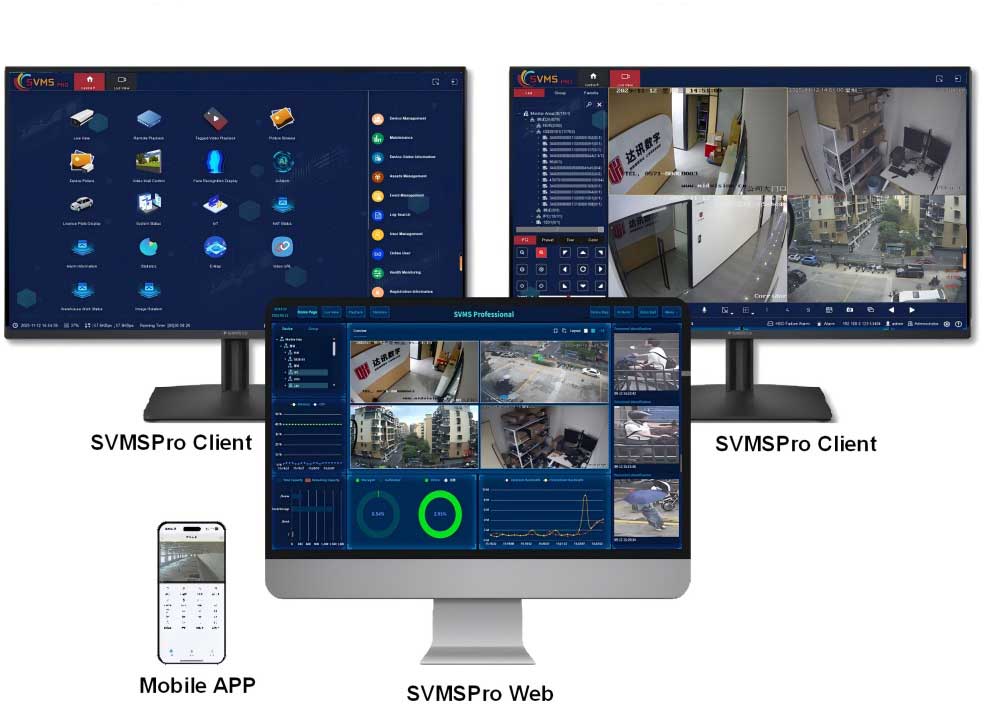
Top-tier security brands provide free, native desktop clients for Windows and macOS (such as Reolink Client, Hikvision iVMS-4200, or Dahua SmartPSS). These applications communicate directly with the device’s unique UID via proprietary peer-to-peer (P2P) signaling servers. This method provides the most stable performance, lowest latency, and granular control over bitrates, motion zones, and onboard SD card/NVR playback.
Method 2: Browser-Based Cloud Gateways & WebRTC
Certain off-grid camera ecosystems maintain web management consoles. By navigating to the manufacturer’s secure cloud URL and logging into your master account, you can access WebRTC or HTML5-based video streams without installing local software. This is ideal for secure enterprise workstations where administrator privileges prevent installing third-party executable software. However, web gateways frequently enforce 2-to-5-minute viewing timeouts to protect both the camera’s battery and host server bandwidth.
Method 3: Android Subsystem & Desktop Emulation
If your hardware is an ultra-affordable or proprietary model that solely features an iOS/Android application (without an official PC client or RTSP support), an Android emulator bridges the gap. By running an environment like BlueStacks, LDPlayer, or Windows Subsystem for Android (WSA), you can install the camera’s native APK directly onto your desktop. This simulates a smartphone environment, allowing multi-cam live view, PTZ tracking, and push notifications to pop up directly within Windows.
Method Comparison: Desktop Monitoring Pathways
| Feature / Method | Key Advantages | Requirements |
|---|---|---|
| Native Manufacturer VMS | Lowest latency, full resolution control, local hardware acceleration, multi-camera grid viewing. | Official desktop client support; camera must support P2P UID desktop handshakes. |
| Cloud Web Portal (WebRTC) | Zero software installation, works on Chromebooks/Linux, secure encrypted access across restricted corporate networks. | Active cloud account subscription; stable outbound internet access; modern HTML5 browser. |
| Android Emulator (BlueStacks/WSA) | Universal compatibility with 100% of app-only cameras; identical interface and alerts to mobile. | Higher PC CPU/RAM utilization; requires virtualization (VT-x/AMD-V) enabled in PC BIOS. |
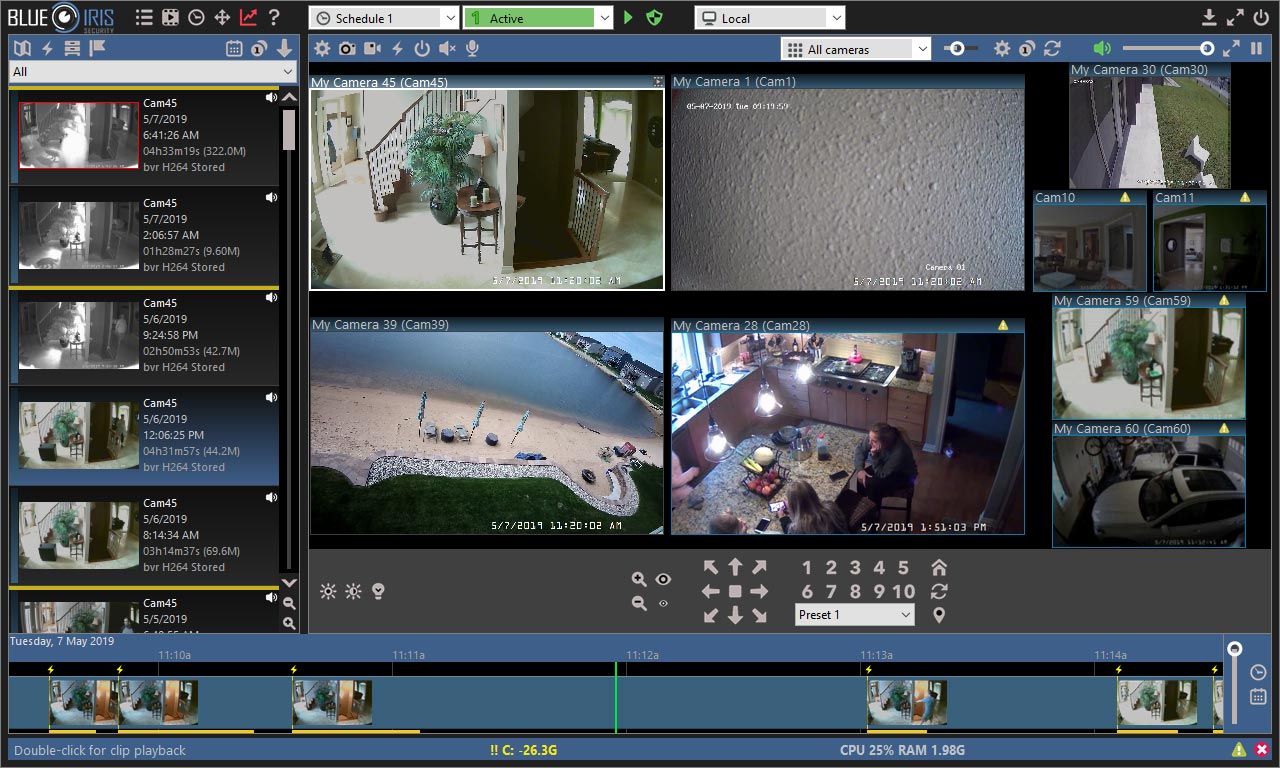
| RTSP / ONVIF to Third-Party VMS | Seamless integration into Blue Iris, Milestone, or Synology Surveillance Station alongside wired cameras. | Camera firmware must explicitly unblock local RTSP; severely depletes battery camera power reserves. |
Data & Power Consumption Benchmarks for 4G LTE Cameras
When running a computer monitoring station for an off-grid 4g lte camera, data management is critical. Unlike a home Wi-Fi network with unlimited fiber bandwidth, cellular IoT SIM cards carry strictly metered operational caps. The table below outlines real-world data consumption metrics when accessing a live feed from a desktop:
- Sub-Stream (640×360 @ 15fps): ~180 MB per hour of active PC live viewing.
- Medium Stream (1080p @ 15fps): ~650 MB per hour of active PC live viewing.
- Main Stream (4K / 8MP @ 15fps): ~1.8 GB to 2.4 GB per hour of active PC live viewing.
- Background Heartbeat / Standby: ~5 MB to 15 MB per day (keep-alive pings and motion metadata).
Operating a desktop client with auto-refresh or background live-view tabs open can unintentionally burn through a monthly 10 GB cellular allocation in a single business afternoon. Configure your desktop software to disconnect the stream automatically after a maximum of 3 to 5 minutes of inactivity.
Step-by-Step Tutorial: Setting Up Desktop Monitoring
Follow these operational steps to install, configure, and monitor your remote solar camera setup from an administrative desktop PC.
- Obtain the Camera UID and Network Credentials: Open the smartphone app currently paired with your solar camera. Navigate to Device Settings > System Info > Share Device / UID. Document the unique 16-to-32-character P2P alphanumeric code or export the configuration QR code.
- Download and Install the Vendor VMS: Download the latest 64-bit release of the camera manufacturer’s VMS/CMS software directly from their official portal. Avoid third-party driver aggregator sites to prevent compromised binaries. Complete the local installation wizard.
- Add Device via Cloud UID / P2P: Launch the desktop client. Navigate to Device Management and select Add Device. Set the transmission method to “Cloud ID / P2P / UID” rather than “IP/Domain” (essential for any 4g lte camera due to cellular carrier CGNAT configurations that prevent public IP routing). Input your camera’s UID along with the custom admin credentials established during initial phone setup.
- Tune Performance & Sleep Safeguards: Access the client’s Stream Management console. Assign the default viewing mode to “Adaptive” or “Sub-stream.” Locate the Live View Auto-Pause or Eco Mode toggle and set it to terminate streams after 3 minutes. This ensures that an accidental minimized window will not exhaust your battery camera or burn your cellular data limit.
- Establish Alarm Desktop Notifications: Navigate to the Alerts & Events menu. Enable “Push to Client” so your desktop displays an unobtrusive desktop banner or plays an audible alert when the camera’s onboard PIR or AI neural chip flags human or vehicular motion, enabling live-on-demand viewing without continuous polling.
Actionable Best Practices: Maximizing Reliability and Uptime
To turn your desktop monitoring workstation into a resilient remote operations hub, apply these engineering best practices to protect your remote camera investments:
Over-Provision Solar Sizing for Desktop Demands: If your operational mandate requires frequent desktop access (e.g., checking a remote construction site 15 to 20 times per shift), the standard 3W to 5W solar panel included with consumer units will fall short during low-lux seasons. Upgrade the solar harvesting capacity to a 10W–15W industrial panel paired with an external MPPT regulator to maintain a continuous 100% battery buffer.
Overcome Carrier CGNAT with P2P Systems: Cellular carriers deploy Carrier-Grade Network Address Translation (CGNAT) on almost all standard SIM cards, meaning your 4G camera does not possess a reachable, static public IP address. Never attempt to set up desktop monitoring via traditional port forwarding or DDNS on a cellular link. Always ensure your software suite utilizes secure WebRTC, STUN/TURN, or proprietary P2P handshake tunneling.
Scheduled Clip Syncing over Live Continuous Streaming: Instead of leaving live feeds open on your PC, configure the camera to push low-resolution event snapshots or short 15-second H.265 event clips to a cloud FTP bucket, S3 repository, or desktop email client. Reviewing high-efficiency, event-triggered clips locally on your computer preserves the battery, eliminates cellular overages, and provides an organized, audit-ready surveillance timeline.
❓ Frequently Asked Questions
Can I monitor a solar battery camera 24/7 on my PC screen like a wired system?
Generally, no. Standard solar and battery security cameras are designed to enter an ultra-low-power standby mode when no motion is detected. Streaming 24/7 on a PC will prevent sleep mode, exhausting the battery in 18 to 36 hours and severely draining any cellular data plan. For true 24/7 desktop monitoring, you must deploy an industrial continuous-power solar rig with a large battery bank (50Ah+) and high-wattage panels.
Why can’t I connect my 4G LTE solar camera to Blue Iris or standard PC NVR software?
Most 4G LTE battery cameras do not provide an open, local RTSP or ONVIF stream due to power conservation and cellular carrier CGNAT (Carrier-Grade NAT), which blocks incoming direct IP connections. To monitor via a PC, you typically must use the manufacturer’s proprietary desktop VMS client or an Android emulator that connects through encrypted P2P cloud relay servers.
How much computer RAM and CPU does running a security camera client require?
Native manufacturer VMS clients (such as Reolink Client or Lorex Cloud) are lightweight, typically consuming 2% to 8% CPU and around 300 MB of RAM on modern systems. However, if you use an Android emulator like BlueStacks to run a mobile-only camera app, expect higher resource utilization: typically 15% to 30% CPU overhead and 2 GB to 4 GB of RAM allocation.