DVRCMS.Com Press

Survelliance CMS and VMS Support

Discover
  • Home
  • Support
    • How To
    • Installation Guide
    • Troubleshooting
    • User Guide
  • Download
    • PC Software
    • Mobile APPS
    • Firmwares
  • General
    • DVR General
    • NVR General
    • IPC General
    • Shopping Guide
  • Contact
  • Sitemap
Home / PC Software/ IMS 4.0 Client Software User…
PC Software
Verified Article

IMS 4.0 Client Software User Manual

admin Editor
December 4, 2025 • 33 min read
IMS 4.0 Client Software User Manual
Quick Summary / Highlights
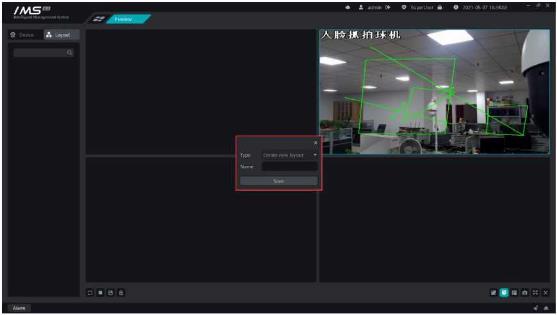
Figure 4-3 1.3.Personnel management The right side of permission group management shows the information about the people added within the permission group:...

Figure 4-3

1.3.Personnel management

The right side of permission group management shows the information about the people added within the permission group: person number, name, department, valid time, list type.

Select a person to add to the permission group.

X Operation steps:
1entry into the distribution of personnel.
2click [p Add people].
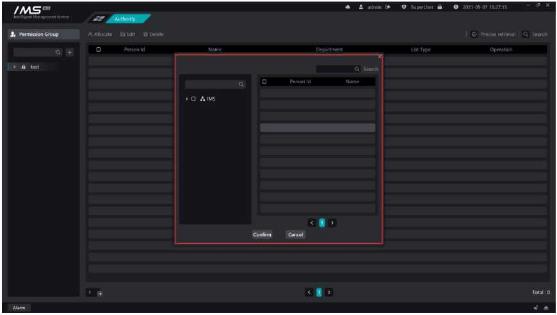
3Select people, as shown in figure 4-4.

ims 4 0 client software user manual image30

4 click [OK].

Figure 4-4

.

Description

Button

Modify the list type of a person in a permission group

Remove a person from a permission group

Chapter 5 Real-time preview

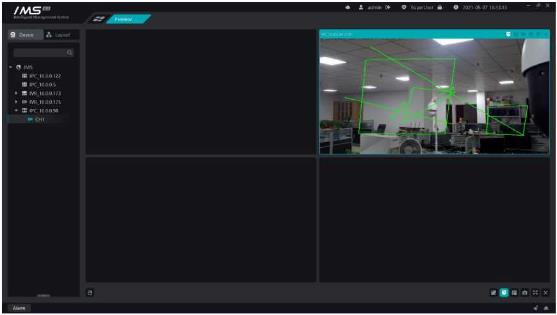
The main functions of real-time preview are channel preview, viewing device main subcode stream, front-end device intercom, intelligent frame display, capture and so on.
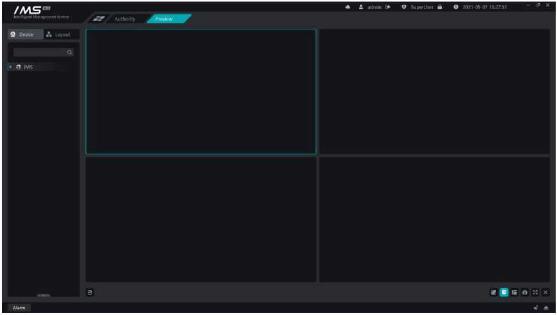
ims 4 0 client software user manual image31

Figure 5-1

.

1.1.Channel preview
1.1.1.Turn on preview

There are three ways to open real-time video by viewing the real-time video screen of the monitoring point.

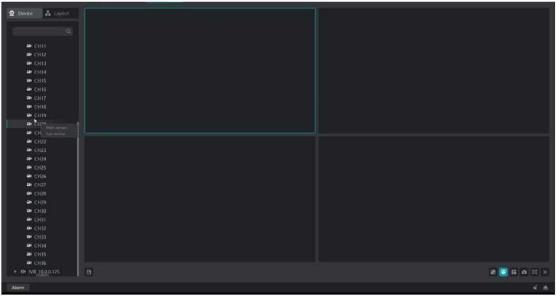
1 right-click device on current

X Operation steps:

1enter the real-time preview interface.
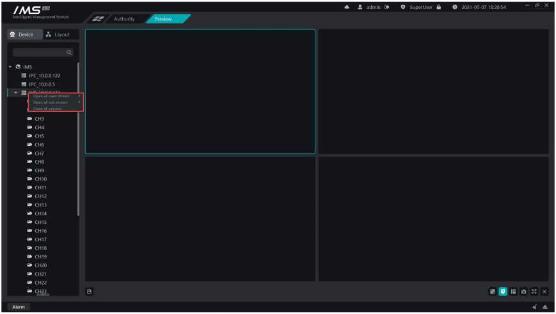
2right-click the device node on the left device tree.

3 Select [turn on all main streams] or [turn on all substreams], as shown in figure 5-2

.

Figure 5-2

2 right channel open flow

Operation steps:

1 enter the real-time preview interface.

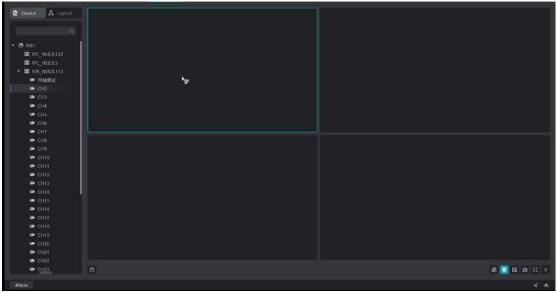
2 right-click the channel node on the device tree on the left.

3 select [master stream] or [substream], as shown in figure 5-3

Figure 5-3

3 drag and drop channel open flow
ims 4 0 client software user manual image32ims 4 0 client software user manual image33


X Operation steps:

1enter the real-time preview interface.
2right-click the channel node on the device tree on the left.

ims 4 0 client software user manual image34

3 select [master stream] or [substream], as shown in figure 5-4

Figure 5-4

.

s Description:

5Region

: equipment

: Channel

CkChannel playback status

Ek: Channel offline state

Description

Button

Intelligent frame

Intercom

Capture

Immediate playback

Monitor

Turn off preview

1.1.2.Turn off preview

There are three ways to turn off the real-time preview screen of the current client, and there are three ways to turn off the real-time preview:

1close the single window preview.

X Operation steps:

1 When the mouse enters the playback window that needs to be closed, the window title is displayed.

2 click the button [X]to close the preview.
ims 4 0 client software user manual image35

Figure 5-5

.

2turn off all channel previews under a single device

X Operation steps:

1.1.right-click the device node that needs to be closed.
1.2.click [close all previews].
Print Friendly, PDF & Email

Related Posts

No related posts.
Tags:
#IMS 4.0 camera connection#IMS 4.0 client configuration#IMS 4.0 client software tutorial#IMS 4.0 Client Software user manual#IMS 4.0 client troubleshooting#IMS 4.0 CMS integration#IMS 4.0 installation guide#IMS 4.0 login setup#IMS 4.0 network configuration#IMS 4.0 NVR connection#IMS 4.0 playback guide#IMS 4.0 recording setup#IMS 4.0 remote access#IMS 4.0 security settings#IMS 4.0 software download#IMS 4.0 software error#IMS 4.0 software setup#IMS 4.0 system requirements#IMS 4.0 update firmware#IMS 4.0 user management#IMS 4.0 video monitoring software
Share Article: X Facebook WhatsApp LinkedIn
Author & Editor

admin

MSAWRP Editorial Board member and senior news analyst.

All Stories
Previous Story EverFocus CMS Setup and User Guide Next Story Install Nest Cam Ultimate Guide
You May Also Like

Related Stories & Analysis

How to Monitor Solar Security Cameras on a Computer
October 19, 2026 • 8 min read

How to Monitor Solar Security Cameras on a Computer

The Best Video Surveillance Software of 2026
June 30, 2026 • 7 min read

The Best Video Surveillance Software of 2026

The Best CCTV Desktop Software of 2026: A Comprehensive Guide to AI-Driven Surveillance Solutions
February 2, 2026 • 9 min read

The Best CCTV Desktop Software of 2026: A Comprehensive Guide to AI-Driven Surveillance Solutions

Leave a Reply Cancel reply

Your email address will not be published. Required fields are marked *

About

dvrcms is a free blog attempt to provide information about security camera systems, burglar alarm and equipment, review, troubleshooting, installation, commissioning, password reset, software upgrade and new technologies.

Read Next :

dvraid– xvraid– nvripc– cctvfirmware– dvrdestek

Category

  • Home
  • Support
    • How To
    • Installation Guide
    • Troubleshooting
    • User Guide
  • Download
    • PC Software
    • Mobile APPS
    • Firmwares
  • General
    • DVR General
    • NVR General
    • IPC General
    • Shopping Guide
  • Contact
  • Sitemap

Quick Tools

Editor’s Choice

How to Monitor Solar Security Cameras on a Computer
October 19, 2026

How to Monitor Solar Security Cameras on a Computer

How to Mount a Security Camera on Any Surface
August 21, 2026

How to Mount a Security Camera on Any Surface

Verified & Unbiased Journalism
24/7 Continuous Coverage
256-Bit SSL Secure Infrastructure
Compliant with Press Code of Ethics
DVRCMS.Com

Survelliance CMS and VMS Support

Newsroom & Editorial Headquarters
haber@www.dvrcms.com

News & Current Affairs

  • Breaking News
  • Economy & Finance
  • Politics & Policy
  • World News
  • Technology & Science

Corporate

  • About Us
  • Masthead & Governance
  • Editorial Principles
  • Advertising & Partnerships
  • Contact & Inquiries

Corporate Newsletter

Get the day's top analysis and stories delivered directly to your inbox every morning.

Social Media:
© 2026 DVRCMS.Com. All rights reserved. • Developer: MSADEV
Privacy • Cookies • GDPR / KVKK • Terms of Use
Back to Top