DVRCMS.Com Press

Survelliance CMS and VMS Support

Discover
  • Home
  • Support
    • How To
    • Installation Guide
    • Troubleshooting
    • User Guide
  • Download
    • PC Software
    • Mobile APPS
    • Firmwares
  • General
    • DVR General
    • NVR General
    • IPC General
    • Shopping Guide
  • Contact
  • Sitemap
Home / PC Software/ IMS 4.0 Client Software User…
PC Software
Verified Article

IMS 4.0 Client Software User Manual

admin Editor
December 4, 2025 • 33 min read
IMS 4.0 Client Software User Manual
Quick Summary / Highlights
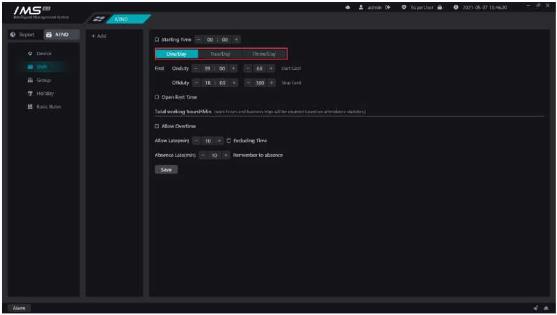
Figure 9-4 . £ Note: You can add more than one shift. The class name is not repeatable. If you check no...

ims 4 0 client software user manual image55

Figure 9-4

.

£ Note:

You can add more than one shift.

The class name is not repeatable.

If you check no punch-in, there is no need to punch in for that period of time, and the system will automatically punch in.

Except that the lunch break must be within the working time range, the rest of the time range settings are not overlapping.

Allow a long time to be late < a long time to be late for work < a long time to be late for work

1.4.Attendance group management

Set up daily attendance and attendance during the week.

X Operation steps:

1click on the attendance group selection button to open the person selection page, as shown in figure 11-13, you can select the entire department as a whole, or select individual participation.
2Select the person or department who needs to participate in the attendance and click [OK].
3choose [attendance group system]. The attendance group system includes: fixed customization, scheduling system, free system.
3.1fixed customization: schedule according to the week, set up the daily shift system from Monday to Sunday, and start over and over again.
(1)set up the shift from Monday to Sunday.
(2)choose [automatic holiday rest]. If the time of work shift within the attendance group coincides with the holidays, rest or work must be arranged according to the holiday settings after automatic rest is enabled.
(3)set [special date].
3.2scheduling: customize the cycle, set the daily shift during the cycle, and then cycle each cycle.
(1)set [cycle days].
(2)set the number of shifts for each day during the cycle.
(3)set up the attendance group [effective time].
(4)set [special date].
3.3Free system: every day of the week, only whether to work or not, free to punch in to and from work, only count the total working hours.
(1)set whether you need to work every day from Monday to Sunday.
(2)set up [signing in node]. The punch-in node indicates that the punch-in before this time node of each day is included in the attendance of the previous day, and the subsequent punch-in is included in the attendance of the day.
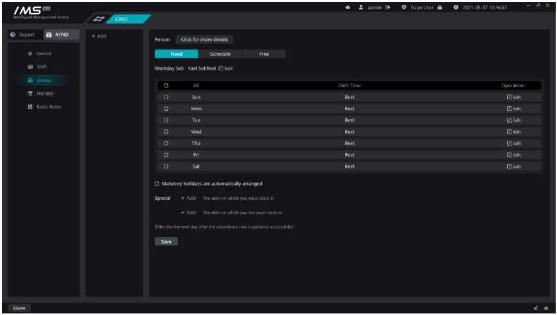
4click [save].

ims 4 0 client software user manual image56

Figure 9-5

.

£ Note:

The participants in the attendance group can be either an organization or an individual, and an organization and an individual can only set up one attendance group. When other attendance groups are set up separately by an organization or individual within the organization, the attendance application takes effect from the attendance group settings set up at the child level.

Priority: the frequency of working day setting is lower than that of legal holiday shift, and the setting of legal holiday shift is lower than that of special date shift.

The new attendance group rules will take effect immediately after they are saved, and the next day after the modification of the attendance group rules will take effect, and the attendance group rules before the amendment will still be used to calculate the attendance on the same day.

1.5.Holiday management

Set up legal holidays, when the attendance group management set up legal holidays automatic rest, attendance statistics will be recalculated according to the rest date set in the statutory holidays.

X Operation steps:

1.Click on the calendar on the right panel in figure 11-14 and select the date on which you need to rest, indicating that the date has been selected when the date background and font color change.
2.Click [OK].
Print Friendly, PDF & Email

Related Posts

No related posts.
Tags:
#IMS 4.0 camera connection#IMS 4.0 client configuration#IMS 4.0 client software tutorial#IMS 4.0 Client Software user manual#IMS 4.0 client troubleshooting#IMS 4.0 CMS integration#IMS 4.0 installation guide#IMS 4.0 login setup#IMS 4.0 network configuration#IMS 4.0 NVR connection#IMS 4.0 playback guide#IMS 4.0 recording setup#IMS 4.0 remote access#IMS 4.0 security settings#IMS 4.0 software download#IMS 4.0 software error#IMS 4.0 software setup#IMS 4.0 system requirements#IMS 4.0 update firmware#IMS 4.0 user management#IMS 4.0 video monitoring software
Share Article: X Facebook WhatsApp LinkedIn
Author & Editor

admin

MSAWRP Editorial Board member and senior news analyst.

All Stories
Previous Story EverFocus CMS Setup and User Guide Next Story Install Nest Cam Ultimate Guide
You May Also Like

Related Stories & Analysis

How to Monitor Solar Security Cameras on a Computer
October 19, 2026 • 8 min read

How to Monitor Solar Security Cameras on a Computer

The Best Video Surveillance Software of 2026
June 30, 2026 • 7 min read

The Best Video Surveillance Software of 2026

The Best CCTV Desktop Software of 2026: A Comprehensive Guide to AI-Driven Surveillance Solutions
February 2, 2026 • 9 min read

The Best CCTV Desktop Software of 2026: A Comprehensive Guide to AI-Driven Surveillance Solutions

Leave a Reply Cancel reply

Your email address will not be published. Required fields are marked *

About

dvrcms is a free blog attempt to provide information about security camera systems, burglar alarm and equipment, review, troubleshooting, installation, commissioning, password reset, software upgrade and new technologies.

Read Next :

dvraid– xvraid– nvripc– cctvfirmware– dvrdestek

Category

  • Home
  • Support
    • How To
    • Installation Guide
    • Troubleshooting
    • User Guide
  • Download
    • PC Software
    • Mobile APPS
    • Firmwares
  • General
    • DVR General
    • NVR General
    • IPC General
    • Shopping Guide
  • Contact
  • Sitemap

Quick Tools

Editor’s Choice

How to Monitor Solar Security Cameras on a Computer
October 19, 2026

How to Monitor Solar Security Cameras on a Computer

How to Mount a Security Camera on Any Surface
August 21, 2026

How to Mount a Security Camera on Any Surface

Verified & Unbiased Journalism
24/7 Continuous Coverage
256-Bit SSL Secure Infrastructure
Compliant with Press Code of Ethics
DVRCMS.Com

Survelliance CMS and VMS Support

Newsroom & Editorial Headquarters
haber@www.dvrcms.com

News & Current Affairs

  • Breaking News
  • Economy & Finance
  • Politics & Policy
  • World News
  • Technology & Science

Corporate

  • About Us
  • Masthead & Governance
  • Editorial Principles
  • Advertising & Partnerships
  • Contact & Inquiries

Corporate Newsletter

Get the day's top analysis and stories delivered directly to your inbox every morning.

Social Media:
© 2026 DVRCMS.Com. All rights reserved. • Developer: MSADEV
Privacy • Cookies • GDPR / KVKK • Terms of Use
Back to Top