DVRCMS.Com Press

Survelliance CMS and VMS Support

Discover
  • Home
  • Support
    • How To
    • Installation Guide
    • Troubleshooting
    • User Guide
  • Download
    • PC Software
    • Mobile APPS
    • Firmwares
  • General
    • DVR General
    • NVR General
    • IPC General
    • Shopping Guide
  • Contact
  • Sitemap
Home / PC Software/ IMS 4.0 Client Software User…
PC Software
Verified Article

IMS 4.0 Client Software User Manual

admin Editor
December 4, 2025 • 33 min read
IMS 4.0 Client Software User Manual
Quick Summary / Highlights
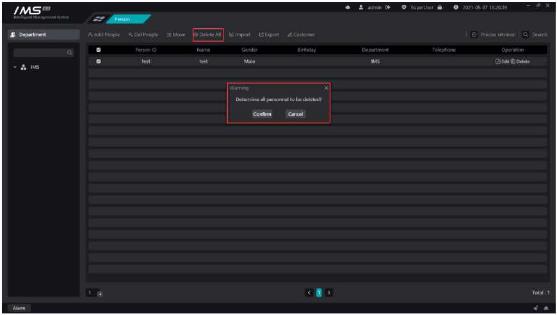
Figure 3-9 . Note: Deleting a person also empties all relevant personnel information within a smart device in IMS 4.0. 1.7.Move personnel...

ims 4 0 client software user manual image22

Figure 3-9

.

Note:

Deleting a person also empties all relevant personnel information within a smart device in IMS 4.0.

1.7.Move personnel

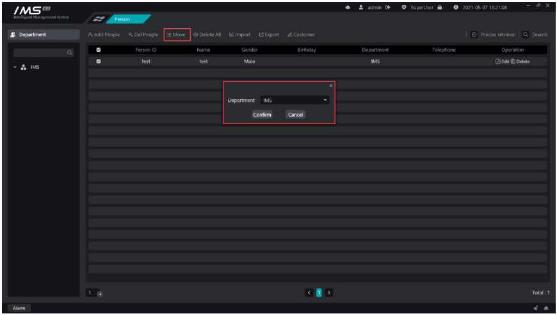
Move the people selected in the personnel management list to other departments in batches.

X Operation steps:

1access to the personnel management system.

2click the check box [ ] in each line to select the person to be moved, which means [ ] that it has been selected. Click the check box [ ] in the header to quickly select the person information on the current page.

3click the button [öMove people] on the list of people to open the Select Department dialog box, as shown in figure 3-10.
4select the department to move to.

.

Figure 3-10

ims 4 0 client software user manual image23


1.8.Import and export

1 bulk import

X Operation steps:

1 access to the personnel management system.

2 click [

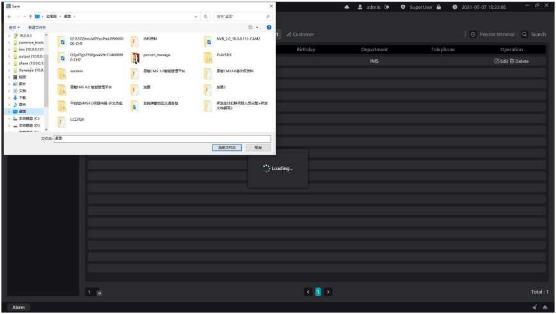
EBulk Import] button opens the Select File dialog box.

3 Select the person information ZIP file.

4 Click to open and start the import.

Total: 1

Figure 3-11

.

.

□ Description:

The button for bulk import is disabled during import, and the button resumes the bulk import function.

Note:

Must choose the front to avoid the crown, five features clear picture, invalid face picture upload server will succeed, but when sent to the device will fail.

The picture must be in JPG and PNG format.

Prohibit the use of Meitu tools to process photos to prevent unrecognizable.

Try to use the ID photo as much as possible.

2 batch export

X Operation steps:

1access to the personnel management system.
2click [EBatch Export] button opens the Select path dialog box.
3Select the path to store.
4Click on the select folder to begin the export.

ims 4 0 client software user manual image24

Figure 3-12

.

1.9.Custom attribute

If you do not have the properties you want to save in the person information, you can add

custom properties.

X Operation steps:
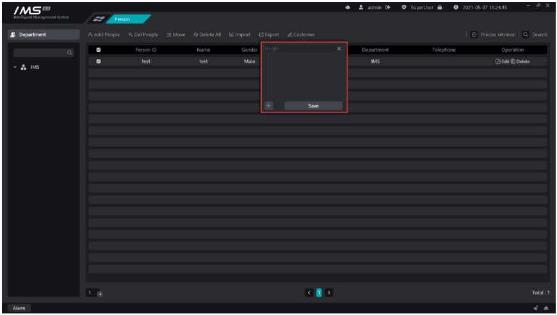
1access to the personnel management system.
2click [ Custom properties] button.
3click [+] to add new properties, the default name is custom properties, modify the property names.
4click [X] to delete properties.
5click [save].

ims 4 0 client software user manual image25

Figure 3-13

.

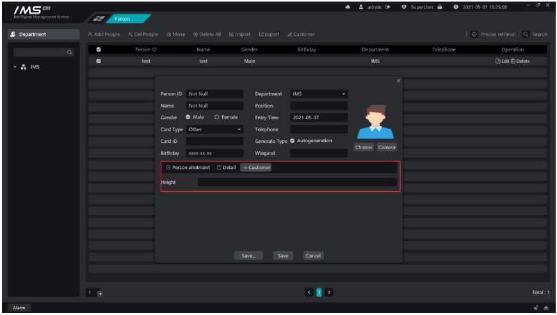
After adding a custom attribute, open the new person page or edit person page again, and the edit panel of the custom attribute will appear.
ims 4 0 client software user manual image26

Chapter 4 Personnel distribution

The device and personnel information are combined, the devices and personnel are grouped, the personnel are assigned to different devices, and the designated person face picture is sent to the designated device, and then the client can receive the face recognition information uploaded by the device.

1.1.Permission group management

Establish a grouping to establish a corresponding relationship between the equipment and the personnel, and specify the device to send the face picture.

X Operation steps:
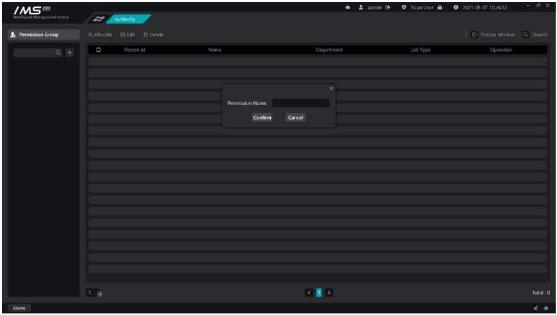
1entry into the distribution of personnel.

ims 4 0 client software user manual image27

2 click [

].

3 enter the name of the permission group and click OK.

Figure 4-1

£ Note:

Permission group names cannot be repeated.

Permission groups cannot be deleted when there are devices or people in the permission group.

The same person or device can be added to different permission groups.

Print Friendly, PDF & Email

Related Posts

No related posts.
Tags:
#IMS 4.0 camera connection#IMS 4.0 client configuration#IMS 4.0 client software tutorial#IMS 4.0 Client Software user manual#IMS 4.0 client troubleshooting#IMS 4.0 CMS integration#IMS 4.0 installation guide#IMS 4.0 login setup#IMS 4.0 network configuration#IMS 4.0 NVR connection#IMS 4.0 playback guide#IMS 4.0 recording setup#IMS 4.0 remote access#IMS 4.0 security settings#IMS 4.0 software download#IMS 4.0 software error#IMS 4.0 software setup#IMS 4.0 system requirements#IMS 4.0 update firmware#IMS 4.0 user management#IMS 4.0 video monitoring software
Share Article: X Facebook WhatsApp LinkedIn
Author & Editor

admin

MSAWRP Editorial Board member and senior news analyst.

All Stories
Previous Story EverFocus CMS Setup and User Guide Next Story Install Nest Cam Ultimate Guide
You May Also Like

Related Stories & Analysis

How to Monitor Solar Security Cameras on a Computer
October 19, 2026 • 8 min read

How to Monitor Solar Security Cameras on a Computer

The Best Video Surveillance Software of 2026
June 30, 2026 • 7 min read

The Best Video Surveillance Software of 2026

The Best CCTV Desktop Software of 2026: A Comprehensive Guide to AI-Driven Surveillance Solutions
February 2, 2026 • 9 min read

The Best CCTV Desktop Software of 2026: A Comprehensive Guide to AI-Driven Surveillance Solutions

Leave a Reply Cancel reply

Your email address will not be published. Required fields are marked *

About

dvrcms is a free blog attempt to provide information about security camera systems, burglar alarm and equipment, review, troubleshooting, installation, commissioning, password reset, software upgrade and new technologies.

Read Next :

dvraid– xvraid– nvripc– cctvfirmware– dvrdestek

Category

  • Home
  • Support
    • How To
    • Installation Guide
    • Troubleshooting
    • User Guide
  • Download
    • PC Software
    • Mobile APPS
    • Firmwares
  • General
    • DVR General
    • NVR General
    • IPC General
    • Shopping Guide
  • Contact
  • Sitemap

Quick Tools

Editor’s Choice

How to Monitor Solar Security Cameras on a Computer
October 19, 2026

How to Monitor Solar Security Cameras on a Computer

How to Mount a Security Camera on Any Surface
August 21, 2026

How to Mount a Security Camera on Any Surface

Verified & Unbiased Journalism
24/7 Continuous Coverage
256-Bit SSL Secure Infrastructure
Compliant with Press Code of Ethics
DVRCMS.Com

Survelliance CMS and VMS Support

Newsroom & Editorial Headquarters
haber@www.dvrcms.com

News & Current Affairs

  • Breaking News
  • Economy & Finance
  • Politics & Policy
  • World News
  • Technology & Science

Corporate

  • About Us
  • Masthead & Governance
  • Editorial Principles
  • Advertising & Partnerships
  • Contact & Inquiries

Corporate Newsletter

Get the day's top analysis and stories delivered directly to your inbox every morning.

Social Media:
© 2026 DVRCMS.Com. All rights reserved. • Developer: MSADEV
Privacy • Cookies • GDPR / KVKK • Terms of Use
Back to Top