DVRCMS.Com Press

Survelliance CMS and VMS Support

Discover
  • Home
  • Support
    • How To
    • Installation Guide
    • Troubleshooting
    • User Guide
  • Download
    • PC Software
    • Mobile APPS
    • Firmwares
  • General
    • DVR General
    • NVR General
    • IPC General
    • Shopping Guide
  • Contact
  • Sitemap
Home / How To/ Akuvox ACMS Administrator Guide
How To PC Software Troubleshooting User Guide
Verified Article

Akuvox ACMS Administrator Guide

admin Editor
May 20, 2025 • 40 min read
Akuvox ACMS Administrator Guide
Quick Summary / Highlights
Akuvox ACMS Administrator Guide, This manual is intended for the administrators who need to properly manage personnel, devices, access control configurations, personnel...

Akuvox ACMS Administrator Guide, This manual is intended for the administrators who need to properly manage personnel, devices, access control configurations, personnel attendance and shift schedules on Akuvox ACMS (Access Control Management System).

.
image1

About This Manual

This manual is intended for the administrators who need to properly manage personnel, devices, access control configurations, personnel attendance and shift schedules on Akuvox ACMS (Access Control Management System).

This manual applies to version 2.2.0.4 of ACMS. For new information or the latest software version, please consult our technical support.

Akuvox ACMS Administrator Guide

Table of Contents

Toggle
  • Product Overview
  • ACMS Installation
  • Device Management
  • Personnel Access Management
  • Access Control and Logs
  • Attendance Management
  • System Settings

Product Overview

ACMS (Access Control Management System) is designed with the idea that personnel, devices, access control, personnel attendance and shift schedule etc. are separated in their configurations which can later be conveniently incorporated to form a complete and integrated access control and attendance management.

Users using ACMS will be able to:

• Achieve the data synchronization between the ACMS and device(s).
• Manage the personnel and department information of the access control.
• Customize your access control schedule and authority group for the door access, and check and monitor the logs for security purpose.
• Manage personnel attendance, shift schedule.
• Search, check and export the attendance report.
• Import and export system data for the convenience of data sharing and system configuration.

ACMS currently applies to A01/A02/A03/A05 access control terminals, E16, E18, X915S door phones, and A092 access controllers.

ACMS Installation

Installation Requirements

Prior to the installation of the ACMS software, you are required to make sure that the following installation requirements are met:

• Windows 7 operating system or above.
• Only one ACMS is allowed in the same LAN (Local area network).
• No SDMC and ACMS software are turned on your personal computer or on other personal computers in the same network.
• No device is connected to the Akuvox SmartPlus.
• The Firewall on your computer is turned off.
• Anti-virus software is turned off.

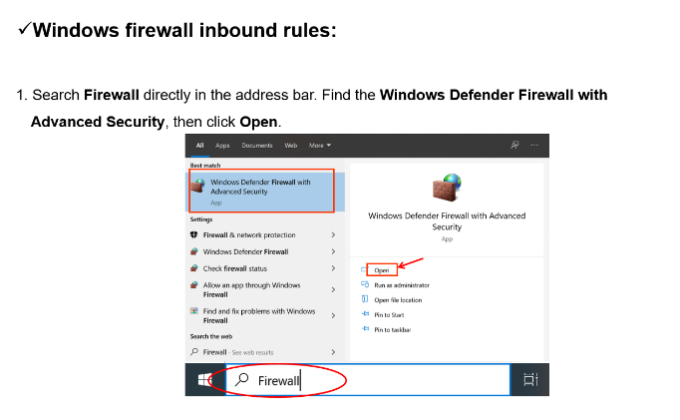
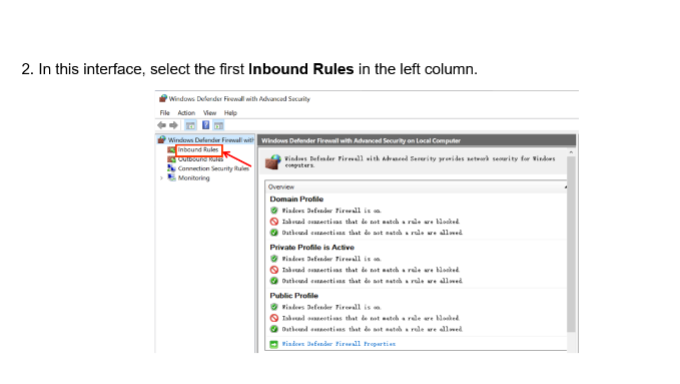
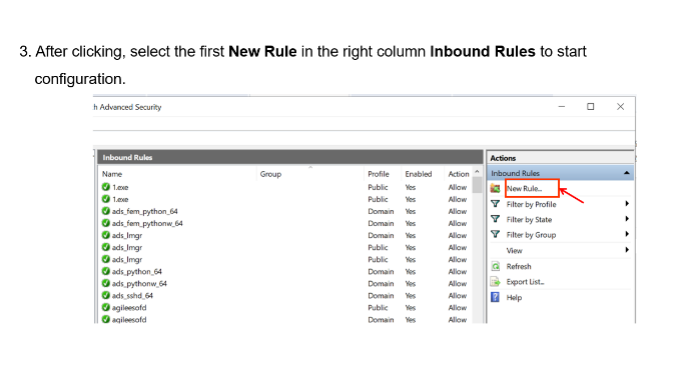
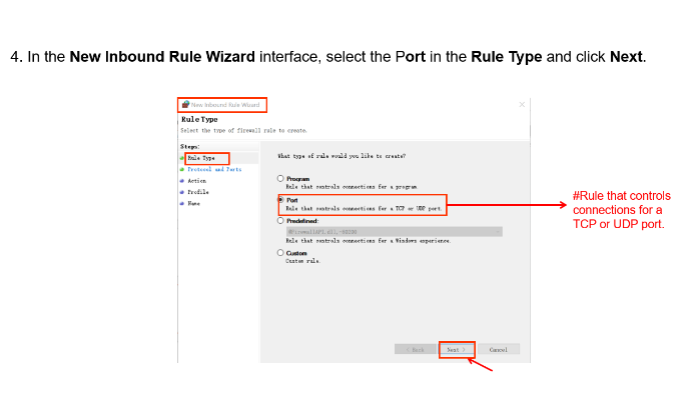
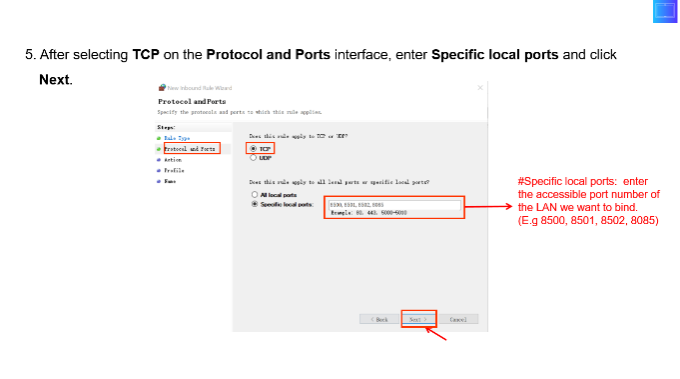
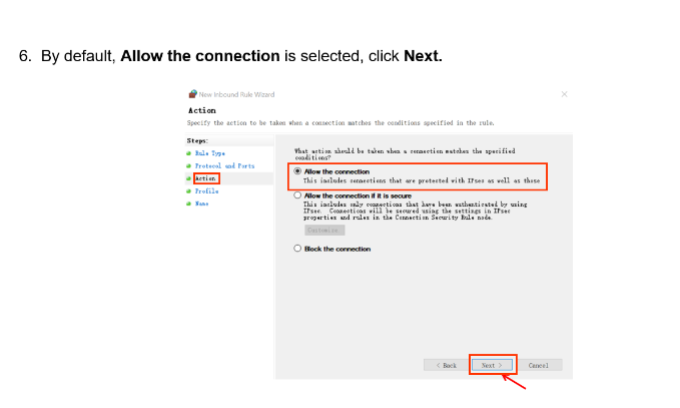
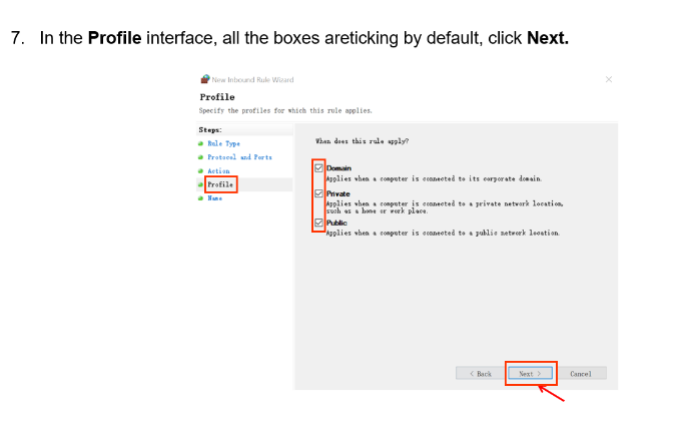
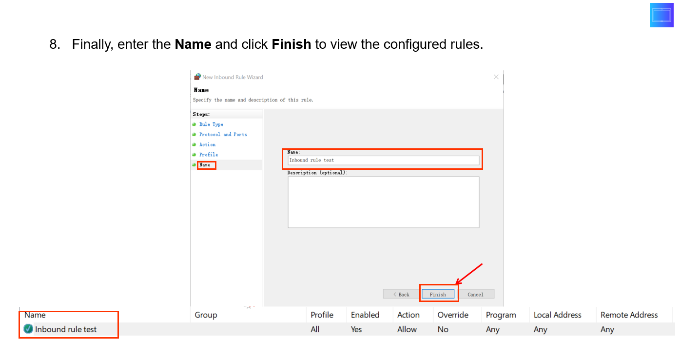
If the Firewall is not turned off, please add the following ports to the whitelist.

• 8500 — Multicast receive port (UDP)
• 8501 — TCP listening port
• 69 — TFTP service port (UDP)

Steps

image 1718271150610 680w420h

image 1718271179422 680w384h

image 1718271199446 680w

image 1718271216796 680w

image 1718271248153 680w

image 1718271275349 680w408h

image 1718271298417 680w422h

image 1718271316066

Install ACMS

ACMS is to be installed on your computer using compressed files.
1.Decompress the zip file ACMS.AK.2.0.1.7.
2.Click the ACMS setup.exe file.
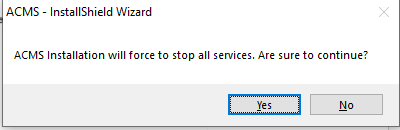
3.Click “Yes” in the pop-out window to continue the installation.

worddavc9dd408949d1e72918f1e198e5017b96 b744e4e298d3c11be4355598ef3beb5fe2d64af8370b826994b69c4cfe378779

4. Click Next to go to the next step.
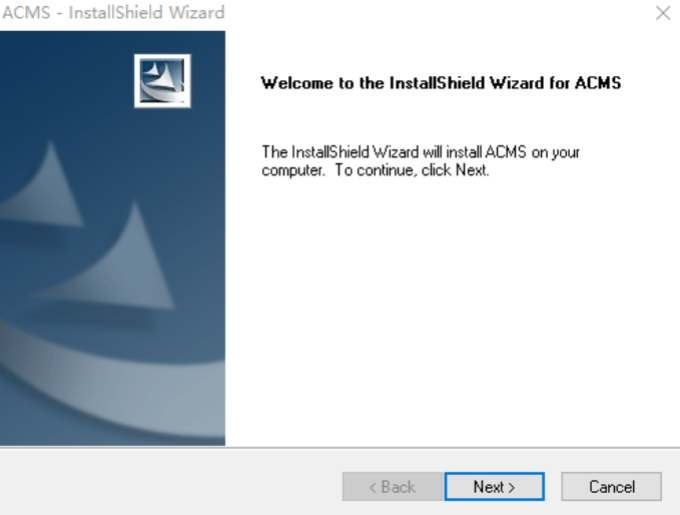
worddav74290f052edd01ef704d33896df77383 c84e8e90fbcd5476b41d64115cc2b42a9d248ec7bc67204bc819f7d7e6f9cda7 680w515h

5. Click on Next to accept the agreement.
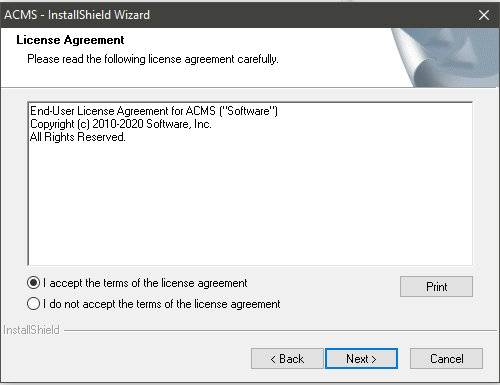
worddavffbd45d683ebc91ec4969683fe1a858b e60641fe028794cfc4202e630e991411acb9000fc333e464049887e5b2ed35e6

6. Enter the User Name and Company Name and click Next.
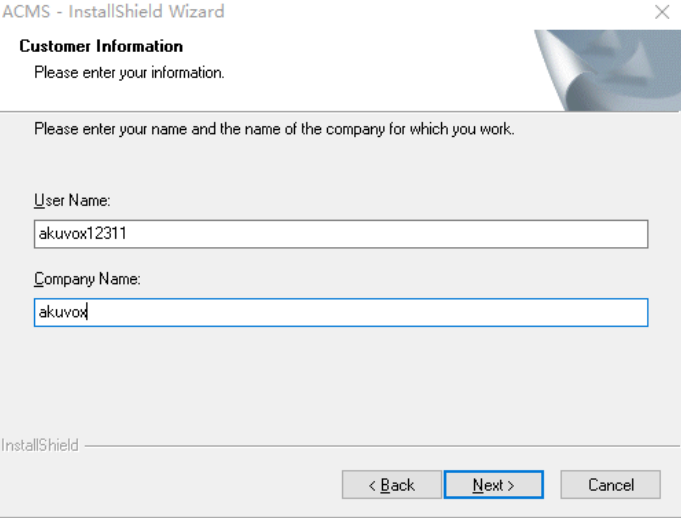
worddav9db9ffda94750a2fecee8475893cacde 7bbdd0ae40bba17359c3a5d1538c1f429243c2969c63549092606b796212f990

7. Select the installation path by default or the other path to your preference and click Next.
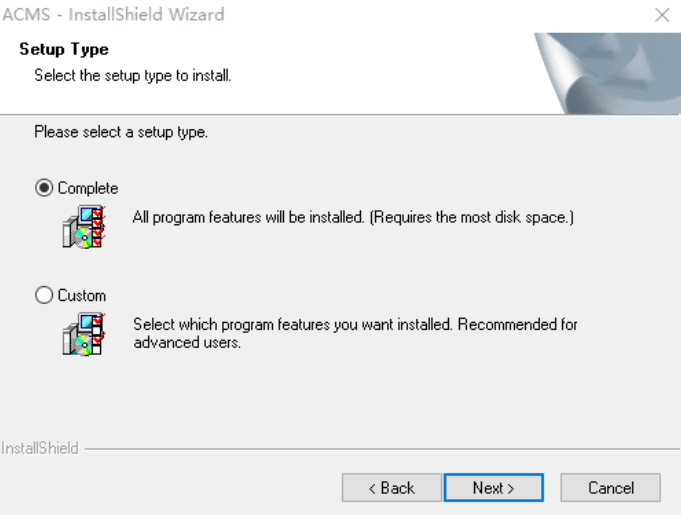
worddav709a6b7eee27aea4cd9d98a37ff7bf87 648eefc6de667d5d1e126a87846af9c38d70f41d0f089c9f6092ff7469365a8c

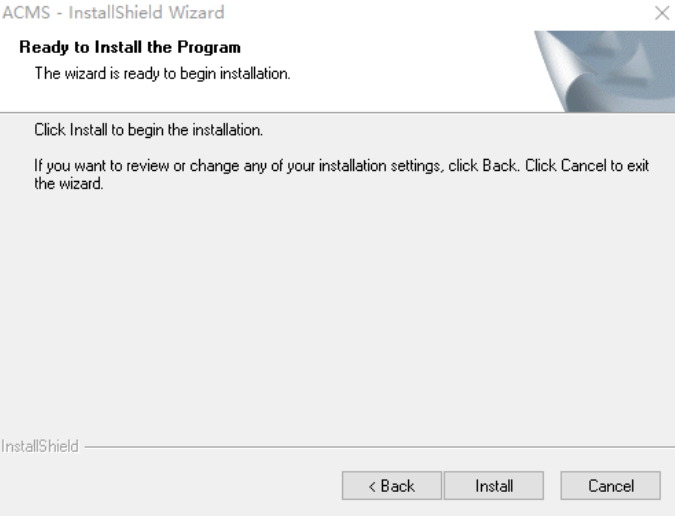
8. Click on Install to finish the installation.
worddav8da2729436f89b6b0fc80b2ddc133278 3eadda6736688018483288556b36da8ec8420eac20f4ee153a48419e6412090a

• After the installation is completed, you will see the ACMS icon along with ACMSSeverManage icon on your desktop.

worddav860cc595c34c6dd2e73b26873e113eed 98f182184c7c7ea93bf071beafd9c2cbfdd53072c66cb71c8765ee464023a3e9worddavab20dd4bfc1379eb68117c7e1bfc7a6e 195c8beb4546627e10c7d222493211262e6101586f8199e65d9483cd5f0f9192

Note

• The ACMS installation path should be English characters.

Set up ACMSServer Manage Software

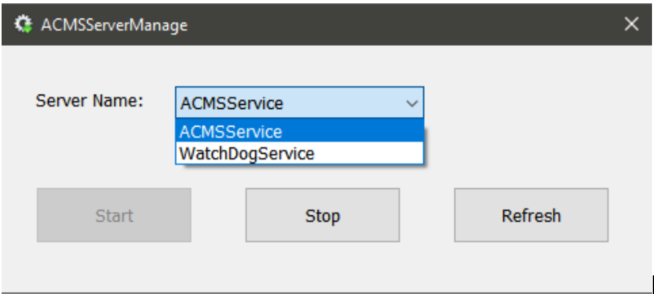
ACMSServer Manage is software that is installed along with the ACMS. The software is designed to provide two types of services called ACMSService, and WatchdogService.
worddav5a0067407d48b4d073ca89dd1f665245 3f45df26971b369d2b81fc4915ac6cb8707d0a3ac56ce6401955599134861f81

• ACMSService: this service is used to facilitate the two-way communication between the ACMS and the devices for the data transmission, therefore the service must be turned on to ensure the smooth running of ACMS.
• WatchdogService: Watchdog will be running automatically upon the completion of its installation by default. WatchdogService is responsible for monitoring the ACMSSevice status. To be more specific, Watchdog will turn on ACMSService automatically whenever it finds ACMSService is not running, which means ACMSServicewill be running nonstop or will be up and running again on the condition that the Watchdog is on.

Log in ACMS

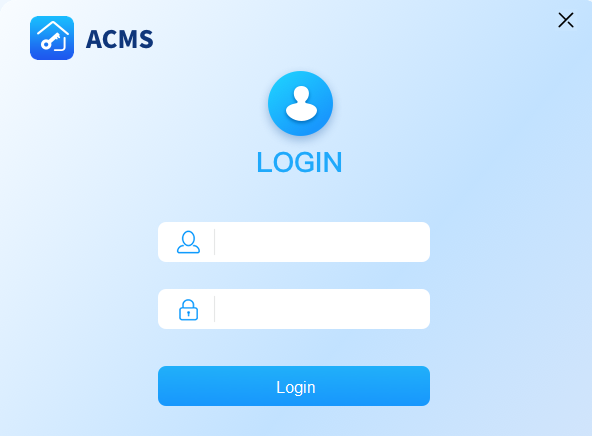
To log in to ACMS, you are required to enter the username admin, and the password admin by default.

To log out, just click worddav17e11161f061a879dbbb5cf541f7d432 726be4610171c7754572622f1c6b3c2efcafb440baae90e3cf7a44db1280395d on the upper right corner of the screen.
worddav06dc325a3d1bb664104f0316ee3ef28d 502e87c8562e7a183c25f3c361ab91a33679c9b6272f773e029de5d993502990

Configure Network Connection

In order to achieve normal data transmission and interaction with other devices, you are required to select one network adapter that will come with a corresponding IP address so that a sole data transmission port between the ACMS and devices can be established.

Note

• We recommend enabling only one network adapter on your PC.
1.Click on image2022 4 1 10 50 37 3864794701858bf9a7c5e2b50164513ee8e3bdc50261176fe71755f2a07ccfb2 on the upper right corner and select System Setting, then select Network.
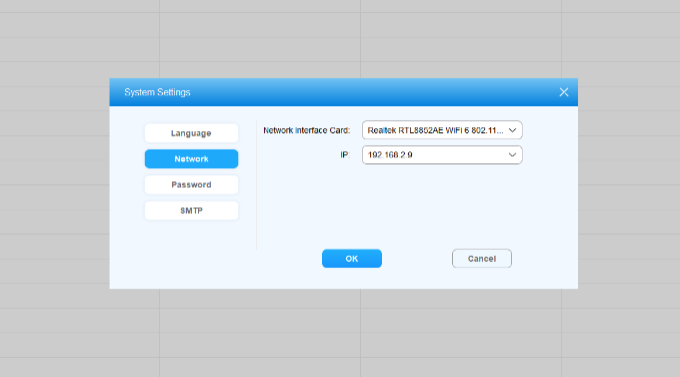
2.Select your network adapter with its corresponding IP address.

akuvoxnbspacmsnbspadministratornbspguide v4 0 image b4u9q7qm 377h

ACMS Main Interface Introduction

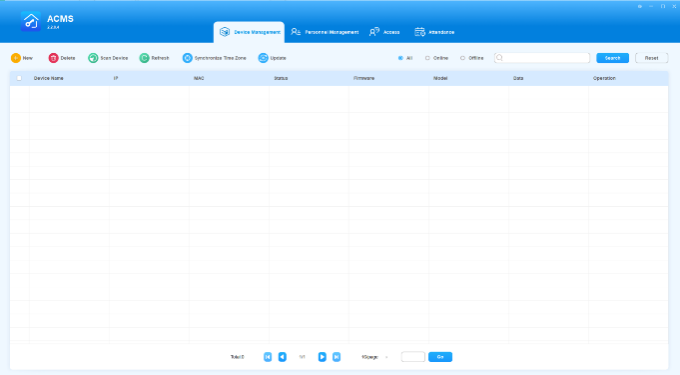
ACMS main interface mainly consists of four modules, namely the Device Management module, Personnel Management module, Access module, and Attendance module.
akuvoxnbspacmsnbspadministratornbspguide v4 0 image sq2sllcb 680w

• Device Management Module: used to add, delete and search the devices as well as synchronize the data and time zone to the device.
• Personal Management Module: used to manage the department-based personnel data in terms of creating department(s), managing the personnel information, and assigning configured PIN and Card numbers to personnel or personnel within a selected access authority group.
• Access Module: used to create and manage an inventory of access control time schedules, and it serves as a platform on which you can manage and deploy the access control by establishing a corresponding relation among device, department, personnel, and access control schedule, forming an authority group. In addition, you can manage the door log, temperature log, and log data import and export.
• Attendance Module: used to manage the holidays, attendance points, employee shift schedule, attendance records, and reports, etc.

Device Management

In the device management module, you can manage the device in terms of adding, editing, deleting the device(s) individually or in batch, and synchronizing the time zone to the corresponding device(s) you selected. You can also search the data.

akuvoxnbspacmsnbspadministratornbspguide v4 0 image 1a413yp3 680w

Add Device

Adding a device in ACMS can be done manually or by scanning.

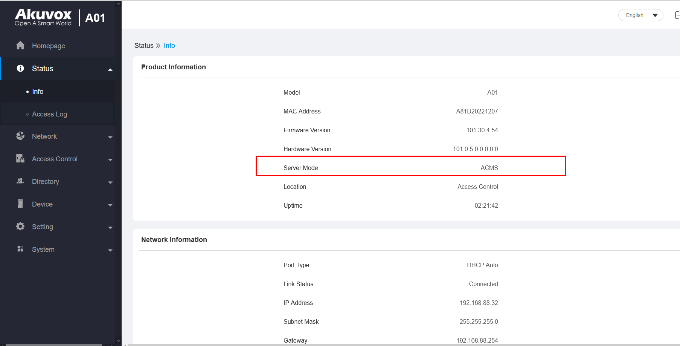
When a device is in self-configuration mode and is added to ACMS, it will automatically switch to ACMS mode. This mode can be confirmed by accessing the device web interface and going to Status > Info > Product Information.
akuvoxnbspacmsnbspadministratornbspguide v4 0 image r5zfmt09

Note

• To scan and add devices successfully, the devices cannot be connected to the SmartPlus Cloud.

Add Device Manually

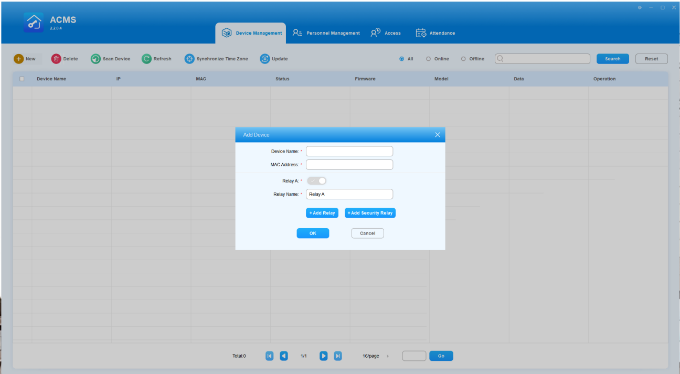
1.Click New  worddavb3fe6b4c40aa27711ad4cf17164ea5be 0c96e028bc8816927a28e55583750c6b8d0c4bfa9557a202a1e9070c82bee8db in the upper left to open the Add Device page.
2.Do as the following:
• Enter the device name and its MAC address.
• Click Add Relay or Add Security Relay to add additional relays if needed.

Note

• You can open 4 relays and 2 security relays at the maximum, with at least one relay or security relay being required. The relay name can be modified.

3. Click OK. The added device and its information will be displayed on the Device Management screen.
akuvoxnbspacmsnbspadministratornbspguide v4 0 image gfjhaged

Add Device by Scanning

1.Click Scanning Device worddave15f67f9f3e660db90f4653f4f4d83e6 575ca647ebc70c2daa509a98f80b9d60f1373c89788cfd94453e6c2b5a822b6c to discover all the devices in the same LAN network.
2.Click Refreshworddav0e88c08135c9d46ab607afbe261d429c 1d8008a79b77cd8db739327baed19daecc56d4d68151e74524e88e09961657ab to refresh the device list if needed.
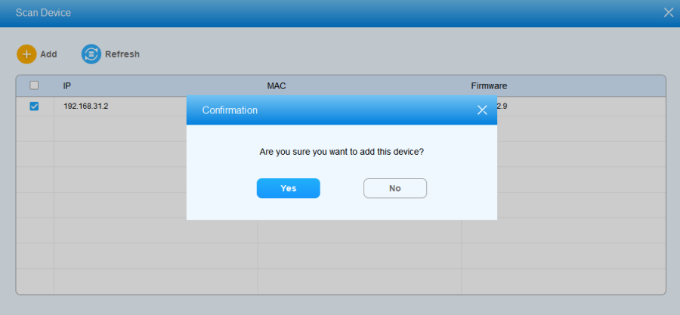
3.Check off the desired devices and add click Addworddav069a08509d9724d9ef8dea3db36c2a30 a9efd454f64aef6a50b9c5d0acdf4f280285d50c1cd6996be2262c693a705b7d.
4.Click Yes when you are asked.

Note

• If a device is added through scanning or already exists in ACMS, and ACMS is subsequently upgraded to the latest version, the device will, by default, have four relays (although some devices may not actually have four relays, the interface may still show four relay options) and two security relays enabled.

worddav7baa988a520192e1aefcbcfe7f5a1dba 51db49e703606e4ec2da0cc99c33f146113dbd6c0294ef8e1033c3a6bd17e953

Edit Device

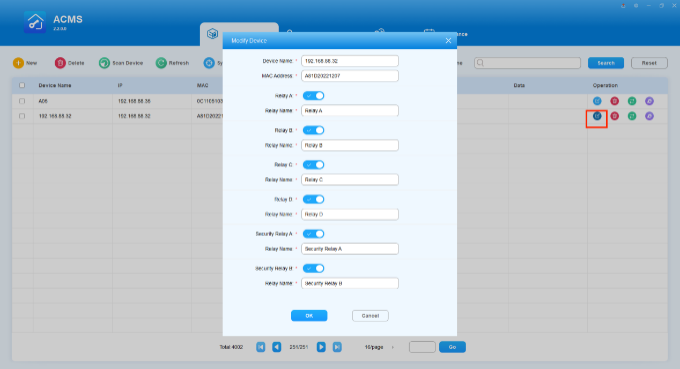
You can edit the device if needed.

1.Click akuvoxnbspacmsnbspadministratornbspguide v4 0 image rkjf9cho of the desired device.
2.Edit the device name, MAC address, or add or disable relays according to your need.
3.Click OK.

akuvoxnbspacmsnbspadministratornbspguide v4 0 image d0stcskk 369h

Delete Device

To remove a device, do as the following.

1.Tick the check box of the specific device(s)you want to delete.
2.Click the image2022 4 8 14 43 42 b22483aba75fe40dbc0285170eb630be990f405cabe260113846bc96138db9ff of the specific device to delete the device or you can delete multiple devices by clicking the image2022 4 8 14 45 43 12abb7d546521869d865852991b80a5eee4473548b5da05bb448b4abe5a67fbe to delete the device in batch at one time.
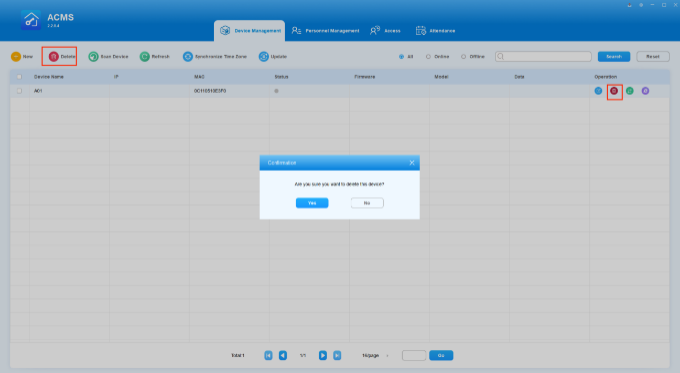
3.Click Yes.

akuvoxnbspacmsnbspadministratornbspguide v4 0 image 9ln00l1d 373h

Search Devices

The device search can be done by first filtering the device status as indicated by All, Online, and Offline before entering the search information for the targeted device search.
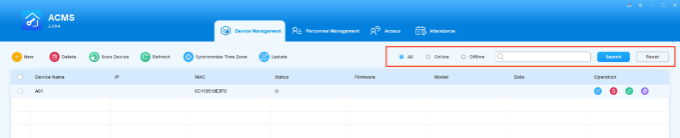
1.Click to select the filtering conditions among All, Online, and Offline.
2.Enter the information such as Device Name, MAC, IP, and Firmware and click on Search. You can click on Reset to clear the information in the Search field.

akuvoxnbspacmsnbspadministratornbspguide v4 0 image h87935j5 680w

Refresh Device Information

When any changes are made to the device information displayed on the Device Management screen, such as IP address, MAC, status, firmware, mode and more, you can update such information by clicking  worddavebfc7d7b821c320bed74857423a5e57a 729a0d733b58f121c54f700e585ff480d95e14361f1e56739a0aa06613ab414f in the upper tab bar.

akuvoxnbspacmsnbspadministratornbspguide v4 0 image yyfh7j0w 680w

Go to Device Web Interface by One-Click

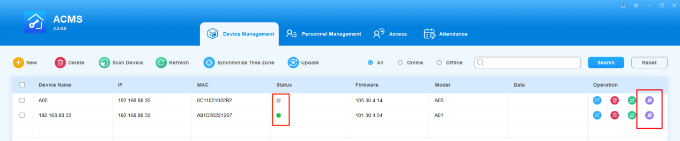
You can go to any ONLINE device’s web interface by clicking on its akuvoxnbspacmsnbspadministratornbspguide v4 0 image j3rmts9c icon in the Operation column.

Note

• An online device is indicated by a green dot in the Status column, while an offline device is a gray dot. You can only access the web interface of an online device by clicking on it.

image 1682314951668

Sync Between ACMS and Devices

Sync Access Authentication Data

ACMS is able to facilitate the synchronization of door access authentication data, e.g., fingerprint and face data, between ACMS and the device(s).

Obtain Data from Devices

The Data column displays the identifiers for door access authentication data, such as fingerprints, obtained from each device. When a new device is added, this column will initially be blank until data is retrieved from the device.

To request data from a device, do as the following.

1.Make sure your desired device is online, and click akuvoxnbspacmsnbspadministratornbspguide v4 0 image u50hsseu in its Operation column.

akuvoxnbspacmsnbspadministratornbspguide v4 0 image pxwdg9xc 680w96h

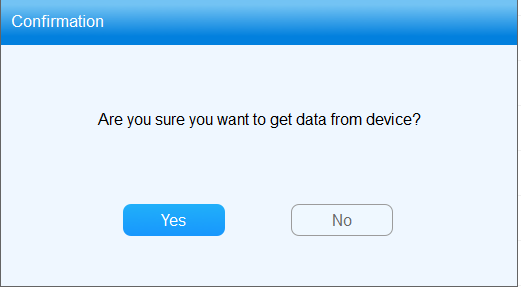
2. Clicks Yes on the confirmation window, the system will start to retrieve data from the device.
akuvoxnbspacmsnbspadministratornbspguide v4 0 image w9yup817

3. The corresponding data identifier will then display in the Data column.

Note
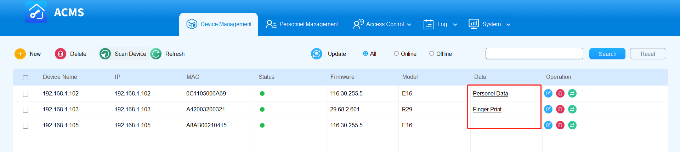
• For an access control device, the data obtained is facial recognition data for all personnel which is displayed as Personnel Data in the Data column.
• For an R29 device, the data obtained is fingerprint data and is displayed as Finger Print.

akuvoxnbspacmsnbspadministratornbspguide v4 0 image gv7mbbm1

Send Data to Devices

To transfer door access authentication data between devices, you can synchronize the data obtained from one device to another. For instance, if you have fingerprint data for users 1, 2, and 3 on device A, you can sync this data to device B. This will enable users 1, 2, and 3 to use their fingerprints to access device B.

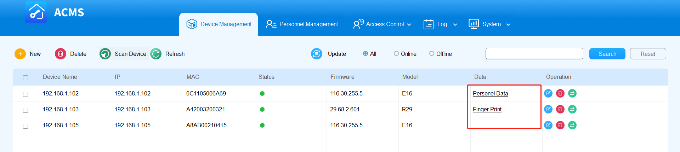
1. Find the device that you need its door access data, and click the data type in the Data column.
akuvoxnbspacmsnbspadministratornbspguide v4 0 image qjakjfqn

2. The Sync Data to Device screen opens. Check off the device that you want to apply the data to.

Note
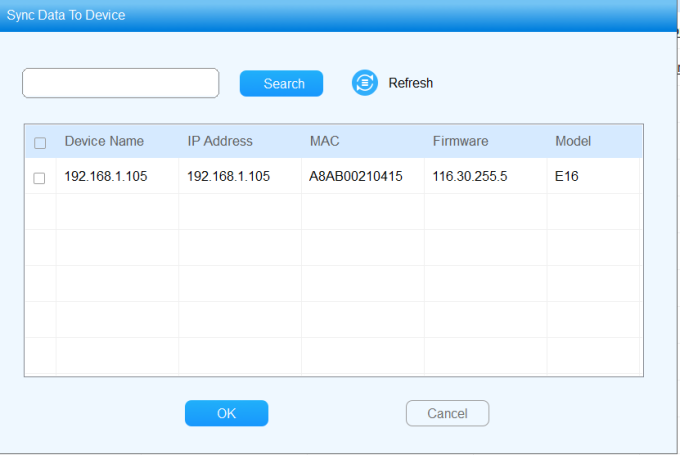
• If the data to be synced is fingerprints, then the device list only displays available R29.
• If it is Personnel Data to be synced, then the device list only displays available access control devices.

akuvoxnbspacmsnbspadministratornbspguide v4 0 image yeu78qbp 680w455h

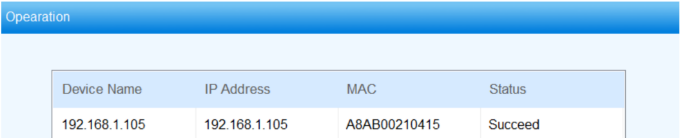
3. Click OK. Wait until the device’s status changes to be Succeed.
akuvoxnbspacmsnbspadministratornbspguide v4 0 image ktng648u

Sync Time Zone to Devices

In Version 2.2 and later, upon connecting to ACMS, the device will receive an update with the computer’s time zone file and current time zone. This ensures consistent times on both ends and avoid the time inconsistency due to daylight saving time.

If the computer’s time zone changes, to sync it for selected devices, do as the following.

1.Check off the desired device(s), and click Synchronize Time Zone on the upper tab bar.

image 1682316308038 680w

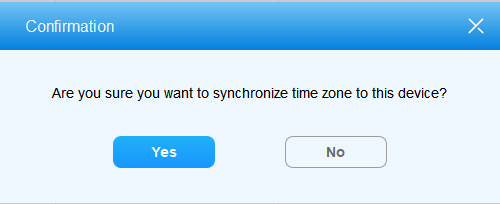
2. Confirm the operation by clicking Yes.
akuvoxnbspacmsnbspadministratornbspguide v4 0 image zf6j7d0y

Update Access Control Changes to Devices

To apply access control configurations and changes, including both personnel and access group, to corresponding devices, you need to sync them manually.

Update Authority Group

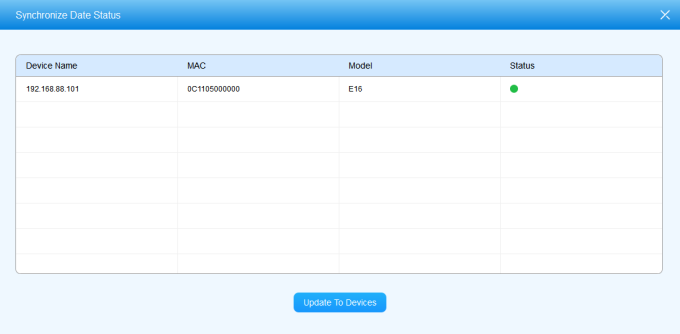
The Update Authority function allows for the synchronization of changes made to the Authority Group associated with devices. If any changes are made to the authority group, the Update Authority button appears in the upper right corner akuvoxnbspacmsnbspadministratornbspguide v4 0 image. Clicking the button will take you to a page that displays all the related devices. To send the updates, just click Update to Devices. Once the changes are successfully sent, the button will disappear.

akuvoxnbspacmsnbspadministratornbspguide v4 0 image 6znt9yf5 680w334h

Update Personnel and Authority Group

If you make any changes to on the Personnel or Authority Group screens, you need to go to the Device Management page, select the relevant devices, and click akuvoxnbspacmsnbspadministratornbspguide v4 0 image bn2orycp to send the changes to the devices.

Personnel Access Management

The Personnel Management module is primarily designed to manage department and personnel in terms of adding, deleting, editing personnel and department, importing, and exporting the personnel data and photos, and adjusting the department for personnel. You can also search the personnel to find the information needed.
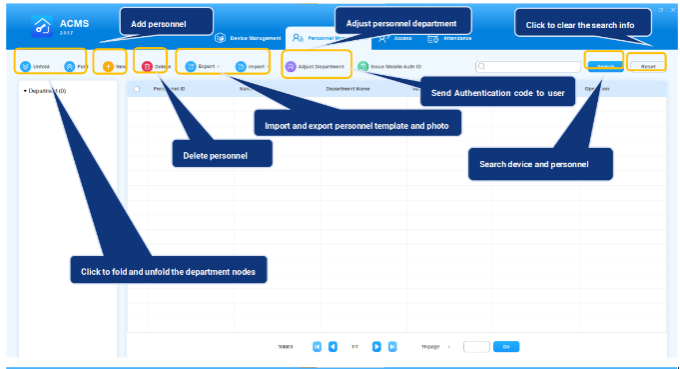
image2022 4 1 11 30 2 bbe269cad87723a11a2a92305d68853f8f46fb67857b3f62627a61e2f47f9cb1 680w

Add Department

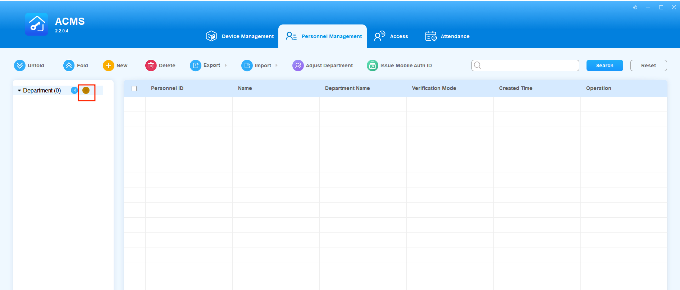
Departments are structured in nodes. Each level of the node can be further extended to the nigh level of subordinating nodes in descending order, however, there is no limitation on the number of paralleled subordinating nodes. You can manage and add the personnel to the designated department at different levels of nodes.

1.Click on worddav473711da4ba5d0e52119f5735efe24e5 863d9a96f1b440b90f6d37e70755ad458b2459947b067d5fb0f3e13c57ed194b at the root node.
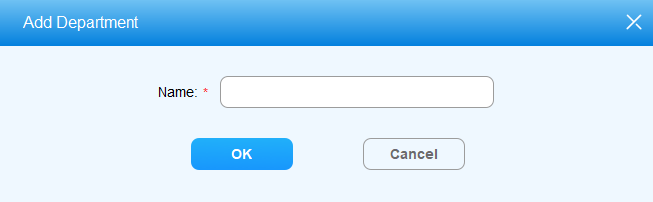
2.Enter the department name to add a department.

akuvoxnbspacmsnbspadministratornbspguide v4 0 image 03qcu1tt

3. Click OK for confirmation.

worddave21fd59847eb16326d228a3a6a093cbd a9428ed70fa210463a37580bb136a8dc3dff0e68b7cf6ff63b10f33c68d7ab28

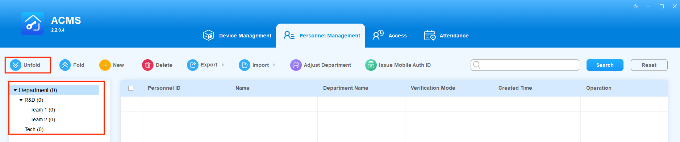
If there are several departments, you cam click on akuvoxnbspacmsnbspadministratornbspguide v4 0 image cso1vww2 to quickly display all of them.

akuvoxnbspacmsnbspadministratornbspguide v4 0 image 3c9bd1a7

You can also click akuvoxnbspacmsnbspadministratornbspguide v4 0 image rizv0lj1 to collapse the list.

akuvoxnbspacmsnbspadministratornbspguide v4 0 image ahija659 680w

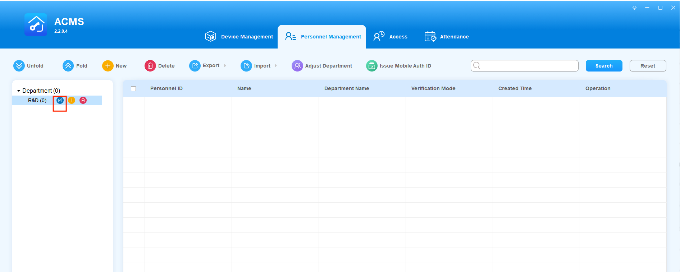
Edit Department Name

1.Click on worddav882f260a8134c6cab4336184a919b28a cd52f2a1696da19977c941a584d61b03fbeb206b72a466c5159fbc1d7578058b of the department for which you want to change the name.
akuvoxnbspacmsnbspadministratornbspguide v4 0 image mcnz8213

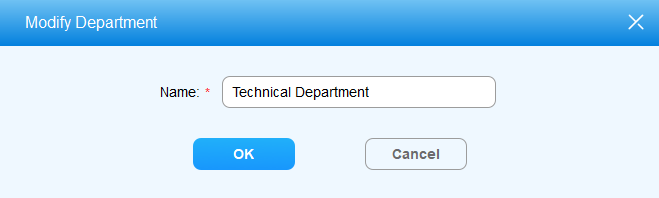
2. Change the department name according to your need, and click OK for confirmation.
worddavd6869bb98b32b6100bfee98d9d196768 f9ea9cd03bd8218bc97c12f75ff7fe952917732784f355251e6c93286098f903

Delete Department

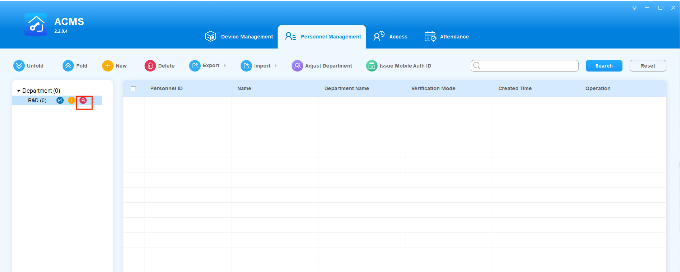
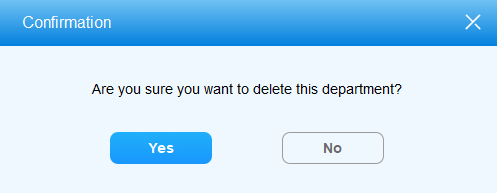
You can delete the department you created if needed.

1.Click on worddav9f12b14c3bdc1b791bbe063e71b48616 1b5c2edf044f7d3c44cd762359c2cc5878acd5d60e8731eff8fcf8b4585c9158 of the department you want to delete.

akuvoxnbspacmsnbspadministratornbspguide v4 0 image it24zpr7

2. Click Yes for confirmation.

worddavd4644918b271a5f798e1f07e85874868 c12176df8b66e479619f08f4cd6472611b3014218a57f1797aac5b66d1ffd71a

Note

• The Department by default can not be deleted.
• Only when the department (Except for the Department by default) has no other subs or personnel can it be deleted.

Add Personnel

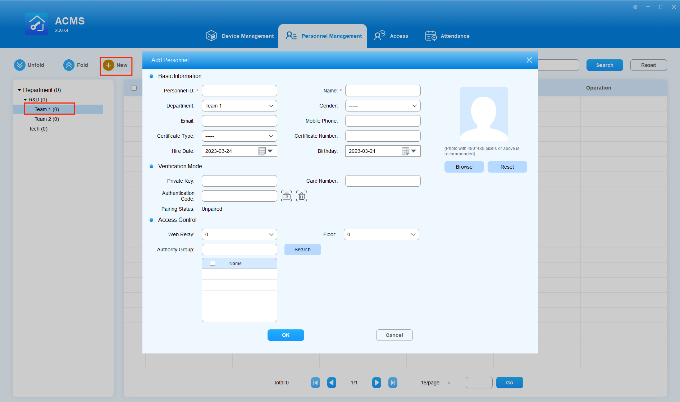
You can add personnel in the designated department in which you enter the personnel information such as personnel name, ID, photo, etc. While assigning the personnel with the PIN code and card number for the door access.

1.Click on the department in which you want to add personnel.
2.Click worddav13267ddc7d674bc86ebff784577d9ace 465e3534be204b6dcb5152c66a60d93c3fb360763ce5c3ba89ba932bb39d0939 to go to Add Personnel interface.
3.Enter the personnel information.
4.Click on Browser to upload the personnel photo and click on Reset if you want to clear the photo.
5.Tick the check box to select the authority group you created in Access Control module, or you can search the authority group in the field.
6.Click OK for confirmation.

akuvoxnbspacmsnbspadministratornbspguide v4 0 image

Key information for adding personnel

No. Information Description
1 Personnel ID* Personnel ID number (employee number) is the required information that can only be consisted of alphabets or numbers with 23 characters maximum.
2 Name* Personnel name is the required information with 63 characters maximum.
3 Department The department field automatically displays the node (sub-department) that is immediately subordinated to the exact department you selected. If the department you select has no nodes (sub-department) under it, then the node for the department selected will be displayed. For example: if you click and select the node “Technical Training” under the parent node “Technical Department”, then the node information for the “Technical Training” will be displayed.
4 Gender Gender is “—” by default, you can select “Male” or “Female”.
5 Email Email is left blank by default with a maximum of 127 characters.
6 Mobile Phone Mobile Phone is left blank by default, you can enter the mobile phone number that should be no more than 63 characters.
7 Certificate Type You can select the Certificate type (ID type) from the pull-down list according to your need.
8 Certificate Number You can enter the specific ID number needed for the personnel with 63 characters maximum.
9 Hire Date Hire day refers to the employee start date.
10 Birthday Birthday refers to the data of birth of the employee.
11 Private Key Enter the configured PIN code for the door access. The PIN code can only be consisted of numbers (2-8 characters in combination) and should not be duplicated.
12 Card Number You can enter multiple ID card numbers separated by “;” with no more than 63 characters. And the ID number should not be duplicated.
13 Authentication Code An authentication code is used for door opening via My MobileKey app. Click akuvoxnbspacmsnbspadministratornbspguide v4 0 image itar2jfj to obtain the code, or click akuvoxnbspacmsnbspadministratornbspguide v4 0 image to delete the code.

Note:

1.The authentication code is used with My MobileKey for hands-free door unlocking. With the app, the door can be opened automatically as you come close to the door or with a single click on the app.
2.Authentication code will be sent via SMTP server to the user’s email after you fill in the user’s email and set up the SMTP server.
14 Pairing Status It will display “Paired” if the authentication code you obtained has already been set up in My MobileKey. It will display “Unpaired” if the code you obtained has not been set up in the app.
15 Web Relay Select the Web Relay associated with the personnel. The default is 0. After syncing to the device, you can check this info by going to the device web interface User > Web Relay page.
16 Floor Select the floor number(s) that the personnel is allowed to access.
17 Authority Group Search and select the authority group that incorporates a designated set of door access control schedules, devices and personnel for the door access.

Note

• The personnel photo(s) to be uploaded for the facial recognition can be in .jpg, .jpeg or .png format with less than 10 MB.

Note

• Multiple door access types such as Face, PIN code, and ID card number, Authentication codes can be supported at the same time depending on your need. Authority group (group, name, and device) must be assigned to the person before the above-mentioned access type can be valid. However, all these data have to be synchronized to the designated device on the device management module first.

Note

• worddavfacb4b53d6c1f2c31d697804335adcc5 44b0e36c1077e5eeda30203ba6fcde4f851dc9c733ba1961d5cb206496caa4b7 icon will appear on the upper right corner of the screen whenever there are any changes occurred to the authority group setting, you are required to click on the icon so synchronize the changes to the device(s).

Send Authentication Code

Authentication code can be sent to your targeted users for the My MobileKey application. You will need to set up your STMP server first, then select the users you want to send the code to.

1.Click on image2022 4 13 10 10 10 5d4c0300a4673ccfbbd8701292fec95752ebb8af8d0a3244103ad64abf524389 on the upper right corner, and select System Setting in the pull-down list, then select SMTP.
2.Fill in, for example, your name or company name for identification, then enter your email and email password.
3.Fill in the SMTP server, and the SMTP port of your email.

After all are set up, the authentication code can be sent to the user’s account from your Email.
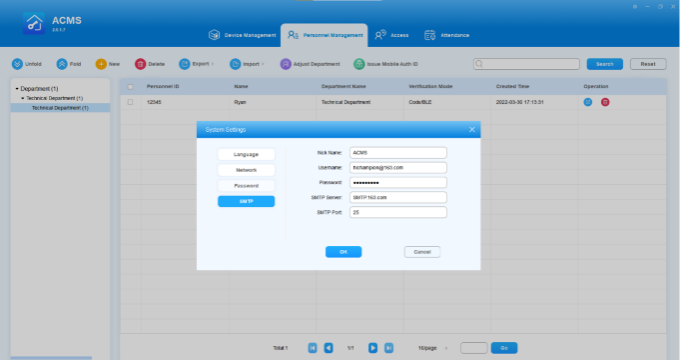
image2022 4 13 10 11 20 f933d536bd0b8f163e2607fd34f1bfb8c2c26cc95ec355621220a9b344e480d8 680w

To send the authentication code to the selected users, do as follows:
1.Select Personnel Management Module, then select image2022 4 13 10 12 10 20b7d10cda9b4c9cb385e573519c803bf3f58096291beed78c8a12b775eabcee.
2.Select users you want to send the authentication code to. You can search to find the personnel if needed.
3.Click OK for the confirmation.

Edit Personnel

After adding personnel, you can edit the personnel information if needed.

1.Click on worddavdc0910b4622c9385f040f649ecea717d 14d7f0923466a49768e757b15648ef616906018354fd9634049b82888c24e58dor double click on the specific line of the personnel to be edited.
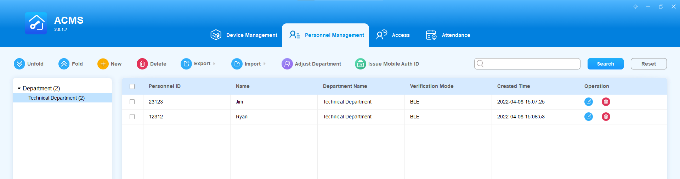
image2022 4 8 15 10 52 1287de343d8b286924192afd3f9deb6dea70ff1181b1c36fc6b2d3a96c9006b7

2. Change the personnel information you want to change.

3. Click OK for the confirmation.

Note

• The personnel ID can not be edited or changed.

Delete Personnel

Personnel can be deleted separately or in batch.

• Delete personnel separately
1.Click worddav91c4eeeedb16e6d465c020f62e893b3a 62157856bec051a97a81029ea6851e2938efdcdf68f22c01499a657b5fd93123 of the specific personnel to be deleted.
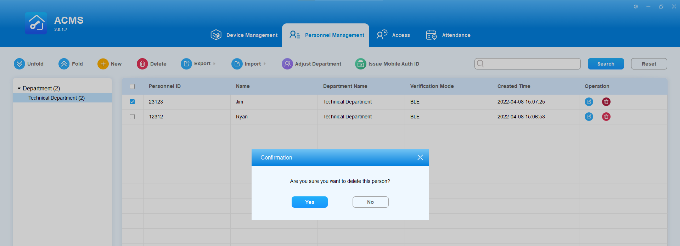
2.Click YES for confirmation.

image2022 4 8 15 12 7 c94b696128784106ef70edaa94c82069471a0a1b6a14582f9d5d5de833af117d

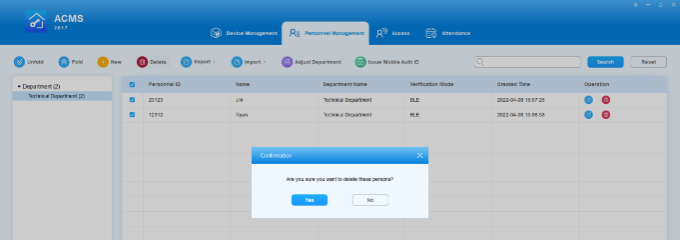
• Delete personnel in batch
1.Tick the check box of the personnel to be deleted.
2.Click worddav37726c7f8838481a7f9dbe784d5dda04 31962786e442a1f88f5f1f129abac85bfdd42936d9cb4e3b1aeea2ba4f6ab373 to deleted the ticked personnel.
3.Click Yes for confirmation.

image2022 4 8 15 21 15 30382044ee7f186a2c4ee996c487668ab9b133bbc6c97c0c5ab7bb5b4308e037 680w

Import and Export Personnel Data

ACMS allows you to import and export personnel data inclusive of personnel information and personnel photo for the convenience of the personnel management.

Import Personal Data

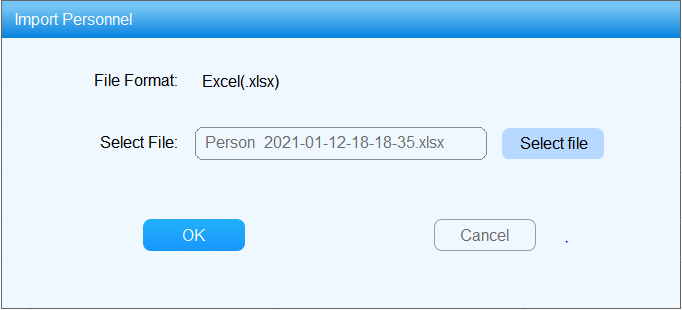
• Import Personnel Information
1.Click worddav16cd6da825c4fe16dbddee6b18467384 625a5f32a846a93aa6fdbd57c508bc21b1d35e6f60eb252c14b69909678ca7ac and click “Import Personnel” in the pull-down list.
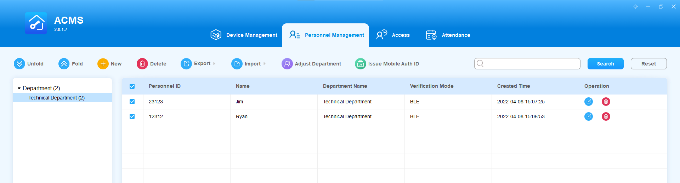
image2022 4 8 15 22 10 7d753d9ca2167262ca49496b9a1720baa9605f5518b585d818b4ae3311276386

2. Click Select File to find the file to be uploaded.
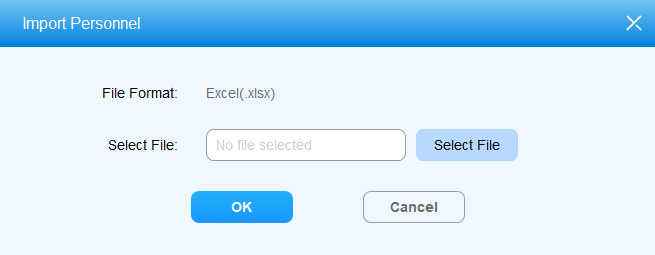
worddavca99148d115a44e419f189d4b0d93d25 67c79df8e741cc3fdaf3b0da381662dd8f234c350b8e92f7bc695d8a00116323

3. Click to select the .xlsx personnel data file and click Open to upload the file.
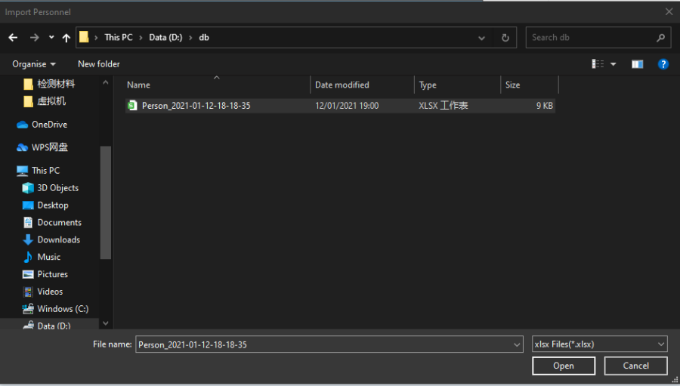
worddav33a6774300ceab271a4f0663c4055f16 2ddf50f60d6854655213fa2384eaf80177c10f3c78d16d63ee32c73f9a54dacb

4. Click OK for confirmation.

worddavc02345e3e8714cd8b5ae477db3e15ca4 a8513104cb06007d53673e2e8952dc456ac5c7f7f9c624164273544d2d7e0cde

Note

• Personal data must be filed into the personal data file template without changing the template spreadsheet.
• ACMS supports up to 20000 personnel.
• Import Personnel Photo
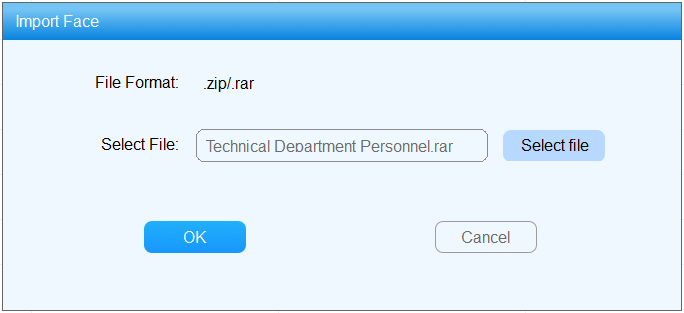
1.Select the .jpg or .jpeg photo that are named by “personnel ID + name” and right- click to compress them into .zip file directly (for example T1234+Jim).
2.Clickworddav3ba642c48476bb6a5294d72c14357364 da616559db08cf9ab6e9ada78db4752da5891a5fe09ba13183c87e086a6012d3and click “Import Personnel Photo” in the pull-down list.
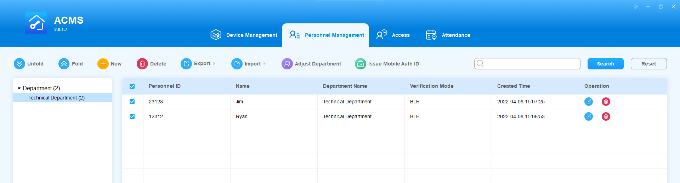
image2022 4 8 15 22 54 84c59bead0eabf48aa1c49d8e9674d1091eb035554d0d9ac304492cb58608245

3. Click Select file and find the .zip photo file.
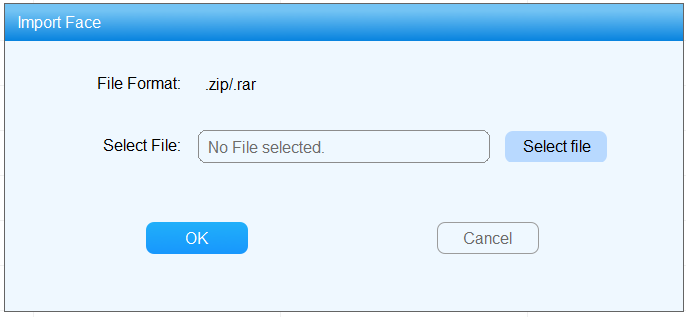
worddavd8e83eceb6ead858d4c47e4c5032fe70 440b91ac4d38f0fe1005b7f0dd32d431d7212a3e1031dcf0124225595afdd5f7

4. Click and select the .zip file and click Open to upload the file.
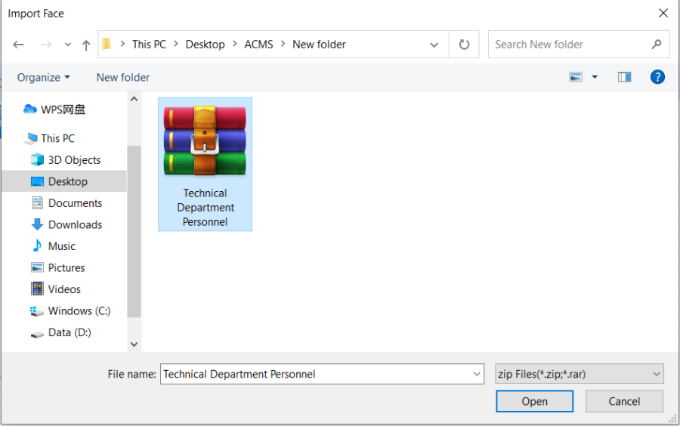
worddavbc157e93fe9f3e4b82626d22cd15bc01 2af1d4826afe7056462a24eb69a12c6515a30cc8a9d1a09e51cabe2dfe2b5e78

5. Click OK for confirmation.

worddav12d5f009a2971b243d6b70d125bf2daa ed66c801f6a4c0d9ab324efd989353d7138c126e3e4c7b7a11c229db5f646e9d

Export Personnel Data

• Export Personnel Information
1.Click worddavdad19078eb4726c8ba9119d1b00eecb2 9d75d8710c6ff31b9e062bbb03ad5b3b8685f6fdb94f78bbd9c4c9a0c53b553e and click on Export Personnel in the pull-down list.
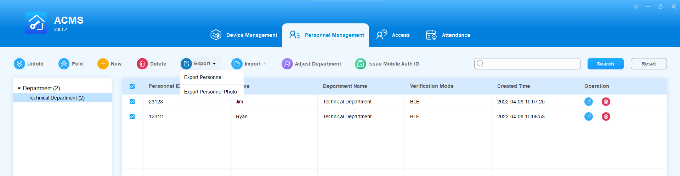
image2022 4 8 15 23 32 da69af5911bf0bc94d803d1927dc44c9c166292886db77a017c0555a66efdc00

2. Select the path in your local PC to export the personnel .xlsx file.

3. Click Save to export the file to the designated path on your computer.
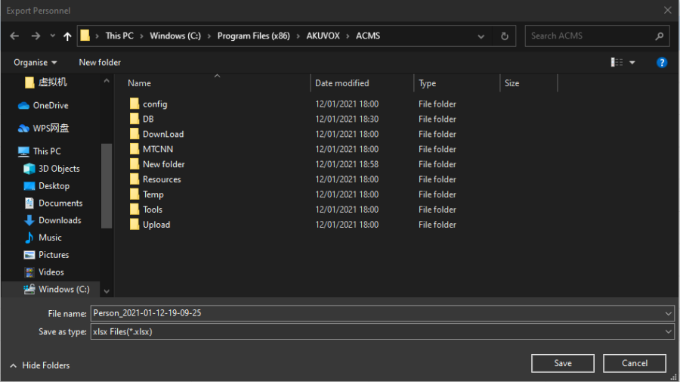
worddav84eea6e231c714e0e2cb92e36751362b efb792ff62b3694689d25210347852dce8cf055872b6f060dd0494b157f3bf6d

Personnel Information File Template:

akuvoxnbspacmsnbspadministratornbspguide v4 0 image 4v2saea0

Key Field Format:

Field Name Field Format Requirement
Personnel ID This is the required field with 23 characters maximum (a~z, A~Z, 0~9).
Name This is the required field with 63 characters maximum.
Department This is the required field with 127 characters maximum.

NOTE:

If the department you filled in does not exist in ACMS, the system will not import this employee’s info.

Gender Fill in Male or Female.
Certification Type Fill in 1.”Passport” 2.”Driving License” 3.”ID Card” 4.”Other”.
Hire Date Fill in data format: Y/M/D.
Birthday Fill in data format: Y/M/D.
Private Key If there are several same Private Keys for different imported person, only one person can keep the key, and the Private Key filed of other persons will be left empty.
Card Number If there are several same Card Number for different imported person, only one person can keep the card, and the Card Number filed of other persons will be left empty.
Web Relay If the value you filled in is out of the valid range or is empty, the info will not be imported.
Floor If the value you filled in is out of the valid range or is empty, the info will not be imported.

Note

• When using the template, please edit the parameters according to the editing format in the template. If you change the template format at will, it may cause errors.
• Export Personnel Photo
1.Click worddavdad19078eb4726c8ba9119d1b00eecb2 9d75d8710c6ff31b9e062bbb03ad5b3b8685f6fdb94f78bbd9c4c9a0c53b553e 1 and click on “Export Personnel Photo” in the pull-down list.
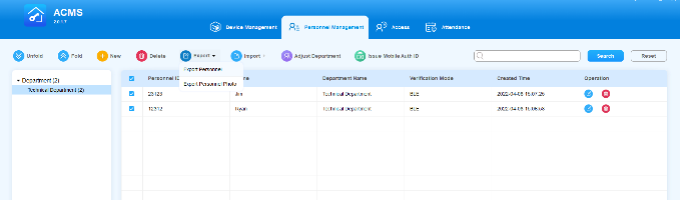
image2022 4 8 15 31 42 6600ac3f2f3fb3315b3fbd50aa5963612e63a5afb1e363418f7312ca104b8008 680w

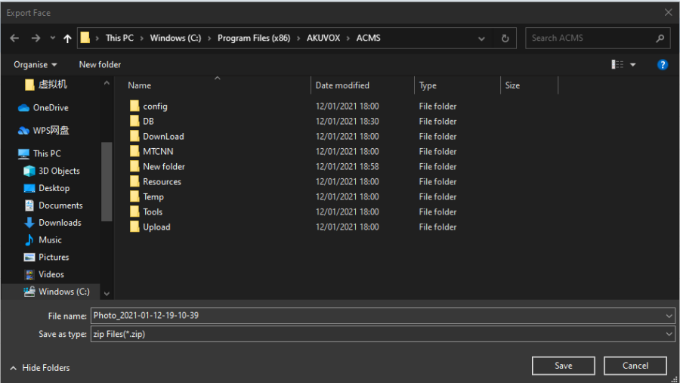
2. Select the path on your local PC to export the personnel photo .zip file.

3. Click on Save to export the file to the designated path on your computer.
worddav30e3f8aa2319d1e03981bd558e3bdaf7 f22f710b5e45406575155933fdf80a661f3000e7bf531bd9ad495e7ecb5ea95f

• Personnel Photo File:

worddav3522b665fe72253da1aa6dac8f240e13 6b21069114a8241e3616a8d4e7c198a3ae343fcb86fbdaaf6f632828f8d6a627

Adjust Department for Personnel

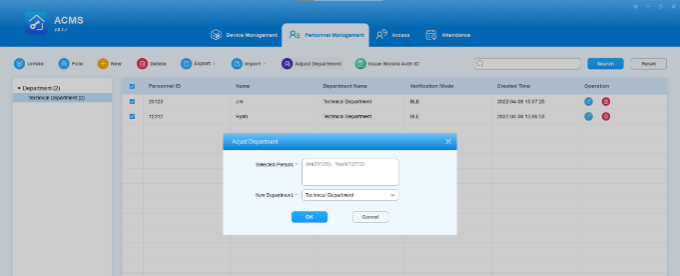
You can make personnel adjustments by moving the person to a different department if needed.

1.Tick the check box of the personnel for whom you want to adjust the department.
2.Click worddava3d84a654b767b9be4ebce1b28bf2d9a 4c163ddde7934079e3e1edf4204ca9f41f873e455b19fb7e28e604fbd1ff338fand select the department to which you want to move the personnel.
3.Click “OK” for confirmation.

image2022 4 8 15 32 30 3830d1479f5303c350a2274a14124c715ac0aaea2fa79402b53baa9563547b53 680w

Search Department and Personnel

You can enter the personnel ID, Name, and department name in the search field to find the information related to specific personnel or department if needed.

1.Enter the personnel ID, name, and department name in the search field.
2.Click Search or click Reset the clear the search information.

image2022 4 8 15 33 6 94428b5a4e1d381d68a7dd0f204d14f8b1e397909bc30e4cf5b21144e29a64bc

Access Control and Logs

In the access module, you can create an inventory of access control schedules that can be readily pulled out to be incorporated with the specific device(s) and authority group as a whole for integrated access control. In addition, the access module allows you to open and close doors with one click, set up anti-passback and see door access logs.
akuvoxnbspacmsnbspadministratornbspguide v4 0 image efpnkhjd

Click to delete the items in the list below

Manage Access Control Schedule and Holidays

ACMS allows you to create, edit, and delete the access control schedules and holidays.

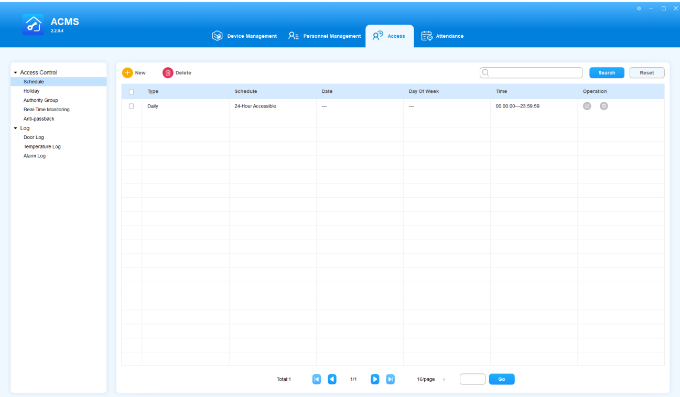
Set the Access Control Schedule

Create a schedule

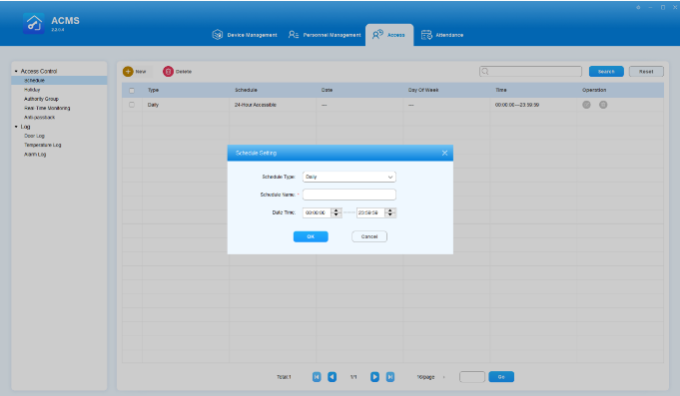
A complete access control schedule includes schedule type, schedule name and time schedule.

1.Click worddavc1ffb67af73df0a4b7458c4dd07636b4 132333c46b28f1e2c1ee1b4dedaf19a89522258c8ba8f6647e0f0c562171054c to go to Schedule Setting.
2.Select the schedule type among Daily, Weekly, and Normal).
3.Create a proper schedule name.
4.Set the time schedule for the validity of the door access.
5.Click OK for confirmation.

akuvoxnbspacmsnbspadministratornbspguide v4 0 image z4791nu3 680w396h

Note

• Normal as a schedule type is selected when you want to create an access control schedule with a longer period of time rather than on a daily or weekly basis.
Edit Access Control Schedule

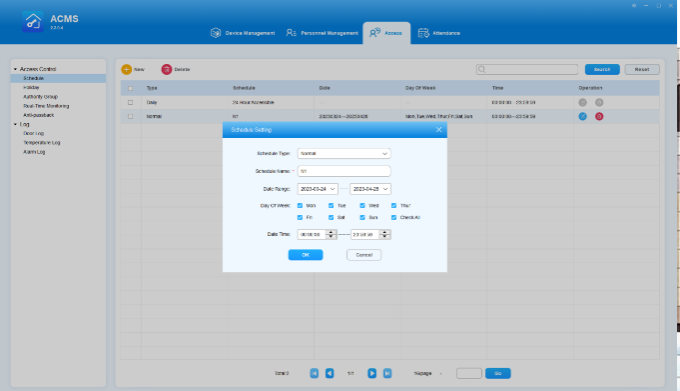
To change the schedule settings such as type, time and date, do as the following:

1.Click worddav5e889fb5aabc37239f027ab420e6a52f 4967dcabb76de4fbe010ab6fbc3749cffc2a89845d00efd5d587478140a3532b or double-click on the specific line of schedule type to be edited.
2.Change the schedule related settings according to your need.
3.Click OK.

akuvoxnbspacmsnbspadministratornbspguide v4 0 image t31ltu23 680w

Note

• The default daily schedule named 24-HourAccessbile is not editable.
Delete Access Control Schedule

Access control schedule can be deleted separately or in batches.

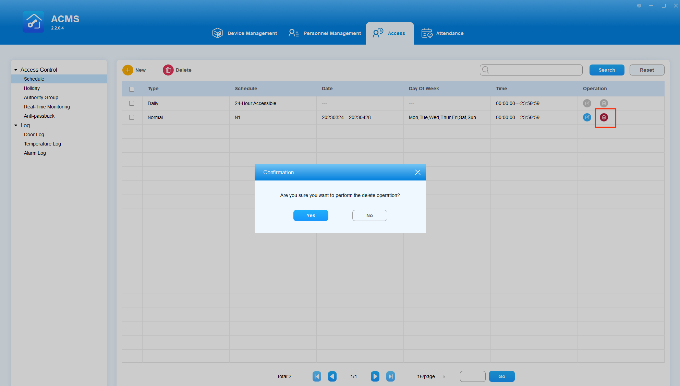
• Delete the schedule separately
1.Find the access control schedule you want to delete, and click worddav006bf5c0eecf4326c62de6efb600ee16 88a4c3897c22cd770109877cf3568954693ebafa556b28a07aea5092b26fde29  in the Operation column.
2.Click Yes for confirmation.

akuvoxnbspacmsnbspadministratornbspguide v4 0 image rut7w5tg

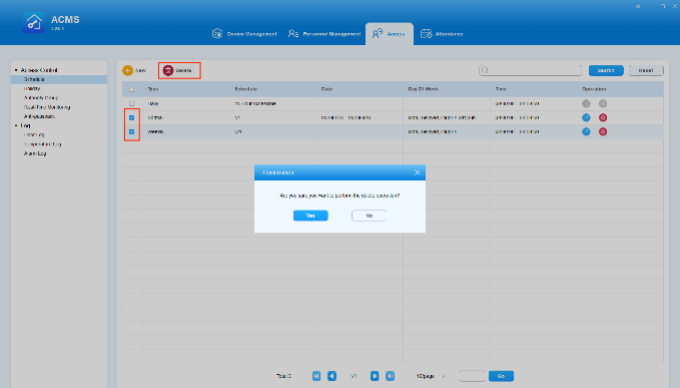
• Delete schedules in batch
1.Check off the access schedule to be deleted.
2.Click worddav25e4c92e5db9f552e6cfb9d84b4c7de2 57ffb0e07621161045e9382c6a7b9da7d912e010e67f4f2e32eccfc2f6879c49 to delete all the schedules that are ticked.
3.Click Yes for confirmation.

akuvoxnbspacmsnbspadministratornbspguide v4 0 image qbd0o55v 680w388h

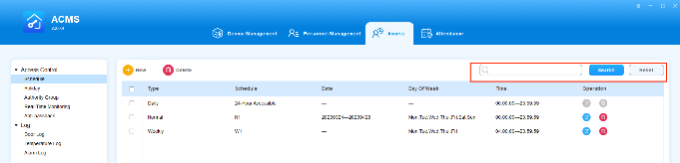
Search Access Control Schedule

You can search for a specific access control schedule by entering the keyword in the search field.

akuvoxnbspacmsnbspadministratornbspguide v4 0 image ygytp5fn 680w163h

Set Holidays

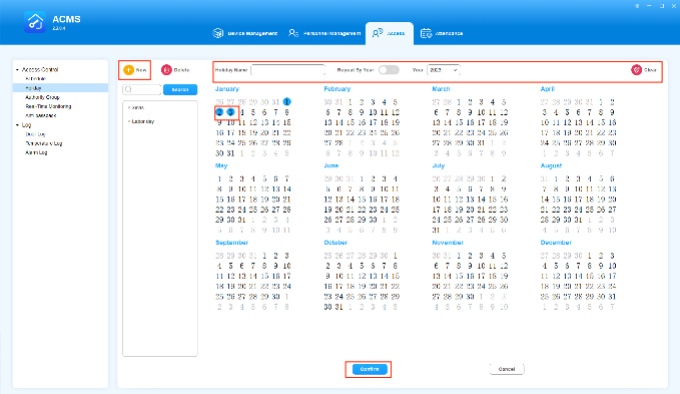
The Holiday function is used to control access to the office area during the set holiday periods. This feature allows you to add, edit, and delete holidays, and apply them to the Authority Group.

Add a Holiday

To add a new holiday, do as the following:

1.Click on akuvoxnbspacmsnbspadministratornbspguide v4 0 image js1sm693 on the left side of the screen.
2.Select the desired dates by clicking on them, and they will be marked with a blue circle. To re-select the dates, click akuvoxnbspacmsnbspadministratornbspguide v4 0 image nmbqsiz5 on the upper right.
3.Enter the holiday’s name on the upper Holiday Name box. Please note that the name cannot be the same as others.
4.If needed, you can set the holidays to repeat every year by turning on akuvoxnbspacmsnbspadministratornbspguide v4 0 image 0yq61j8b or change the year akuvoxnbspacmsnbspadministratornbspguide v4 0 image r1a5tuhz.
5.Click Confirm.

Once created, the holiday will be displayed on the left side of the screen.

akuvoxnbspacmsnbspadministratornbspguide v4 0 image d712ebrv 680w394h

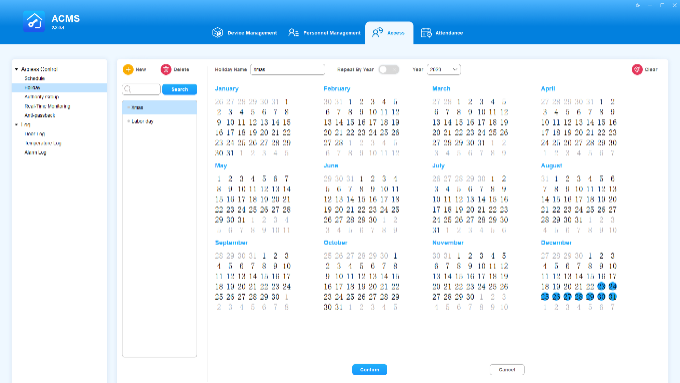
Edit a Holiday

You can edit a set holiday, such as its name, dates, year and more. To do so, just select the desired holiday from left side of the screen, and change the setting.

akuvoxnbspacmsnbspadministratornbspguide v4 0 image r21tx4r9 383h

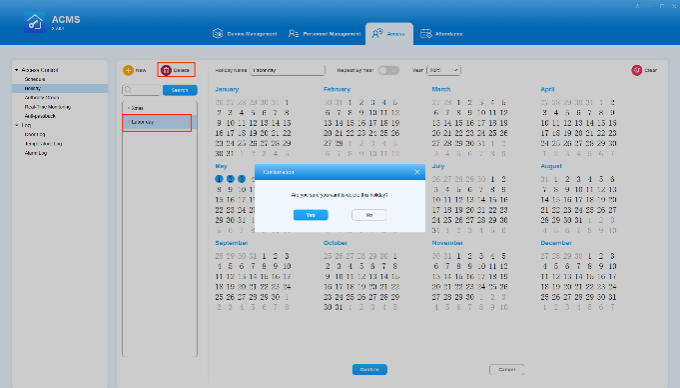
Delete a Holiday

To delete a holiday, select it from the left side of the screen, and click akuvoxnbspacmsnbspadministratornbspguide v4 0 image.

akuvoxnbspacmsnbspadministratornbspguide v4 0 image 7edjv07n 680w

Manage Access Control

Authority Group

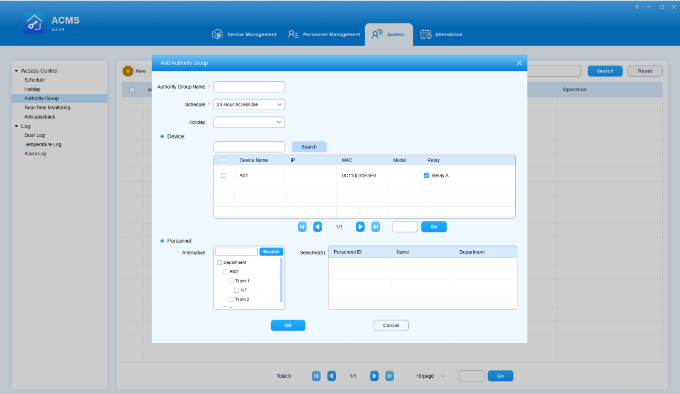
Create an Authority Group

You can create an inventory of authority groups that can be applied to the specific person(s), device(s), and access time schedule included in the access control group.

1.Select Authority Group in the Access Control module.
2.Click worddav7befa233c60e225ebd85f56eeb2e31c4 a8650e980e3db0547d9c9653c75a2a4f31439574376d585a4936e8b8a81fc1c8 to create an access authority group.
3.Enter the group name.
4.Select the schedule type and the device(s) together with its relays to be included in the authority group.
5.If needed, select the holidays you want to apply to the group. Once added, the users cannot access preset devices in the holiday period.
6.Add the department and person to be bound with the group.
7.Click OK.

akuvoxnbspacmsnbspadministratornbspguide v4 0 image ue8hedv7

Note

• Once an authority group is added, you need to go to the Device Management module to sync it to relevant device(s). For detailed instructions, see here.
Edit Authority Group

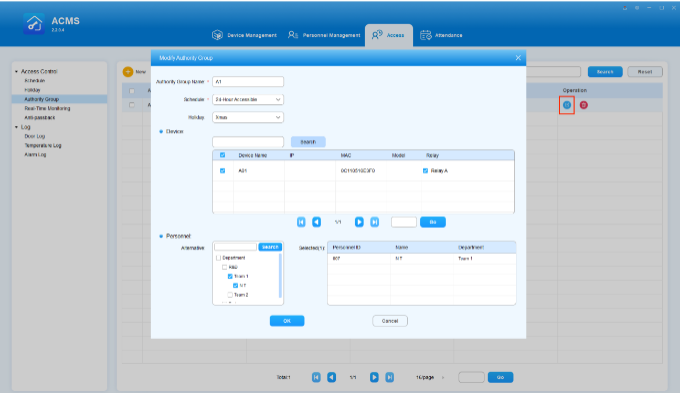
You can edit the authority group in terms of the authority group name, schedule type, device, and personnel.

1.Click worddav80e9940606cc0a6a0f05258f588e8d65 e556f2fee50fbad79b9b228734345a42dd59639e36ed53bcc5b4cfa5fc05ced6 or double click on the specific line of authority group you want to edit.
2.Edit the settings in the authority group according to your need.
3.Click OK for confirmation.

akuvoxnbspacmsnbspadministratornbspguide v4 0 image xnvkex3w 393h

Note

• Once an authority group is edited, you need to go to the Device Management module to update the changes to relevant device(s). For detailed instructions, see here.
Delete Authority Group

You can delete the authority group separately or in batches.

• Delete authority group separately
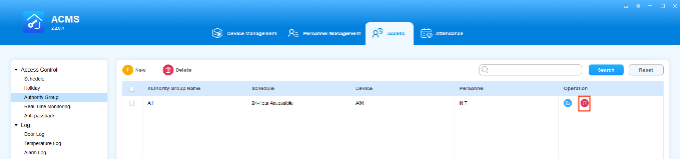
1.Click onworddav3d5137d96eb3effaabdf57ac0a1224f6 6ef040711abd1dde527be82b9b296ccf5c36183ec93dca56604f569c45348f7e of the specific line of the authority group you want to delete.
2.Click Yes for confirmation.

akuvoxnbspacmsnbspadministratornbspguide v4 0 image wg74irii 680w

• Delete authority group in batch
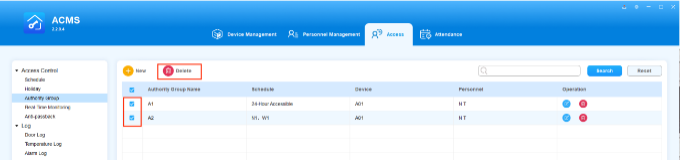
1.Check off the specific line of the authority group(s) you want to delete.
2. Click worddav63c9540ccdd4aa08d50ae25bf0fc1b82 75dd9dcd8f831237835853eda14e16259b69dbd6204aa1699dafe4081a080daf and click Yes for confirmation.

akuvoxnbspacmsnbspadministratornbspguide v4 0 image uvdhfe9q 160h

Search Authority Group

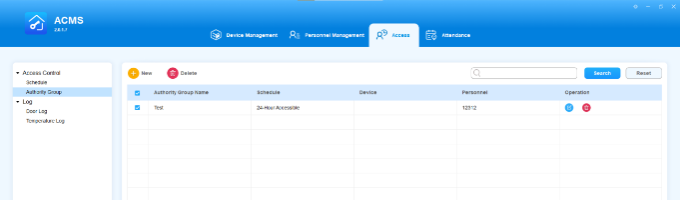
You can search the specific authority group by entering the authority group name in the search field.

1.Enter the authority group name in the Search field.
2.Double click the authority group if you want to see the details.

image2022 4 8 15 57 3 63d6d7fca017c3cf28590179c6a1ca905a865f306973e47abbd573bd2ca8c9bf 680w

 Unlock Doors by One-Click

The Real-Time Monitoring function allows you to take immediate action in emergency situations by either unlocking or locking all doors with a single click.

On the Real-Time Monitoring screen, you can:

• Open or close all doors with a single click in case of an emergency.
• Open or close individual or multiple devices.
• Check the status of devices’ door magnets in real-time.

akuvoxnbspacmsnbspadministratornbspguide v4 0 image tj4aeesz 680w368h

Auto-Open Doors When an Emergency Alarm Triggers

When this feature is turned on, an Open All Doors command will be automatically sent to all devices from the ACMS when an emergency alarm is received. By default, this feature is turned off.

To enable this feature, move the toggle marked in the below picture to be ON.

akuvoxnbspacmsnbspadministratornbspguide v4 0 image llxr18p9 680w

Note

• When an Open All Doors command is received, only relays and security relays that have been set to be Open on ACMS will be triggered. Devices that are not set to Open will not be affected.
• The Open All Doors command will keep the relays open indefinitely until they are manually closed.

Lock or Open Doors by One-Click

The Lock Down feature allows you to quickly and easily lock online relays and security relays of the devices added on ACMS with a single click.

When the Always Open feature is enabled, the relays and security relays will keep open until they are manually closed.

akuvoxnbspacmsnbspadministratornbspguide v4 0 image j429l7y7 680w

Note

• Only those relays and security relays that have been set to Open on ACMS can be controlled by Lock Down and Always Open.

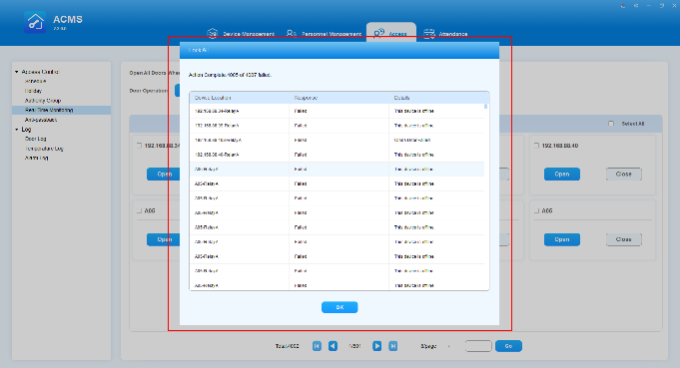
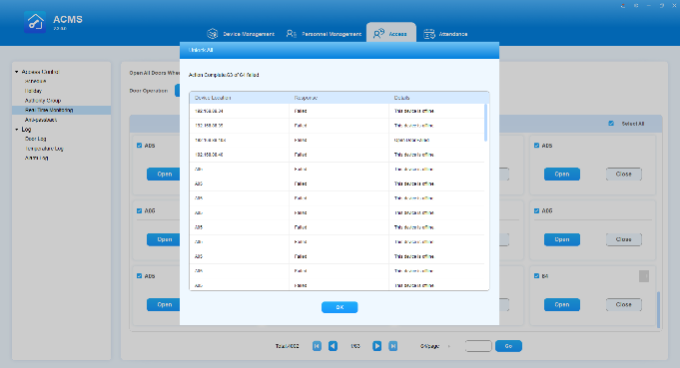
The system will returns the results after you perform Lock Down or Always Open.

akuvoxnbspacmsnbspadministratornbspguide v4 0 image za5koukn 680w368h

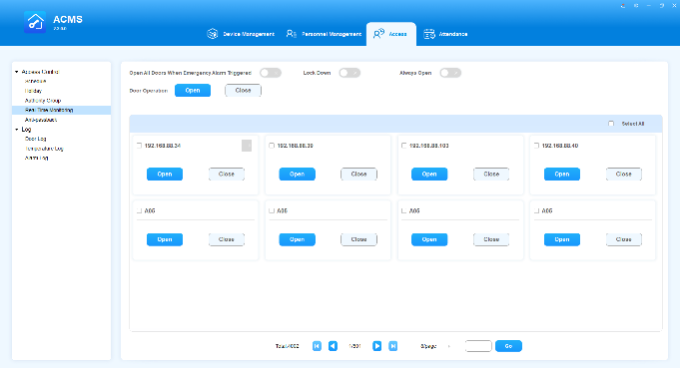
Open or Close Specific Doors

You can also open or close doors on individual or multiple specific online devices. On this screen, you can see all devices added to the ACMS and can then click the Open or Close button to operate.

Note

• When the Lock Down or Always Open feature is enabled, the Open or Close function on a single device or multiple devices CANNOT work.
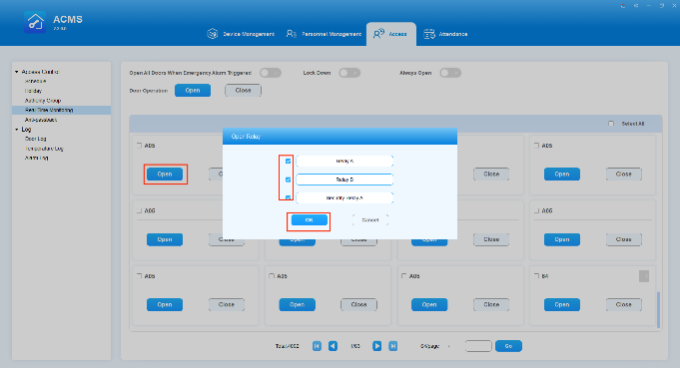
• Open/close relays on one device
1.Select the desired device, and click Open or Close button.
2.Select the relays if the device has several relays that have been set to Open when adding it.
3.Click OK to allow for one-time door opening or closing.

akuvoxnbspacmsnbspadministratornbspguide v4 0 image 2h2n0639 680w368h

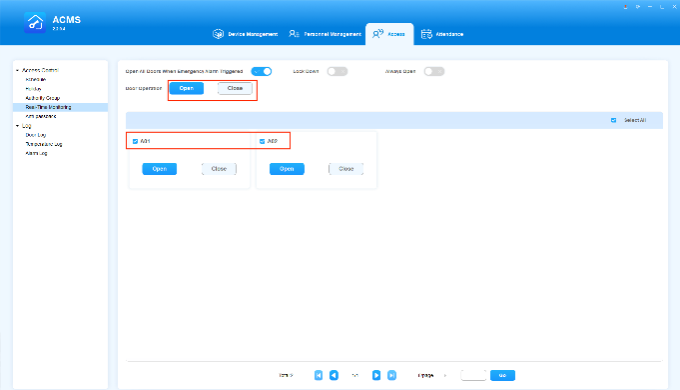
• Open/close relays on multiple devices
1.Check off the desired devices.
2.Click on Open or Close button on the top. All relays and security relays that have been set to Open will be triggered.

akuvoxnbspacmsnbspadministratornbspguide v4 0 image uebj8qse 680w

If at least one relay or security relay of a device is successfully opened or closed, the system will display a success message. While if all relays of a device fail to open or close, the system will display a failure message.

akuvoxnbspacmsnbspadministratornbspguide v4 0 image 2zvlur3r 680w368h

 Check Door Magnets Status

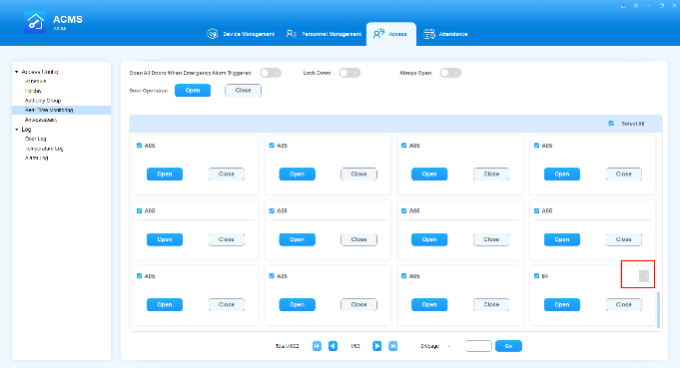
Door magnet status is display next to the device name. The gray icon indicates that it is closed, and the blue icon is for open status.

akuvoxnbspacmsnbspadministratornbspguide v4 0 image 746stfav 680w368h

 Anti-Passback

Anti-passback is a security mechanism preventing an access card or similar device from being used to enter an area a second time without first leaving it. In this case, each entry must be followed by the exit for the next successful entry.

Add Anti-Passback Devices

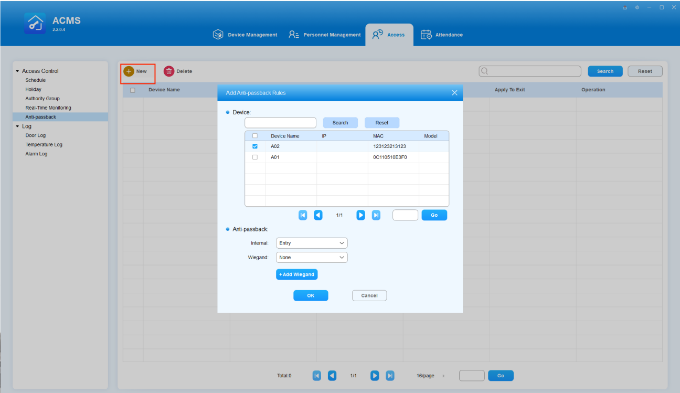
ACMS needs to add devices and set up its anti-passback methods for both the device and Wiegand. To enable this function, do as the following:

1.On the Anti-Passback screen, click akuvoxnbspacmsnbspadministratornbspguide v4 0 image.
2.Check off at least one device to proceed.
3.Select the Internal and Wiegand Anti-passback methods among None, Entry, and Exit.
4.Add additional Wiegand if needed.
5.Click OK.

Note

• Once Anti-passback devices are added, you have to update the settings to devices on the Device Management module. See here for detailed instructions.

akuvoxnbspacmsnbspadministratornbspguide v4 0 image nptcqiih

Edit Anti-Passback Devices

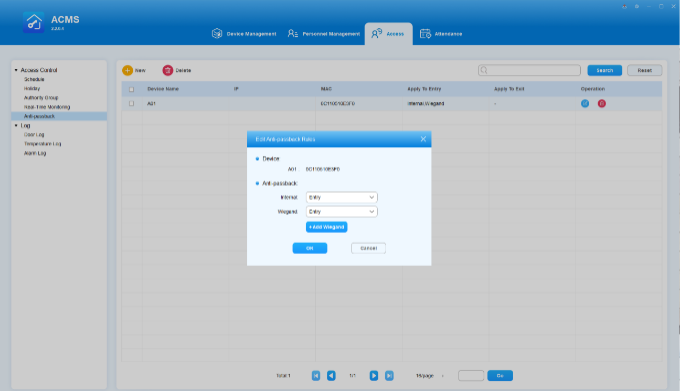
When editing, you cannot change the device that is set as an anti-passback device.

1.Double-click the desired device or click on its akuvoxnbspacmsnbspadministratornbspguide v4 0 image 5h4ketb6 in the Operation column.
2.Change its anti-passback methods or add new Wiegand.

Note

• Any changes made to anti-passback devices must be updated to the associated devices. See here to know how to update the changes.

akuvoxnbspacmsnbspadministratornbspguide v4 0 image cexypkt7 391h

Delete Anti-Passback Devices

To delete single device, click on akuvoxnbspacmsnbspadministratornbspguide v4 0 image 7sgbom10 in the Operation column.

To delete multiple devices, check off the desired devices and click on the upper delete button akuvoxnbspacmsnbspadministratornbspguide v4 0 image.

akuvoxnbspacmsnbspadministratornbspguide v4 0 image 7q3m37nr

Your title goes here

• Deleting device will not change the Anti-passback mode that has already been sent to the device. In the Mode column on Door log screen, the mode will still be Entry or Exit even after the anti-passback device is deleted.

Logs

In the sub-module Log you can check the door access records, temperature records, and alarm records.

Daily Door Logs

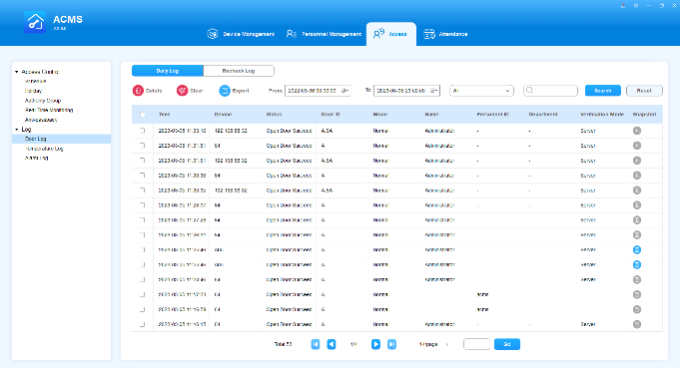
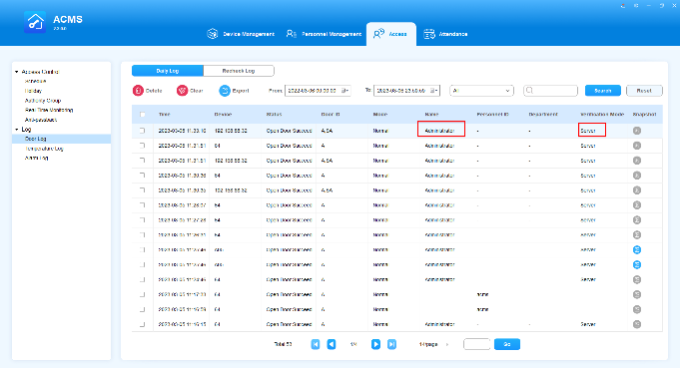
On the door log screen and select Daily Log on the upper left, you can check and search door access records in terms of what access types are used, and who in which department have been granted or denied the door access during a certain time range.

image 1682387893012 680w

See and Search Door Log
• See Door Logs
1.Select the time range for the door log.
2.Select filtering range among All, Open Door Succeed, and Open Door Failed.
3.Click Snapshot image2022 4 13 10 38 24 8d35af23d89c3300927c05778a31be2c0a841851ee3252899e95d4dec141a576to see photo captured by the device.

akuvoxnbspacmsnbspadministratornbspguide v4 0 image a26ahnre 680w368h

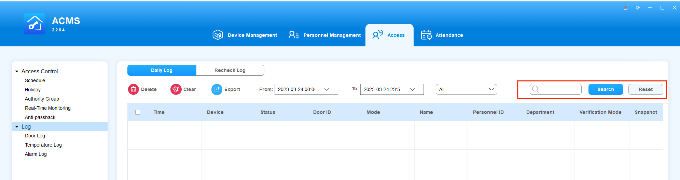
• Search Door Logs
1.Enter information, such as Device, Name, Personnel ID, and Department, in the Search field.
2.Click Search to find the specific log.

akuvoxnbspacmsnbspadministratornbspguide v4 0 image 246ouptu

Note

• The personnel ID field will be displayed as Unknown and the Name field and Department field will be left blank for the unregistered personnel seeking the door access.
Delete and Clear Door Log
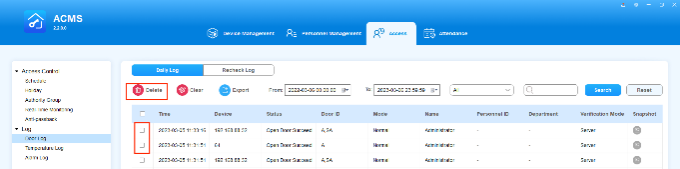
• Delete Door Log
1.Tick the check box of the specific door log.
2.Click worddav1af20294c53f61bf83f8017becac99a2 d2bf289b7b8da7c8be64749718a51c312b76aca57437487ccfae7668cbe7161ato delete the ticked door log.

image 1682388035998 680w

• Clear Door Log
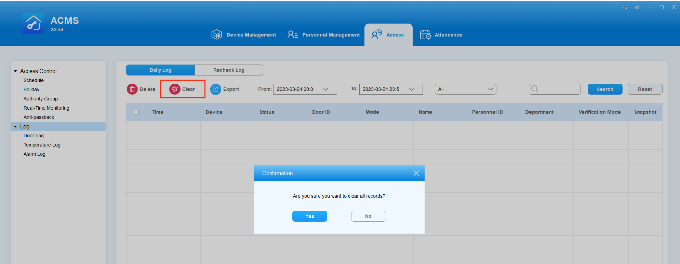
1.Click worddav282fd6d2156ae666e0c0f5dfe73e7c78 7644d5f871d2bd423ad5eafaba21d5dd5a0a7b5589a7afc3fc098b95eb79bfa7 to delete all the logs.
2.Click Yes for confirmation.

akuvoxnbspacmsnbspadministratornbspguide v4 0 image dob4jhn6

Export Door Log

The door log can be exported to a designated path on your computer in .xlsx format.

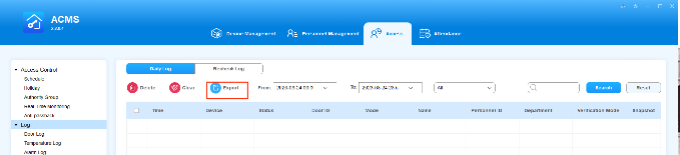
1.Click worddav4e53c577a78f3789d0824ec41a61cb3b 6a1ca11a0e8f122f26949b7e9408d4939ea02ab58143477988ce78ebc65a84af and select the path to which you want to export the file to your local PC.
2.Click Save.

akuvoxnbspacmsnbspadministratornbspguide v4 0 image w70mg0a3 680w

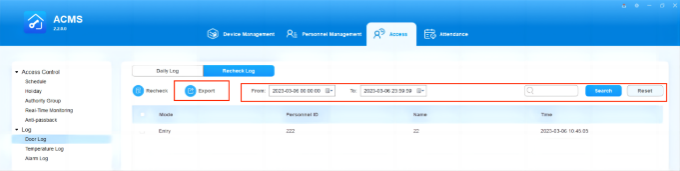
Recheck Log

Recheck Log is a feature that can work in conjunction with the Anti-passback function. It facilitates the situation where a person is unable to enter or exit due to reasons such as being lost or forgetting to swipe a card. You can use this feature to perform recheck operations for the user, thereby relieving the abnormal situation and ensuring that the user can enter or exit normally the next time.

Perform the Recheck Operation

To recheck for an user, do as the following.

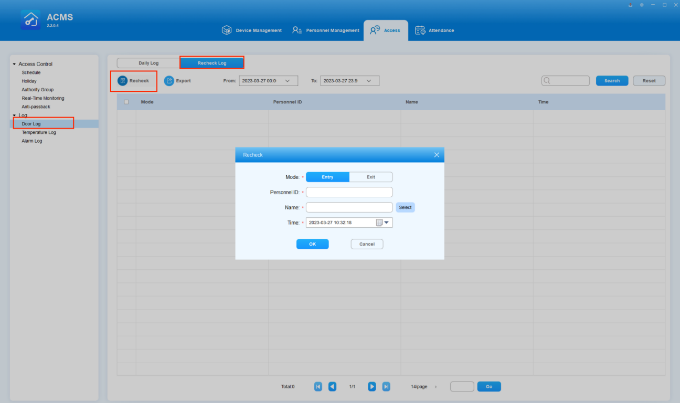
1.On the Access screen, select Door log on the left-side menu, and click on Recheck button to start rechecking.
2.Select the entry or exit option based on the actual situation of the user.
3.Select the user from the list of ACMS or enter the user’s name and ID directly.
4.Choose the time and date.
5.Click OK.

akuvoxnbspacmsnbspadministratornbspguide v4 0 image dsq3ikn3

Once the recheck operation is complete, a new door log will be generated. The name of the record will display as Administrator and the verification mode will be Server.

akuvoxnbspacmsnbspadministratornbspguide v4 0 image sgoks9wk 680w368h

Search and Export Recheck Logs

You can filter the logs by specifying time, Personnel ID and name. You are also allowed to export the filtered logs with one click.

akuvoxnbspacmsnbspadministratornbspguide v4 0 image jupjpk7k 680w

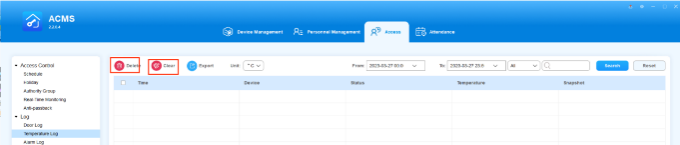
Temperature Log

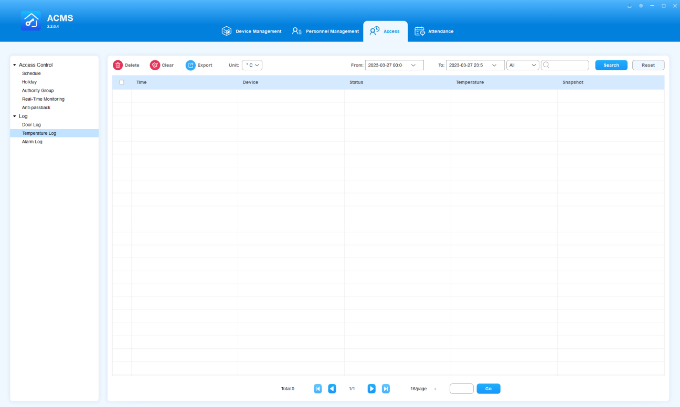
In the temperature sub-module, you can check and search temperature records collected in the device that is equipped with Akuvox digital temperature detector during a certain time range.

See/Search Temperature Log
• See Temperature Log
1.Select the time range for the temperature log.
2.Switch the temperature scale (Celsius or Fahrenheit) if needed.
3.Select filtering range among All, Normal Temperature, Abnormal Temperatur, and Low Temperature.
• SearchTemperature Log
1.Enter the device name in the Search field.
2.Click Search to find the specific temperature record.

akuvoxnbspacmsnbspadministratornbspguide v4 0 image

Delete/Clear Temperature Log
• Delete Temperature Log
1.Tick the checkbox of the specific temperature log.
2.Click worddav1af20294c53f61bf83f8017becac99a2 d2bf289b7b8da7c8be64749718a51c312b76aca57437487ccfae7668cbe7161a 1 to delete the ticked temperature log.
• Clear Temperature Log
1.Click worddav282fd6d2156ae666e0c0f5dfe73e7c78 7644d5f871d2bd423ad5eafaba21d5dd5a0a7b5589a7afc3fc098b95eb79bfa7 1 to delete all the temperature logs.
2.Click Yes for confirmation.

akuvoxnbspacmsnbspadministratornbspguide v4 0 image w74lqgxf 680w

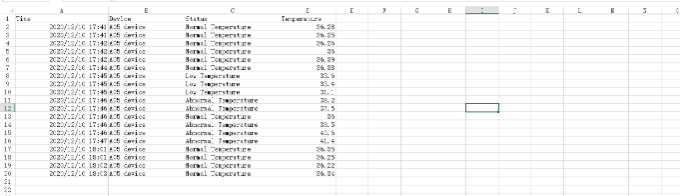
• Export Temperature Log

Temperature log can be exported in .xlsx format. to the designated path on your computer.

1.Click worddav4e53c577a78f3789d0824ec41a61cb3b 6a1ca11a0e8f122f26949b7e9408d4939ea02ab58143477988ce78ebc65a84af 1 and select the path to which you want to export the file in your local PC.
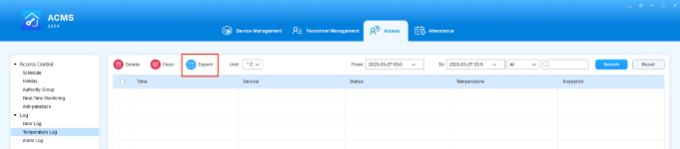
2.Click Save.

akuvoxnbspacmsnbspadministratornbspguide v4 0 image zx18sim0 680w149h

image 1682388367920 680w

Alarm Log

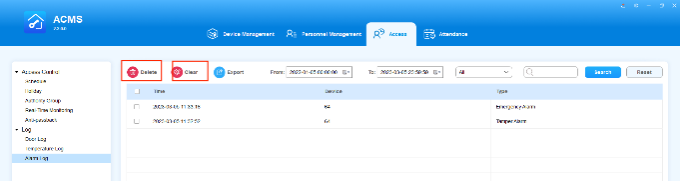
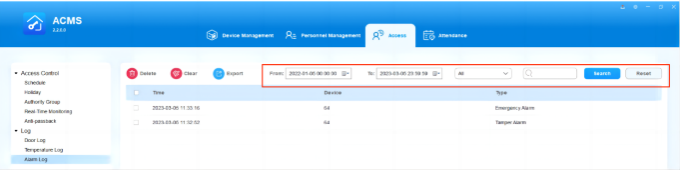
The Alarm Log screen displays all alarm histories reported by devices such as tamper alarm, alarm door opened, break-in intrusion, and emergency alarm. All logs can be deleted, cleared, and exported.

Search Alarm Logs

You can filter the logs by specifying date and time, entering the device, and selecting the log type.
akuvoxnbspacmsnbspadministratornbspguide v4 0 image bp8uko6n 680w

Export Alarm Logs

Alarm logs can be exported in .xlsx format. to your computer.

1.Click worddav4e53c577a78f3789d0824ec41a61cb3b 6a1ca11a0e8f122f26949b7e9408d4939ea02ab58143477988ce78ebc65a84af 2 and select the path to which you want to save the file in your local PC.
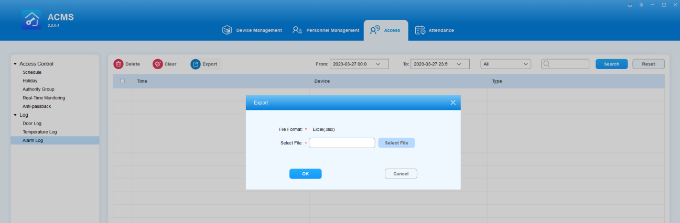
2.Click Save.

akuvoxnbspacmsnbspadministratornbspguide v4 0 image bhhijwov

Delete/Clear Alarm Logs

You are able to delete certain logs or clear all logs.

• Delete Certain Logs
1.Check off the specific logs.
2.Click worddav1af20294c53f61bf83f8017becac99a2 d2bf289b7b8da7c8be64749718a51c312b76aca57437487ccfae7668cbe7161a 2 to delete the selected.
• Clear All Logs
1.Click worddav282fd6d2156ae666e0c0f5dfe73e7c78 7644d5f871d2bd423ad5eafaba21d5dd5a0a7b5589a7afc3fc098b95eb79bfa7 2 on the top.
2.Click Yes for confirmation.

image 1682388431278 680w

Attendance Management

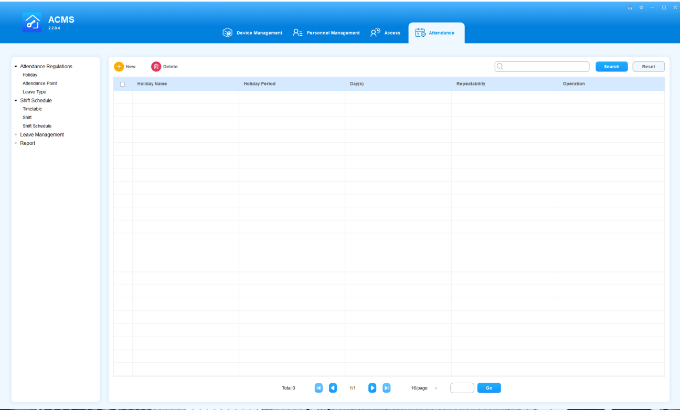
The attendance module allows you to set up holidays, attendance device locations, and work timetables, and manage employee shifts, leave, and attendance.
akuvoxnbspacmsnbspadministratornbspguide v4 0 image

Holidays

You can set up holidays that can be automatically integrated into your work schedule and attendance.

Add a Holiday
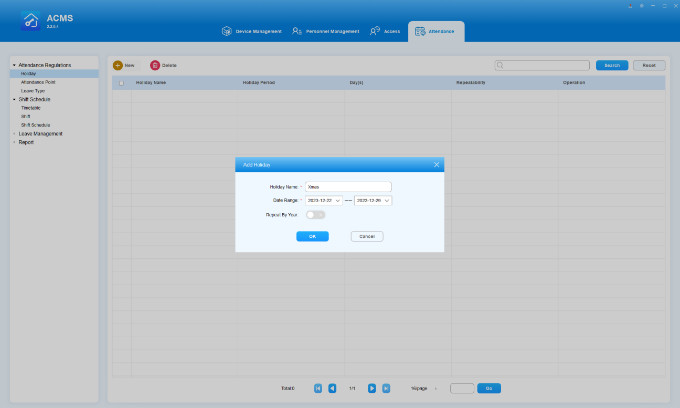
1.Enter the holiday name.
2.Set up the holiday time range.
3.Move the toggle switch to the right if you want the holiday to be repetitive every year.

akuvoxnbspacmsnbspadministratornbspguide v4 0 image 9scz27be

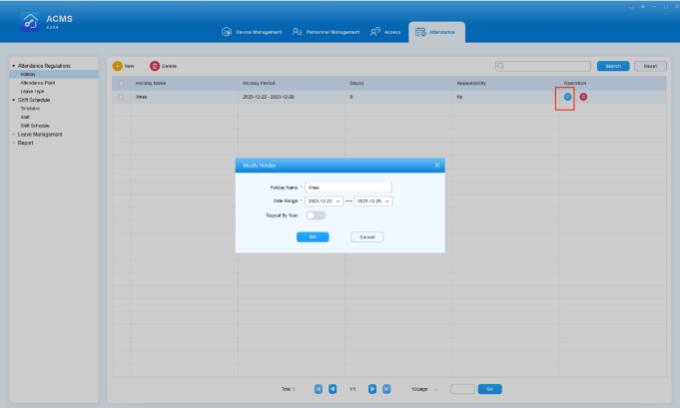
Edit a Holiday

1. Double click the desired holiday or click on image2022 4 8 16 40 35 5267344c47fadfefd7e0409796847ffccfe9088a91fd017d6772a9b1401f9bc2 in its Operation column.
2. Edit the holiday information according to your need.

akuvoxnbspacmsnbspadministratornbspguide v4 0 image 5c9t52xw 680w408h

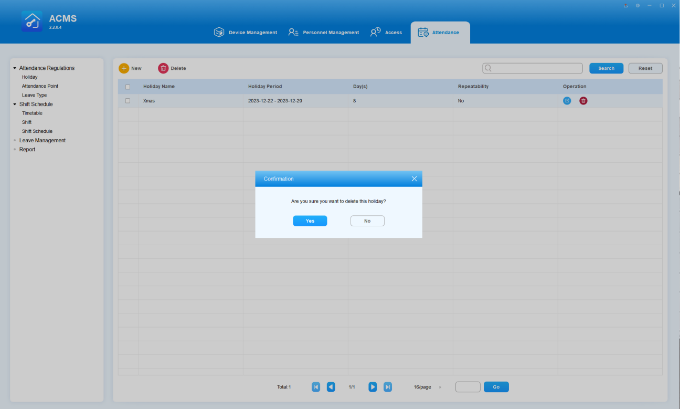
Delete Holiday

You can delete holiday(s) one by one or in batch.

• Delete Holiday(s) One by One
1.Click on worddav751e807dd0dac695fbf76199d7aa730b f8fafb7b0fef13d68a08d27125af59e005cbf2562e1c828b5435c5289f700b0e of the specific holiday you want to delete.
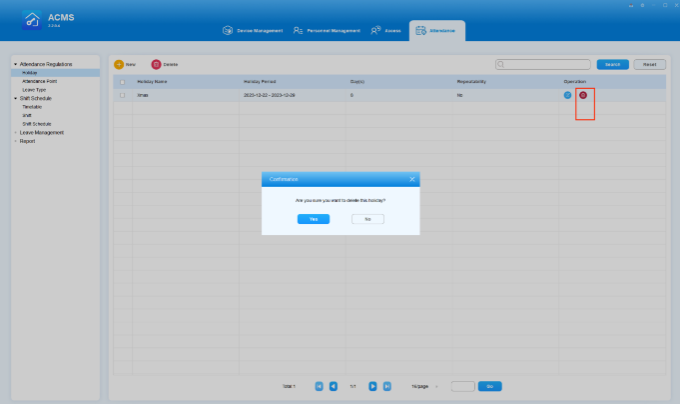
2.Click Yes.

akuvoxnbspacmsnbspadministratornbspguide v4 0 image e5kcglzp 680w

• Delete holiday(s) in Batch
1.Check off the desired holidays, or the box next to Holiday Name worddav1011b794f4037ef64948bbd559525f13 92e17b01e001696492e053aa2f36d0052c6af4a4a9fb38e5fef48c845d8674e4 to select all.
2.Click Yes.

akuvoxnbspacmsnbspadministratornbspguide v4 0 image r9mj53uw

Attendance Point

There can be more than one device for personnel’s punch-in and punch-out, therefore you might need to name the devices based on their locations (location point) so that attendance records of the specific attendance device(s) can be obtained.

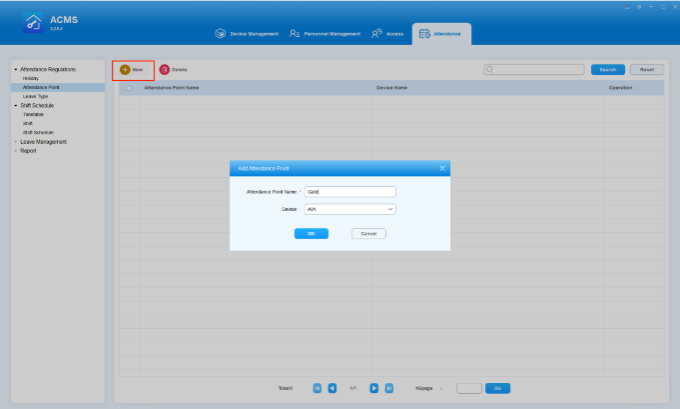
Create Attendance Point

1.Click on akuvoxnbspacmsnbspadministratornbspguide v4 0 image lacd7uyo.
2.Fill in the attendance location name and select a device for it.

akuvoxnbspacmsnbspadministratornbspguide v4 0 image 7xt78c4k 680w

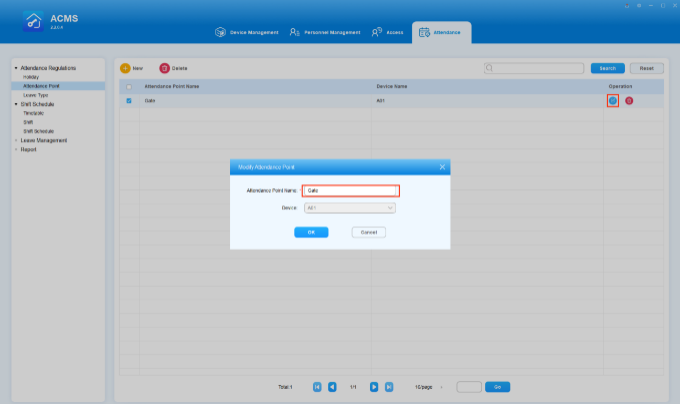
Modify Attendance Point

You can modify the point’s name, while the device selected cannot be changed.

1.Double click the desired point or click on akuvoxnbspacmsnbspadministratornbspguide v4 0 image 23ge9qnr in its Operation column.
2.Change the point’s name.
3.Click OK.

akuvoxnbspacmsnbspadministratornbspguide v4 0 image ono39mzn 404h

Delete Attendance Point

You can delete the attendance device point separately or in batch.

• Delete attendance device point separately
1.Click on akuvoxnbspacmsnbspadministratornbspguide v4 0 image mu6yh5gw in the desired point’s Operation column.
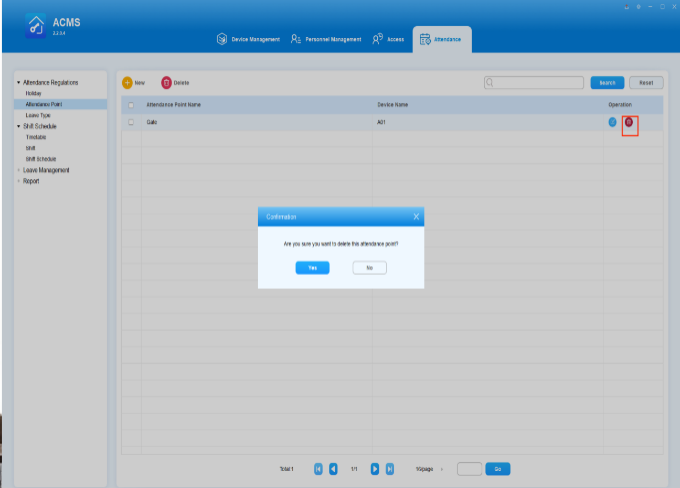

2.Click YES.

akuvoxnbspacmsnbspadministratornbspguide v4 0 image ktucycav 488h

• Delete attendance device point in a batch
1.Tick the checkbox worddav974577b9a2cc5c5f6fb5d6c7fe5fa8f5 836d96183cecf2dbea10f314c9783a3f6c998f44bc4315bd933a62d0f3efb928 of the attendance points you want to delete.
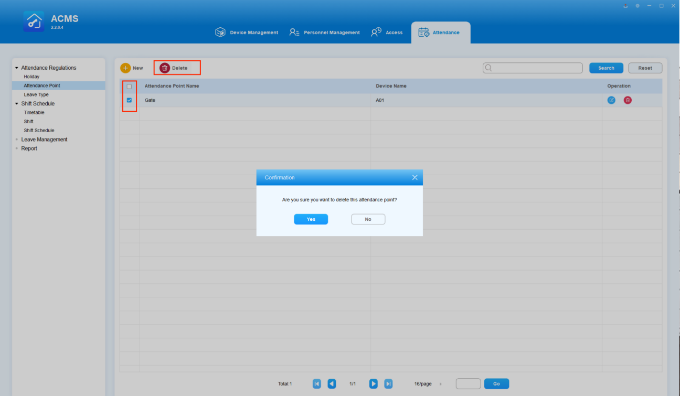
2.Tick the checkbox if you want to delete all the existing attendance points.

akuvoxnbspacmsnbspadministratornbspguide v4 0 image h7j8tnu2

Shift Schedule

The Shift Schedule sub-module allows you to plan for the work shift timetables, shift management, shift adjustment, and manage the attendance record and leave the report for the employees.

Timetables

Create Timetable

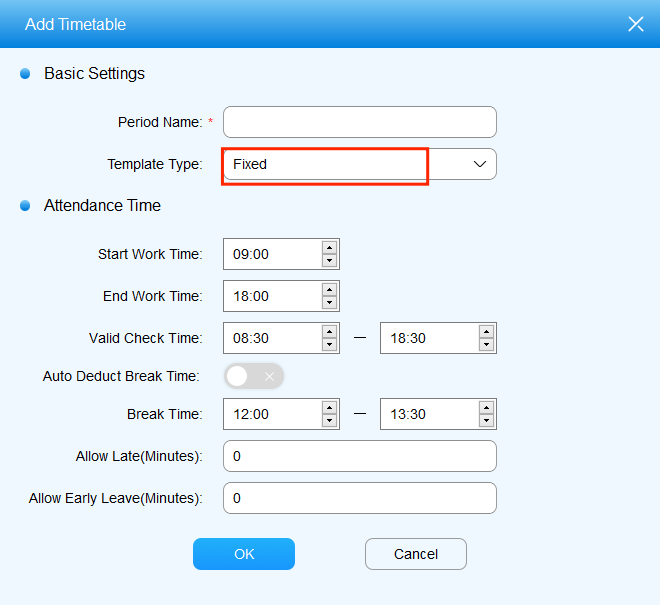
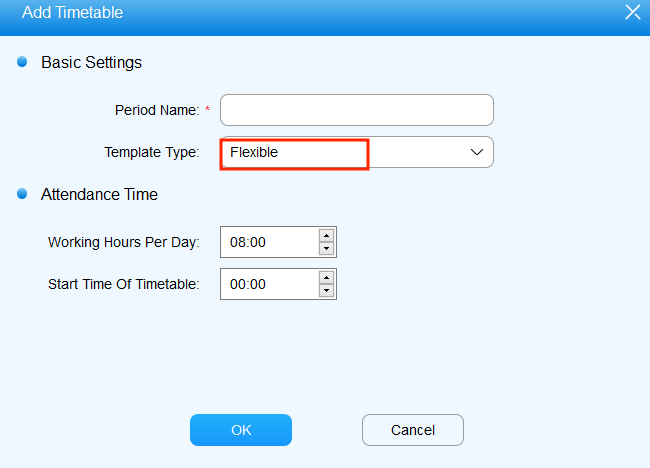
You can create an inventory of shift timetable templates that can be later conveniently pulled out and applied to the specific work shift(s) for the specific employee(s). You can define time table setting in terms of setting up timetable names, types, as well as work hours and attendance time to be applied to the timetable.

1.Go to Attendance module and navigate to Shift Schedule > Shift.
2.Click worddav50942959e894e575df94842c8d392d75 35c944ddbbbd23e8f8f77f7aa010139015140c00c9b87b2ed03b107ce5154669 to add a timetable.
3.Set up timetable names and types, and attendance time in the timetable.

akuvoxnbspacmsnbspadministratornbspguide v4 0 image gmzyheb3

worddav8e7f01387bdfad913506556330d1c719 6e2bdc5316274d1ed8eba3d208eff80880c4832910dff0f5259ed9590bef43a9

Parameters Setup

No. Field Name Description
1 Period Name Enter the name of the work timetable, which is required. Period name is mainly used for identification and search purpose.
2 Template Type Select the timetable type between Flexible and Fixed. The type is Fixed by default.

• If Fixed is selected, then you are required to specify the work start-time, end-time, valid punch-in and punch-out time for the employees.
• If Flexible is selected, then you need to fill in the total work hour required of employees per day, and the work start time, ignoring the work end time and valid punch-in and punch-out time as long as the employee work hour meets the total work hour you defined.
3 Start Work Time Set up work start-time. The default start time is 09:00.
4 End work Time Set up work end-time. The default end time is 18:00.
5 Valid Check Time Set up a valid punch-in time range for Fixed timetable. The default valid punch-in time range is from 08:30-18:30. If an employee clocked multiple times, the earliest recorded time will be considered the clock-in time and the latest will be considered the clock-out time.
6 Auto Deduct Break Time Enables automatic deduction of break time. When this option is turned on, the system will deduct the specified break time from the total work time when calculating work hours.
7 Break Time The period of time designated as break time.
8 Allow Late (Minutes) The amount of time allowed for being late, ranging from 0 to 1440 minutes. When set to 0, no late arrival is allowed. When set to a value other than 0, the specified number of minutes is allowed for being late, but the attendance record will not be marked as late.

For example, if the work start time is set at 9:00 and Allow Late is set to 5, any record before 9:05 will be considered normal and will not be marked as late.

9 Allow Early Leave (Minutes) The amount of time allowed for early departure, ranging from 0 to 1440 minutes. Setting it to 0 means no early departure is allowed. If set to a non-zero value, the specified number of minutes is allowed for early departure, but the attendance record will not be marked as early departure.

For instance, with work end time set to 18:00 and Allow Early Leave set to 5, any record after 17:55 is considered normal.

10 Working Hours Per Day (For Flexible type only) Set up the total work hour required of employees per day. The total work hour shall not be more than 24 hours. The default work hour is 8 hours .
11 Start Time Of Timetable (For Flexible type only) Set up the work start time for the flexible type timetable. For example, if you set the start-time as 09:00, then the end time will automatically be 09:00 the next day (24 hours a cycle), requiring employees to punch in and punch out during the 24 hours ( In this example, the valid punch-in time will start at 09:00, while the valid punch-out time will end at 08:59 the next day). The default start-time is 00:00.
Edit Timetable Template

After timetables are created, you are allowed to edit the timetables if needed.

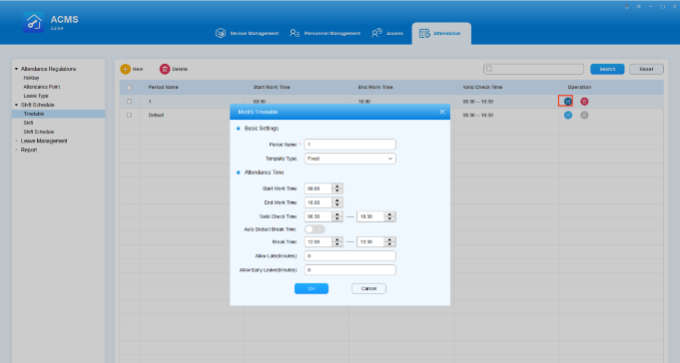
1.Click on worddav5a6642074c8c3fa1d087ccf38be63f3c 16c4ca00262a49e1c7ec25f56cf0930abc31e338c081bb951cb7f33f4a53d270 of the specific timetable you want to edit.
2.Edit the timetable according to your need.

Note

• If a timetable has been assigned to a shift, any changes to it will be updated to the relevant shifts and shift schedules.

akuvoxnbspacmsnbspadministratornbspguide v4 0 image ad87fe0e 680w363h

Delete Timetables

You can delete the existing timetables separately or in batch if needed.
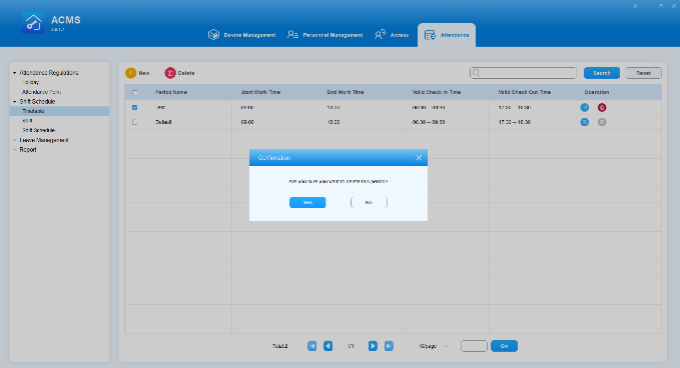
• Delete timetable separately
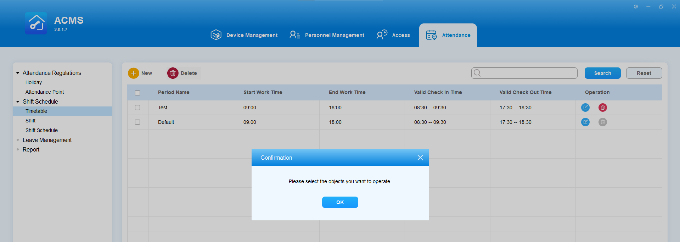
1.Tick the checkbox of the specific timetable you want to delete.
2.Click Yes for the confirmation.

image2022 4 8 16 49 18 dcda7e9431d8feec4e6980d2a893651f51151de9393575fade5661d72244a06f 680w

• Delete timetable in batch
1.Tick the checkbox worddav8e34ff706bcaa4621f8d7f8bf76c98db 2850553ac4f2874f77331a00e6e14f8a5eb37d47078345252a1f24ab13482371 of the timetables you want to delete.
2.Tick the checkbox if you want to delete the existing timetables.

image2022 4 8 16 50 6 b8b754011e7576e1adf583d66c6081bdef60073b989ffc0ad34b2d68be765acd

Note

• The default timetable CANNOT be deleted.
• Timetables that have been assigned to shifts CANNOT be deleted.

Shifts

You can create shift templates and assign them to employees.

Create a shift

To create a shift template, do as the following.

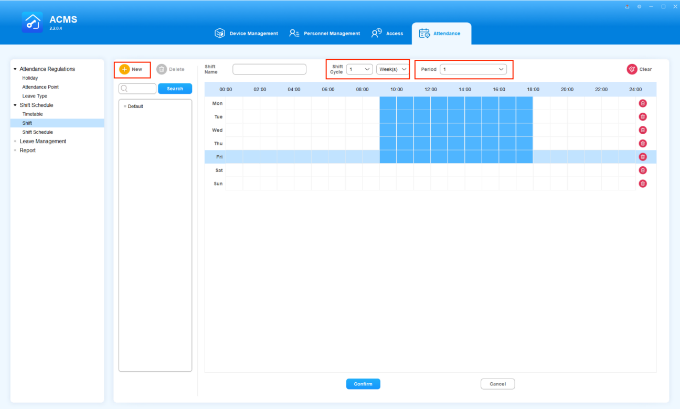
1.Click on worddav3f3076f8a3580677aedbbf1ee8b60956 a8e91c0a54e7fb6df1442db64cfded7f0ea3fea5d54b0c8aa0500dff5eec89b4 to start creating shift schedules.
2.Select the created timetable template(s) for the shift schedule in the Period field.
3.Setting up the shift schedule to be carried out by day, week, or by month as well as the shift cycle times.
4.Click on and blue high-light days you want to implement the shift and click worddav453271c14df0c0481c09729c70b3330d b514cf98a75387c8475a94506470a006605d1489a7df81a6fca6fa48b7a82fb7 if you want to clear the day(s) high-lighted.
akuvoxnbspacmsnbspadministratornbspguide v4 0 image y459jigb

Parameters Setup

No. Field Name Description
1 Period Select the timetable template to be applied to the shift to be created. You can select multiple timetable templates for the shift on a weekly and monthly basis if needed.
2 Shift Cycle Select the shift to be carried out on a daily, weekly, or monthly basis and the shift cycle times. For example, if you set the shift by month and shift cycle as three times, then you will be getting a total of 9-month shifts with a three-month cycle, meaning the following two “three-month” shifts will be carried out in the same way as the first three-month shift.
3 Shift Name Name the shift according to your need.
Search a Shift

You can search the needed shift when there are multiple shifts.
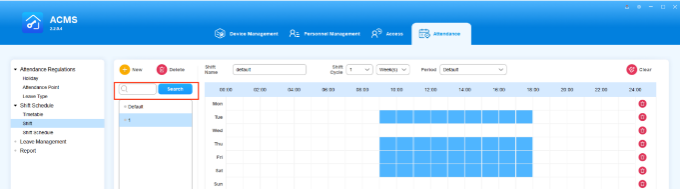
1.Enter the shift name in the search box.
2.Click on Search.

akuvoxnbspacmsnbspadministratornbspguide v4 0 image o6p2oazb 680w

Edit a Shift

You can edit the shift templates in terms of changing the shift name, shift cycle, and shift timetable (Period).
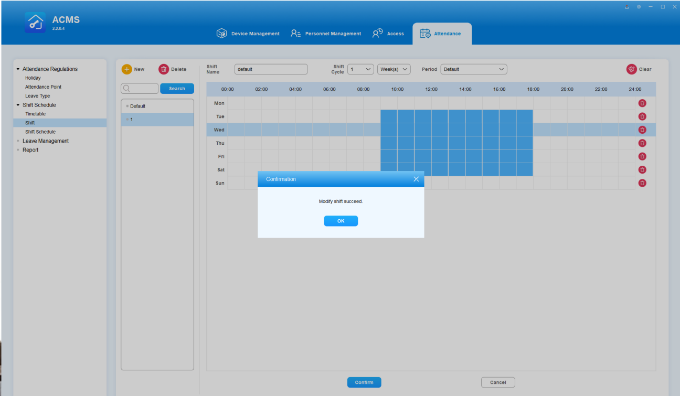
1.Click on the shift template you want to edit in the shift column.
2.Change the shift name, shift cycle, and shift timetable (Period) according to your need.
3.Click on Confirm.

akuvoxnbspacmsnbspadministratornbspguide v4 0 image

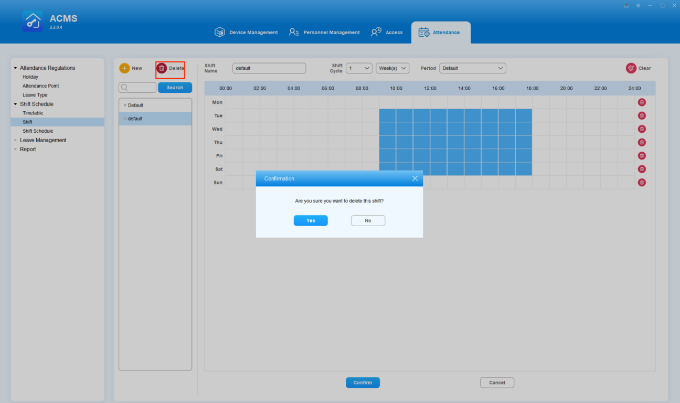
Delete a Shift
1.Click on the shift template you want to delete in the shift column on the left.
2.Click on worddav7a3af59bba0d87a61cc281815f8899bd 35502d09ad6e104232177560c645819a9f1265a846e42519327035b6c852b5aa to delete the shift.
3.Click on Confirm, and then Yes.

akuvoxnbspacmsnbspadministratornbspguide v4 0 image

Note

• A shift template cannot be deleted if the shift template is being applied to any employees.

Shift Management

After you created shift template(s) you can select the specific shift template from the shift inventory and applied it to the employees’ regular shift and temporary shift schedule while defining how long a shift should last, and to which department(s) and employee(s) the shift is to be assigned. And you can search, check, and delete shift(s) afterward if needed.

Assign Regular Shift to Employees

You can assign a regular shift template to the specific department(s)and employee(s).

1.Click on worddav5d6cb085e5622b8f90733dedc56d72c7 201b50f841318a049b809d3de49d075b95390799918ae02084aff0869251b6e4.
2.Select the shift schedule template and the time range you want to apply.
3.Select the department(s) and employee(s) you want the shift to be applied to.

Note

• An employee can only be assigned one regular shift schedule, therefore the previous one will be replaced automatically by the new one if you insist on the replacement.
• A shift cannot be deleted if the shift is being applied to a specific employee.
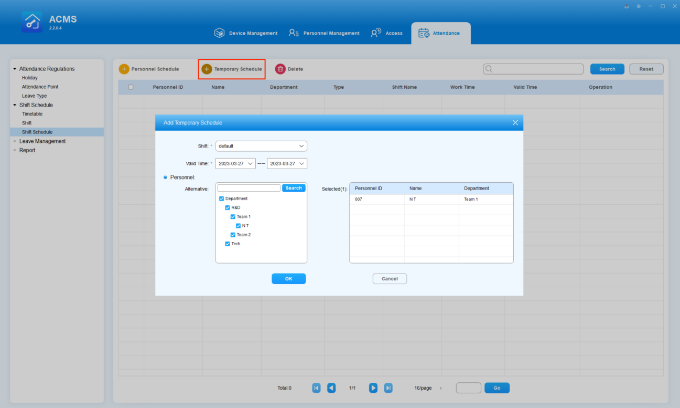
Assign Temporary Shift to Employees

You can assign a temporary shift schedule to the specific employees of the specific department when a temporary change or adjustment of shift for the employee is needed.
1.Click on akuvoxnbspacmsnbspadministratornbspguide v4 0 image kk65uiic.
2.Select the shift and the time range you want the shift to be applied.
3.Select the department(s) and employee(s) you want the shift to be applied to.

akuvoxnbspacmsnbspadministratornbspguide v4 0 image 9r5u0i1h

Note

• An employee can only be assigned with one temporary shift schedule, therefore the previous one will be replaced by the new one if you insist on the replacement.
Search/Check the Assigned shift

You can search the regular and temporary shifts that are assigned to the employees. You can also check the work calendar of the employee for the details.

1.Search the employees’ shift by entering the employee’s name and ID number in the search field. Click on Reset to quickly clear the search field if needed.
2.Click on worddav76dc0a9f79ff353a1511361863ad9fc4 62ba6b06559c3f6e184724876269dc8fa4df7ea6cd15fbffd5e79f2c27c54993 of the specific employee if you want to check the employee’s work calendar.
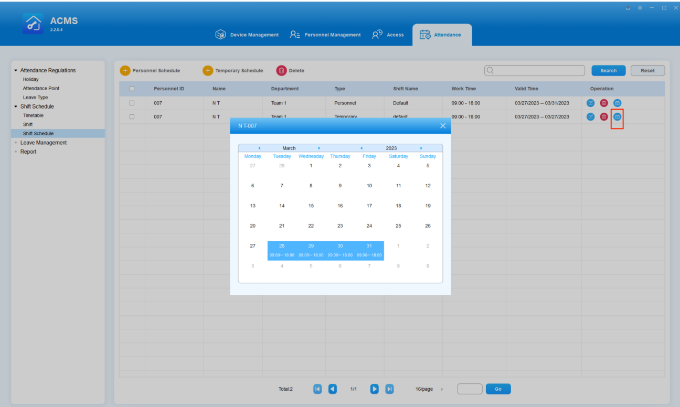
akuvoxnbspacmsnbspadministratornbspguide v4 0 image ndfi550o

Edit the Assigned Shift

You can edit the assigned shift in terms of changing the shift and shift valid time range for the specific employee if needed.

1.Click on worddavbf0b1ba2d9edc7e4d01ef2326588895a d384427cba77e129d4a4910b72eb32964dbe8b9358ddeb366fa75de29bc6d368 of the specific assigned shift you want to edit
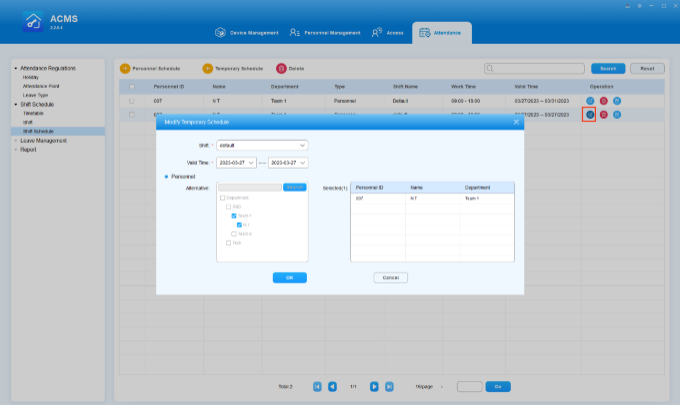
2.Change the shift and shift valid time range for the assigned shift.

akuvoxnbspacmsnbspadministratornbspguide v4 0 image zxi0faia 405h

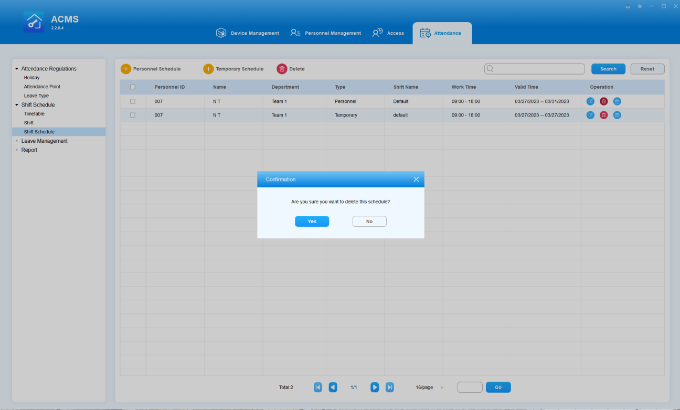
Delete the Assigned Shift

You can delete the assigned shift(s) if needed.

1.Click on the worddavfe757f819997a06d1874fda5e58cedd5 b8d321a4f68e806ea70730f5b66954e4dba94044273deb9c2aeaad47f07393e8 of the specific assigned shift if you want to delete it separately.

2.Tick the checkbox(s) of the assigned shift(s) and click worddav711199be587246cbd6d9cb05d8b481bc 31857ec8d0ccf7bd64ee5bcc7e8c3f439627e2049f0e61f9502df759c5177ca0  to delete all of the shifts.

akuvoxnbspacmsnbspadministratornbspguide v4 0 image pot2tjbg

Leave Management

You can create, search, edit and delete employee leaves.

Customize Leave Types

AMCS allows you to add additional leave types if the default ones cannot meet the actual needs. This feature is used in conjunction with the Leave Management.

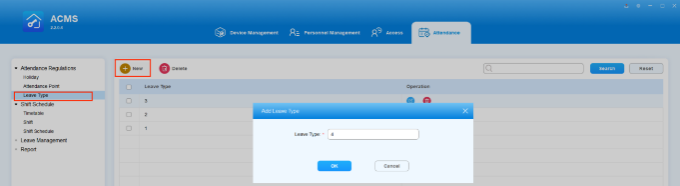
Add a new leave type
1.On the Attendance Regulations > Leave Type, click on akuvoxnbspacmsnbspadministratornbspguide v4 0 image.
2.Name the leave type. Note that the name must not be empty or duplicate with existing types.
3.Click OK.

akuvoxnbspacmsnbspadministratornbspguide v4 0 image 37gsuw0f 680w

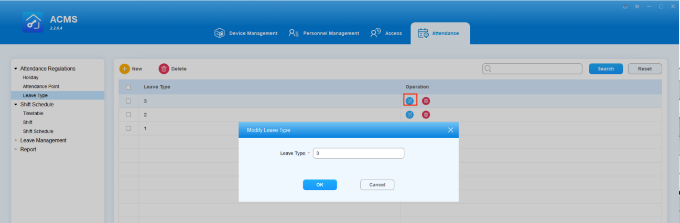
Edit a Leave Type

When editing a leave type, the new name will be synchronized in real-time with the Leave Management module.

Note

• However, the leave type that has already been used cannot be modified.

To edit a leave type, just double click it or click on akuvoxnbspacmsnbspadministratornbspguide v4 0 image kamyb4gm in its Operation column.

akuvoxnbspacmsnbspadministratornbspguide v4 0 image w62qjzsy

Delete the Leave Type

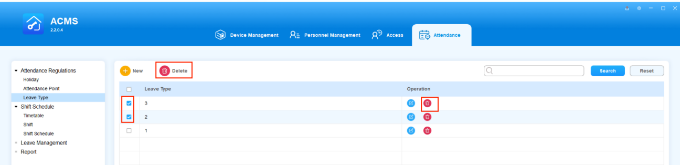
You can delete a leave type if it is no longer needed. Once a leave type is deleted, it will no longer be displayed on Leave Management module.

Note

• The used leave type cannot be removed unless all associated leave applications are first deleted.

To delete single leave type, just click on akuvoxnbspacmsnbspadministratornbspguide v4 0 image in its Operation column. If you want to delete more than one of them, check off the desired types and click on akuvoxnbspacmsnbspadministratornbspguide v4 0 image 9v88r4fo.

akuvoxnbspacmsnbspadministratornbspguide v4 0 image lqhci5fr

Search a Leave Type

The Leave Type interface allows you to search for leave types by entering the name of the type.
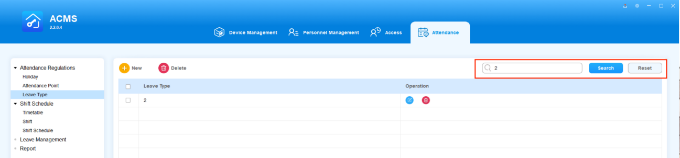
akuvoxnbspacmsnbspadministratornbspguide v4 0 image 0nis3evj

Add a Leave

You can create leaves for the employees by defining what the leave types are, when the leave starts and ends, to which employee the leave is to be applied, etc.
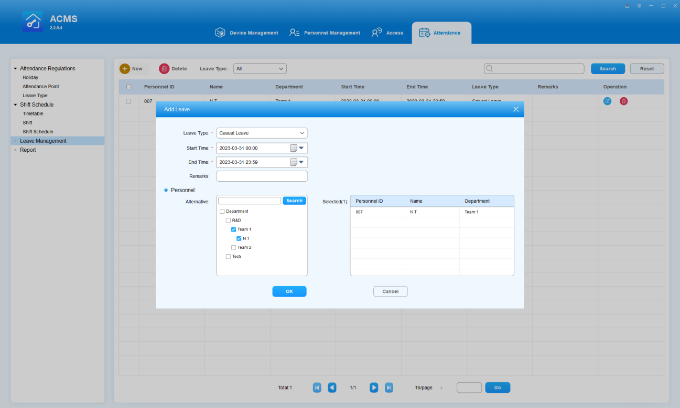
1.Enter the leave information.
2.Select the employee(s) to whom the leave is to be applied.

akuvoxnbspacmsnbspadministratornbspguide v4 0 image yi17h7y7

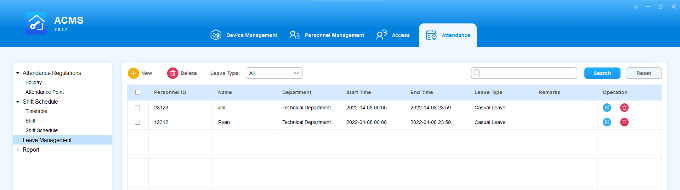
Search a Leave

1.Select the leave type to narrow down the search range if needed.
2.Search leaves by entering the employee ID or name in the search field.

image2022 4 8 18 49 7 69c6c2ec0a43a80c3314ba8235264bbdccce1cccc2baa48b401b350a1fade9e8

Edit a Leave

You can edit leave in terms of changing the leave type, leave start time, and end time.

1.Click on worddav2f409b0fc20248f35baf6b95d1a94aec 0ebf3c677147945e98ce4c1ec56efb62161ec0176437c0c9605da0d58bfc87ca of the specific leave you want to edit.
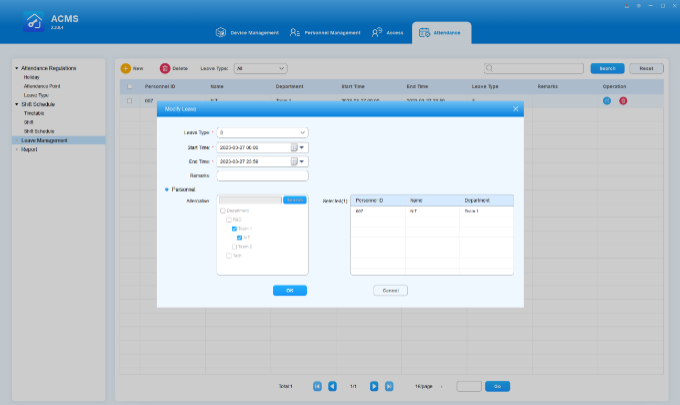
2.Change the leave information.

akuvoxnbspacmsnbspadministratornbspguide v4 0 image jlm7mp8h 405h

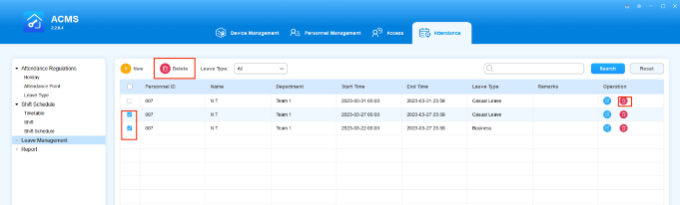
Delete a Leave

You can delete leave separately or in batch.

1.Click on worddavdd0f17648c833e626230922513f941e4 7ede8a506375c5e40a4ce95c315960287b77309729acdfd0bb67db8a532fb1f3 of the specific leave you want to delete.
2.Tick the checkbox worddavbbfb6a8abaedbf0bcf14534ccc803eed eea461054bb4028bf8b653cbe8005cb7a9e45147b97511ec0da6b58902343324 of the leaves you want to edit or tick to delete all the leaves.
akuvoxnbspacmsnbspadministratornbspguide v4 0 image x1bc9bv6 680w205h

Attendance Report

Search/Check/Export Daily Attendance Report

You can manage your attendance report in terms of searching, checking, and exporting your attendance report on a daily basis.

Click on worddav9e1a42557ee521531638d2b4f9580146 8a20ec1a275ca621b68e0d7a7716f86e5f3aa98267153d4a3e208642e6f57df6, you can see all employees daily attendance reports. Do any of the following if needed:

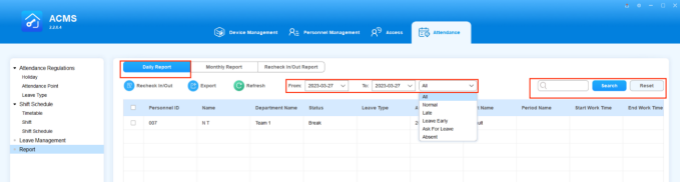
• Search specific reports by
◦ Entering employee’s name or ID number,
◦ Selecting a certain attendance type from the pull-down list; Or
◦ Choosing a time range.

image 1682389609125 680w

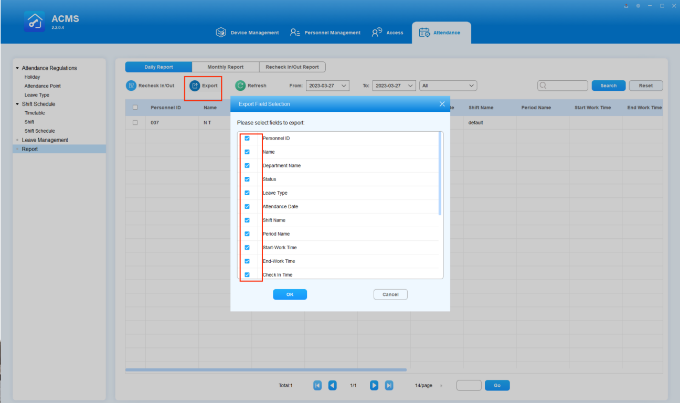
• Export an xls. format reports by clicking on worddav33eb4d8fff7ddcdc2a85e3286ab40b5d e6c5302f960f7bd0789302d2e2cb963da12e00ccd351d8392aa7c029df04c92b and selecting the information display on the reports.

akuvoxnbspacmsnbspadministratornbspguide v4 0 image tcmb4ut4
The following is a daily attendance report example.

worddavb77a7ce894c6ee6fdb6c8c83b7a02dc5 aca838a1cb01e9826611dee3552ba0c33d9030aa14c12388d73cd366c057d0e0

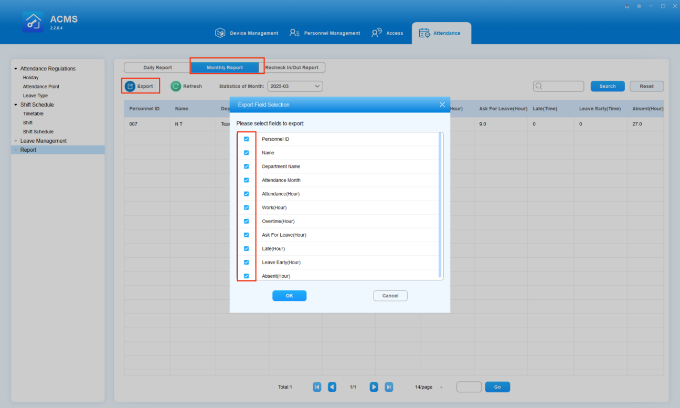
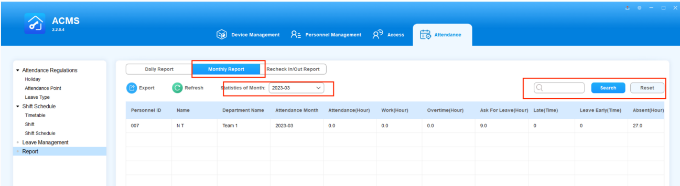
Search/Check/Export Monthly Attendance Report

Click on worddavf50d7353fbd6f660f1cff824ba0d6700 4729f94d6f6313524f49d3a48d83b8dcc79888dc02be099138f7f3dfafd1f25f, you can see all employees monthly attendance reports. Do any of the following if needed:

• Search specific monthly report by
◦ Entering employee’s name or ID number.
◦ Select a certain month.

akuvoxnbspacmsnbspadministratornbspguide v4 0 image vy54iuk1

• Export an xls. format reports by clicking on worddav33eb4d8fff7ddcdc2a85e3286ab40b5d e6c5302f960f7bd0789302d2e2cb963da12e00ccd351d8392aa7c029df04c92b 1 and selecting the information display on the reports.
akuvoxnbspacmsnbspadministratornbspguide v4 0 image 7fy2ppc2

Correct Check-In/Out Time

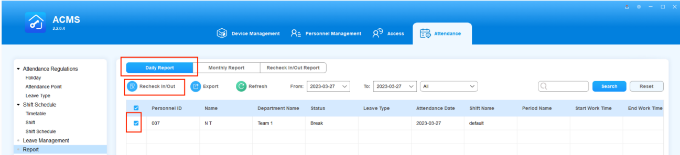
You can correct employee’s clock in/out time by performing a rechecking. You can also fix the missed punch if employees forgot to clock in or out.

1.Click on worddav9e1a42557ee521531638d2b4f9580146 8a20ec1a275ca621b68e0d7a7716f86e5f3aa98267153d4a3e208642e6f57df6 1.
2.Check off the record(s) that you want to fix the check-in/out time.
3.Click on worddavd75621ba763a4740de5b6015ff416c2a 634d95456b8bed33c1830721537c0301354ef70006c8f9e05fe79eaa93aee1a3.

akuvoxnbspacmsnbspadministratornbspguide v4 0 image 85oj8fuk

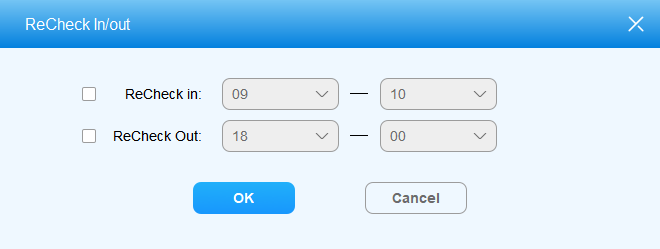
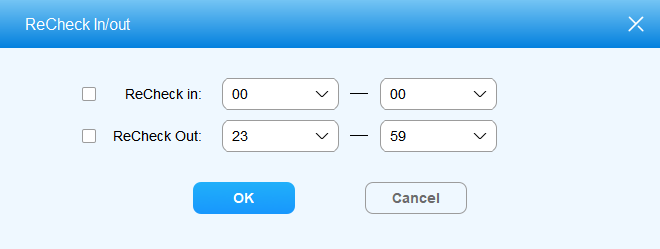
4. Tick the checkbox of the missing check-in or check-out, and click OK. The employee’s attendance record will be updated accordingly.

akuvoxnbspacmsnbspadministratornbspguide v4 0 image 50qwfcdq

akuvoxnbspacmsnbspadministratornbspguide v4 0 image be7mtcqe

Note

• The time for the re-clock must be within the employee’s designated working hours, otherwise the re-clock will fail.
• If you need to recheck for multiple employees at one time, they must be assigned with the same shift.

.

Check/Export/Delete the Recheck-In/Out Record

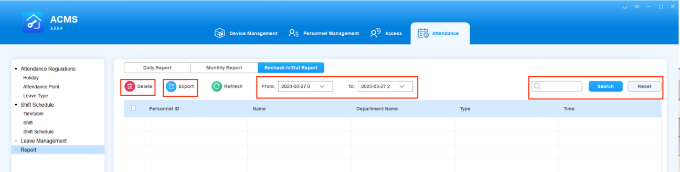
Click on worddavdc1778f6fe77f281e16a3038c1158cdf ffa8749d53f898052f0660dfa8c682f530b6e191aa0e829be5363514170a8bd8, then you can see all employees rechecking reports. Do any of the following if needed:
• Search specific rechecking report by
• Entering employee’s name or ID number.
• Select a certain time range.
• Export an xls. format reports by clicking on worddav33eb4d8fff7ddcdc2a85e3286ab40b5d e6c5302f960f7bd0789302d2e2cb963da12e00ccd351d8392aa7c029df04c92b 2 .
• Delete reports by checking off the specific reports and clicking akuvoxnbspacmsnbspadministratornbspguide v4 0 image cqrkcr24.

akuvoxnbspacmsnbspadministratornbspguide v4 0 image dts4kjj0

System Settings

ACMS allows you to export the system data to your PC as a backup in advance, which can be later imported back to the ACMS in case missing data occurs. In addition, you can also create and modify the password.

Set a System Language

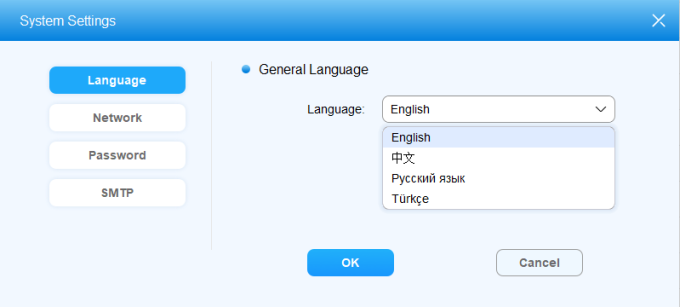
ACMS now supports 4 languages: English, Chinese, Russian, and Turkish.

To set your preferred language, click on worddav0b91e15d86e3eafdcc62940db69bb312 6a2dff4e67aabc87aaf19edaa25ae0d75c2a96f64f4ce14f1af8d70fdca25991 in the upper right corner, and select System Settings > Language.
akuvoxnbspacmsnbspadministratornbspguide v4 0 image pm0vzong 680w307h

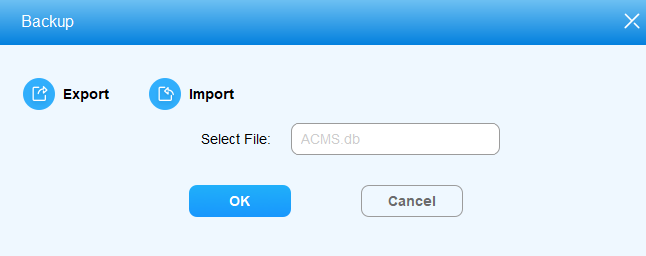
Import and Export System Data

• Export System Data
1.Click on worddav0b91e15d86e3eafdcc62940db69bb312 6a2dff4e67aabc87aaf19edaa25ae0d75c2a96f64f4ce14f1af8d70fdca25991 1 in the upper right corner and select Database from the pull-down list.

2.Click worddav158aaacb1f1ecab8b7e9548c0381f0d0 da90c6431f91c1ed175bc134f5b84c3c16c9249a27ef88b822468a35041fde91 and select the path to which you want to export the data to your computer.
3.Click on worddav758b9a7880cd09e5f25251164efdbc62 5d3751338d96eb8ee8ae34989c58c21b957fb0773a1429eb312235e76a9275df in your computer to confirm the path.
4.Click OK for confirmation.

worddav0a9d8e8711b9bcd037cebb77312ecb04 861216f6837a97cb0d16c3a1d3d4efb94c8591083fe4ce4c9b852d83c92d1f0a

• Import System Data
1.Click on worddav0b91e15d86e3eafdcc62940db69bb312 6a2dff4e67aabc87aaf19edaa25ae0d75c2a96f64f4ce14f1af8d70fdca25991 2 in the upper right corner and select Database from the list.

2.Click on worddavbcb74044bd1bf5d52e6ab3f14c4eef9b 71ac8f914306e209381ea27d03da19917e69e582be0ef30e7b17d09518bfd921 to select the data file to be imported to the ACMS.
3.Click Open to upload the file, then click Yes for confirmation.

Note

• The data file to be imported into ACMS should be in .db format.

.

Modify Login Password

1.Click on worddav0b91e15d86e3eafdcc62940db69bb312 6a2dff4e67aabc87aaf19edaa25ae0d75c2a96f64f4ce14f1af8d70fdca25991 3 in the upper right corner and select System Setting in the pull-down list.
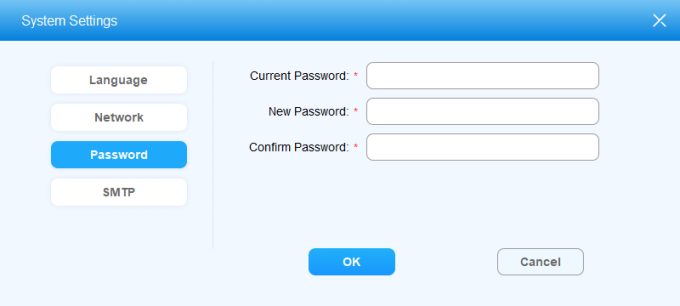
2.Click on Password.
3.Change the password.
4.Click on OK.

akuvoxnbspacmsnbspadministratornbspguide v4 0 image dk0gzh2x 680w306h

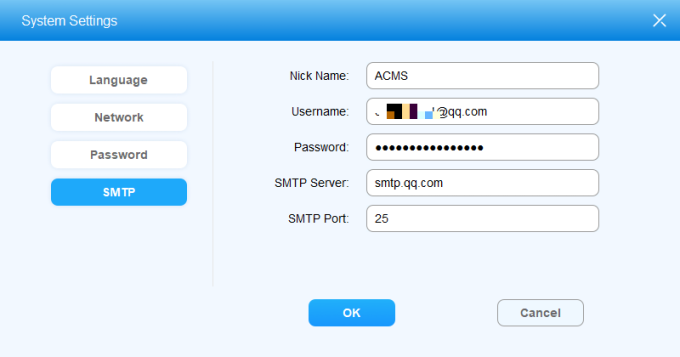
SMTP Configuration for Emails

SMTP is used for sending employees PIN codes when creating authentication codes. To set this up, click on worddav0b91e15d86e3eafdcc62940db69bb312 6a2dff4e67aabc87aaf19edaa25ae0d75c2a96f64f4ce14f1af8d70fdca25991 4 in the upper right corner, and select System Settings > SMTP.

Note

• Some email servers require enabling the SMTP service before sending and receiving emails successfully.

.

akuvoxnbspacmsnbspadministratornbspguide v4 0 image 24lrwevi 680w357h

Parameters Setup:

• Nick Name: To customize the sender’s name.
• Username: The email address used for sending emails.
• Password: The password of the email that you used for sending emails.
• SMTP Server: The address of the SMTP server.
• SMTP Port: The port number of the SMTP server.

Employees will receive such a PIN code email:
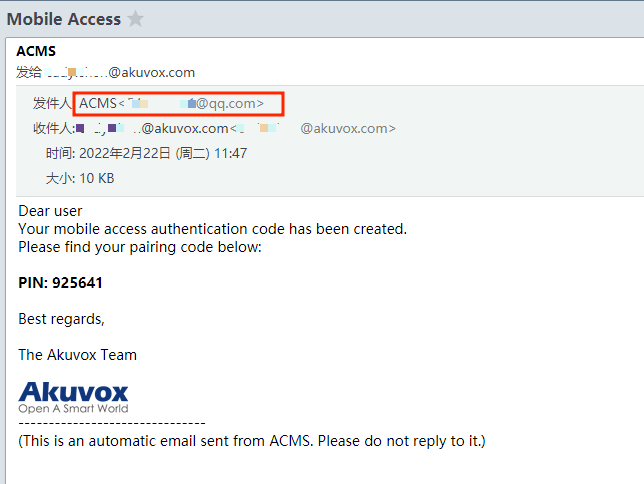
akuvoxnbspacmsnbspadministratornbspguide v4 0 image z0kpuonl

Lock/Unlock ACMS

You can lock the ACMS interface using the Login password when you are managing the ACMS for security purpose.

To lock the software, click on worddav0b91e15d86e3eafdcc62940db69bb312 6a2dff4e67aabc87aaf19edaa25ae0d75c2a96f64f4ce14f1af8d70fdca25991 5 in the upper right corner, and select Lock from the pull-down list.

To unlock, you have to enter the login password.
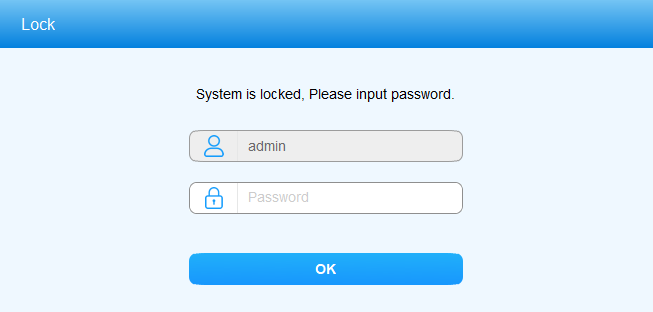
akuvoxnbspacmsnbspadministratornbspguide v4 0 image

Note

• The default unlock password is admin.

.

Print Friendly, PDF & Email

Related Posts

No related posts.
Tags:
#can akuvox acms work offline#can you use akuvox acms on mac#how secure is akuvox acms#how to access akuvox acms remotely#how to add users in akuvox acms#how to assign rfid in akuvox acms#how to backup akuvox acms data#how to configure access levels in akuvox acms#how to configure doors in akuvox acms#how to create admin account in akuvox acms#how to delete logs in akuvox acms#how to disable a user in akuvox acms#how to enable logs in akuvox acms#how to integrate akuvox acms with nvr#how to link door phone to akuvox acms#how to login to akuvox acms#how to manage doors with akuvox acms#how to reset akuvox acms password#how to restore akuvox acms configuration#how to setup akuvox acms#how to setup notifications in akuvox acms#how to setup schedules in akuvox acms#how to troubleshoot akuvox acms connection#how to update akuvox acms firmware#how to view events in akuvox acms#what browsers support akuvox acms#what is akuvox acms#what is the default admin for akuvox acms#what is the default ip for akuvox acms#what ports does akuvox acms use
Share Article: X Facebook WhatsApp LinkedIn
Author & Editor

admin

MSAWRP Editorial Board member and senior news analyst.

All Stories
Previous Story How To Connect YCC365 Cameras Next Story Browser And Plugin Support For Hikvision Devices
You May Also Like

Related Stories & Analysis

How to Monitor Solar Security Cameras on a Computer
October 19, 2026 • 8 min read

How to Monitor Solar Security Cameras on a Computer

How to Mount a Security Camera on Any Surface
August 21, 2026 • 20 min read

How to Mount a Security Camera on Any Surface

Roombanker User Manual 2026: Complete Setup
August 17, 2026 • 18 min read

Roombanker User Manual 2026: Complete Setup

Leave a Reply Cancel reply

Your email address will not be published. Required fields are marked *

About

dvrcms is a free blog attempt to provide information about security camera systems, burglar alarm and equipment, review, troubleshooting, installation, commissioning, password reset, software upgrade and new technologies.

Read Next :

dvraid– xvraid– nvripc– cctvfirmware– dvrdestek

Category

  • Home
  • Support
    • How To
    • Installation Guide
    • Troubleshooting
    • User Guide
  • Download
    • PC Software
    • Mobile APPS
    • Firmwares
  • General
    • DVR General
    • NVR General
    • IPC General
    • Shopping Guide
  • Contact
  • Sitemap

Quick Tools

Editor’s Choice

How to Monitor Solar Security Cameras on a Computer
October 19, 2026

How to Monitor Solar Security Cameras on a Computer

How to Mount a Security Camera on Any Surface
August 21, 2026

How to Mount a Security Camera on Any Surface

Verified & Unbiased Journalism
24/7 Continuous Coverage
256-Bit SSL Secure Infrastructure
Compliant with Press Code of Ethics
DVRCMS.Com

Survelliance CMS and VMS Support

Newsroom & Editorial Headquarters
haber@www.dvrcms.com

News & Current Affairs

  • Breaking News
  • Economy & Finance
  • Politics & Policy
  • World News
  • Technology & Science

Corporate

  • About Us
  • Masthead & Governance
  • Editorial Principles
  • Advertising & Partnerships
  • Contact & Inquiries

Corporate Newsletter

Get the day's top analysis and stories delivered directly to your inbox every morning.

Social Media:
© 2026 DVRCMS.Com. All rights reserved. • Developer: MSADEV
Privacy • Cookies • GDPR / KVKK • Terms of Use
Back to Top