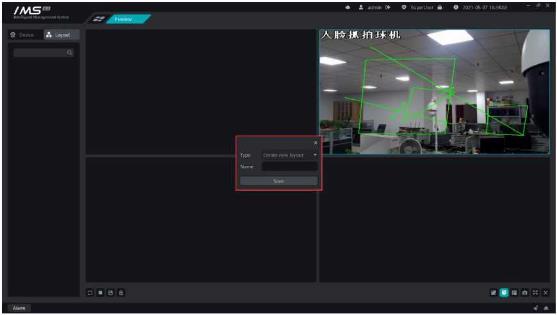
Chapter 1Install and start software
Operation steps:
b Note:
It is highly recommended that you set a strong password (at least 8 Bit characters, and contain letters, special characters, Arabic numerals). The password needs to be kept properly and modified regularly.
The confidentiality problem needs to be kept safe, and if you forget the login password, you need to modify the password of the super administrator through the confidentiality problem.
IMS 4.0 Client Software User Manual
Super administrators have and can only create one.
The main panel is shown in figure 1-1
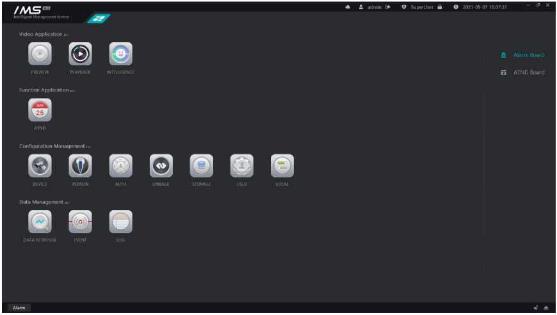
Figure 1-1
After the client software runs, it can manage different types of devices, such as adding, editing, deleting devices, etc., and can also operate device configuration, view device status and so on.
A Note:
To avoid management confusion, it is recommended that a device be managed by only one set of client software.
Please use“Admin”Add devices to user identity.
Equipment management is shown in figure 2-1.
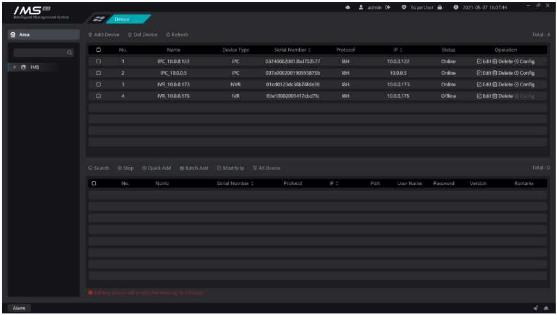
Figure 2-1
The list information shown is: serial number, device name, device type, serial number, protocol, IP, online status.
The area information is added to the IMS 4.0 management system, and the area information presents a multi-level tree structure. A default zone is automatically created when the software is first installed.
Operation steps:
Add areas:
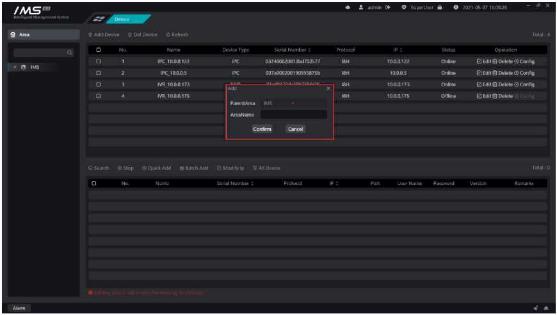
Figure 2-2
£ Note:
The new zone name cannot be more than 30 characters long.
Zone names cannot be duplicated at the same level.
Modify the area name.
X Operation steps:
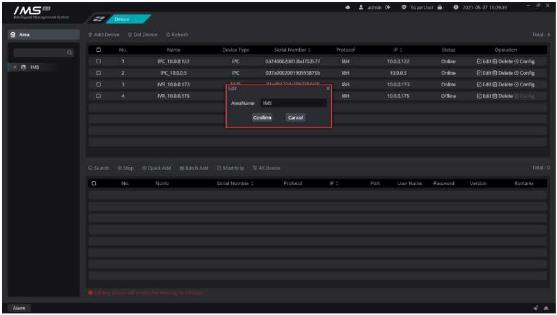
Figure 2-3
The modified area name cannot be more than 30 characters long.
The new zone name cannot be duplicated with other zone names at the same level.
Remove the device from the IMS 4.0 management system.
X Operation steps:
£ Note:
You must ensure that there are no devices in all subareas under the zone node or that
there is no device in all the subareas under the zone node in order to delete the area.
Online devices searched through broadcast packets in a local area network are presented on the search list, which can be sorted by serial number and IPAnd supports the addition ofa single or multiple devices to the client.
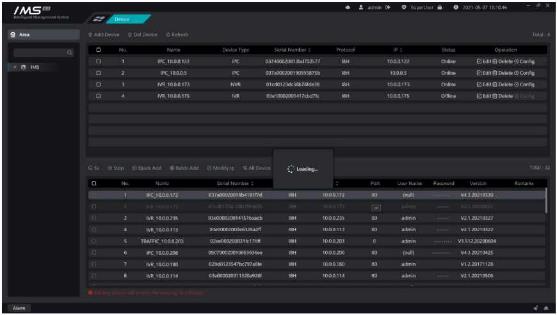
Figure 2-4
[search]: start searching for devices.
[stop]: stop searching for devices.
[quick add]: enter the user name and password of the login device and click OK to add the selected device to the device list through the username password entered.
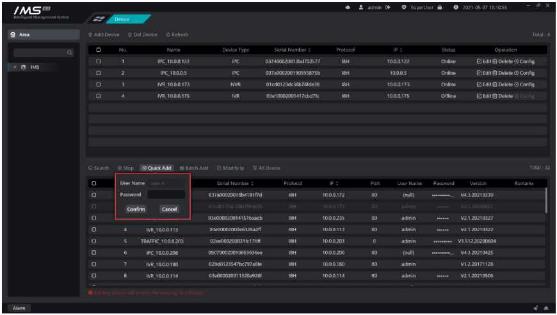
Figure 2-5
.
[batch add]: adds the selected device using the searched user name and password.
[all devices]: all online devices are displayed in the list of online devices.
[no device added]: only online devices that have not been added to the IMS 4.0 management system are displayed in the list of online devices.
A Note:
You must add a zone before you can add the searched device to the IMS 4.0 management system.
After the search is complete, you can click the device name or password of a row to modify the device name and password.
The device name can only be entered up to 40 characters.
The device name cannot contain spaces.
The searched device font color is dark to indicate that the device has been added.
After adding the device, if it appearsthe icon
Qindicates that the device was added
successfully,The icon
O indicates that the device failed to add.
Modify the device IP, subnet mask, gateway.
X Operation steps:
4 click [OK].
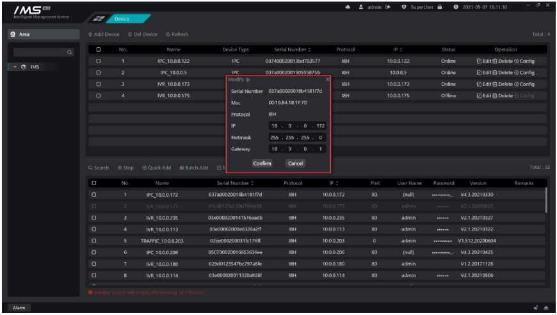
Figure 2-6
.
Modify the device IP, subnet mask, gateway.
X Operation steps:
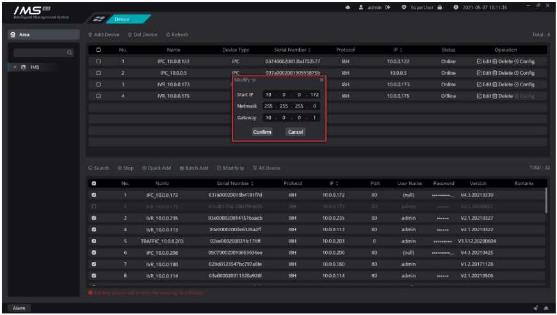
Figure 2-7
Add the online device to the IMS 4.0 management system by entering IP, port, user name, and password.
X Operation steps:
4 click [OK].
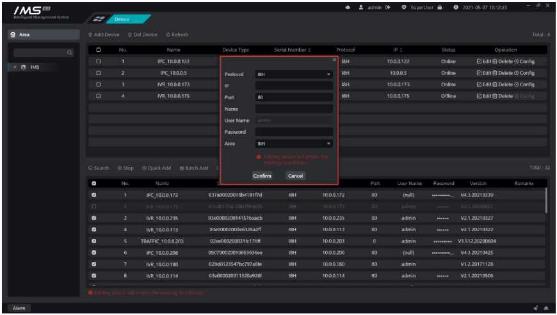
Figure 2-8
£ Note:
You must add a zone before you can search for the device.
The device name can only be entered up to 40 characters.
The device name cannot contain spaces.
When the device is added successfully, the original face database data of the device is
Click on the icon [ 0 ] in the list of devices pop-up window to edit the device information dialog box, you can modify the IP, port, device name, user name, password, area, protocol type, click OK to save.
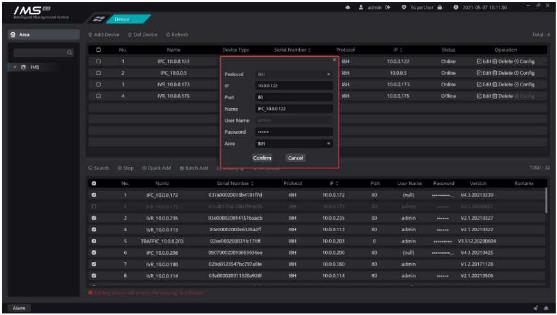
Figure 2-9
.
Remove the device from the IMS 4.0 management system.


