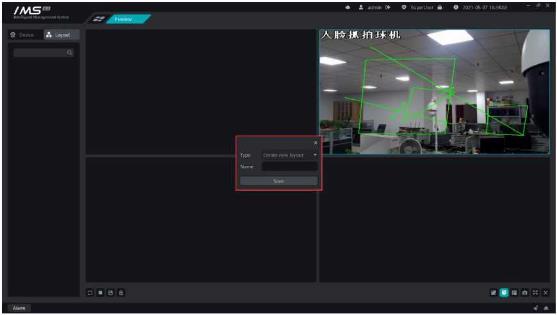
X Operation steps:
1 When the mouse enters the playback window that needs to be closed, the window title is displayed.
2 click the button [□] to open the intercom.
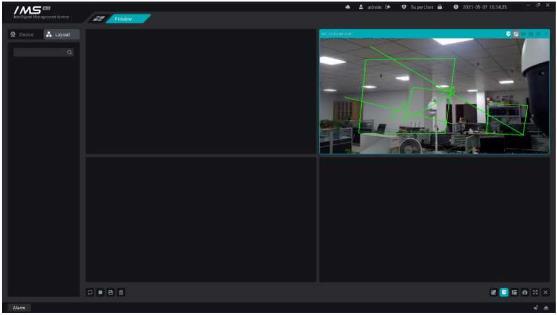
Figure 5-9
.
E Note:
When the intercom function is turned on, it will detect whether the current computer is connected to the microphone, and if the detection fails to turn on the channel intercom, it will also fail.
Intercom is an exclusive resource, and a device can only establish an intercom connection with one client at the same time.
PTZ is to control the rotation, zoom, focal length, aperture, preset point, trajectory, cruising and other functions of the front-end ball machine through the IMS 4.0 management system client, and the rotation speed of the ball machine can be set.
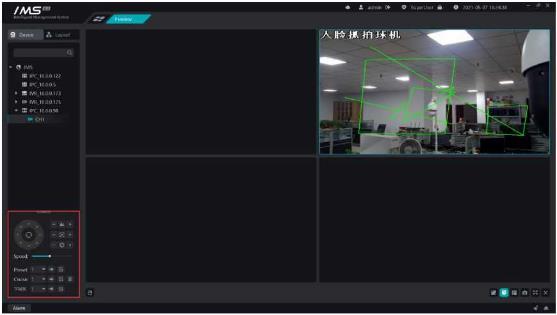
Figure 5-10
s Description:
.
Zoom, click [
] shrink, click [
]zoom in.
S Focal length, click [
] close, click [ + ]distance.
o Aperture, click [
] decrease, click [ + ]increase.
o Set the automatic mode of the cloud station
Set the cloud table to rotate upward
Set the cloud table to rotate down
Set the cloud table to turn to the left
Set the cloud table to turn to the right
Set the cloud table to rotate to the left
Set the cloud table to turn up to the right
Set the cloud table to rotate down to the left
Set the cloud table to turn down to the right
Speed: adjust the rotation speed of the front-end ball machine.
Preset point: click [ -► ]to call the preset point and click [ B ]to set the preset point.
Cruise: click [ -► ]to call the cruise and click [ B ] to set up the cruise and click [ M ]to delete cruises.
Track: click [ ]to call track, click [ B ] to set the trajectory.
Set up cruises
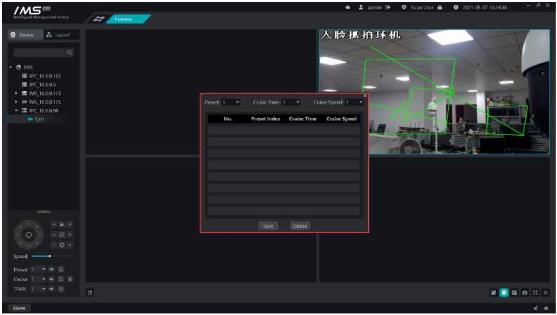
Figure 5-11
£ Note:
The new cruise is added to the end of the cruise list, and the removal cruise is deleted from the last preset point, unable to insert the preset point from the middle or delete the preset point in the middle.
Description
Button
Adjust the size of the playback screen
Intelligent frame display switch
.
i;
Switch split screen
Capture
Full screen
Toggles the playback ratio of the current window playback screen.
X Operation steps:
S Description:
Playing ratio: full screen, original ratio, 4:3, 16:9, 9:16.
Display the alarm intelligent rule drawing of the front-end device settings on the real-time preview playback window.
1 Show / hide single window smart rule result frames.
X Operation steps:
X Operation steps:
1 click [ 5 ] to displays / hides smart rule result frames for all windows
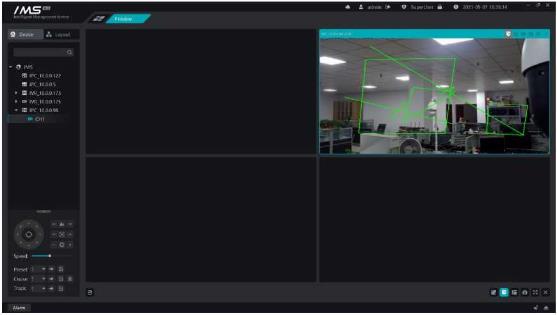
Figure 5-12
.
Set the split screen mode of the real-time preview playback window, which is divided into general mode, wide screen mode and custom mode.
1 there are 14 kinds of screen splitter in conventional mode: 1 screen, 4 screen, 6 sub-screen, 9 sub-screen, 10 sub-screen, 11 sub-screen, 16 sub-screen, 17 sub-screen, 21 sub-screen, 25 sub-screen, 36 sub-screen, 49 sub-screen, 64 sub-screen, 16 sub-screen, 17 sub-screen, 21 sub-screen, 25 sub-screen, 36 sub-screen, 49 sub-screen, 64 split screen.
(2) there are 9 kinds of screen splitter in wide screen mode: 4 split screen, 6 sub screen, 7 sub screen, 9 sub screen, 12 sub screen, 16 sub screen, 24 sub screen, 36 sub screen, 48 sub screen.
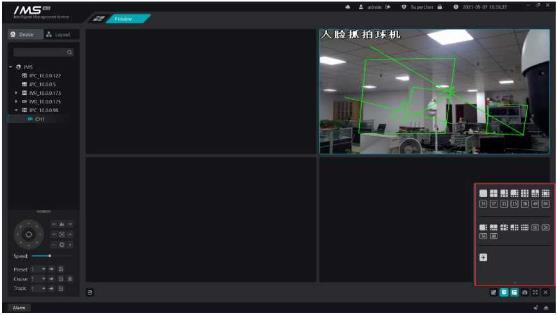
Figure 5-13
.
3 custom mode
X Operation steps:
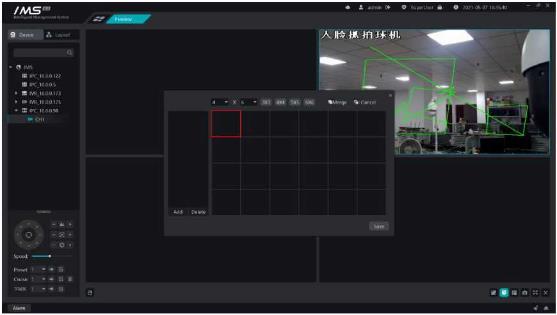
Figure 5-14
.
s Description:
[3X3]: quickly generates a matrix of three rows and three columns.
[4X4]: quickly generates a matrix of four rows and four columns.
[5X5]: quickly generates a matrix of5 rows and 5 columns.
[6X6]: quickly generates a matrix of six rows and six columns.
Drag after the matrix local click to select multiple small windows, click [merge] to merge the selected small windows into one large window, and then click [cancel merge] to restore the large window to multiple small windows.
£ Note:
You can add up to seven custom split screens.
A maximum of 8 ≤ 8 matrices can be set.
Capture the video screen being played by the current focus window to generate a picture and save it locally.
X Operation steps:
1 select the video playback window that needs to be captured
2 click [ a ] capture.
Play window full screen play.
X Operation steps:
Opens the audio for the current window.
X Operation steps:
£ Note:
When multiple windows click to open preview audio, only the audio of the current preview window is played.
When intercom audio is turned on, all preview audio is turned off by default.
Save real-time video for playback, viewing and downloading when needed.
Configure the video plan so thatNVRAutomatically save the video of the monitoring point as planned. The video plan is only right.NVRThe monitoring point under the control point is valid; the video is kept in theNVRGo, go.PCGo.
X Operation steps:
page.
9 click [save].
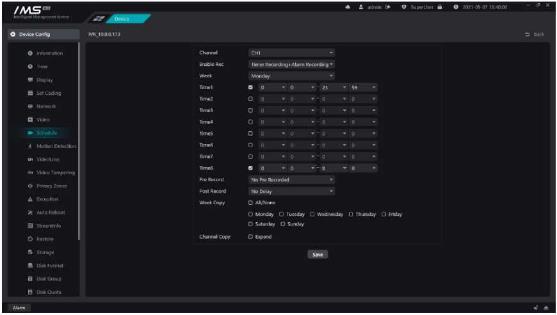
Figure 6-1
Query whether there is a video in the specified channel within the specified time, and draw the queried video clip on the timeline.
X Operation steps:
The video of the channel at the queried location is queried before playing. When the query is complete, the query results are rendered on the timeline, as shown in figure 6-2.
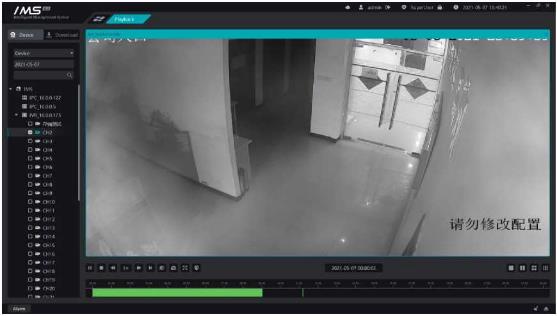
Figure 6-2
.
The left side of the figure represents the name of the query channel, the right side represents the 24-hour timeline a day, the green part represents the regular video of the day of the channel, and the yellow part represents the alarm video of the day of the channel.
£ Note:
Videos of up to nine channels can only be played back at the same time.
IPC needs to insert a memory card to use the video program functionality.
Quartile screen
Nine screen
Video download
Save the video at the front end of the device as a video file in .avi format and store it in a local directory.
Operation steps:
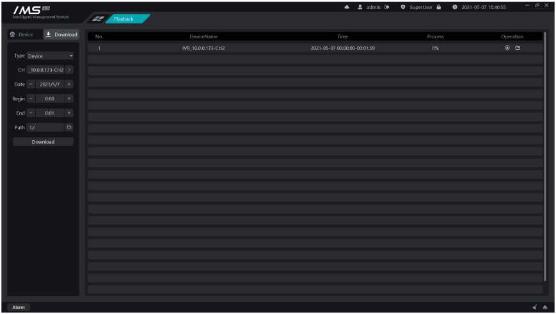
5 click [start].
Figure 6-4
The list on the left shows the currently downloaded tasks and the tasks that have been completed. Displays the channel, time, and progress of the download.
Description
Button
The intelligent application module can view the front-end preview of the intelligent device, receive the capture recognition push, view the capture recognition record, and search for similar face pictures.
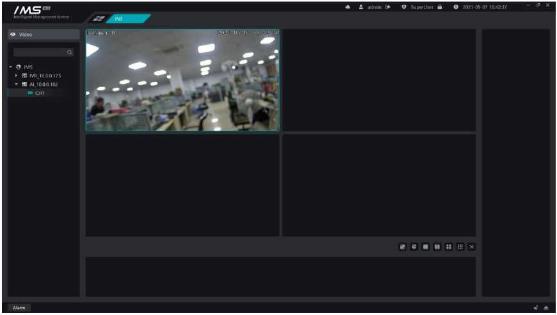
View the front-end real-time preview of the smart monitoring point.
Figure 7-1
There are two ways to open preview in smart application: double-click open, drag and drop release open, specific operation steps can be referred to preview.
Preview the control bar:
Description
Button
Adjust the size of the playback screen
Intelligent frame display switch
Split screen
Query the face capture records, face recognition records stored in the IMS 4.0 client, and capture records that query the internal and source pictures of the device according to the query conditions.
Capture records stored in the IMS 4.0 client.
X Operation steps:
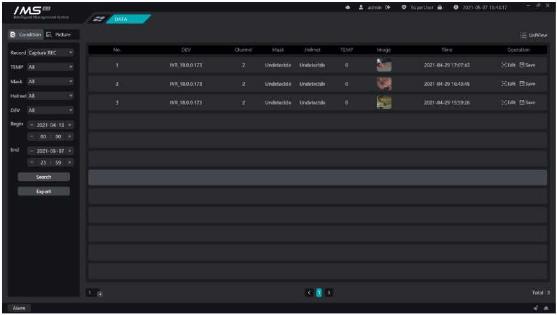
6 click [retrieve].
Figure 8-1
Capture record list operation function:
Description
Button
Add faces to the staff management list
Save the capture image to the local PC
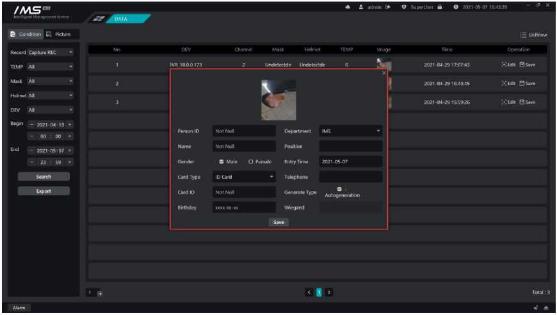
Figure 8-2
.
E Note:
The ID, name and department of the personnel are required.
The birthday format is XXXX-XX-XX.
You can export capture records. After setting the path of the exported file, a CSV file will be generated under the set path to save the capture record information, and the capture device, channel, forehead temperature, time and saved picture path will be recorded in the file, and the corresponding capture picture will be saved under the corresponding picture path.
Query the face recognition records in the IMS 4.0 client.
X Operation steps:


