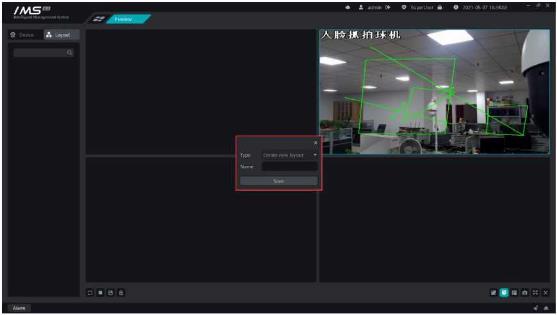
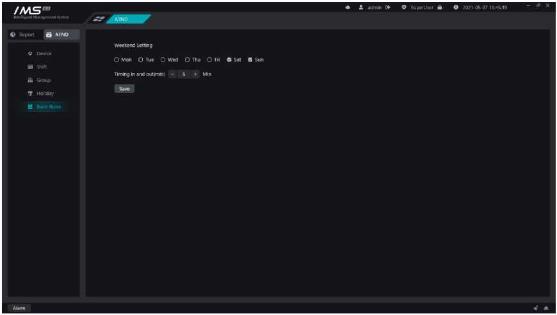
Figure 9-2
.
Select the device that has been added to IMS 4.0 as the attendance point, only if the equipment with the attendance point uploads the face recognition data, can it be used as the attendance check-in data.
X Operation steps:
1enter the attendance point page.
2click [©Add device].
3selecting equipment.
4click OK.
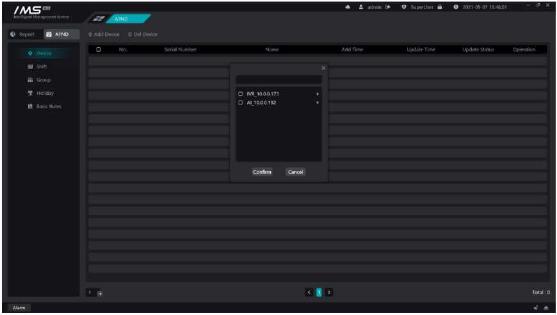
Figure 9-3
£ Note:
The devices that can be selected in the attendance point settings are those added in the equipment management.
The IMS management system goes to the attendance point every ten minutes to get the punch-in records on the device.
Set the daily check-in time range, lunch break, overtime rules, late and early departure rules.
X Operation steps:
1set the starting time.
2choose the mode of work.
3set the commuting time.
4set the time range of commuting and signing in.
5choose whether to turn on the lunch break time, and if so, set the lunch break time range. Lunch break does not take into account the length of working hours.
6choose whether to [allow overtime]. If turned on, set the overtime start time and set the minimum overtime unit, as shown in figure 11-9.
7on the premise of allowing overtime, choose whether to [open overtime punch], if open, set the time range of signing in.
8choose whether to turn on [allow the number of hours late], if on, set the time, after opening indicates that after the set working hours exceed the set length of time before signing in late.
9choose whether to turn on [the number of serious late hours], if on, set the time, after opening indicates that after the set working hours exceed the set time, sign in after the serious late.
10choose whether to turn on [the number of hours late for absenteeism], if open, set the time, after opening indicates that after the set working hours exceed the set time, sign in after signing in to take into account absenteeism late.
11 click [save]


