Figure 12-3
The event center is mainly to receive the alarm sent by the equipment and generate alarm linkage as well as to view the historical alarm.
The alarm is immediately pushed to the client, and after receiving the alarm, the corresponding response is made according to the linkage action bound in the linkage rule.
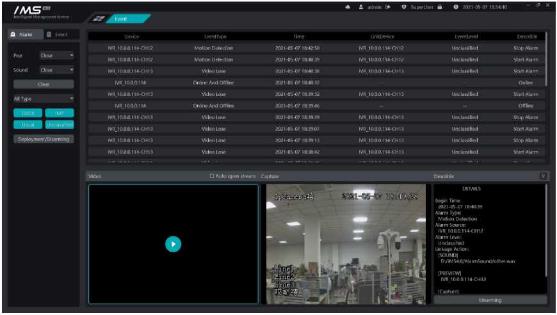
Figure 13-1
The information shown in the list in figure 13-1 is the event alarm that the device pushes to IMS 4.0 in real time. The information displayed is the name of the alarm source device, the alarm type, the alarm time, the linkage device, the event level, and the description. Figure 13-1 the central area is used to display device previews, front-end capture pictures, and event descriptions.
[pop window]: sets whether the pop window is displayed and how long it is displayed. The pop-up window setting option is: close, 5 seconds, 15 seconds, 30 seconds. When set to off, the automatic bounce window is not enabled, and the preview of the linkage is played automatically in the preview area below. When set to [5 seconds], [15 seconds], [30 seconds] means that the preview automatic pop-up window closes the preview time for 5 seconds, 15 seconds, and 30 seconds, respectively.
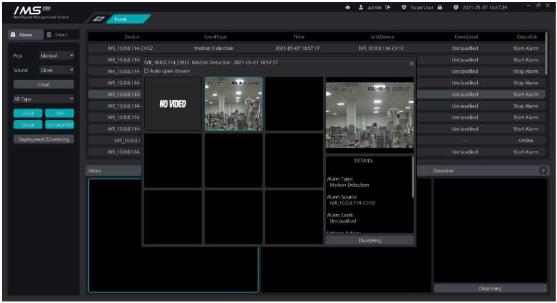
Figure 13-2
.
S Description:
[clear]: clear data from the list
[turn on sound]: turn on alarm linkage alarm sound.
[turn off sound]: turn off alarm linkage alarm sound.
[general]: overcare real-time alarm, only receive events with a general event priority.
[serious]: overworry real-time alarm, only receive events with serious event priority.
[emergency]: overworry real-time alarm, only receive events with an emergency priority.
[not set]: overworry real-time alarm and receive only events whose event priority is not set.
[type]: click on the type list to filter received events, mobile detection, video loss, video occlusion, alarm input, electronic fence, item legacy loss, virtual warning line, retrograde detection, departure detection, temperature anomaly, blacklist, mask detection.
Event query is mainly to query the historical event information in accordance with specific conditions, and to view the video information and picture information related to historical events.
X Operation steps:
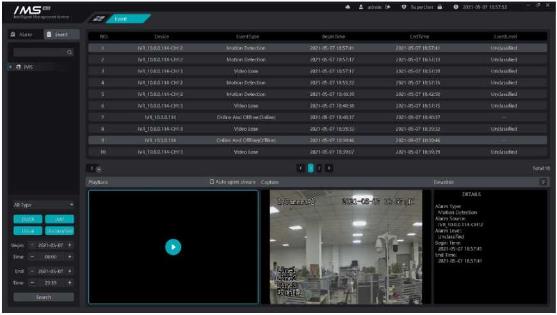
Figure 13-3
.
The left side is the conditional selection area, the upper half is divided into the device tree, the middle is the event priority, and the following is the time range of the event generation. Double-click the retrieval results can play the video information of the alarm source or linkage equipment in the playback area, the video start time is 5 seconds before the start of the alarm, and the end time is 5 seconds after the end of the alarm. If the alarm has a capture, the alarm capture picture is displayed in the capture area.
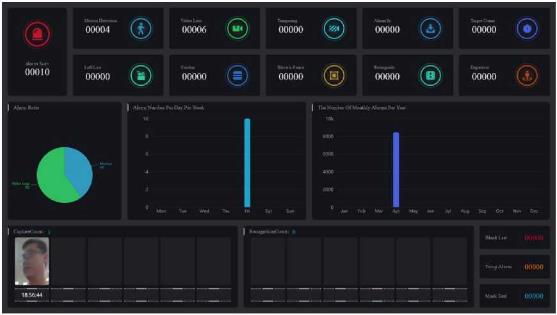
View alarm statistics.
.
Figure 13-4
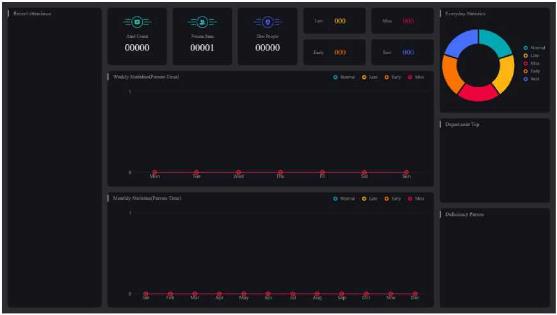
Check attendance statistics.
Figure 13-5
Record the operation log in the IMS 4.0 management system.
X Operation steps:
4 click search.
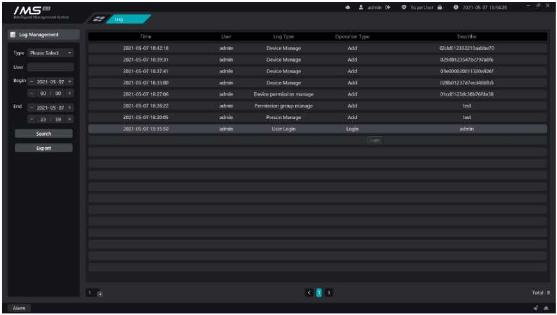
Figure 14-1
Read the local configuration of the system to modify.
X Operation steps:
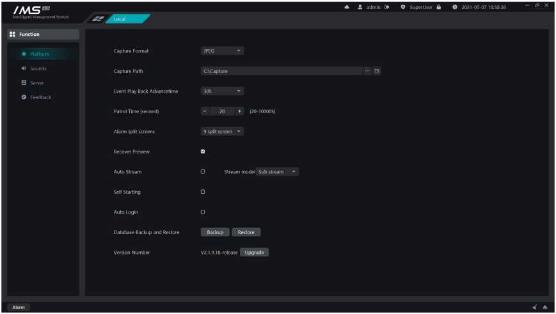
Figure 15-1
.
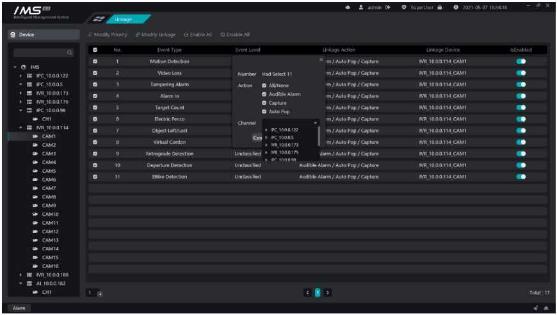
Customize the sound of setting event linkage alarms.
x Operation steps:
.
.
Figure 15-2
Button
Description
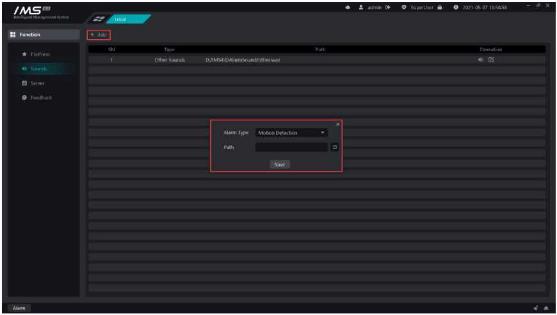
Audition
b)
Modify the sound file path
Delete a custom alarm sound
£ Note:
If the alarm type does not have a custom sound, the sound file for other sounds is played when the alarm type is linked.
Other sound types cannot be deleted.
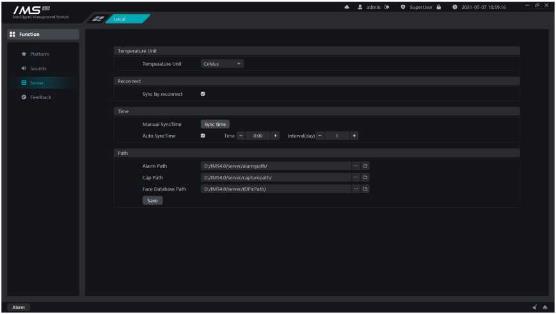
When the equipment is disconnected and reconnected.
Equipment timing correction
Set the picture path of linkage capture picture, face capture picture, identity authentication
.
picture.
Figure 15-3
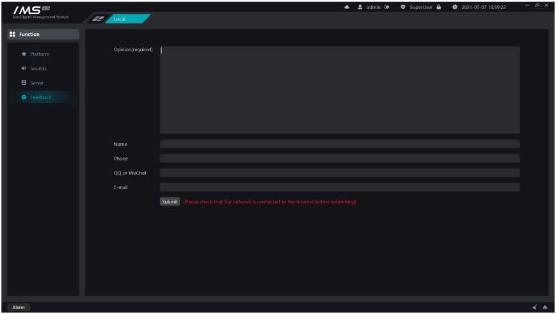
Thank you very much for your valuable advice on our software during your busy schedule.
Figure 15-5