IMS 4.0 Client Software User Manual

ims 4 0 client software user manual image19

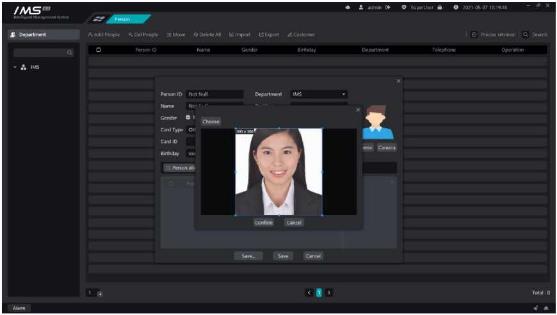
Figure 3-6

.

£ Note:

Must choose the front to avoid the crown, five features clear picture, invalid face picture upload server will succeed, but when sent to the device will fail.

The picture must be in JPG format.

Prohibit the use of Meitu tools to process photos to prevent unrecognizable.

Try to use the ID photo as much as possible.

1.5.Edit personnel

Modify the details of the personnel in the IMS 4.0 management system.

X Operation steps:
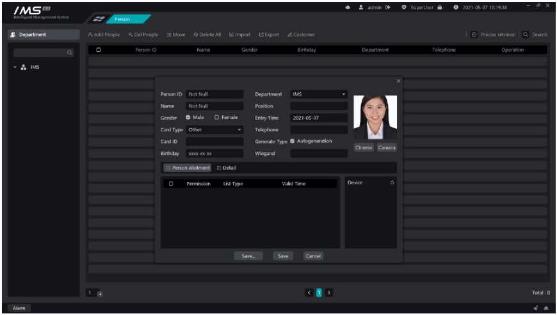
1access to the personnel management system.
2click the button [0] at the end of the list of people to enter the editor page
3modify the information of personnel information.
4click [save and continue] or click [save].

ims 4 0 client software user manual image20

Figure 3-7

.

£ Note:

Personnel number, department, name can not be empty, personnel number can not have spaces.

The person number must be a unique value.

The entry date and the date of birth must be in the format of XXXX-XX-XX.

You can’t set access control settings without setting the avatar.

1.6.Delete a person

Remove personnel information from the IMS 4.0 management system, and delete personnel operations can be divided into single deletion and bulk deletion.

1.Single deletion

X Operation steps:

1access to the personnel management system.
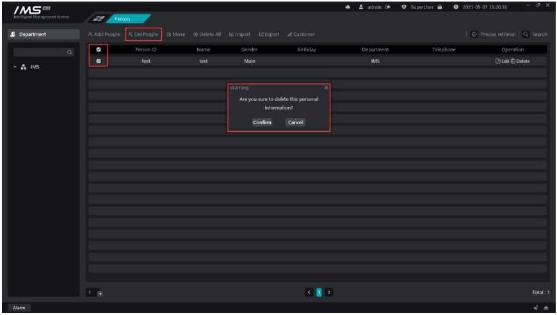
2click the button [ĞJ] at the end of the list of people to prompt for a second confirmation, as shown in figure 3-8.
3confirm deletion.
2.Batch deletion

X Operation steps:

1access to the personnel management system.
2Click the check button [ ] in each line to select the person to be deleted, which means[ ] that it has been selected. Click the check box button [ ] in the header to quickly select the person information on the current page.
3click the button [ Delete person]on the list of people button to prompt for a second confirmation, as shown in figure 3-8.
4confirm deletion.

ims 4 0 client software user manual image21

Figure 3-8

.

3.One-click delete

X Operation steps:

1access to the personnel management system.
2click the button [

Oone-click delete] above the personnel list to prompt the second confirmation, as shown in figure 3-8.


3confirm deletion.

Related Posts

Leave a Comment