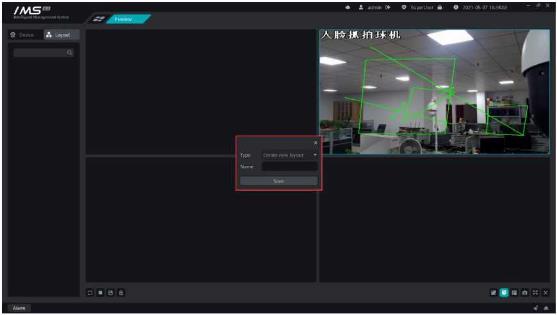
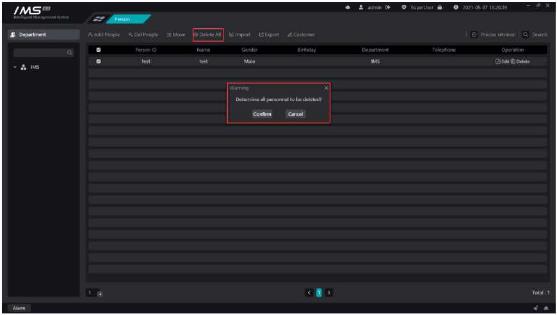
Figure 3-9
.
Note:
Deleting a person also empties all relevant personnel information within a smart device in IMS 4.0.
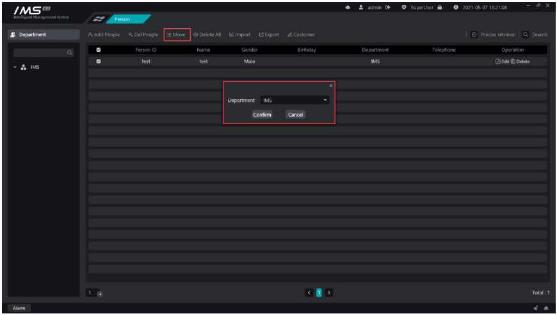
Move the people selected in the personnel management list to other departments in batches.
X Operation steps:
2click the check box [ ] in each line to select the person to be moved, which means [ ] that it has been selected. Click the check box [ ] in the header to quickly select the person information on the current page.
.
Figure 3-10
X Operation steps:
1 access to the personnel management system.
2 click [
EBulk Import] button opens the Select File dialog box.
3 Select the person information ZIP file.
4 Click to open and start the import.
Total: 1
Figure 3-11
.
.
□ Description:
The button for bulk import is disabled during import, and the button resumes the bulk import function.
Note:
Must choose the front to avoid the crown, five features clear picture, invalid face picture upload server will succeed, but when sent to the device will fail.
The picture must be in JPG and PNG format.
Prohibit the use of Meitu tools to process photos to prevent unrecognizable.
Try to use the ID photo as much as possible.
X Operation steps:
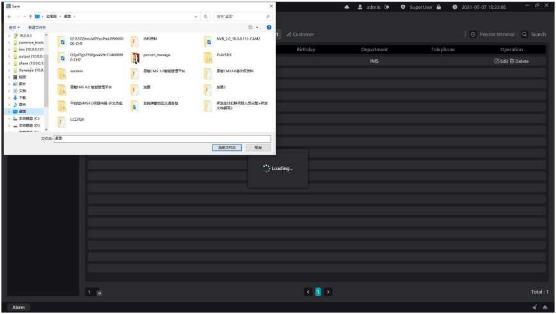
Figure 3-12
.
If you do not have the properties you want to save in the person information, you can add
custom properties.
X Operation steps:
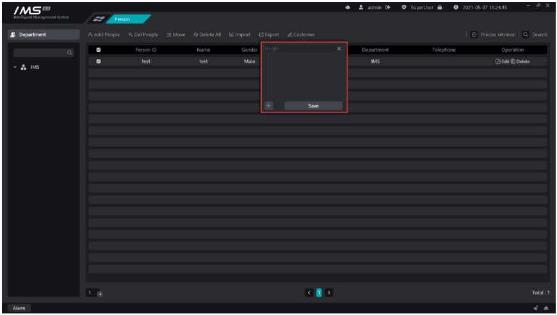
Figure 3-13
.
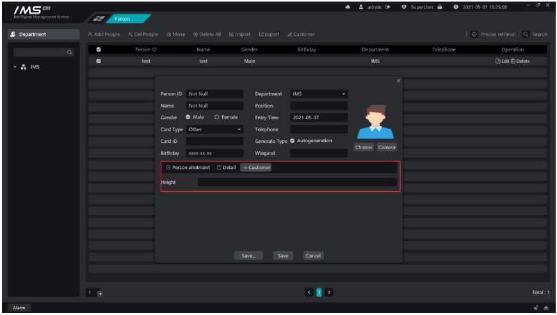
After adding a custom attribute, open the new person page or edit person page again, and the edit panel of the custom attribute will appear.
Chapter 4 Personnel distribution
The device and personnel information are combined, the devices and personnel are grouped, the personnel are assigned to different devices, and the designated person face picture is sent to the designated device, and then the client can receive the face recognition information uploaded by the device.
Establish a grouping to establish a corresponding relationship between the equipment and the personnel, and specify the device to send the face picture.
X Operation steps:
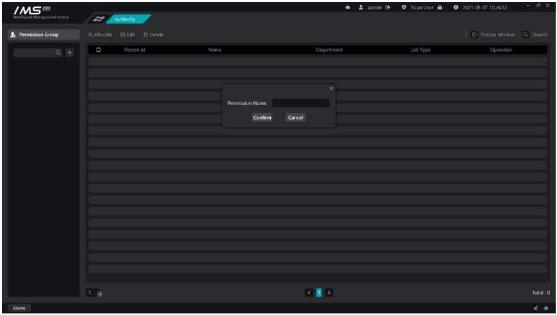
2 click [
].
3 enter the name of the permission group and click OK.
Figure 4-1
£ Note:
Permission group names cannot be repeated.
Permission groups cannot be deleted when there are devices or people in the permission group.
The same person or device can be added to different permission groups.


