Managing Recorded Videos
You can search and play recorded videos on devices registered in Wisenet Viewer by date or event type. If you add the part you are interested in as a bookmark, you can quickly search the video. You can also save videos of specific sections or channels in the desired file format on your PC.
Switching to Playback Mode
You can switch to Playback mode while monitoring real-time videos to search for or play saved recorded videos on a device.
Select the Playback button on the timeline or select the timeline of the channel to switch to Playback mode.


NOTE
•Even if several channels from the Layout tree are selected, only the timeline of the selected channel
from the current layout screen will be displayed. Select if you want to display the entire timeline of
the channel.
•If the Live button for Playback mode is selected, you can switch to Live mode.
142 | Wisenet Viewer User Manual
.
Using the Timeline
If you switch to Playback mode, you can play recorded videos on that channel. You can control playback via the timeline while playing a video. You can also use the Shortcut menu.
Timeline
If you select a tile, the section mark bar is displayed on the timeline. The section mark bar is displayed only on the section with a recorded video. Timeline’s standard display range is 1 day (24 hours), and you can zoom in or out the time display ratio with a mouse wheel. If you click the desired time, the recorded video of that time will play.

Managing Recorded Videos
|
No.
|
Screen Configuration
|
Detailed Description on Functions
|
|
1
|
.
|
.
|
.
|
Show or hide the thumbnail of the video that is currently playing. Divide the range of the timeline marks equally and display the thumbnail that is the first frame of each separate section on the timeline.
|
|
2
|
—
|
Switch to multi timeline or single timeline. Ifyou select multi timeline, the timelines of all channels in the current layout are displayed. For multi timeline, a timeline of 1 day is displayed.
|
|
3
|
.
|
If the Record type filter window is displayed, select the record type to search.
For more detail, please refer to Searching by Record Type (page 150).
|
|
4
|
.
|
pi]
|
.
|
If the Calendar window is displayed, select a date to search for a video.
For more detail, please refer to Searching by Date (page 149).
|
|
5
|
.
|
.
|
.
|
.
|
Displays the date and time of the video that is currently playing. If you click the date, you can select a date to search on the calendar window. If you click the time, you can enter the search time manually.
|
|
.
|
1/16/2023 15:11:07
|
.
|
|
.
|
.
|
.
|
.
|
|
6
|
.
|
.
|
.
|
.
|
Controls the playback and play speed of a video.
For more detail, please refer to Using the Playback Function (page 146).
|
|
.
|
1«
|
«
|
.
|
II
|
►►
|
►►I
|
.
|
|
.
|
.
|
.
|
xl
|
▼
|
|
.
|
.
|
.
|
.
|
|
7
|
.
|
.
|
.
|
.
|
Displays the name of the currently selected channel.
|
|
.
|
CH04
|
.
|
|
.
|
.
|
.
|
.
|
|
8
|
.
|
You can synchronize several videos with the same time to play or you can disable playback sync.
|
Managing Recorded Videos | 143
.
|
No. Screen Configuration
|
Detailed Description on Functions
|
|
9
|
Switch between Live mode and Playback mode. When playback is synced, all channels in the layout switch between Live or Playback mode.
|
|
0
|
If there is a recorded video, a section mark bar will be displayed. Ifyou select a specific point on the timeline with a mouse, the video will play from the selected point and the keyframe will be displayed. If you drag the keyframe, you can change the playback location.
|
NOTE
•Depending on the type of recording data, it will be displayed in different colors.
Regular recorded videos are displayed in yellow-green while event recorded videos are displayed in red.
•You can select a slider at the bottom of the timeline to navigate through the timeline. Also, if you use your mouse wheel on the timeline, you can zoom in or out of the time display ratio.
•If a bookmark is set, the bookmark icon will be displayed on that point of the timeline. If the bookmark icon is selected, the set section will be displayed in orange, and you can check the bookmark in the Bookmark tab. For more information on using the Bookmark tab, refer to Using Bookmarks (page 165).
144 | Wisenet Viewer User Manual
.
.
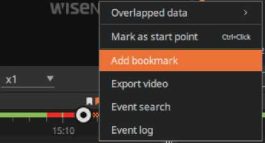
•Using the Timeline Shortcut Menu
After right-clicking the top of the timeline while playing a video, you can use the Shortcut
menu.
Managing Recorded Videos
NOTE
Ifyou select a section, the menu related to the section will be added and displayed on the Shortcut menu. For more information on the Shortcut menu that can be used after selecting a section, refer to Selecting Sections (page 148).
Managing Recorded Videos | 145
.
.
Controlling Playback
You can control the speed or zoom in and out of the timeline while playing the video of a selected channel.
|
Overlapped data
|
If you change the time or time slot of a device, the video recorded at the same time will be overlapped and saved. If there is an overlapping video, it is displayed as a mosaic on the timeline and you can select and play it from the Overlap list.
|
|
Mark as start point / Mark as end point
|
Select the start and end points of the desired section from the timeline.
If you click the desired point while pressing the Ctrl key, you can set the start and end points of the section. For more information on setting sections, refer to Selecting Sections (page 148).
|
|
Clear
|
You can remove the selected section box.
|
|
Zoom
|
You can zoom in on the selected section.
|
|
Add bookmark
|
You can select the desired section from the timeline and add a bookmark. For more information on using the Bookmark, refer to Adding Bookmarks (page 165).
|
|
Export video
|
You can select the desired section from the timeline and save it as a video file on your PC. For more information on exporting videos, refer to Exporting Recorded Videos (page 152).
|
|
Event search
|
You can search events in a channel. For more information on searching for events, refer to Searching Event Recorded Videos (page 131).
|
|
Event log
|
You can search the event log of the selected channel. For more information on event log searches, refer to Checking Event Logs (page 178).
|
1.Select a channel from the Layout screen.
2.Select the Playback button of the timeline.
• You can also click the timeline and switch to Playback mode.
3.Select the desired point with a cursor and play.

•You can change the playback location by dragging the keyframes or selecting the desired points with a mouse during the playback. If a device that supports thumbnails is connected and it is in single timeline mode, thumbnails are displayed while dragging the keyframe.
•After selecting the playback time area of the timeline, you can directly enter the desired time to change the playback location.
■ Using the Playback Function
146 | Wisenet Viewer User Manual
.
.
■Moving Timelines
You can move to a different timeline after clicking on and dragging the timeline with your
mouse or dragging the scroll bar on the bottom. You can also move the time zone by selecting
the / button on both endpoints of the timeline.
■Changing the Timeline Time Display
You can change the time display ratio by scrolling your mouse wheel on the timeline. If you
double-click the area that displays the time slot of the timeline, that section will be zoomed in
on.
■Synchronizing the Play Time
If you select while playing a video, you can synchronize the playback of several videos with
the same time.
If you select again, video sync is disabled and the video plays by each channel.
■All play control actions that are performed during synchronization are applied on all
channels of the layout equally.
Managing Recorded Videos
Managing Recorded Videos | 147
.
.
Selecting Sections
You can select specific sections of the timeline as the start and end points to set a bookmark or save it as a file on your PC.
1.Select the desired spot on the timeline with your mouse.
The Section box will appear.

• You can directly select the start and end points of a section with the mouse while pressing the Ctrl key.
|
1^
|
Previous event
|
You can move to the previous event.
|
|
◄◄
|
Reverse speed playback
|
You can quickly play the video in reverse.
|
|
►/II
|
Play/pause
|
You can play or pause a video.
|
|
►►
|
Forward speed playback
|
You can quickly play the video in the forward direction.
|
|
►►1
|
Next event
|
You can move to the next event.
|
|
^^^^^^^9
|
Play speed control slider
|
You can select the video playback speed.
•Speed when playing in the forward direction: x1/8, x1/4, x1/2, x0, x1, x2, x4, x8, x16, x32, x64, x128, x256
•Speed when playing in reverse direction: -x1/8, -x1/4, -x1/2, x0, -x1, -x2, -x4, -x8, -x16, -x32, -x64, -x128, -x256
|
2.Select the start and end points of a section by moving the mouse left and right.
3.Select the desired menu in the timeline Shortcut menu.
[□ Layout
El * 7th FL
El Gate#i
El Lobby
^ gi Sequence
WISeNGT
wiseNeT
WISGNi
H ~ V Q 1/16/2023 1^11/38 I« « II ►► ►►! • jd ’
1/… । 1/16/2023 1430 । 1/16/202314:45 । 1/16/202315:00
^^^^^^^^^^^^^^^^^^^^^^^^^^^^^^^^^^^^^^^“ • o •
1430 14:35 14:40 1 4:45 14:50 14:55 15:00 15:05 15:10
Overlapped data
Mark as start point odkm
Clear
Zoom
Add bookmark
Export video
Event search
Event log
1:44:47 PM
Live f Playback/
15:25
• Overlapped data: If there is any duplicated data while you change the time or time zone, the list will be displayed.
• Mark as start point / Mark as end point: You can select the start/end point of the section.
• Clear: You can remove the selected section box.
• Zoom: You can zoom in on the selected section.
• Add bookmark: You can add the selected section to the bookmarks.
• Export video: You can save the selected section as a file to your PC.
• Event search: In the Event search window, you can search events within the selected channel/section.
• Event log: You can search event logs within the selected section of the Event log window.
148 | Wisenet Viewer User Manual
.
Searching Recorded Videos
You can search and play the recorded videos on a device registered in Wisenet Viewer by date or record type.
Searching by Date
You can select the date and search recorded videos on the selected channel’s timeline.
Managing Recorded Videos
1.Select the Playback button of the timeline.
2.Select for the timeline.

3.When the Calendar window is displayed, select a date to search.
X
2023 ▼ J ▼ Today
Sun Mon Tue Wed Thu Frl Sat
25 26 27 28 29 30 31
1 2 3 4 5 6 7
12 13 14
15 16 17
•The date of the recorded video is displayed in orange.
The current date is indicated with an orange dot below it.
•After a date is selected, 24 hours timeline of that date will be displayed.
4.You can select and play the video of the desired period from the timeline. Select to close the Calendar window.
Managing Recorded Videos | 149
.
.
Searching by Record Type
You can select a record type in the timeline of the selected channel to search recorded videos.
1.Select the Playback button of the timeline.
2.Select for the timeline.

3.If the Filter window is displayed, select the record type to search.
Filter
□ All
| 0 Continuous recording
| @ Manual recording
@ ‘& Motion detection
@ ® Video analytics
@ Face detection
Q S’: Tampering detection
Q O Auto tracking
@ % Defocus detection
] & Fog detection
] ‘o’ Audio detection
Q ^V Audio analytics
Play filtered section (^OfF)
•All: You can search all events from the timeline of the selected channel.
•Continuous recording: This shows regular videos that were recorded continuously.
•Manual recording: This shows manually recorded videos.
•Motion detection: This shows event videos recorded when motion is detected.
•Video analytics: This shows event videos recorded when intelligent video analytics are detected.
•Face detection: This shows event videos recorded when a face is detected in a video.
•Tampering detection: This shows event videos recorded when a camera video is covered or the location is changed.
150 | Wisenet Viewer User Manual
.
.
•Auto tracking: This shows event videos recorded when a moving object is tracked in the video.
•Defocus detection: This shows event videos recorded when the video becomes blurry.
•Fog detection: This shows event videos recorded when fog or bad weather is detected in the video.
•Audio detection: This shows event videos recorded when audio above the camera’s set level is detected.
•Audio analytics: This shows event videos recorded when audio analytics are detected.
•Alarm input: This shows event videos recorded when a alarm input detected.
•Person (AI): This shows event videos recorded when a person being detected.
•Vehicle (AI): This shows event videos recorded when a vehicle is detected.
•Play filtered section: If you select the On button, only the selected record type will play. If you select the Off button, every type regardless of record type will play.
4. Select a video from the timeline to play it.
Managing Recorded Videos
Managing Recorded Videos | 151
.
.
Exporting Recorded Videos
You can save the recorded video of the device registered on Wisenet Viewer as a file on your PC.
Select the desired section from the timeline or several channels to save them. You can also set the password for the file to save it.
1.Right-click on the timeline.
B ” Y 0 1/16/2023 15:11:24 |44 44 II ►► ►►! * xi T CAM04 ^ ( Uve ( Playback )
1/16/202313:50 । 1/16/202314:00 । 1/16/202314:15 । 1/16/2023 14:30 । 1/16/202314:45 । 1/16/202315:00 R । 1/16/2023 15:15 । 1/16/2023 15:30
13:55 14:00 14:05 14:10 14:15 14:20 14:25 1430 14:35 14:40 14:45 14:50 14:55 15:00 15:05 15:10 15:15 1520 15:25 1530 15:35 15:40
• You can select a specific section and export the video. For more information on selecting sections, refer to Selecting Sections (page 148).
2. Select Export video in the Shortcut menu.

3.Enter your password and click OK if you are prompted to.
ID : admin
Password
| | Don’t ask again

Cancel
•Check Don’t ask again if you don’t want to see the prompt anymore.
The prompt will not appear unless the Wisenet Viewer is restarted.
•If you fail to provide the correct password, you won’t be able to save the videos.
152 | Wisenet Viewer User Manual
.
.
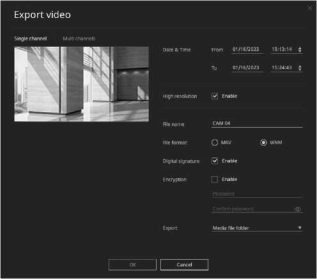
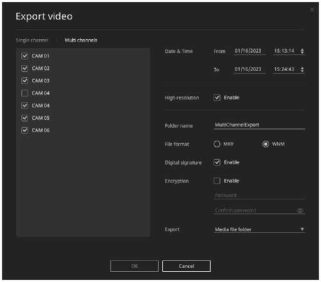
4. When the Export video window is displayed, select the video information to save.
Managing Recorded Videos
•Single channel: Export videos from the currently selected single channel. You can preview the selected video.
•Multi channel: Export a video from the several channels included in the layout.
•Date and time: Select the start/end time of the video to send.
•High resolution: Select whether to save as a high-resolution video. If Enable is checked, when a video was recorded in dual profile, save it as a high-resolution video.
•File name: Enter the file name to be saved when selecting a single channel.
•Folder name: Enter the folder name to be saved on the PC when selecting multichannel.
Managing Recorded Videos | 153
.
.
•File format: Select a file format to save the video on your PC. If you select the WNM format, the digital signature and encryption item are activated.
•Digital signature: You can add a digital signature when saving a video in the WNM format.
•Encryption: Select whether to set a password when saving a video in the WNM format. If Use is checked, you can enter the password. If Enable is checked, you can enter the password.
•Export: Select a folder where the video will be saved..
–Media file folder: The videos are saved in the file folder selected on Setup > System> Local settings.
–Select later: You can select a folder on your PC to save videos.
6.Check the save status in the Export video progress window.
Once saving is complete, select the Close button on the Progress window.
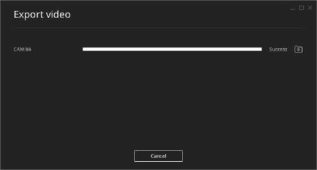
•If you cancel or close the window while exporting the video, it will be saved as a file only up to that point.
•If you select PA on the progress window after exporting the video, the folder where the videos are saved opens.
•When exporting multichannel videos, there must be a multichannel video folder in the selected folder to properly save videos.
NOTE
Wisenet Player is saved in the folder where videos are saved. Wisenet Player is a program that allows WNM, SEC files, and other common media files to be played without installing Wisenet Viewer.
•When executing Wisenet Player, all media file lists within the folder will be automatically loaded.
•Other methods for using the Wisenet Player are the same as the Wisenet Viewer when playing media files.
154 | Wisenet Viewer User Manual
.
.
Applying Video Masking to Recorded Videos
You can set video masking (privacy masking) areas on a recorded video to protect privacy or to hide areas that you don’t want to display. The privacy-masked section of the video can also be exported.

NOTE
To use video masking, activate a video masking license. In case of activation, the Video masking button
appears.
Managing Recorded Videos
Activating the Video Masking License
1.In the upper-left corner of Wisenet Viewer, click .
2.In the Setup window, click System > Maintenance.
3.In Video masking license, clcik the Arrow button and type your license number.
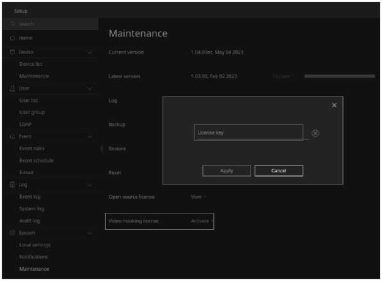
Managing Recorded Videos | 155
.
.
Checking a Video Masking Window
In Wisenet Viewer, click to open a Video masking window. Here are the components.
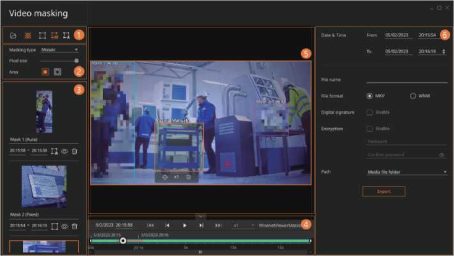
156 | Wisenet Viewer User Manual
.
.
Managing Recorded Videos
Managing Recorded Videos | 157
.
.
158 | Wisenet Viewer User Manual
.
.
Setting Video Masking Areas
Three masking types are supported: fixed, manual, and auto masking. You can use multiple masking types on one video file.
■ Applying Fixed Masking
With fixed masking, you can apply a static privacy masking to the area that you define.
Managing Recorded Videos
|
Screen No.
Configuration
|
Detailed Description on Functions
|
|
1 Icon Buttons
|
•Open media file : Open a video file where you will apply masking to.
Both .wnm and .sec extensions are supported. You can also select one of the files under Resource in Wisenet Viewer and drag the file to the video window of the Video masking window.
•Preview : Enable the Preview button (displayed in orange) to view the
masked areas with mosaic or color applied on the video.
Disable Preview (displayed in white) to view the masked areas without any mosaic or color applied on the video (Only an orange frame will be shown).
|
|
No.
|
Screen Configuration
|
Detailed Description on Functions
|
|
2
|
Masking Options
|
•Masking type : Select Mosaic or Fill.
•Pixel size : When selecting Mosaic, you can adjust the pixel size by dragging the bar to the right to increase pixels by 3 pixels each. (The default is 20 pixels.)
•Color : When selecting Fill, you can select which color to use to cover the defined area. Your selected color will be applied to masking areas.
•Area : Select Include or Exclude to define what parts of the video where objects should be masked.
–: Apply masking only to the defined area.
–: Apply masking to areas excluding the defined area.
|
|
3
|
Masked-Areas List
|
Displays the masked areas with thumbnails. If you select a thumbnail from the list, the masked area will be shown in the video.
•Name : Displays an auto-created name under the thumbnail. The default is “Mask {number} {masked type}.” You can change the name.
•Time : Displays the time of tracking and masking moving objects. You can also manually set the time.
If the set time is longer than the original time, an orange frame for fixed masking will appear at the original start and end points of tracking objects, and fixed masking will be applied during the manually added time.
For example, if the tracking and masking time was from 1:01:20 to 1:01:40, and you changed the start time to 1:01:10 and the end time to 1:01:50, fixed masking will be automatically applied from 1:01:10 to 1:01:20 and from 1:01:40 to 1:01:50.
Ifyou set the start time later than the original start time and the end time ahead of the original end time, e.g., from 1:01:25 to 1:01:35, your selected masking will be applied only during the changed time (i.e., only for 10 sec.).
– , , : Displays your masking type.
–, : Hide and show the masked area in the video.
–: Delete the masked area.
|
|
4
|
Timeline
|
Displays the duration of tracking and masking objects on the video. Select a thumbnail from the list, and the duration will be shown as an orange horizontal bar in the timeline bar.
|
|
5
|
Video Window
|
Displays a video where masking is being applied. You can check whether masking is properly applied to the video in real time.
|
|
No.
|
Screen Configuration
|
Detailed Description on Functions
|
|
6
|
Export
|
Set up the settings for exporting privacy-masked videos.
•Date & Time : Set the start time and end time of the section that you want to export in the privacy-masked video file. You can also drag the controller in the timeline bar in the video window to set the start and end time.
•File name : Type the name of the file.
•File format : Select the file format between MKV and WNM. MKV or Matroska is an open video container format. You can open and play an .mkv file in almost any media player including Wisenet Viewer.
WNM is a Wisenet media format. Yon can open and play a .wnm file only in Wisenet Player or Wisenet Viewer.
•Digital signature : If you select WNM under File format, you can select whether to use digital signature. Check Enable to detect forgery or falsification of the file.
•Encryption : If you select WNM, you can encrypt the file. The password must be 8 to 32 characters long and must include at least 1 alphabet and at least 1 number. To open the encrypted file, you must input the password.
•Path : Specify a path to save the file.
If you select Media file folder and click Save, the file will be automatically saved in the folder that you already designated in Settings > System > Local settings > Media file folder.
If you select Select later and click Save, you can specify where to save the file.
•Export : When you click Export, the file starts being exported with the progress bar appearing. If you click the Cancel button, the file will stop being exported, and the partially exported file will also be saved. When the (partially or completely) exported file is saved, appears. Click it to open the exported file.
|
1.In the upper-left corner of the Video masking window, click .
2.On the video, drag the mouse pointer and draw a frame around the object that you want to mask on the video. Then fixed masking will be applied during the whole running time of the video by default. To enable fixed masking only during a specific time slot, set the time under the thumbnail in the list.
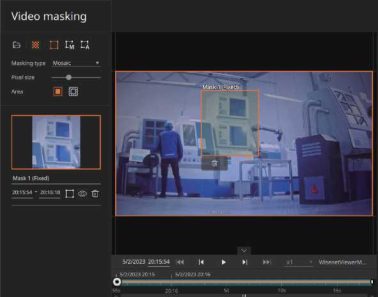
3.To resize the frame, point to the edges of the frame and drag the arrow to any direction; to shift the position, drag and drop the inside of the frame to your desired position.
4.To delete the frame (masked area), click the inside of the frame and click that appears under the
frame.
Managing Recorded Videos | 159
.
.
■ Manually Tracking and Masking Objects
With manual masking, you can manually track and mask objects.
1.In the upper-left corner of the Video masking window, click .
2.On the video, drag the pointer and draw a frame around the object that you want to mask.
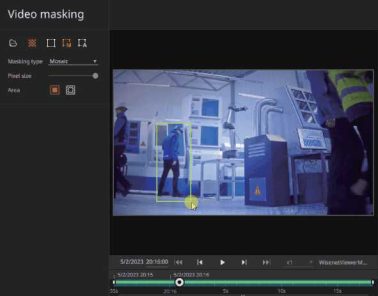
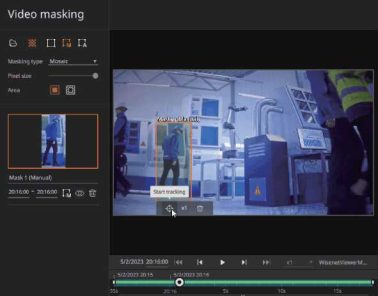
3.Click the Start tracking button under the frame (masked area) and manually track the
object for masking.
160 | Wisenet Viewer User Manual
.
.
® Drag the inside of the frame to track the object and put it in the frame. To track the object easily, you can play the video at 1/2 speed.
@ To resize the frame, point to the edges of the frame and drag the arrow to any direction; to shift the position, drag and drop the inside of the frame to your desired position.
4.To stop tracking the object, click . The clicking will also pause the video. You can also resize the frame or shift the position when the video is paused.
Managing Recorded Videos
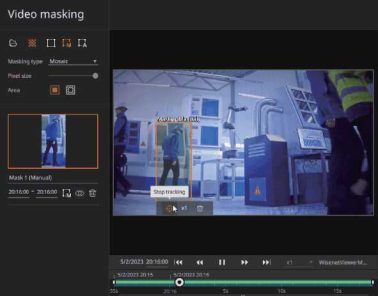
5.To finish manual masking, click . You can no longer edit the existing masks nor add a new mask.
Managing Recorded Videos | 161
.
.

NOTE
In case the manually tracked object gets out of the frame, follow the steps:
1.Click to pause the video.
2.In the timeline bar, find out where the tracked object got out of the frame and resize the frame or shift the position to fully cover the object.
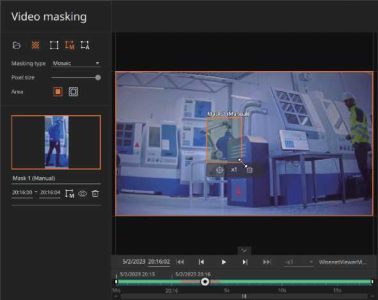
3.Click and re-track the object for masking manually. Then the changes will apply to the video file.
162 | Wisenet Viewer User Manual
.
.
■ Automatically Tracking and Masking Objects
Once you apply auto masking to the object you select, the selected object will be automatically masked.
1.In the upper-left corner of the Video masking window, click .
2.On the video, drag the pointer and draw a frame around the object you want to mask.
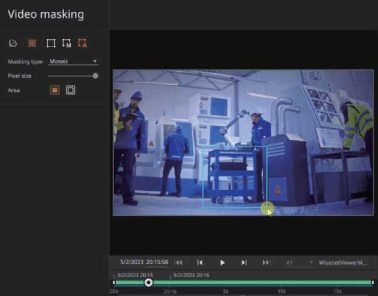
Managing Recorded Videos
3.Click , and the frame will automatically track the object for masking.
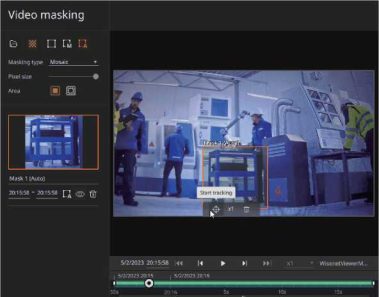
Managing Recorded Videos | 163
.
.
4.To resize the frame, point to the edges of the frame and drag the arrow to any direction; to shift the position, drag and drop the inside of the frame to your desired position. This clicking will pause the video. You can also resize the frame or shift the position when the video is paused.
5.Click to track the object again.
6.To finish auto masking, click . You can no longer edit the existing masks nor add a new mask.
NOTE
In case the automatically tracked object gets out of the frame, follow the steps:
1.Click to pause the video.
2.In the timeline bar, find out where the tracked object got out of the frame and resize the frame or shift the position to fully cover the object.
3.Click , and the object will be re-tracked automatically. Then the changes will apply to the video file.
164 | Wisenet Viewer User Manual
.
.
Using Bookmarks
You can add a bookmark to a video section of the interest in Playback mode. You can check and play the added bookmark video via the Bookmark tab. You can also edit or delete bookmark information.
Adding Bookmarks
You can add a bookmark to a section of interest in a saved video.
1.Select a channel from the layout.
2.Select the desired spot on the timeline with your mouse.
The Section box will appear.
Managing Recorded Videos
S ~ V 0 1/16/2023 IWM |M « || ►► ►►! * xi T CAM04 ^ ( Uve ( Playback )
। 1/16/2023 14:15 । 1/16/202314:30 । 1/16/202314:45 । 1/16/202315:00 R । 1/16/202315:15 । 1/16/2023 15:30 । 1/16/202315:45 । 1/16/20231…
^^^^^^^^^^^^^” ^^^^^^^^^^^^^^^^^^^^^^^^^^^^^^^^^^^^^^^^^^^^^^^^^^^^■’.■.’.’.■.■.■.■.’.’.■.■.■.■.’.’.■.■.■.■.’.’.■.^^^^^n I ^”^) MI ^^^^^^^^^^^^^^^^^^^^^^^^^^^^^^^^^^^^^^^^^^”
14:15 14:20 14:25 14:30 1435 14:40 14:45 14:50 14:55 15:00 15:05 15:10 15:15 1530 15:25 15:30 15:35 15:40 15:45 15:50 15:55 16:00 16:05
• You can directly select the start and end points of a section with the mouse while pressing the Ctrl key.
3.Select the start and end points of a section by moving the mouse left and right.
4.In the timeline Shortcut menu, select Add bookmark.

Managing Recorded Videos | 165
.
.
5.When the Bookmark window is displayed, enter the bookmark information.
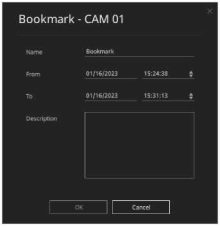
•Name: Enter the bookmark name to save.
•From: Enter the start date and time of bookmark. If you enter directly the date/time item with a keyboard, the selected section will be changed and displayed on the timeline.
•To: Enter the end date and time of the bookmark.
•Description: You can enter a description for the bookmark.
6.Select the OK button.
166 | Wisenet Viewer User Manual
.
.
Managing Bookmarks
You can check and play videos added as bookmarks in the Bookmark tab. You can also edit or delete bookmark information.
■ Playing Bookmarks
1.Select the Bookmark tab from the Event panel.
2.Double-click the desired bookmark from the Bookmark tab’s list, and the video will be played.
Managing Recorded Videos
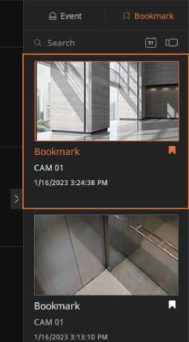
•If you can also play the video by right-clicking a bookmark and selecting Open on the Shortcut menu.
•If you click the bookmark icon displayed on the timeline, the section where the bookmark is saved will be displayed in orange. Ifyou double-click the bookmark icon, you can play the bookmark.
•The bookmark of the channel that is included in the current layout will play in the tile. The bookmark ofthe channel that is not included in the current layout will play on an empty tile
•If duplicate channels are assigned on a layout, the bookmarked video will play on top of the screen or tile located on the left.
•While a bookmarked section is playing, the bookmark is highlighted in orange on the Bookmark tab.
Managing Recorded Videos | 167
.
.
■ Editing Bookmarks
1.Select the Bookmark tab from the Event panel.
2.When Bookmark tab is displayed, right-click the bookmark.
3.Select Edit in the bookmark Shortcut menu.
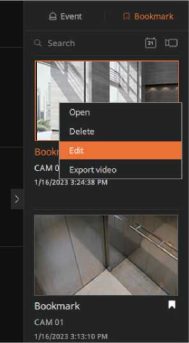
4.When the Bookmark window appears, edit the name or the description.
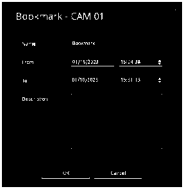
5.Select the OK button.
168 | Wisenet Viewer User Manual
.
.
■ Deleting Bookmarks
1.Select the Bookmark tab from the Event panel.
2.When Bookmark tab is displayed, right-click the bookmark.
3.Select Delete in the bookmark Shortcut menu.
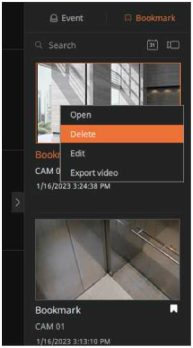
Managing Recorded Videos
Managing Recorded Videos | 169
.
.
Searching Bookmarks
You can search for and play bookmarks by bookmark name and device in the Bookmark tab.
■ Searching Bookmarks by Name
1.Select the Bookmark tab from the Event panel.
2.Enter the content to search in the Bookmark tab’s search bar.
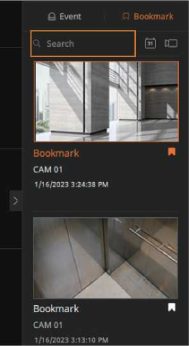
• Only bookmarks corresponding to the entered content are displayed in the list.
3.Double-click the searched bookmark, and the video will be played.
170 | Wisenet Viewer User Manual
.
.
■
Searching Bookmarks by Date
1.Select the Bookmark tab from the Event panel.
2.When the Bookmark tab is displayed, click .
3.Select a time range to search the bookmark.
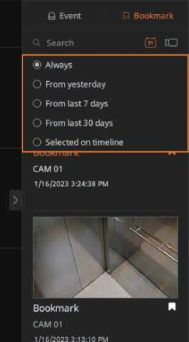
Managing Recorded Videos
•Always: Display the bookmarks of all the time slots.
•From yesterday: Displays the saved bookmark from 00:00 yesterday to the current search point of time.
•From last 7 days: Display bookmarks from the last 7 days.
•From last 30 days: Display bookmarks from the last 30 days.
•Selected on timeline: Display the bookmarks on the selected timeline.
4.Double-click the searched bookmark, and the video will be played.
Managing Recorded Videos | 171
.
.
■ Searching Bookmarks by Device
1.Select the Bookmark tab from the Event panel.
2.When the Bookmark tab is displayed, select .
3.Select a channel to search events.
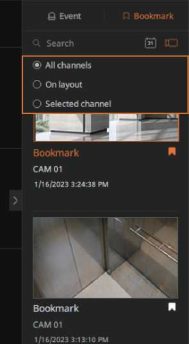
•All channels: Display the bookmarks of every channel registered on the Resource tree.
•On layout: Display the bookmarks of every channel included in the current layout.
•Selected channel: Display only the bookmarks of the selected channel from the current layout.
4.Double-click the searched bookmark, and the video will be played.
172 | Wisenet Viewer User Manual
.
.
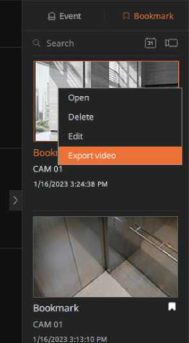
Exporting bookmarked videos
You can export bookmarked videos as files to your PC.
1.Select the Bookmark tab from the Event panel.
2.When Bookmark tab is displayed, right-click the bookmark.
3.Select Export video in the bookmark Shortcut menu.
Managing Recorded Videos
4. Enter your password and click OK if you are prompted to.
ID: admin
Password
I I Don’taskagain

Cancel
Managing Recorded Videos | 173
.
.
5. When the Export video window is displayed, select the video information to save.
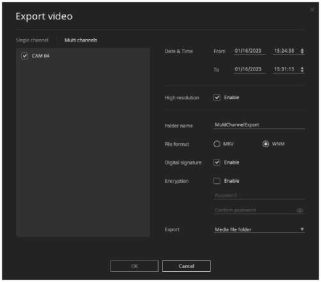
7.Check the save status in the Export video progress window.
Once saving is complete, select the Close button on the Progress window.

NOTE
For more information on exporting video, refer to Exporting Recorded Videos (page 152).
174 | Wisenet Viewer User Manual
.
.
Setting up the Local Save File
When saving the video in real time with the local save function of Wisenet Viewer, you can set up maximum record time, file format, and file path.
Setting up the Local Save File Location
When using the local save function of Wisenet Viewer, you can set up a folder to save the file.

Managing Recorded Videos
NOTE
It will be used as a common folder where the file displayed on the Resource tree > Media file item is
stored.
1.Select the button in the Function button panel.
2.If the Settings window appears, select System > Local Settings.
3.When the Local settings window is displayed, select Change in the Media file folder item.
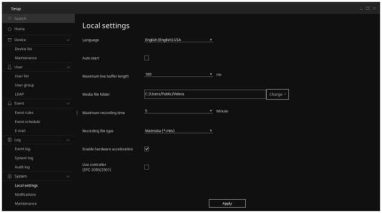
4.After selecting a folder to save file in, select Select folder.
• If a save folder is selected, the path will be displayed.
5.Select the Apply button.
Managing Recorded Videos | 175
.
.
Setting up the Local Save Time
When using the local save function of Wisenet Viewer, you can set up the maximum record time.
1.Select the button in the Function button panel.
2.If the Settings window appears, select System > Local Settings.
3.If the Local settings window is displayed, select the Maximum recording time.
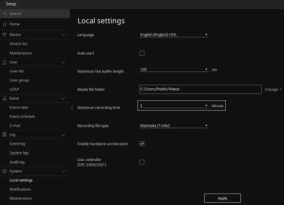
• You can set a maximum recording time of 5-120 minutes.
4.Select the Apply button.
176 | Wisenet Viewer User Manual
.
.
Setting up the Local File Type
When using the local save function of Wisenet Viewer, you can set up the local file type.
1.Select the button in the Function button panel.
2.If the Settings window appears, select System > Local Settings.
3.If the Local settings window is displayed, select the Recording file format.
Managing Recorded Videos
.
5 Device
Device list
Maintenance
£ User
User list
User group
.
Q Event
Event rules
Event schedule
.
Enable hardware acceleration
Use controller (SPC-2000/2001)
Event log
System log
Audit log
Local settings
Notifications
Maintenance
Apply
•Matroska (*.mkv): It will be saved in a video format that includes video and sound.
•Wisenet Media(*.wnm): It will be saved in a video format for Wisenet Viewer.
4.Select the Apply button.
Managing Recorded Videos | 177
.
.
Checking Logs
You can check the system, audit log, and event that occurs on devices connected to Wisenet Viewer.
Checking Event Logs
You can search event log for events that occurred on a device or save log information. You can check changes detected on a video and device, log content of preset events registered by users, and the occurrence date/time.
1.Select the button in the Function button panel.
2.If the Settings window is displayed, select Log > Event log.
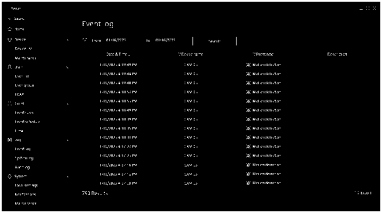
3.If the Event log window is displayed, click to select the start and end dates to search.
Device list
Maintenance
& User
User list
User group
â Event
Event rules
Event schedule
£1 Log
Event log
System log
Audit log
0 System
Local settings
Notifications
Maintenance
Event log

Y Event type
;^ Motion detection
SJ’ Motion detection ^ Motion detection ^2 Motion detection &2 Motion detection SJ’ Motion detection ^ Motion detection ^2 Motion detection &2 Motion detection
1/16/2023 4:57:27 PM CAM 03
1 /16/2023 4:57:23 PM CAM 03
1/16/2023 4:57:16 PM CAM 03
1/16/2023 4:57:12 PM CAM 03
1 /16/2023 4:57:08 PM CAM 03
790 Results
^2 Motion detection
^ Motion detection
J£ Motion detection
SE Motion detection
’ Description
•You can directly enter dates via a keyboard.
178 | Wisenet Viewer User Manual
.
.
4. Select the Search button.
Checking Logs
•When search results are displayed, you can select a column filter to select only the specific item to check.
When the column item of a search result is selected, it will be automatically arranged in ascending/descending order.
•Select Export at the bottom of the screen to export the search results as a file. For more information on exporting as a file, refer to Exporting Log Data (page 182).
Checking Logs | 179
.
.
Checking System logs
You can search system logs that occurred in the device or save log information. You can check log content related to the system such as system device, power and record error as well as the date and time it was run.
1.Select the button in the Function button panel.
2.When the Settings window is displayed, select Log > System Log.
3.When the System Log window is displayed, click a to select the start and end dates to search.
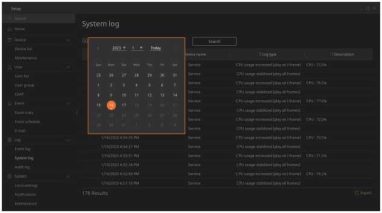
• You can directly enter dates via a keyboard.
4.Select the Search button.
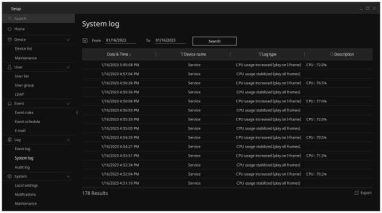
•When search results are displayed, you can select a column filter to select only the specific item to check.
When the column item of a search result is selected, it will be automatically arranged in ascending/descending order.
•Select Export at the bottom of the screen to export the search results as a file. For more information on exporting as a file, refer to Exporting Log Data (page 182).
180 | Wisenet Viewer User Manual
.
Checking Audit Logs
You can search audit logs for a device or save log information. Audit logs are records of all activities during Wisenet Viewer operation. You can check the date and time of occurrence and all log content, such as login per user, system settings, and checking real-time video.
Checking Logs
1.Select the button in the Function button panel.
2.When the Settings window is displayed, select Log > Audit log.
3.When the Audit log window is displayed, click to select the start and end dates to search.

Audit log

733 Results
Description
User played video from 1/16/2023 3:27:53 PM to 1/16/2023 3:27:53
User played video from 1/16/2023 2:05:57 PM to 1/16/2023 3:10:56
User played video from 1/16/2023 2:24:26 PM to 1/16/2023 3:10:49
User played video from 1/16/2023 2:41:48 PM to 1/16/2023 3:10:47
User played video from 1/16/2023 3:06:31 PM to 1/16/2023 3:10:51
User played video from 1/16/2023 3:08:14 PM to 1/16/2023 3:10:46
User played video from 1/16/2023 3:10:43 PM to 1/16/2023 3:14:28
User played video from 1/16/2023 3:09:07 PM to 1/16/2023 3:10:43
User played video from 1/16/2023 3:11:21 PM to 1/16/2023 3:13:54
Exported from 1/16/2023 3:13:14 PM to 1/16/2023 3:14:29 PM.
Exported from 1/16/2023 3:13:14 PM to 1/16/2023 3:24:24 PM.
User played video from 1/16/2023 3:13:10 PM to 1/16/2023 3:13:12
User played video from 1/16/2023 3:11:54 PM to 1/16/2023 3:12:06
User played video from 1/16/2023 3:13:30 PM to 1/16/2023 3:13:35
• You can directly enter dates via a keyboard.
4.Select the Search button.
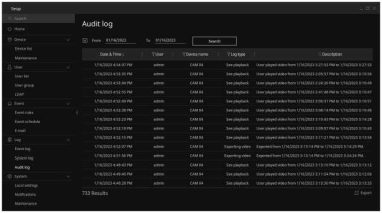
•When search results are displayed, you can select a column filter to select only the specific item to check.
When the column item of a search result is selected, it will be automatically arranged in ascending/descending order.
•Select Export at the bottom of the screen to export the search results as a file. For more information on exporting as a file, refer to Exporting Log Data (page 182).
Checking Logs | 181
.
.
Exporting Log Data
You can save log information that occurred on a device via your PC.
1.Select the button in the Function button panel.
2.When the Setup window appears, select the log menu.
3.When the Log window is displayed, click to select start and end dates to search.
4.Select the Search button.
5.Select Export at the bottom of the Log search window.
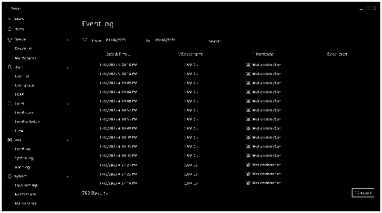
6.When the Export window is displayed, choose a path to save the .csv file and select Export. A Log data file is saved on the selected path.
182 | Wisenet Viewer User Manual
.
.
Setting up the System
You can set the language, auto start, and enable hardware acceleration for Wisenet Viewer. You can also backup/restore or initialize the settings information.
Setting up the System
Setting up the Language
You can select a language to enable in Wisenet Viewer.
1.Select the button in the Function button panel.
2.If the Settings window appears, select System > Local Settings.
3.If the Local settings window appears, select a language to enable.
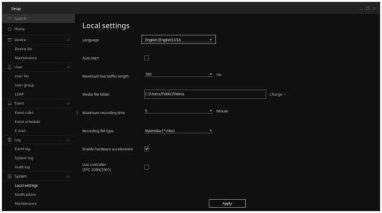
4.Select the Apply button.
5.Select the OK button on the pop-up window.
6.Select the Close button on the System restart window. Then, the program will automatically restart.
Setting up the System | 183
.
.
Setting up Auto Start
You can set Wisenet Viewer to automatically start when Windows starts.
1.Select the button in the Function button panel.
2.If the Settings window appears, select System > Local Settings.
3.If the Local settings window appears, select whether to use auto start.
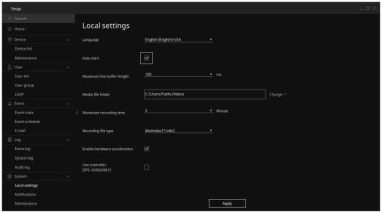
4.Select the Apply button.
5.Select the Close button on the pop-up window.
184 | Wisenet Viewer User Manual
.
.
Setting up Hardware Acceleration
If an Intel graphics card that supports Intel Quick Sync or a graphics card that supports NVIDIA CUVID on PC is being used, the hardware acceleration function can be used.
If you set the hardware acceleration function, you can play more videos using the GPU.

Setting up the System
NOTE
The Enable hardware acceleration item is displayed only when an Intel Quick Sync or NVIDIA graphics card
is installed on the PC.
1.Select the button in the Function button panel.
2.If the Settings window appears, select System > Local Settings.
3.If the Local settings window appears, select whether to use hardware acceleration.
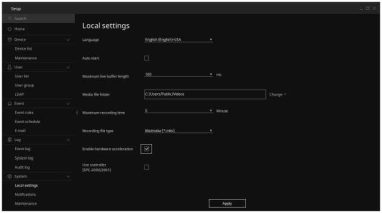
• It is automatically set if Intel Quick Sync or a graphics card that supports NVIDA CUVID is installed on the PC.
4.Select the Apply button.
Setting up the System | 185
.
.
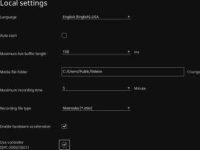
Setting up a Controller
You can select a controller to use in Wisenet Viewer.

NOTE
•The controllers that can be used in Wisenet Viewer are as follows:
– SPC-2000/ SPC-2001
•Setting up a controller is only supported on Windows and Linux Ubuntu OS.
1.Select the button in the Function button panel.
2.If the Settings window appears, select System > Local Settings.
3.Select whether to use the controller if the Local settings window appears.
Q Search
O Home
5 Device
Device list
Maintenance
£ User
User list
User group
Q Event
Event rules
Event schedule
® Log
Event log
System log
Audit log
0 System
Apply
Local settings
Notifications
Maintenance
4.Select the Apply button.

NOTE
For detailed information about how to use the system controller, refer to Using the System Controller (page
201).
186 | Wisenet Viewer User Manual
.
.
Setting up notifications
You can set whether to notify you of events when they are detected by recorders or connected cameras. If you enable the notification for a specific event, both the event and details will be indicated in the Event tab as soon as the event occurs during real-time monitoring.
Setting up the System
Setting up event notifications
1.Select the button in the Function button panel.
2.If the Setup window appears, select System > Notifications.
3.Select the Event tab when the Notifications window appears.
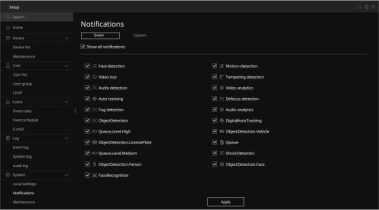
4.Select at least one event type to display.
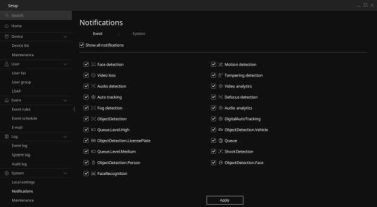
•Check Show all notifications to get notifications for all event types.
5.Select the Apply button.
Setting up the System | 187
.
.
Setting up system notifications
1.Select the button in the Function button panel.
2.If the Setup window appears, select System > Notifications.
3.Select the System tab when the Notifications window appears.
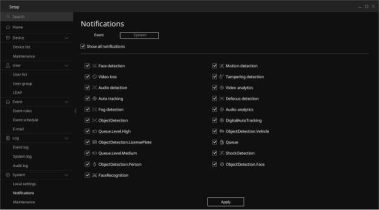
4.Select at least one event type to display.
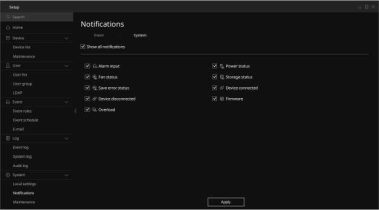
•Check Show all notifications to get notifications for all system event types.
5.Select the Apply button.
188 | Wisenet Viewer User Manual
.
.
Managing the System
You can update Wisenet Viewer, back up the configurations, or roll back using existing backup files.
You can also initialize the program or check the log files.
Updating the software
You can enable automatic updates of Wisenet Viewer software.
1.Select the button in the Function button panel.
2.When the Setup window is displayed, select System > Maintenance.
3.Select Update under Latest version when the Maintenance window appears.
Setting up the System
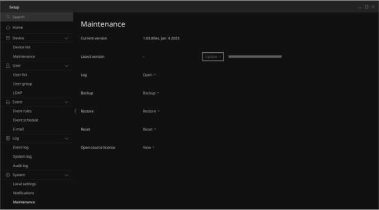
4.Wisenet Viewer closes, and the update commences.
Setting up the System | 189
.
.
Checking System logs
You can check the system folder where the Wisenet Viewer logs and administration files are retained.
If you have any system failures or errors with Wisenet Viewer, you will be asked to send this log folder to our customer contact center.
1.Select the button in the Function button panel.
2.When the Setup window is displayed, select System > Maintenance.
3.Select Open under Log when the Maintenance window appears.
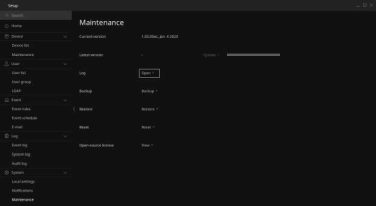
• You can check the system folder where the Wisenet Viewer logs and administration files are retained.
■ Configuring system log collection
You can set the system to collect the Wisenet Viewer program logs.
1.Select the button in the Function button panel.
2.When the Setup window is displayed, select System > Maintenance.
3.Select Open under Log when the Maintenance window appears.
4.Select the logs folder when the WisenetViewer Folder window appears.
(C:) > Users > Public > Documents > WisenetViewer >
190 I Wisenet Viewer User Manual
.
.
5. Open the log_settings.conf file in Notepad.

Setting up the System
|
Name
|
Date modi…
|
Type
|
Size
|
|
logs
|
2022-08-1…
|
File folder
|
.
|
|
J coreservice_settings.conf
|
2022-08-1…
|
CONF Ale
|
.
|
|
3 dashboard.sqlite
|
2022-08-1…
|
SQLITE File
|
.
|
|
J dashboard.sqlite-shm
|
2022-08-1…
|
SQLITE-SHM Ale
|
.
|
|
J dashboard.sqlite-wal
|
2022-08-1…
|
SQLITE-WAL Ale
|
.
|
|
j log.sql’rte
|
2022-08-1…
|
SQLITE File
|
.
|
6.Change the level of the [normal], [stat] items to debug and save the changes.
3 *log_settings.conf – Notepad — □
File Edit Format View Help
# pattern example : %T.%e | %5t | %6I | %!%v
it = = > 18:49:03.421 | 52712 | info | Stop QCoreServiceManager instance
It level : trace < debug < info < warning < error << critical, remark! trace level works on debug build. It size : log file max size (MB)
It files : log file count
It fileline : true or false to print source file information for debugging
it ConsoleO output enable, enable outputdebugstring for windows console_enable = false
It normal log file configuration normal]
□attern =2%D%T.%e | %5t | %6l | %!%v” evel =| “debug””] size = 50 files = 2 ileline = false
It statistics log file configuration stat]
aattern = W%T.%e | %5t | %6I | %!%v” evel ^ “debug”~| size = 50 files = 2 ileline = false
7.Restart Wisenet Viewer.
8.To collect logs for errors, you need to repeat the usage scenario where you experienced the error.
• To report an issue, please provide the following information:
–Description of the conditions of the issue in question
–The time when the issue in question occurred
–IP address, channel no., and name of the device where the issue in question occurred
• For clarity on the issue, please provide footage or screenshots that can help us understand the issue in question.
9.Once log collection is completed, please compress the WisenetViewer folder and send the compressed file to our customer contact center.
10.If log collection is done, change the level of the [normal], [stat] items to info and save the changes.
Setting up the System | 191
.
.
Backing up the System
You can save the saved devices, user info, layouts, and event rules in Wisenet Viewer as backup files. Kindly note that log information is not included in backup files.
1.Select the button in the Function button panel.
2.When the Setup window is displayed, select System > Maintenance.
3.If the Maintenance window appears, select Backup.
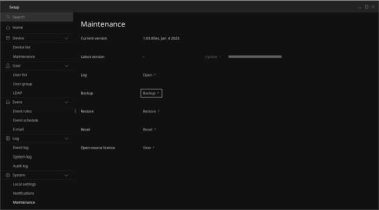
4.Designate the folder to save the backup file in and select the Select Folder button.
• The backup file is saved in .wdb format.
5.If a pop-up appears, select the Close button.
192 | Wisenet Viewer User Manual
.
.
Restoring the System
With the backup file saved on the PC, you can restore the setting information of Wisenet Viewer back to the point of the backup.
1.Select the button in the Function button panel.
2.When the Setup window is displayed, select System > Maintenance.
3.If the Maintenance window appears, select Restore.
Setting up the System
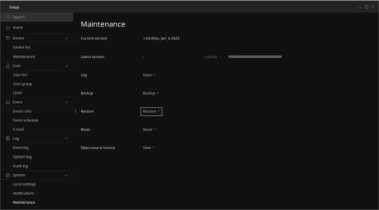
4.Choose the saved backup file and select the Open button.
• You can only apply the .wdb format for the backup file.
5.If a pop-up appears, select the Close button.
•If restoration is complete, the program will restart automatically.
NOTE
When you restart the Wisenet Viewer program after restoring the system, the following items will be initialized. Then, set it up again.
•Detailed items in Setup > System > Local settings
– Language
– Maximum live buffer length
– Media file folder
– Maximum recording time
– Recording file type
•Device login ID and password information used when registering the device
•ID and password information saved when automatically logging in to the Wisenet Viewer
Setting up the System | 193
.
.
Initializing the System
You can initialize to the initial setup of Wisenet Viewer.
1.Select the button in the Function button panel.
2.When the Setup window is displayed, select System > Maintenance.
3.If the Maintenance window appears, select Reset.
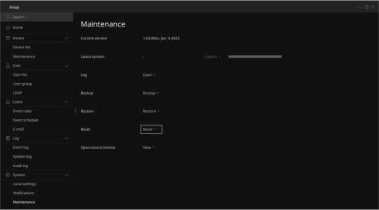
4.If a pop-up appears, select the OK button.
• If restoration is complete, the program will restart automatically.
Every setting information besides log will be initialized, so set up necessary items for enabling the program, such as setting administrator password or device registration.
194 | Wisenet Viewer User Manual
.
.
Troubleshooting
Troubleshooting
Troubleshooting | 195
.
.
196 | Wisenet Viewer User Manual
.
|
Problem Symptoms
|
Items to check and measures
|
|
The device is not connected.
|
Enter the IP and Port information that was entered during device registration in Wisenet Viewer into the web browser and check if the web browser opens normally.
•When connecting with http://IP, enter 80 (default port) in the Port item.
•When connecting with http://IP, enter 443 (default port) in the Port item.
To strengthen security, the Wisenet Viewer first connects with https if the device information is set in https.
•Some of the former recorder firmware may have passed the wrong https port number, disabling the connection to the device.
•Some of the former recorder firmware may not be connected with https, disabling the connection to the device.
|
|
It does not appear on the list when searching for a device.
|
Check whether the device list is displayed normally in the device manager.
• If the device list appears normally in the device manager but does not on Wisenet Viewer, check whether the execution permission is set No when first running the Wisnet Viewer program.
Check whether Wisenet Viewer is registered in the Windows firewall and is being blocked.
|
|
Wisenet Viewer’s detailed log history is required.
|
If a problem persists while using Wisenet Viewer and you need to contact the customer service center, collect and deliver the system log.
When the system log delivers the collected folder in a compressed file format to the customer service center, we can diagnose the problem precisely and help you solve the problem.
• For more information on system log collection, refer to Configuring system log collection (page 190).
|
|
What information is displayed when you press the button on the function button panel?
|
It will show the currently received frame rate. The frame rate displays the number of frames buffering for the video equivalence.
|
|
I want to play the recorded video by double clicking the event as soon as the event occurs on the event panel, but the video is not displayed.
|
It may vary depending on the platform of the recorder, but usually a recorder saves videos on an HDD when 2 Mbyte or 4 Mbyte capacity of data is accumulated. For videos with smaller amounts of data, the videos are saved on an HDD for up to 15 seconds.
The video can be played on the client when the data is saved on an HDD.
|
|
Are previous DVR models supported?
|
Wisenet Viewer is compatible with DVR and NVR products that support SUNAPI version 2.3.1 or above. The previous DVR does not support the SUNAPI protocol, hence they are not compatible with Wisenet Viewer.
However, if the previous DVR can support SUNAP 2.3.1 or above through firmware upgrades, then it is compatible with Wisenet Viewer.
|
|
Problem Symptoms
|
Items to check and measures
|
|
What information is being processed in Backup and Restore on the Settings Menu?
|
Bookmarks, channels, devices, event schedules, the device group, layout, user, user group, web-page information, event rules, and e-mails are backed up and restored.
|
|
What is the product ID on the screen of the manual registration device?
|
If you select DDNS/P2P when registering a device, you need to enter the device ID. It is the product ID registered on the DDNS site to establish a remote connection and is used when registering a device with DDNS.
|
|
I want to fix a slider control while playing the recorded video.
|
You can use the playback speed slider on a timeline when using fast forward. If you want to fix the playback rate, select the speed option of your choice from the combo box next to the playback speed slider.
|