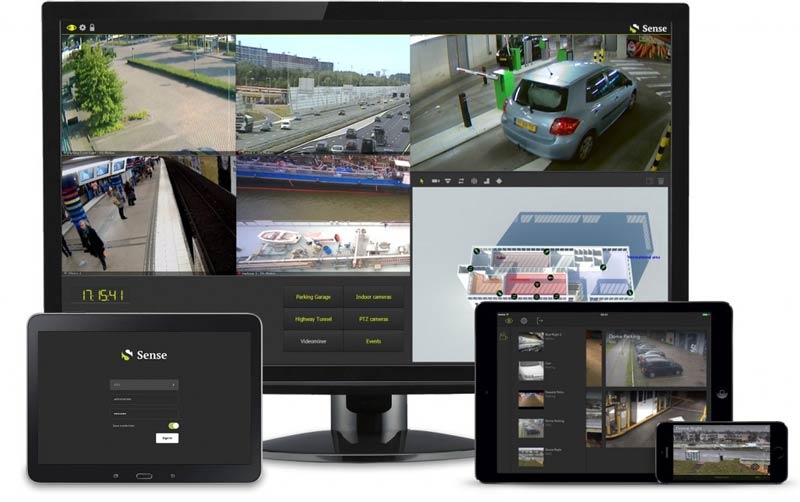
VDG Sense Quick Start Guide, The VDG Sense app makes it possible for anyone with a VDG Sense video security setup to access, view and control live images.
The VDG Sense app features:
– Add servers: add multiple VDG Sense servers to your app, making it incredibly easy to switch between servers and different sites.
– Select cameras: select your camera by swiping horizontally and vertically through camera locations. Recognize the video channel by thumbnail and camera name.
– View: view images full screen with one-tap zooming. Zoom in on any object by simply tapping the live video. View the next or previous camera by swiping horizontally.
– Control: control any PTZ enabled camera in VDG Sense directly, using the joystick control for pan/tilt and zooming in landscape position. Quick selection of the first six pre-sets available on your camera.
– Store: save any incident directly to your photo library by tapping on the image icon. Share the images by using your choice of any other app, such as your e-mail app or messaging app.
Chapter 1 – Introduction
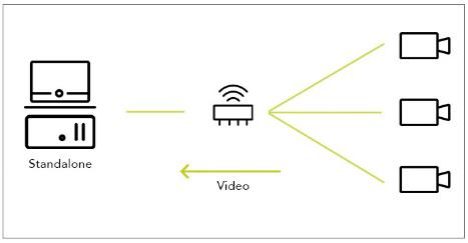
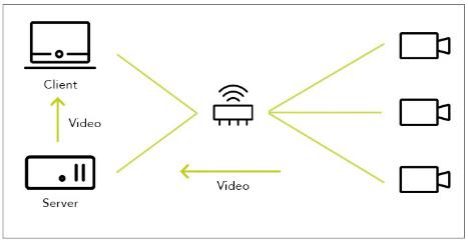
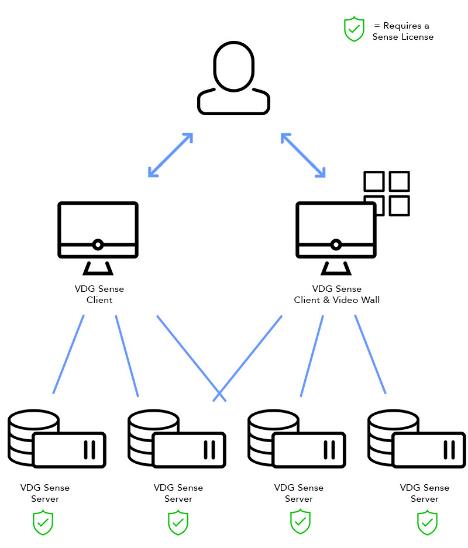
This manual explains all necessary steps to create a fully functional Sense installation in a relatively short time. It assumes a simple standalone or single-server, single-client setup where all components are configured and accessible via the network:
Sense Standalone installation:
Sense Server-Client installation:
Chapter 2 – Installation
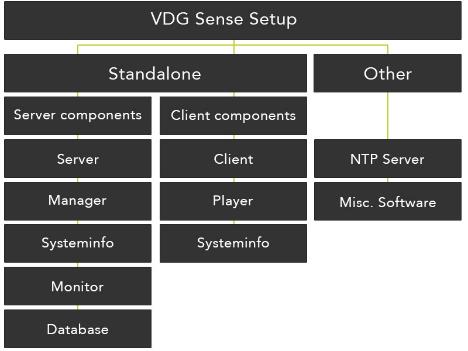
To install VDG sense the VDGSenseSetup.exe is required. It can be downloaded in the support section here: https://support.tkhsecurity.com/downloads/software/ website. It is a single executable installer which include all required components to install VDG Sense as server, client or standalone system. The diagram below shows the components of VDG Sense Setup.
2.1 Versioning
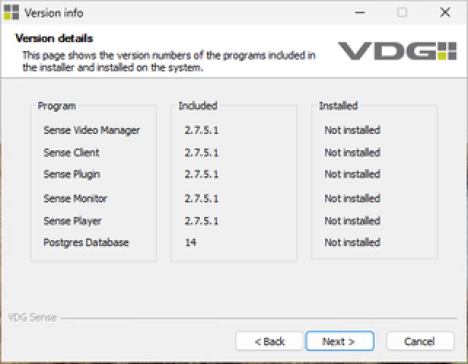
After starting the VDG Sense Setup the first page the version details page. It shows version information of all included and already installed Sense components.
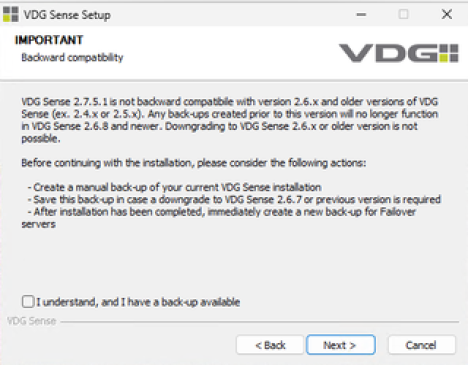
2.2 Standalone installation
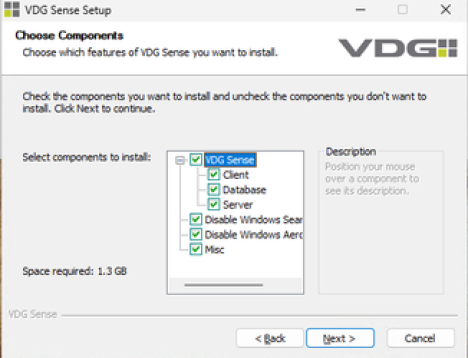
To install VDG Sense as standalone system check both ’Client’ and ’Server’ boxes. It will install the following Sense components:
2.3 Client installation
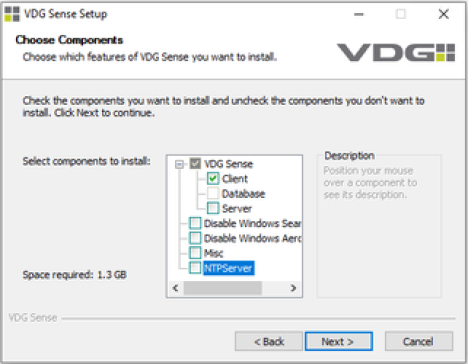
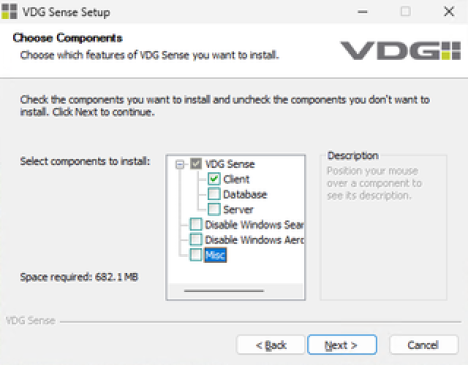
To install the VDG Sense client, only select the ’Client’ checkbox. It will install the following Sense components:
2.4 Update
The installation package VDG Sense Setup is also used to update VDG Sense to a newer (or lower) version. Use the same procedure as described in paragraph 2.2 and 2.3. IMPORTANT: an update will not remove the license or settings.
Note: Upgrading older VDG Sense versions to the latest VDG Sense version requires special attention to our upgrade instructions which can be found in our knowledgebase:
*Upgrading/Downgrading VDG Sense
Chapter 3 – Starting VDG Sense client
3.1 Signing in
Installing VDG Sense as client or standalone system will put a desktop icon with the name ‘Sense Client’. By double-clicking on ‘Sense Client’ the application will start and show the login dialog, see below.
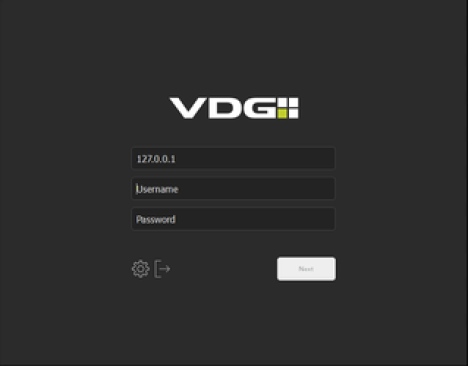
It contains the following items:
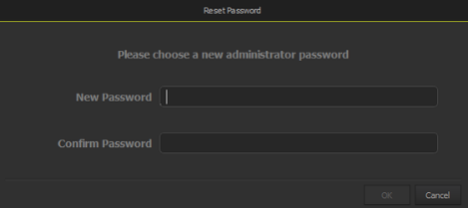
By default, a Sense administrator user is created. When logging in for the first time with this user, the password has to be changed.
Name: administrator
Password: on first login, type ‘!DVadmin’ to login. This will have to be changed immediately
3.2 Menu
After signin the main application starts by showing the top menu bar. If a user with administrator rights signs-in, no layout will be shown. If a normal user signs-in either the first layout in the layoutlist is shown or the multi-layout which is configured as default.
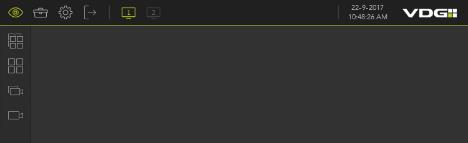
From left to right the top menubar functions are:
Chapter 4 – License
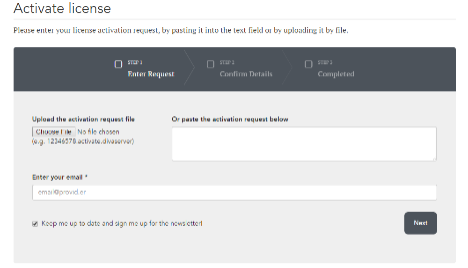
Sense is protected by a software license key. In order to use the product a software license file is required. A Sense license only needs to be applied to the ‘Sense Video Manager’. As ‘Sense Video Manager’ does not have a graphical user interface the license needs to be uploaded and activated using the ‘Sense Client’. The license key can either reside on the license USB stick or provided by e-mail.
4.1 Upload license
Activation is the process by which the software and license key are validated to ensure that they are used in accordance with the purchased license and services. Activation is intended to protect your end user rights as well as TKH Security’s rights as a software author. Only genuine Sense software entitles you to critical updates and technical support. You may not be able to use Sense software if it is not activated.
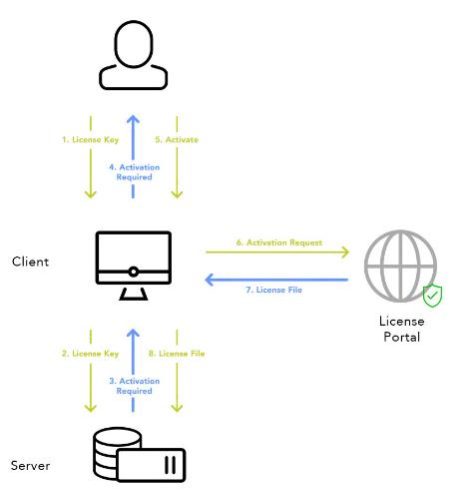
Requirements
Upload License key
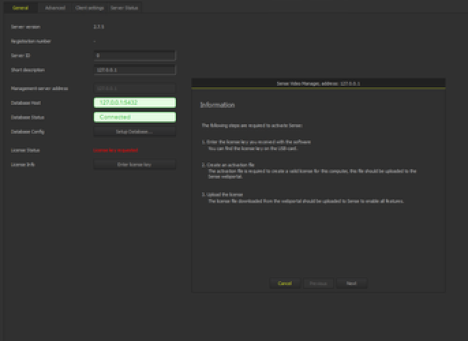
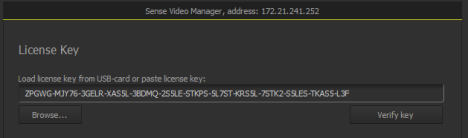
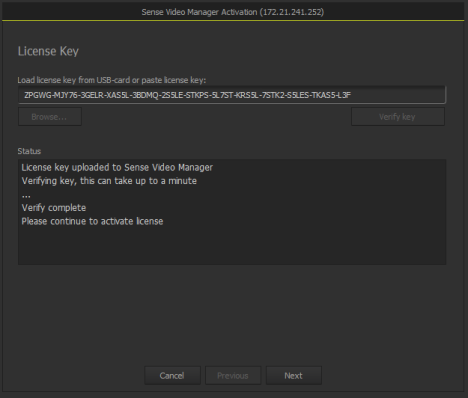
4.2 Activate license
4.2.1 Online activation
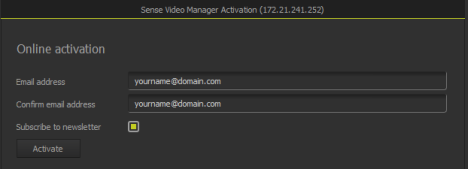
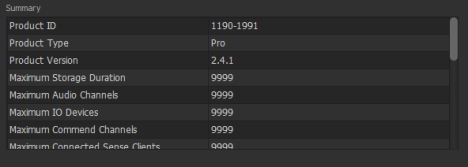
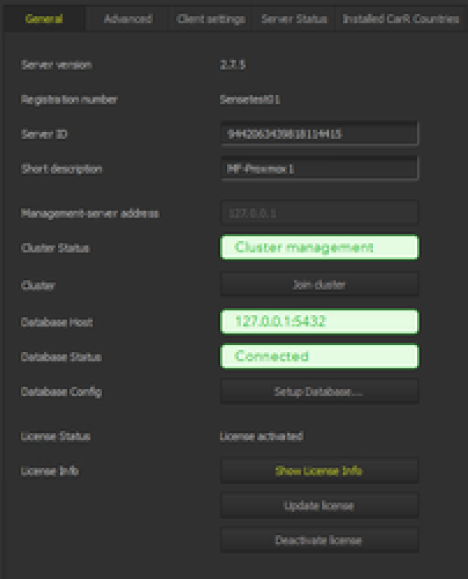
4.2.2 Offline activation
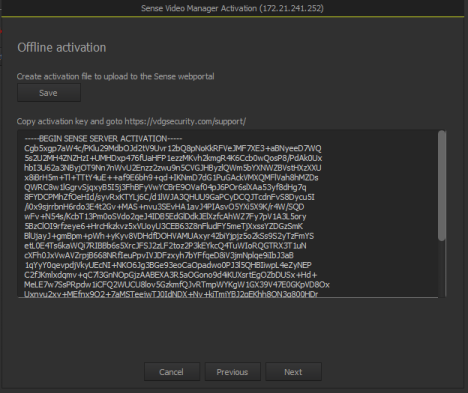
Create license file
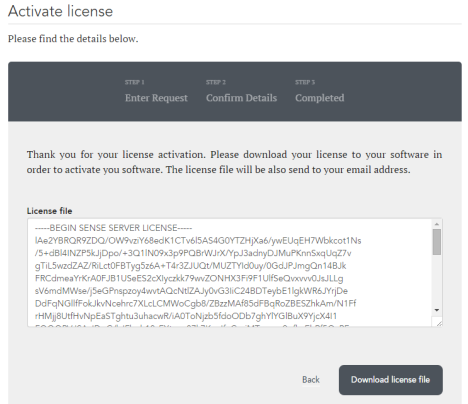
Save license file
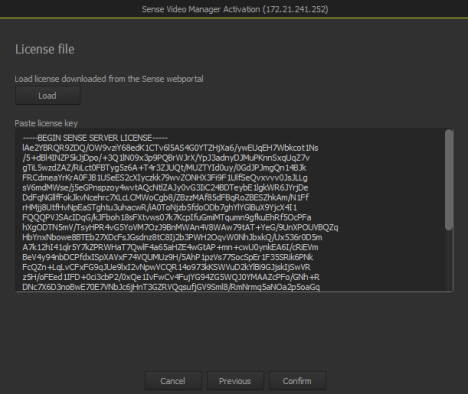
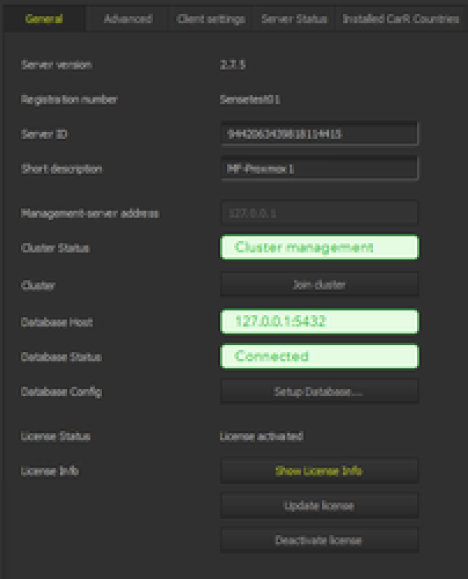
Chapter 5 – Configuration
Sense settings are visible after clicking the toolset icon in the topbar menu. Settings are grouped in tabs where each tab holds specific settings related to the name of the tab. Normal procedure to setup a Sense system is to work through the setup tabs from left to right, starting with the server tab and ending with user management. Configuration is normally done using the administrator account.
5.1 Servers
The server tab holds the list of servers and settings related to the selected server. From left to right you see the serverlist, the cameralist of the selected server, settings of the selected server and server statistics related to CPU, memory, network and harddisk load.
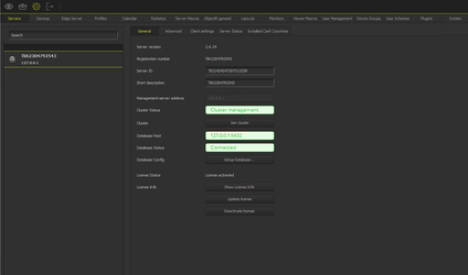
5.1.1 Add via find
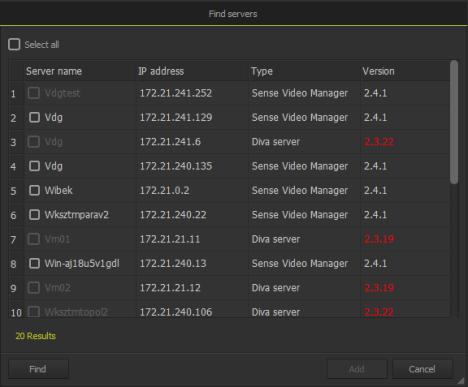
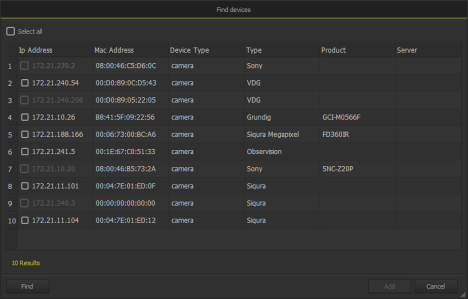
Click ’Find’ in the lower left corner of the screen to open the find dialog. After a few seconds it shows the list of all servers found in the local network on all NIC’s. Select the server(s) and click ’Add’ to add selected server(s) to the configuration and close the dialog.
5.1.2 Add manually
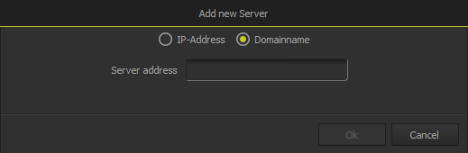
To add a server press ’+’ in the lower left corner of the screen. Enter the server address in the dialog which appears. On a standalone system the localhost server (127.0.0.1) is automatically added to the list. In a server-client configuration the server is also automatically added to the list after login.
5.2 Devices
A list of Sense-compatible devices can be found here: https://support.tkhsecurity.com/compatibility-list/camera/
The ’Devices’ tab contains the list and configuration of devices for the selected server. The server can be selected just below the ’Server’ tab.
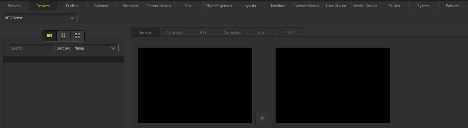
The devicelist has three sections which are from left to right:
The settings for each camera are divided into 4 sections which are from left to right:
5.2.1 Add via find
Click ’Find’ in the lower left corner of the screen to open the find dialog. After a few seconds it shows the list of all devices found in the local network on all NIC’s, including intercom servers and IO devices. Select one or more cameras and click ’Add’ to add selected devices to the configuration. It will also close the dialog.
5.2.2 Add manually
Click ’+’ in the lower left corner of the screen to add a new device to the list.
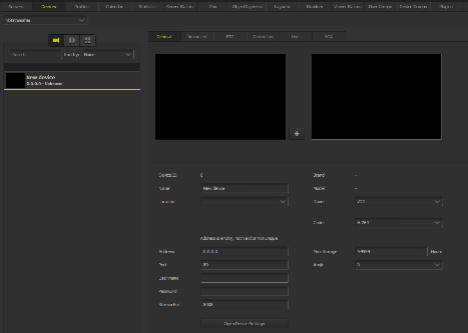
Fill in all required fields to connect to the device. See the list below for explanation on the fields.
After all configuration fields are configured correctly, click ’Apply’ in the lower right corner of the screen. After a few seconds you should be able to see a live video. If not please review the settings again.
5.3 Layouts
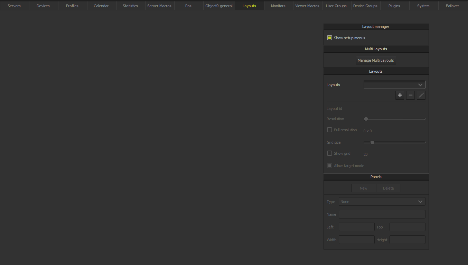
The ’Layouts’ tab is used to configure all (multi)layouts. Layouts are required in operator mode to display live or recorded video or to handle (video)events. They can be custom designed to fit the needs of the operator. The layout manager is a floating menu which is used to create, delete and modify (multi)layouts and panels.
A layout consists of panels where each panel has a specific function. For instance a panel can be used to display live video, recorded video, for playback controls, display a map or to manage events. The complete list of panel types can be found in the ’Type’ list in the panel section of the ’Layout Manager’.
5.3.1 Live layout
Click ’New’ in the ’Layouts’ menu of the ’Layout Manager’ to create a new layout. The following dialog will appear:
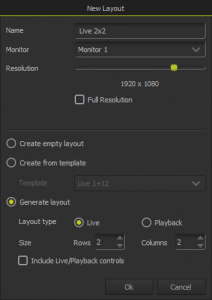
This dialog provides three ways of creating new layouts:
In this example we will be using the last option, select the ‘Live’ radio button and enter the value 2 for Rows and Columns to generate a 2×2 layout with live panels. Also enter a (unique) name in the edit field at the top of the dialog. By default the resolution of the layout is the resolution of the main monitor. Although layouts are resized to the monitor resolution on which the layout it displayed it is important to take into account the aspect ratio of the layout.
For instance a layout which is designed for a 1920/1080 resolution, which has an aspect ratio 16/9, should not be displayed on a monitor with a 1280/1024 resolution which has an aspect ratio of 4/3.
It is not necessary to check the full-resolution checkbox as this only applies to layouts which are displayed on a videowall or an encoder.
These settings should result in the following layout:
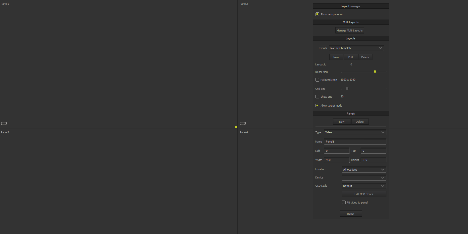
The icon in the lower left corner of each panel identifies the type of panel. A panel for live video uses a camera icon as identifier. After selecting a panel its properties are shown in ’Panels’ section of the Layout manager. To assign a deviceto the selected panel select the camera in the ’Device’ list of the panel properties.
5.3.2 Playback layout
Click ’New’ in the ’Layouts’ menu of the ’Layout Manager’ to create a new layout. The following dialog will appear:
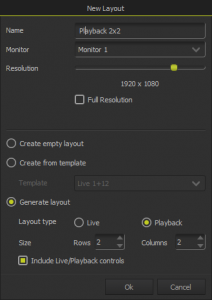
This dialog provides three ways of creating new layouts:
In this example we will be using the last option, select the ‘Playback’ radio button and enter the value 2 for Rows and Columns to generate a 2×2 layout with playback panels. It is recommended to enable the option ‘Incude Live/Playback controls’ as playback panels do not have the controls to playback video. Also enter a (unique) name in the edit field at the top of the dialog. By default the resolution of the layout is the resolution of the main monitor.
Although layouts are resized to the monitor resolution on which the layout it displayed it is important to take into account the aspect ratio of the layout. For instance a layout which is designed for a 1920/1080 resolution, which has an aspect ratio 16/9, should not be displayed on a monitor with a 1280/1024 resolution which has an aspect ratio of 4/3.
It is not necessarry to check the full-resolution checkbox as this only applies to layouts which are displayed on a videowall or an encoder.
These settings should result in the following layout:
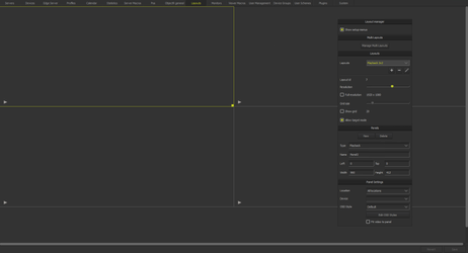
This layout is composed of 4 playback-panels in the upper half of the layout and controls to actually playback recorded video in the lower half of the layout. The panel to display recorded video uses a triangle icon as identifier. To assign a camera to the selected panel select the camera in the ’Devices’ list of the panel properties.
5.3.3 Multi layout
A ’Multi Layout’ is a group of layouts with a pre-defined monitor selection. It is used to quickly assign several layouts at once to different monitors. They are also used to define the default layouts to be displayed based on which user logs in. User Management is explained in the next paragraph. To create a multi-layout click ’Edit’ in the ’Multi-Layout’ menu of the layout manager, a dialog will appear:
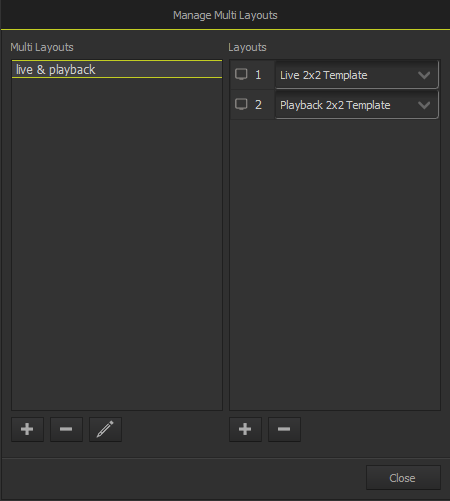
On the left side of the dialog is the list of multi layouts. Multi layouts can be added, removed or edited by using the buttons below the list of ’Multi layouts’. On the right side of the dialog is the list of monitors which belong to the selected multi layout. Monitors can be added or removed using the buttons below the ’Layouts’ list. The monitor numbering corresponds to the monitor numbering in the ’Monitors’ tab and in the top menu bar. To assign a layout to a monitor, select one from the list of layouts next to the monitor icon.
NOTE: a layout only can be assigned once per multi layout. When finished click ’Close’ to close the dialog.
5.4 User Management
Sense User Management provides the administrator with the ability to control the access level of users logged in to Sense. Access to cameras, servers, layouts and several other functions can be limited to groups of users. In Sense this is called a ’User Group’, it holds the privileges of users assigned to the group.
5.4.1 Users & Groups
The Users & Groups is used to manage all user related settings in Sense. On the left side of the screen is the list of user groups. User groups can be added, removed or modified using the buttons below this list user groups. On the right side of the screen are the privileges which can be assigned to the groups, divided by subtabs.
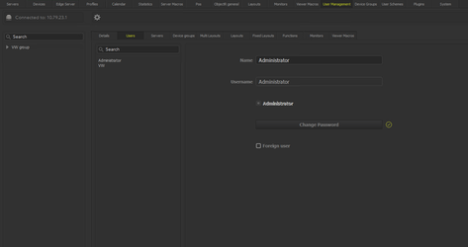
Click the ’+’ button at the bottom below the group list to add a user group, a dialog will appear where the name of the user group can be entered. Click ’Ok’ in the dialog to create the group and close the dialog.
Create User:
Click ’+’ below the ’Users’ list in the users subtab to create a user. A dialog appears where the name, username and password of the user can be entered.
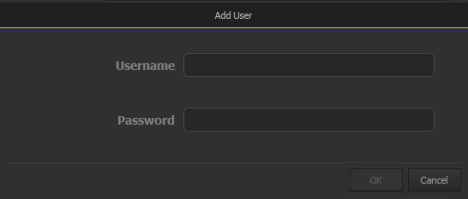
Create Devicegroups:
A devicegroup can be used to define which cameras a user is allowed to see. Open tab ’Device groups’ to create a device group. On the left side is the list of created device groups. Using the buttons below the list devicegroups can be added, removed or edited. On the right side is the list of cameras.
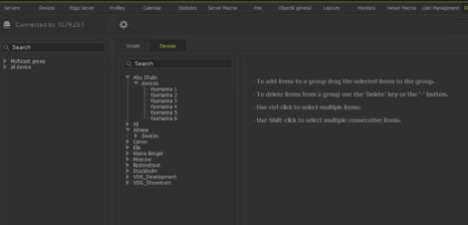
Click ’+’ below the ’Device group’ list to create a devicegroup. A dialog appears where the name of the device group can be entered. Use a meaningful name, like ’All cameras’. Click ’Ok’ to close the dialog and add the device group to the list. Drag and drop the cameras from the cameralist on the right to one of the device groups on the left.
Assigning privileges:
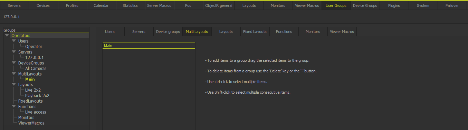
If all users, layouts, multilayouts, servers and devicegroups are created, they can be drag and dropped to the corresponding usergroup. To remove a privileges select the it in the usergroup and Click ’-’ below the grouplist or press the ‘Delete’ button on your keyboard.
As an example, the steps to create a usergroup called Operators should look like this:
Repeat the drag and drop action for the other tabs as well to give the usergroup permission to
End result:
The end result could look like this:
5.4.2 Configure Autologin
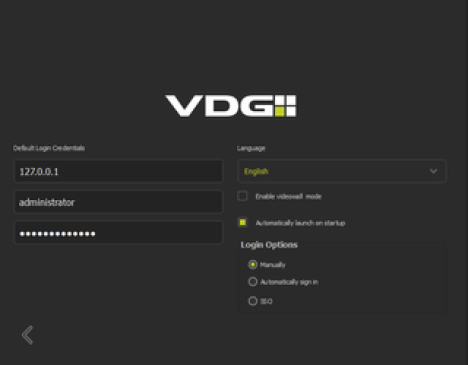
Sense Client can be configured to launch automatically on Windows startup after windows login and to automatically sign in to a Sense Server. Click on the gear wheel in the lower left corner of the dialog to open the settings.
On the left side of the screen the default server, username and password can be entered. On the right side the program language, videowall mode and the automatic startup/sign-in option can be selected. In normal operation the videowall mode does not need to be selected and is beyond the scope of this guide.
Chapter 6 – Operation
Click following link to see the video manual: https://support.tkhsecurity.com/downloads/manuals/
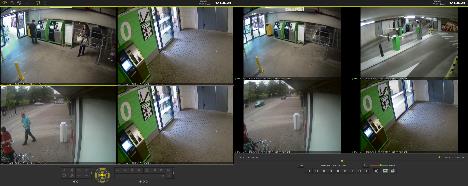
Live mode or ’Home’ is accessed by clicking on the ’Eye’ icon on the upper left corner of the screen of the first monitor. This icon is also used to open the menu where Layouts can be selected. See below for a screenshot of a multi-monitor setup. The left monitor shows a layout with live cameras and the right monitor shows a layout for playback. These are the layouts which are created in ’Setup’ mode.
6.1 Live Menu
The Live menu is accessed by clicking on the ’Eye’ icon on the upper left corner of the screen of the first monitor.
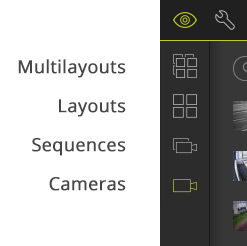
It contains the following items:
Multi Layouts: Contains all multi-layouts available for the currently logged in user. Selecting a multilayout will update all monitors which are configured in this multi-layout.
Layouts: Contains all layouts available for the currently logged in user. Selecting a layout will update the currently selected monitor with this layout.
Cameras: Contains all cameras available for the currently logged in user sub-grouped by location names. The subgroup ’All locations’ contains all cameras. Selecting a camera will update the currently selected videopanel in the layout.
Camera Sequences: Contains camera sequences for the currently logged in user.
.
6.2 Tools Menu
The tools menu is accessed by clicking on the ’Toolbox’ icon on the upper left corner of the screen of the first monitor.
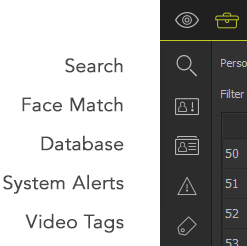
It contains the following items:
Search, provides functions to search for events and meta data.
Face Match, eventlist for use with FaceR algorithms.
Database, maintains person list for use with CarR and FaceR algorithms. FaceR and CarR are available if included in the license.
System Alerts: Opens the System Alerts dialog
Video Tags: Opens the Video Tag dialog
6.3 Live
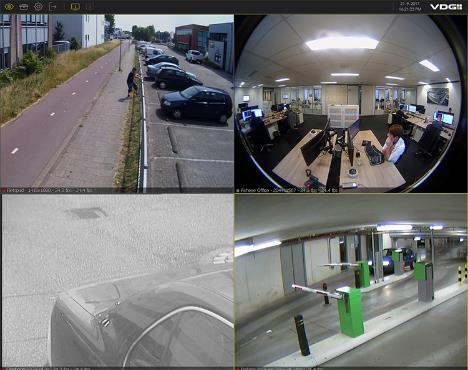
This layout contains 4 live panels where each panel has the following features:
6.3.1 PTZ controls
The live control panel is needed to control PTZ domes. This panel can be pre-configured in a layout, but it will also automatically appear after double-clicking on a videopanel with a PTZ device; the camera will be displayed in fullscreen mode including the dome controls. PTZ commands are sent to the camera which is currently selected (which has a green border).
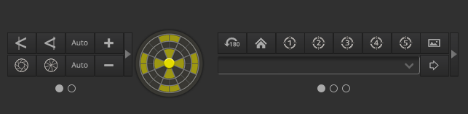
To pan and tilt a ptz camera hold the left mouse button and move the cursor over the orange dial. The speed of the dome is determined by the cursor-distance from the center of the dial; close to the center the speed is low, on the outside the speed is high. The buttons have the following functions:
 |
Focus near. |
 |
Focus far. |
 |
Switch auto focus/auto iris on. |
 |
Zoom in. |
 |
Zoom out. |
 |
Open iris. |
 |
Close iris. |
 |
Go to preset ‘Home’. |
 |
Go to preset 1. |
 |
Rotate 180 degrees. |
 |
Save the current position of the dome as a preset. |
 |
Go to the selected preset in the list. |
 |
Opens the preset dialog to give each preset a name. |
6.4 Playback
Below is an example of a playback layout that has been created for an operator.

This layout contains 4 playback panels and playback controls where each panel has the following features:
Select a different camera
Pick a camera from the cameralist and drag it into a playbackpanel. If the panel stays black or doesn’t change, press the playback button.
Alternatively, it’s possible to first click on a playback panel, and it will get the yellow focus ring. After that, if a camera from the cameralist is selected it will be displayed in this panel. 
Fullscreen
Double click on a panel to go to fullscreen playback or to display a camera on a designated target panel. Double click again to return the previous layout.
6.4.1 Playback control options
For creating a playback layout, it is needed to create a layout that contains one or multiple panels of the type ‘Playback’ and a control panel to start/stop the playback. There are two types of playback controls available. By default when creating a playback layout or when switching to fullscreen playback, the timeline panel is used.
Option 1: Timeline panel (Preferred)

The red line indicates what the current time/date is of the playbacked recording and thumbnails of the recordings are visible. Also motion detection (if enabled for this camera) is shown in yellow.
 |
Playback backwards. For streaming codec video only I-Frames are played back. |
 |
Stop playback. |
 |
Playback forward. |
 |
Opens the export image dialog, explained in section 6.3.3 on exporting images. |
 |
Quick option to go to a specific date |
 |
Motion detection |
 |
Option to visualize motion detection, vca events or audio on the timeline panel |
Option 2: Alternatively, there is the playback controls panel as a legacy option with the more classic control buttons and slider.

The Playback controls panel is needed to playback recorded video. It has two trackbars where the top bar has a resolution in days and the lower trackbar has a resolution of 24 hours (of the selected day). The playback speed is set by the ’red-green’ trackbar; red is backwards, green is forwards. The date and time on the left and right side of the trackbars correspond to the first and last recorded video image of the cameras which are visible in the layout. From left to right the function of the buttons are as follows:
 |
Go to the beginning of the recordings of the cameras visible in the layout. |
 |
One minute backwards |
 |
One frame backwards. |
 |
Playback backwards. For streaming codec video only I-Frames are played back. |
 |
Stop playback. |
 |
Playback forward. |
 |
One frame forwards. |
 |
One minute forwards. |
 |
Go to the end of the recordings of the cameras visible in the layout. |
 |
Opens the date time search panel. |
 |
Set export range, explained in section 6.3.2 on exporting video. |
 |
Enable audio playback and set playback speed to realtime (panel should be selected to hear the audio). |
 |
Opens the export image dialog, explained in section 6.3.3 on exporting images. |
 |
Opens the export video dialog, explained in section 6.3.2 on exporting images. |
6.4.2 Export Video
Recorded video (and audio) can be exported to different media: CD/DVD, hard drive, USB stick or network share. A single export can hold video of multiple devices from multiple servers in the same time range. The video itself is exported in Sense format, it is not transcoded to a generic codec. The export comes with a program called ’Sense Player’ which is used to playback exported video. To open the ’Export Video’ dialog press the export video button in ’Playback Controls’.

There are three ways to define the time-range of an export; The easiest option is the timeline:
Timerange using timeline:
Click on the time indicator and hold the mousebutton to select the timerange. This timerange can be changed dynamically, it can be moved, enlarged or shrinked to fit the timerange you wish to export.
After selecting a time windows, the Export image icon will change into a movie export icon (see image below)

Other options are using the playback controls trackbar or using the start/endtime edit box in the video export dialog:
Timerange using trackbar:
Click ’E’ in the playback controls panel, three buttons appear: ’Start’, ’Clear’ and ’Stop’. Set the thumb-tracker to the starting point of the video that needs to be exported and click ’Start’. Set the thumb tracker to the end point of the video that needs to be exported and press ’Stop’. The time range is highlighted in green. To clear the selection and start over click ’Clear’. After defining the range open the video export dialog. The camera(panel) which has focus will automatically be added to the list of export cameras. The begin and end time are also set automatically.

Timerange using dialog:
Video can also be exported manually without using the trackbar to define the time range. When opening the export video dialog it will use the current playback time (position of thumbtracker) and set the start time with current time minus 5 minutes and end time to current time plus 5 minutes. The camera(panel) which has focus will automatically be added to the list of export cameras.
6.4.3 Export Image
Single images or snapshots can be exported from recorded video to a PDF document which can be stored to any windows storage location (like a USB stick). The PDF report contains information about the exported image and comments which can be entered in the Export Image dialog. To create a report select the playback panel with the image that should be exported and click the ’Disk’ button in the ’Playback Controls’ (see section 6.3.1 on playback controls), it will open the dialog as shown below: