Step Five:Click 【Next】,see Figure 2-4:
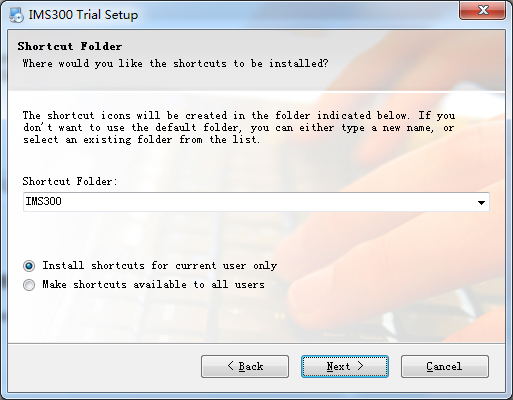
Figure 2-4
Step Six:Click【Next】, see Figure 2-5:
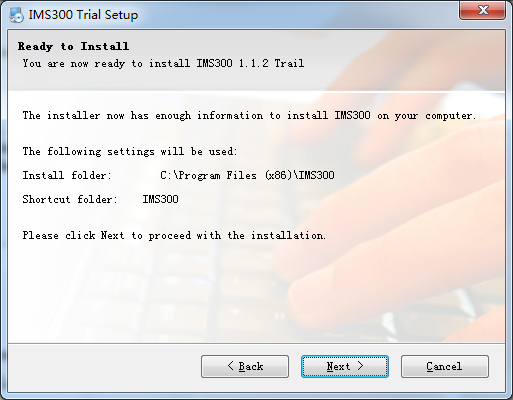
Figure 2-5
Step 7: Being installed files, please wait. see figure 2-6:
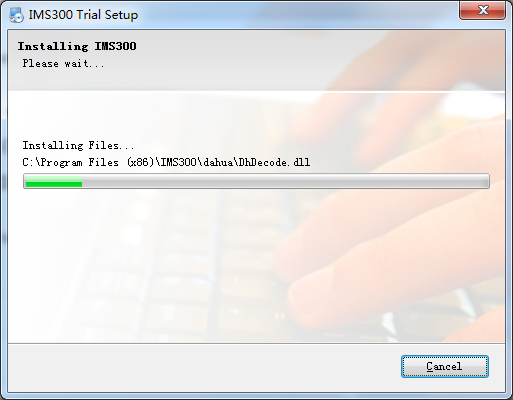
Figure 2-6
Step 8:Click [Finish],the installation is complete. As shown in figure 2-7:
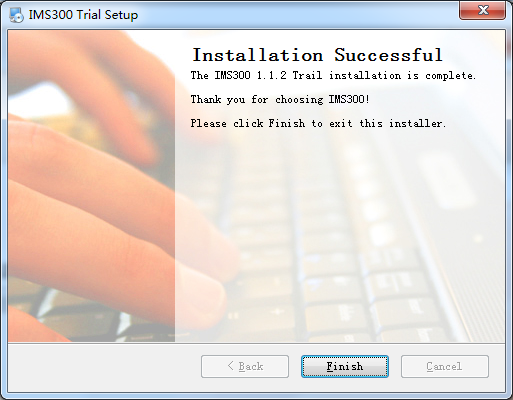
Figure 2-7
IMS300 SURVEILLANCE SYSTEM USER MANUAL
Read Next : iVMS320 Installation and User Guide
Double-clickto run it,open login page, as shown in figure 3-1. Input Username and password, Click【Login】to log into the client.

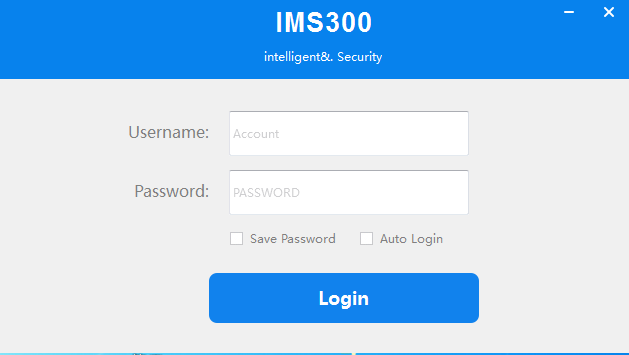
Figure 3-1 The client login
Check【Save password】and 【Auto login】, it will log in current user next time by default.
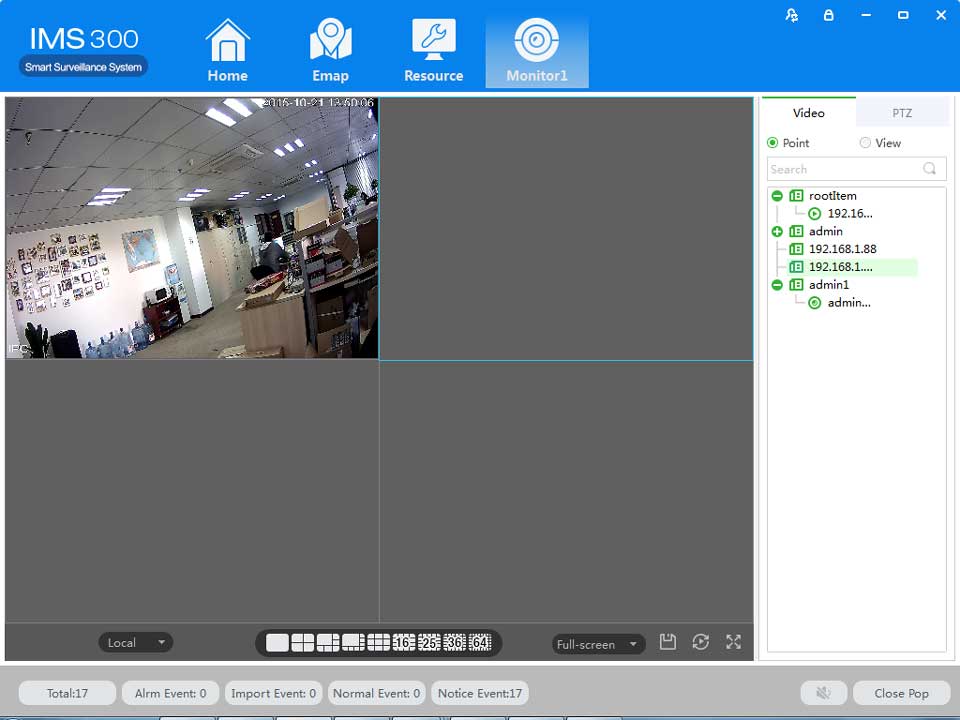
Clients homepage as shown in figure 2-6, it can be divided into sub-window area, business logic, alarm statistics, tool sets, alarm event.
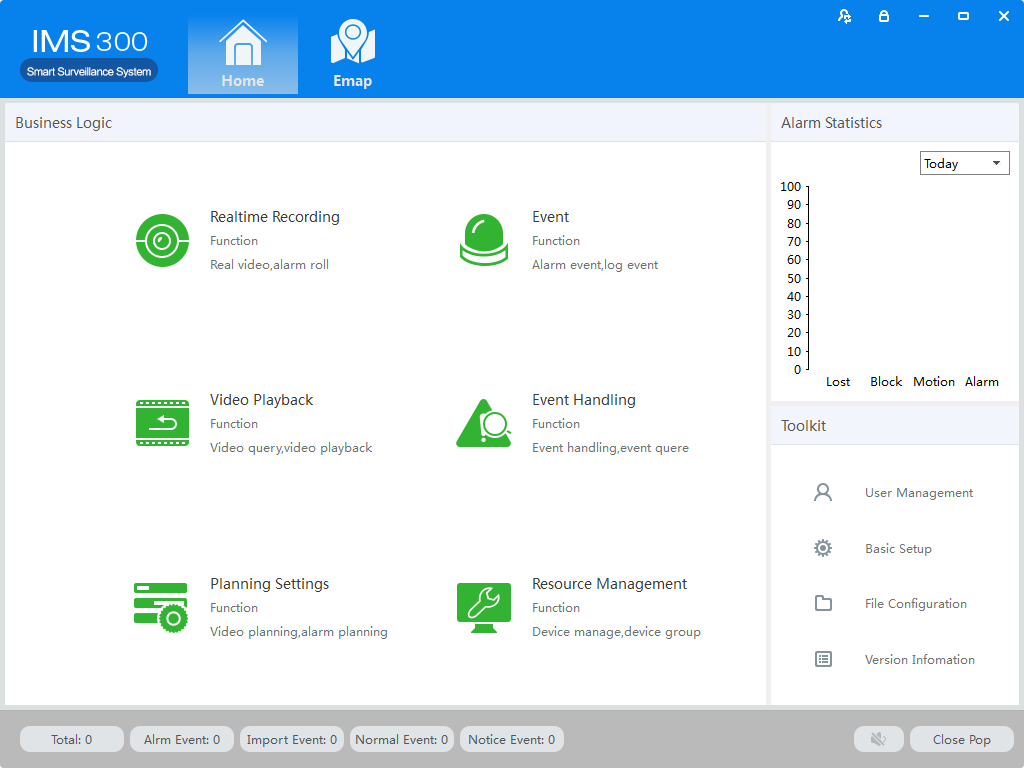
Figure 3-2 Clients homepage


For the first time using the software, it is needed to add a device. Device online column shows all online device of current LAN.
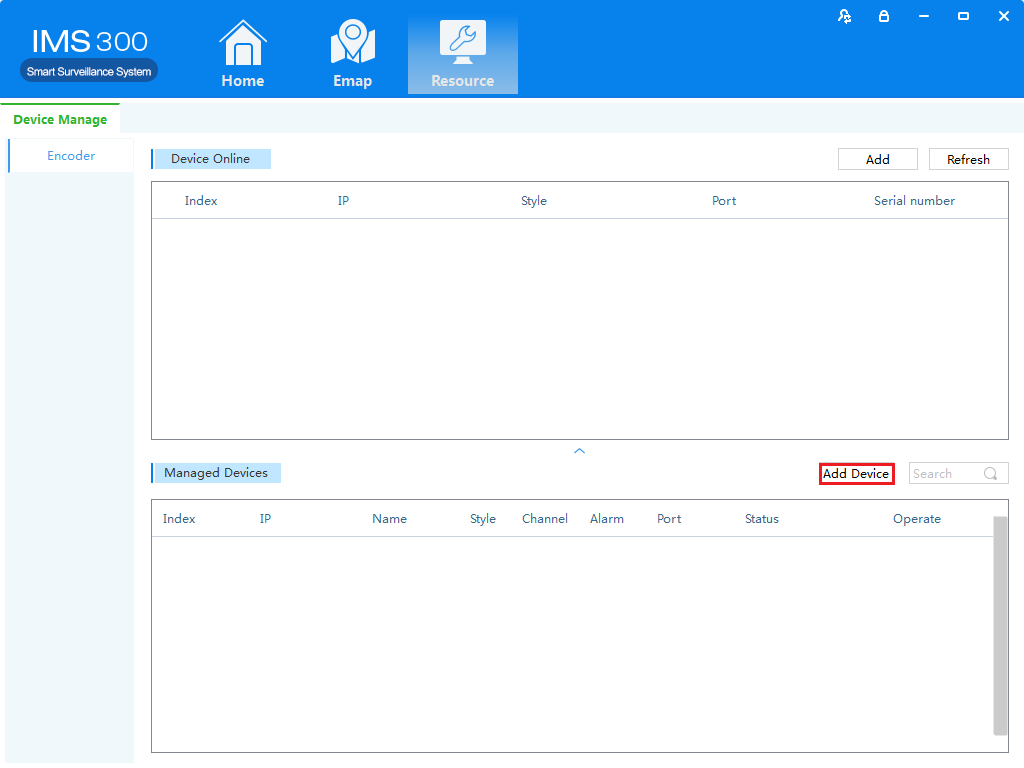
Method 1:(1)Click【Resource Management】→【Add Device】, As shown in figure 3-3:
FFifFigure 3-3 Resource Management
(2)Complete device information,then click【Save and Continue】or【Save】,then can see the device in the Managed Devices column.see “Figure 3-4”:
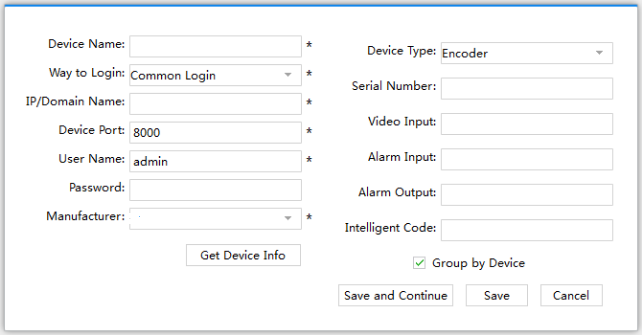
Figure 3-4 Decive Information
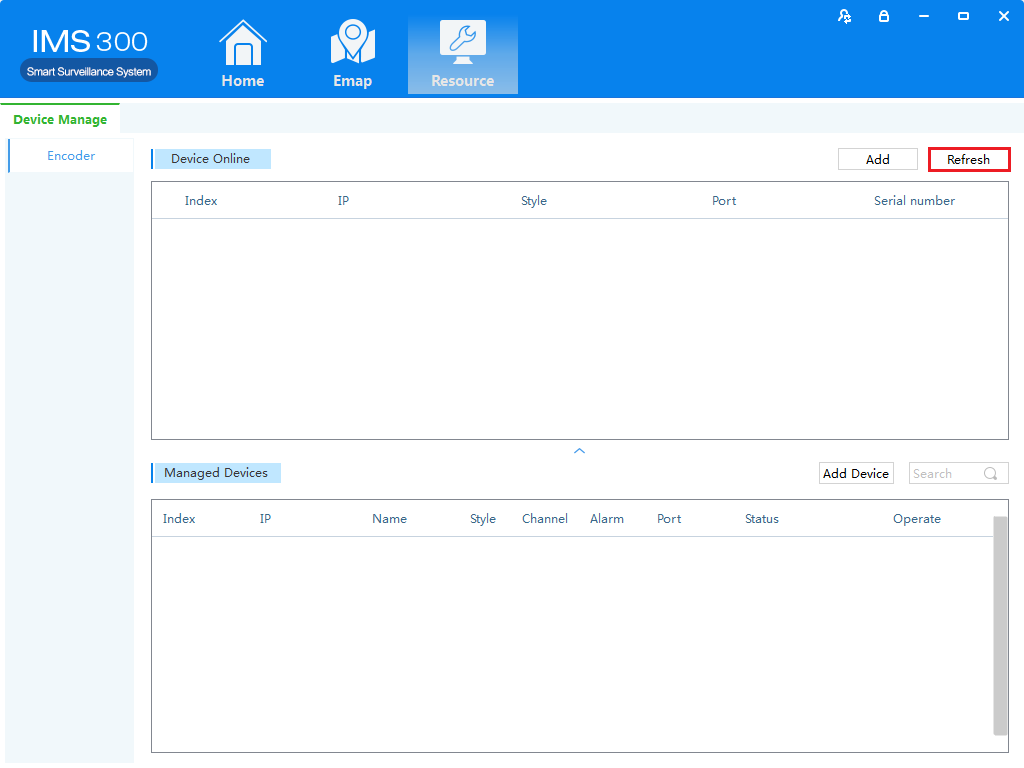
Method two:(1)Click【Resource】→【Refresh】, see “Figure 3-5”:
Figure 3-5 Managed Devices
(2)Complete the previous operation, the online device will show in the Device Online,select device you wanna to add,then click【Add】, you will see added device in the Managed Devices,see “Figure 3-6”:
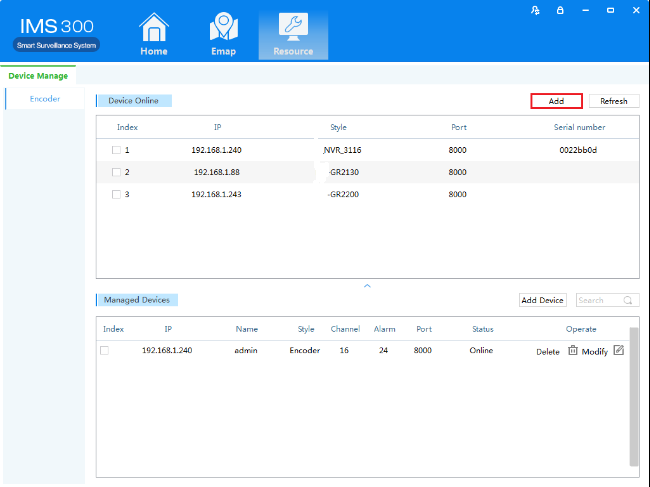
Figure 3-6 Managed Devices
In[Managed Devices]choose the added device,then click ,can delect the device.

In[Managed Devices]choose the added device,then click,can modify the device.see figure 3-7:

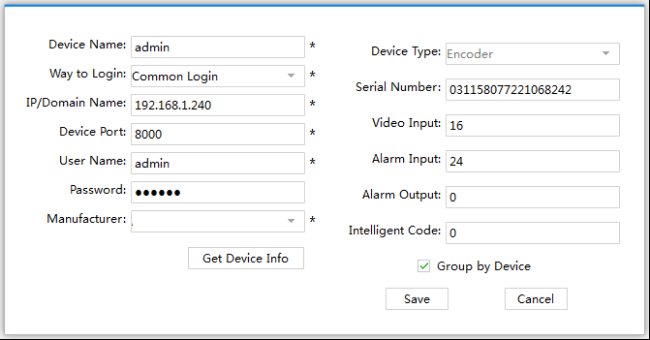
Figure 3-7 Add the device’s network parameter
On this interface, user can change the device’s parameter, like device’s name, login type, device IP, device port, username, password and manufacturer etc. Then input administrator’s password, and click Save to finish the parameter adding.